|
Unsorting the Records
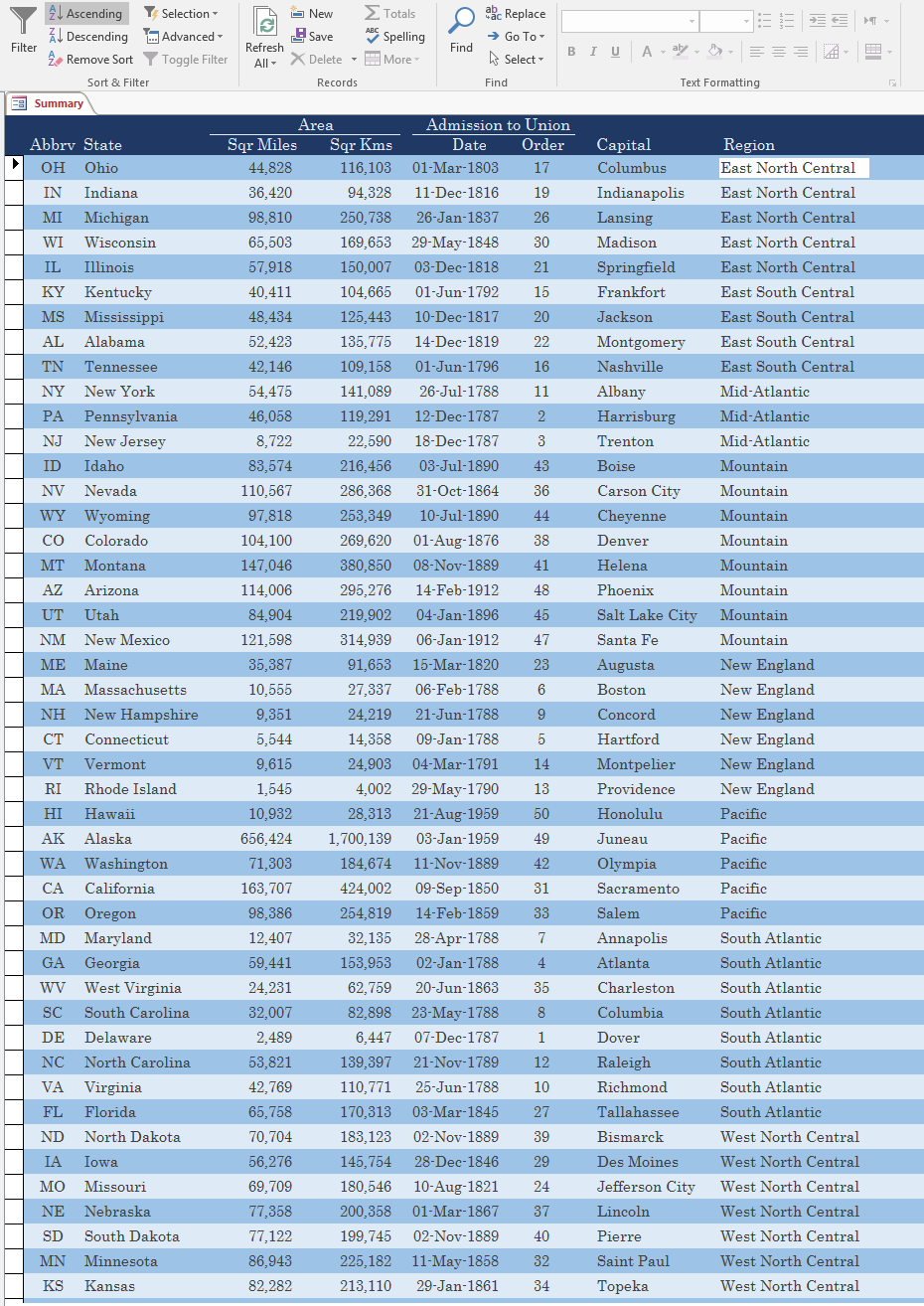
When you have finished sorting the records, you may want to reset the list before continuing
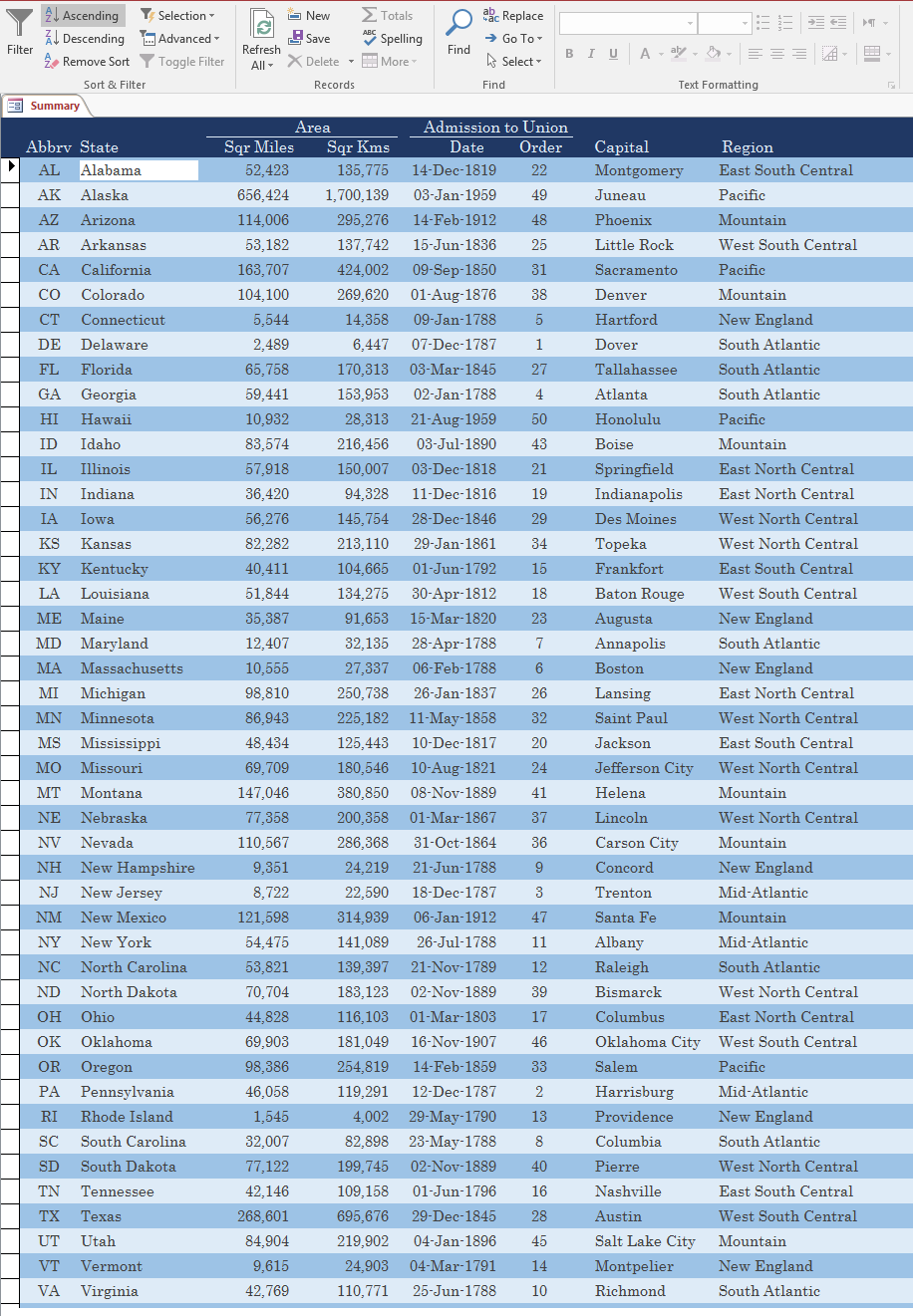
with the next operation. To assis you with this, the Sort & Filter section of the Ribbon is equipped with
the Remove Sort button  . .
To put the list back in the sequence it previously had:
- In the Sort & Filter section of the Ribbon, click the Remove Sort button
- Right-click the query or form and click Remove Sort
 Practical
Learning: Dismissing the Sorting Operation Practical
Learning: Dismissing the Sorting Operation
- In the Sort & Filter section of the Ribbon, click the Remove Sort button

- Right-click any cell below Region and click Sort A to Z
- In the Sort & Filter section of the Ribbon, click the Remove Sort button
- Click any cell below Capital
- In the Sort & Filter section of the Ribbon, click the Ascending button

- In the Sort & Filter section of the Ribbon, click the Remove Sort button
- Close the table
- When asked whether you want to save, click No
Sorting Records in Descending Order
Besides the regular arrangement of records, you can also sort records in reverse alphabetical,
incremental, or chronological. To do this:
- On the table, query, or form in Datasheet View:
- Click the down-pointing button on the right side of the column header and click Sort Z to A
- Click a cell in the column of your choice. In the Sort & Filter section
of the Ribbon, click Descending

- Right-click a cell in the column of your choice and click Sort Z to A
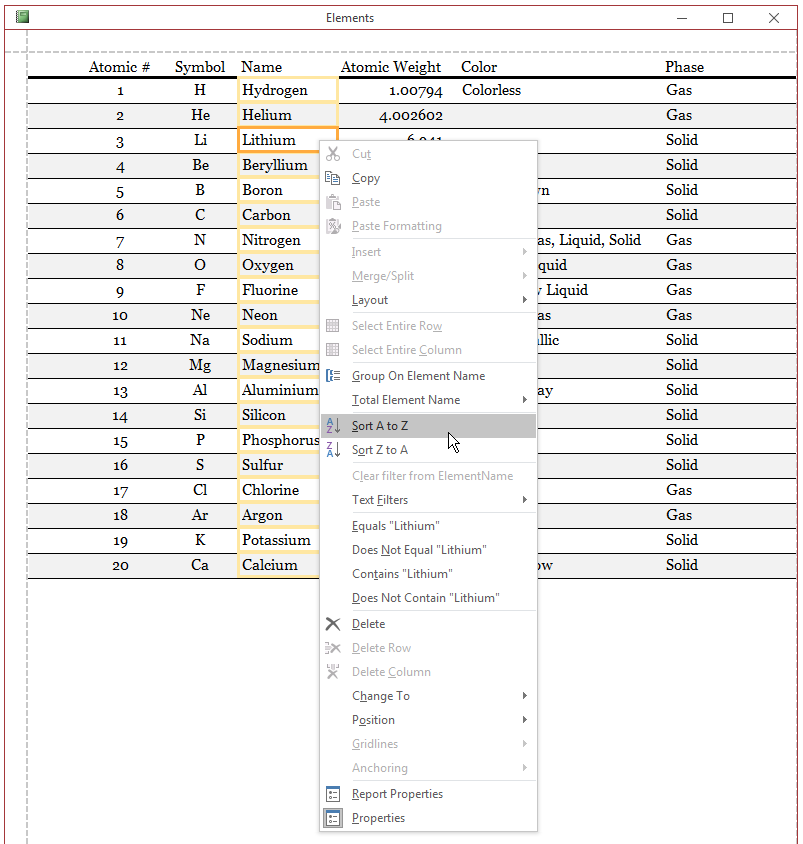
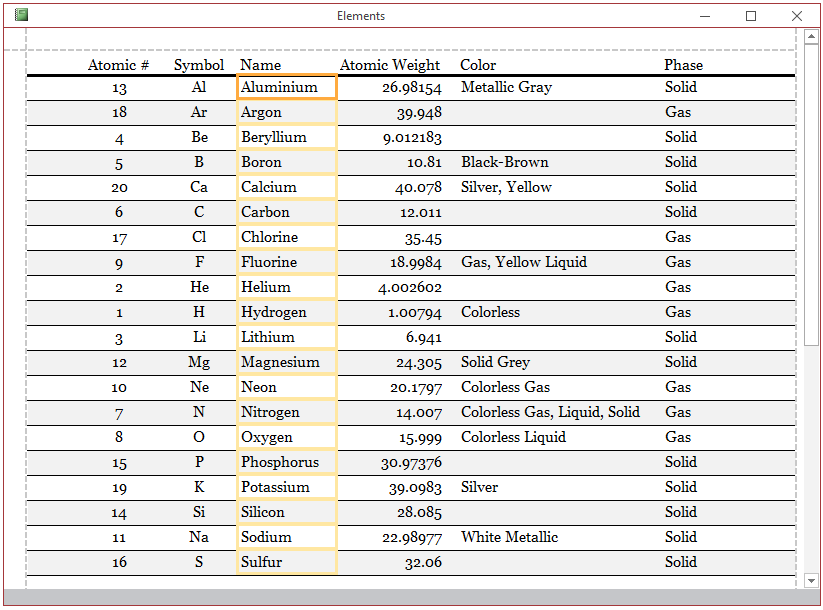
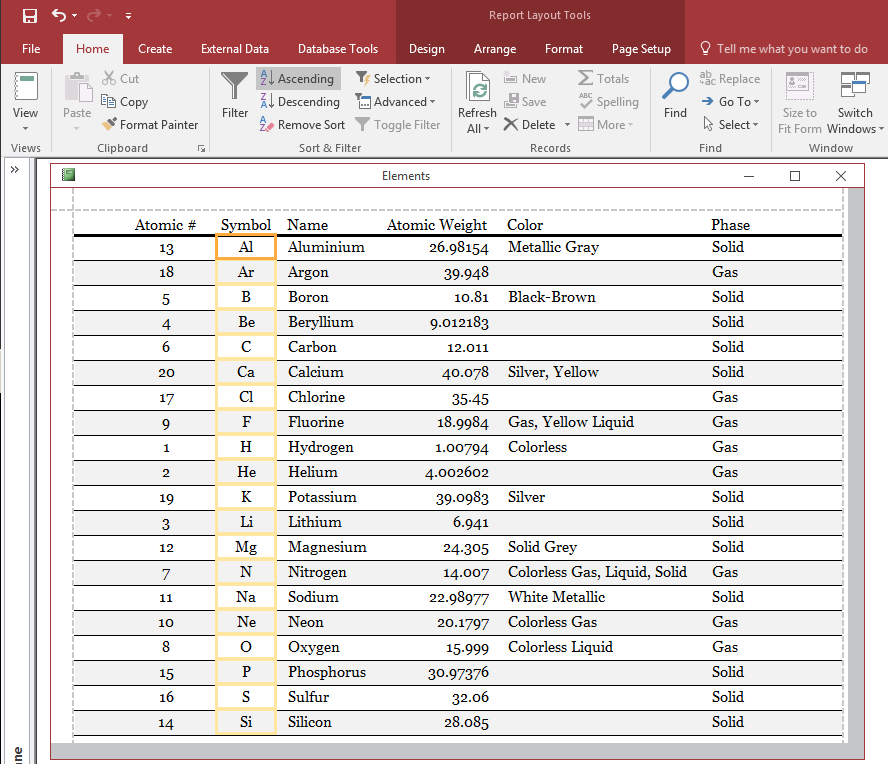
- On the form in a view other that Design View or a report in Layout View:
- Click the text box or the control (such as a combo box) of your choice. In the Sort & Filter section
of the Ribbon, click Descending
- Right-click the text box or the control (such as a combo box) of your choice and click Sort Z to A

Practical
Learning: Sorting Records in Descending Order
- In the Navigation Pane, double-click the States table
- Click the down-pointing button on the right side of State and click Sort A to Z


- Click the down-pointing button on the right side of State and click Sort Z to A
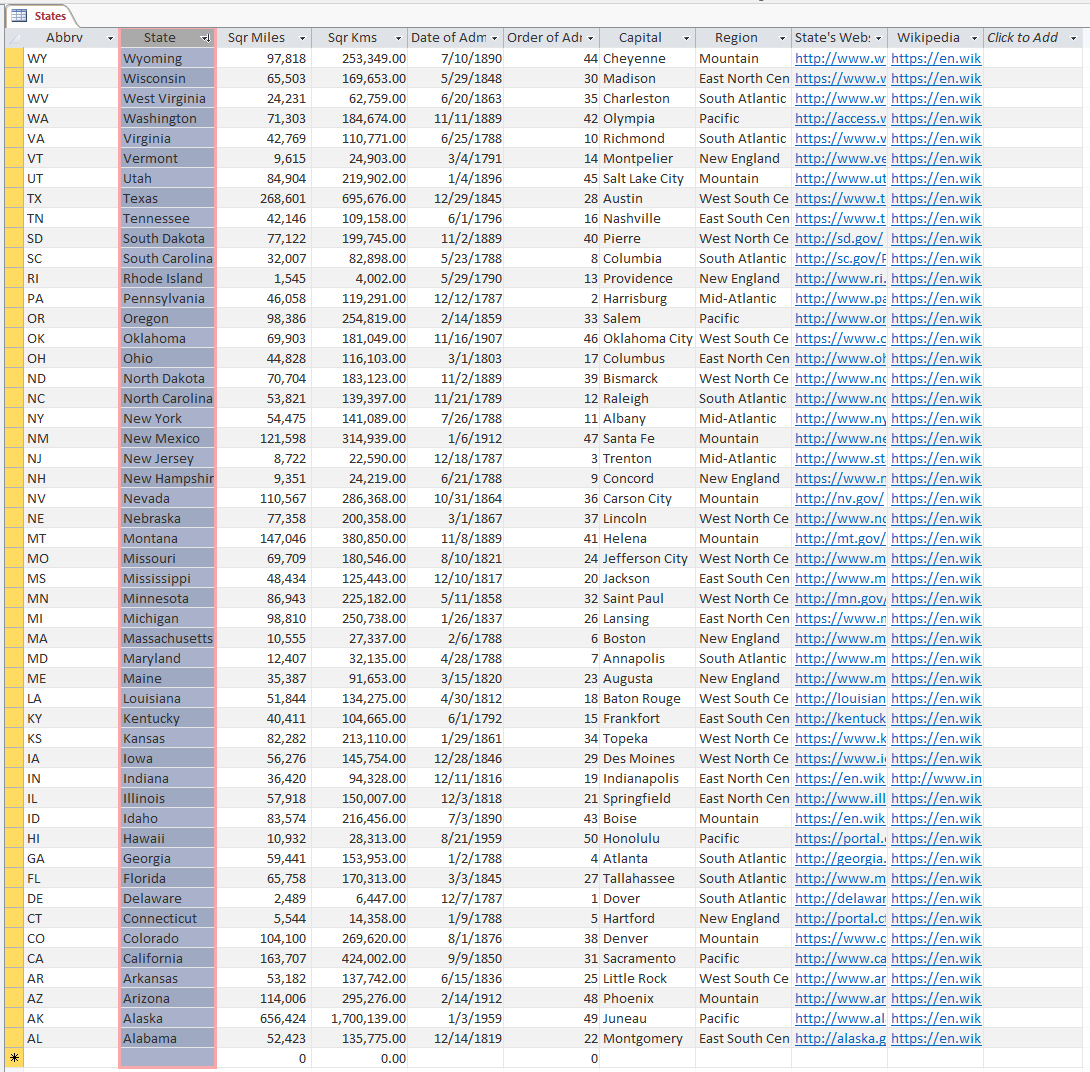
- In the Sort & Filter section of the Ribbon, click the Remove Sort button
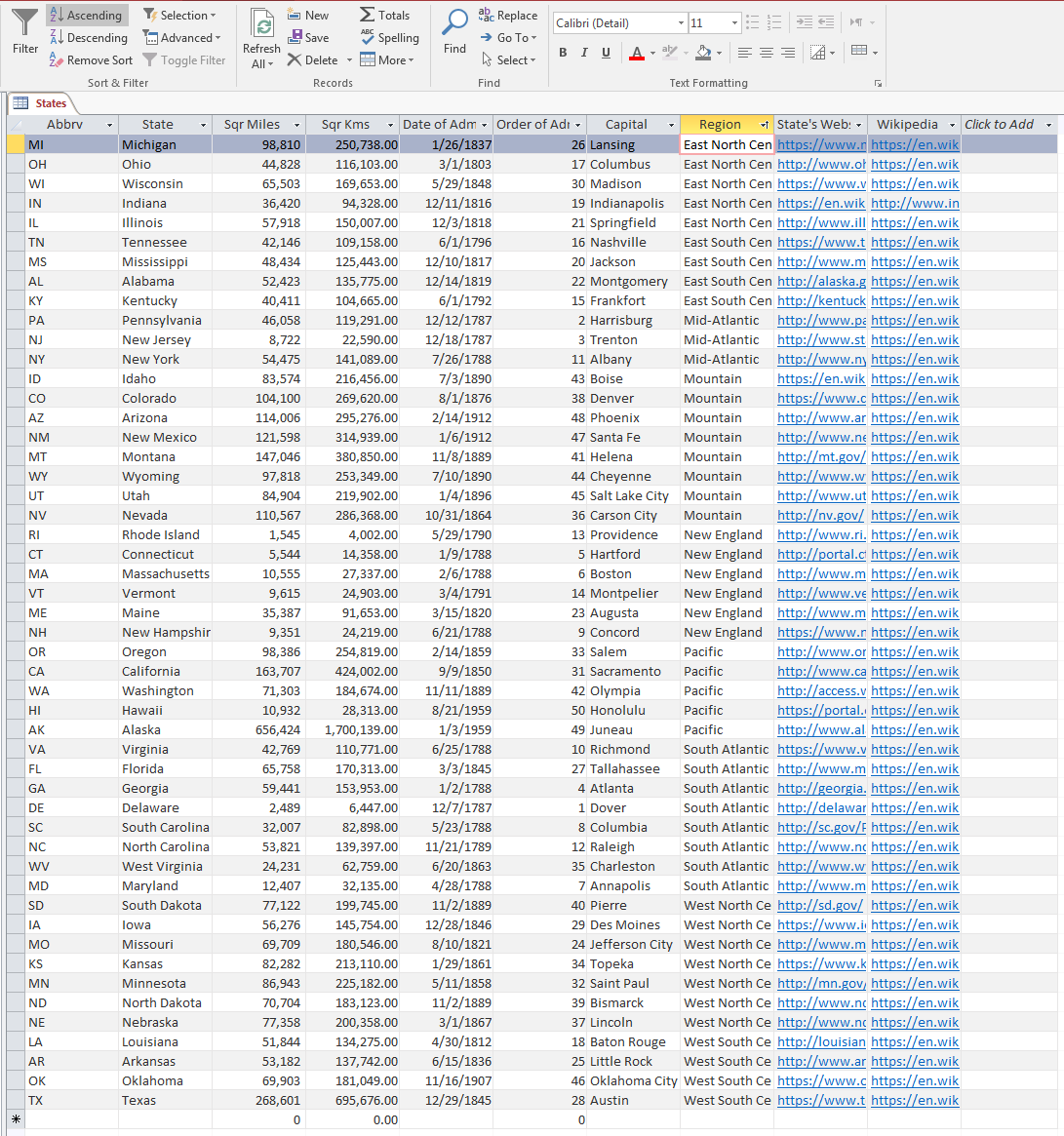
- Click a cell below Region
- In the Sort & Filter section of the Ribbon, click the Ascending button
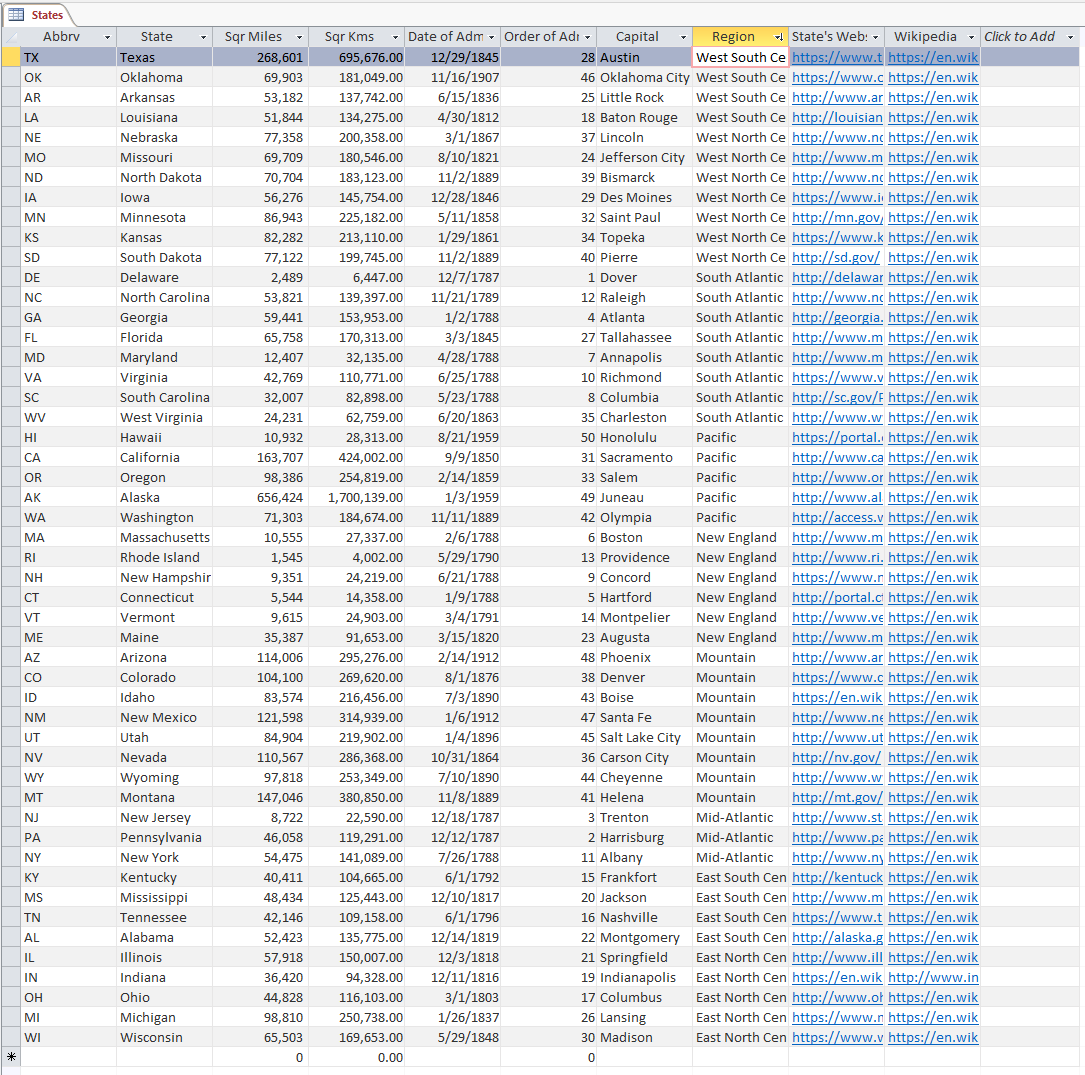
- In the Sort & Filter section of the Ribbon, click the Descending button
- Close the table
- When asked whether you want to save, click No
Sorting Records by Design
If you include the sorting operation in the design of a table, you must save the table before
viewing the result. If you save the table like that, the sorting feature would be included as belonging to the
design of the table.
To prepare a table for record sorting in design:
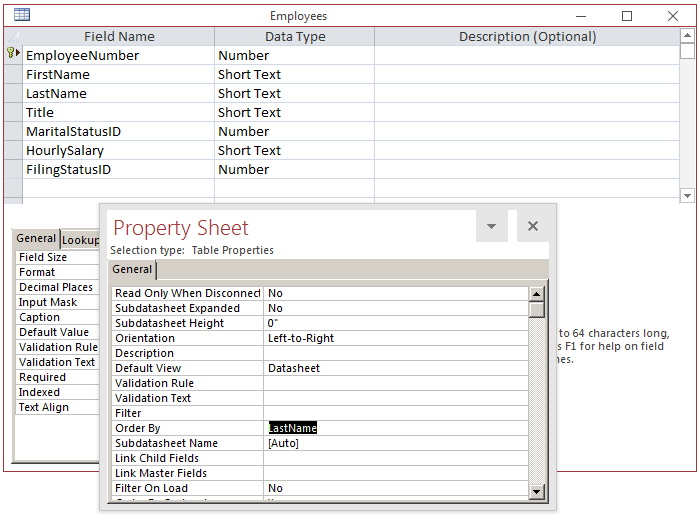
- Display the table in Design View. In the Property Sheet of the table, click the Order By field.
Type the name of the field that will be used as reference. You must first save the table before
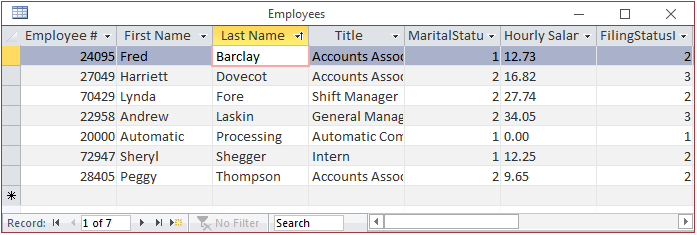
displaying it in the Datasheet View to see the result
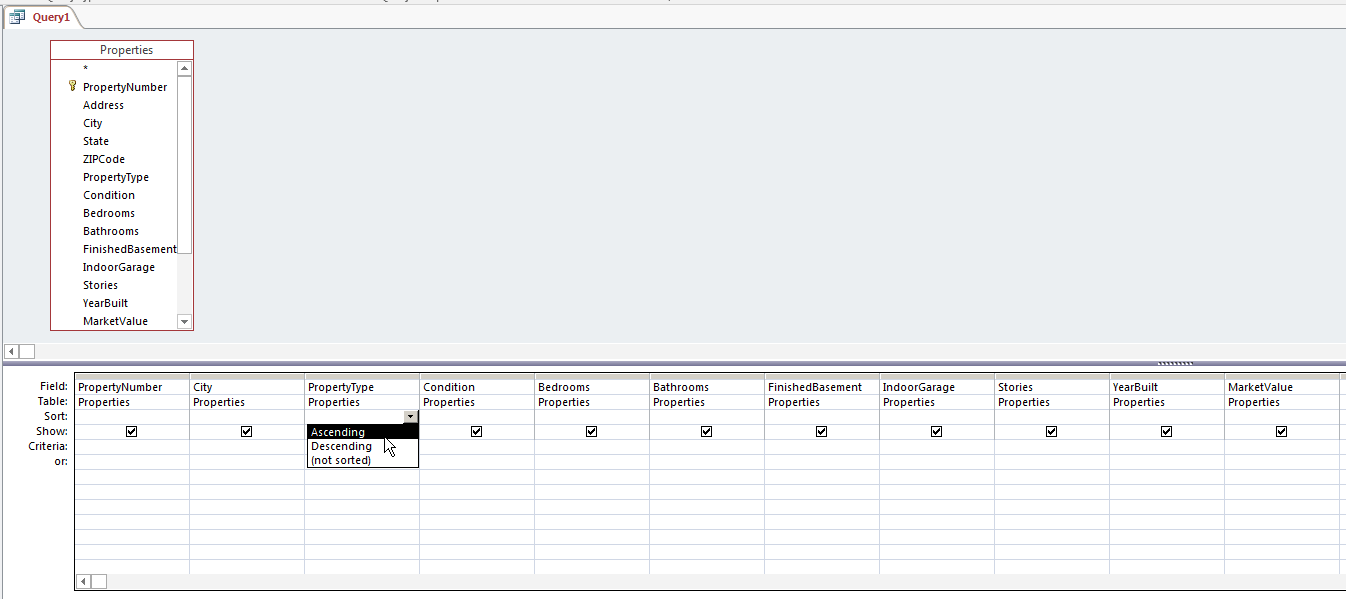
- Display the query in Design View and select the field that will be used as reference. In the bottom
side of the window, click the combo box that corresponds to the Sort row of the field and
select Ascending
- Display the form or the report in Design View:
- If the Record Source is set to a table or query, access the Property Sheet (that of the form or
report). In the Data or the All tab of the Property Sheet of the form, click the Order By field.
Type the name of the field (or control) that will be used as reference
- If the Record Source is a SQL statement, click the ellipsis button
 of the Record Source.
In the bottom side of the window, click the combo box that corresponds to the Sort row
of the field and select Ascending of the Record Source.
In the bottom side of the window, click the combo box that corresponds to the Sort row
of the field and select Ascending
Practical
Learning: Creating a Sorted Query
- On the Ribbon, click File and click Open
- Open the Ceil Inn3 database
- In the Navigation Pane, double-click the Employees table to view its records
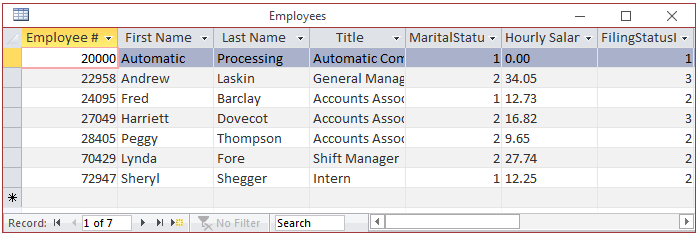
- After viewing the records, right-click the table title bar and click Design View
- If the Property Sheet is not available, right-click anything below Field Name and click Properties.
In the Property Sheet of the table, click Order By and type LastName
- In the Views section of the Ribbon, click the View button
 to display the table in Datasheet View to display the table in Datasheet View
- When asked whether you want to save, click Yes
- Close the table
- On the Ribbon, click File and click Open
- In the list of files, click Altair Realtors2
- To start a query, on the Ribbon, click Create and click Query Design
- In the Show Table dialog box, double-click Properties and click Close
- In the top list, double-click PropertyNumber, City, PropertyType, Condition, Bedrooms, Bathrooms, FinishedBasement,
IndoorGarage, Stories, YearBuilt, and MarkedValue
- In the bottom side of the window, click PropertyType and press the down arrow key twice
- Click the arrow of the Sort combo box and select Ascending
- Close the query
- When asked whether you want to save, click Yes
- Set the name as Listing by Type and press Enter
Primary Topics on Sorting Records
Sorting Records in SQL
In SQL, to sort a field in ascending order, you primarily don't have to do anything because
the sorting feature is included in the default SELECT statement. Still, if you want to indicate that you
want to sort records, include the ORDER BY expression at the end of the SELECT statement. This
expression must be followed by the name of the column used as reference. The formula to follow is:
SELECT what FROM what-object ORDER BY what-field;
The field used as the basis should be recognized as part of the selected columns. Here is
an example:
SELECT ItemName, UnitPrice FROM StoreItems ORDER BY ItemName;
Remember that you spread a SQL statement to many lines. In this case, you can put the ORDER BY
clause on its own line. Here is an example:
SELECT FirstName, LastName
FROM Employees
ORDER BY LastName;
If you use the * operator to include all fields, you
can order the list based on any of the table's fields. Here is an example:
SELECT * FROM Employees ORDER BY LastName;
As mentioned already, by default, records are ordered in ascending order. Nevertheless, the
ascending order is controlled by the ASC keyword specified after the based field. Here is example:
SELECT FirstName, LastName FROM Employees ORDER BY LastName ASC;
If you want to sort records in descending order, use the
DESC keyword instead. It produces the opposite result to the ASC effect. Here is an example:
SELECT FirstName, LastName FROM Employees ORDER BY LastName DESC;
The second statement can be written as:
SELECT * FROM Employees ORDER BY LastName DESC;
Practical Learning: Introducing Sorting Records
- On the Ribbon, click File and click Open
- In the list of files, click FunDS3 from the previous lesson
- On the Ribbon, click Create and click Query Design
- On the Show Table dialog box, click Close
- On the status bar, click the SQL View button
- Change the code as follows:
SELECT ItemNumber, SubCategory, ItemName, UnitPrice
FROM StoreItems ORDER BY ItemName;
- To see the results, on the status bar, click the Datasheet View button

- Right-click the title bar of the Query window and click SQL View
- To explicitly sort recored in ascending order, change the code as follows:
SELECT ItemNumber,
       SubCategory,
       ItemName,
       UnitPrice
FROM StoreItems
ORDER BY ItemName ASC;
- To see the results, on the status bar, click the Datasheet View button
- On the status bar, click the SQL View button
- To sort records in descending order, change the code as follows:
SELECT ItemNumber,
       SubCategory,
       ItemName,
       UnitPrice
FROM StoreItems
ORDER BY ItemName DESC;
- In the Views section of the Ribbon, click the View button
- Close Microsoft Access
- When asked whether you want to save, click No
|