|
Establishing a Relationship With a Lookup Field
|
|
|
Using the Table Design View
|
|
TThere are various ways you can create and manage a
relationship between two tables. Once you have a primary key in one table,
you can ask Microsoft Access to create and even configure a foreign key for
you. You can simply indicate where the data will come from; that is, you
must indicate the table that holds the primary key, select the field that
holds the actual data to use. Microsoft Access would take care of
configuring everything, or almost everything, behind the scenes for you. For
this approach, you use a lookup field, which can be a combo box or a list
box.
As done with the simple lookup, you can create a field
whose data would be selected from a list. As opposed to an unbound lookup
field whose values you can predict at the time you are creating a database,
a bound lookup field is one whose values are not known in advance. The
values for such a field become available as the database is growing./p>
To create a bound lookup field, you can open the table
in Design View, set the data type of the field to Lookup Wizard... This
would open the Lookup Wizard. Since you are creating a field that would get
its data from another table or query, you must select the first radio button
and click Next. Then follow the wizard.
|
PPractical
Learning: Introducing Bound Lookup Fields
|
|
- The Occupancies table should still be opened in Design View.
Click the empty field under DateOccupied, type RoomID
- Set its Data Type to Lookup Wizard...

- In the first page of the wizard, accept the first radio button and
click Next
- In the list of tables of the second page of the wizard, click Table:
Rooms

- Click Next
- In the Available fields list of the third page of the wizard,
double-click RoomNumber

- Click Next
- In the fourth page of the wizard, click Next
- Accept the defaults in the fifth page of the wizard and click Next
- Click Finish
- When asked to save the table, click Yes
- In the bottom section of the table, notice that the Field Size is
set to Long Integer.
Set the Caption to Room #
- Save the table and switch it to Datasheet View
|
Using the Table Datasheet View
|
|
You can also create a lookup combo box using the
Datasheet View of a table. To do this:
- To insert a new lookup fields between two columns, click the header
of a column or an empty cell of the column that will succeed the new
one. On the Ribbon, click Fields. In the Data Add & Delete section,
click More Fields and click Lookup & Relationship

- To add a new lookup column at the end of the table, click Click to
Add and click Lookup & Relationship

Any oh these actions would open the Lookup Wizard. Since
you are creating a field that would get its data from another table or
query, you must select the first radio button and click Next. Then follow
the wizard.
When a column is a lookup field, if you don't like the
way it behaves, you can reconfigure it. To do this:
- Click a column header or a cell under it. On the Ribbon, click
Fields. In the Properties section, click Modify Lookups

- Right-click the header of the column and click Modify Lookups
|
Practical
Learning: Configuring Lookup Fields
|
|
- On the Occupancies table, click the cell under Room #
- On the Ribbon, click Fields if necessary.
In the Add & Delete
section, click the More Fields
- Cllick Lookup & Relationship
- In the first page of the Lookup Wizard, make sure the first radio
button is selected and click Next
- In the second page of the wizard, click the Queries radio button
- In the list box, make sure Queries: Clerks is selected and click
Next
- In the third page of wizard, click the select all button

- Click Next
- In the fourth page of the wizard, click the arrow of the first combo
box and select Employee Name

- Click Next

- In the fifth page of the wizard, view the list and click Next
- In the sixth page of the wizard, read the text, accept to store the
value in EmployeeID, and click Next

- Click Next
- Accept the suggested label and click Finish
- While the new Field1 is still selected (if it is not, double-click
it) type EmployeeID to rename the column and press Enter
- On the table, click Click to Add
- On the menu that appears, click Lookup & Relationship
- In the first page of the Lookup Wizard, make sure the first radio
button is selected and click Next
- In the second page of the wizard, click Tables: Customers and click
Next
- In the third page of the wizard, click AccountNumber and click the
Select One button

- In the Available Fields, as FullName is selected, click the Select
One button


- Click Next
- In the second page of the wizard, click the arrow of the first combo
box and select AccountNumber
- Click Next
- In the third page of the wizard, accept the suggested label and
click Finish
- Switch the table to Design View
- Move some fields and complete the table as follows:
| Field Name |
Data Type |
Caption |
Field Size |
Format |
| OccupancyID (Primary Key) |
|
|
|
|
| DateOccupied |
|
|
|
|
| EmployeeID |
|
Processed By |
|
|
| CustomerID |
|
Processed For |
|
|
| RoomID |
|
Room # |
|
|
| RateApplied |
Number |
Rate Applied |
Double |
Fixed |
| PhoneUse |
Number |
Phone Use |
Double |
Fixed |
| InternetFee |
Number |
Internet Fee |
Double |
Fixed |
| Notes |
Memo |
|
|
|
- Save the table
|
The Characteristics of a Lookup Field
|
|
When creating a bound lookup field, if you select only
one column in the third page of the Lookup Wizard, a combo box would be
created so the user can select the desired value. If the value you selected
represents some type of insignificant number or character, when the user
clicks the arrow of the combo box, the list of values that appear can be
confusing and could lead the user to select the wrong one. Consider the
following example:

When the user clicks the arrow of the combo box to
select a room, this list does not specify what type of room the number
represents. Any number could be for a bedroom, a studio, or a conference
room. Because these numbers are vague, the user could select the wrong
number and for example assign a conference room to a person who wants to
rent a simple bedroom. There are various ways you can solve this type of
problem. If no records have already been created and that involve that
field, you can recreate the lookup field and make it display more than one
column of values.
If you are creating or recreating a lookup field and you
want it to display more than one column, in the third page of the wizard,
you can double-click each of the desired values from the Available Fields
list box:
Then continue with the wizard. When you finish with the
wizard, Microsoft Access would take care of configuring the column.
Sometimes you will not like the way Microsoft Access did the job. You can
then modify it to your liking.
If the records exist already, you can simply modify the
configuration of the lookup field. You have many options.
The configurations of the lookup field can be found in
the Lookup section of the bottom part of the table in Design View. To
configure a lookup field, click it in the top section of the table and, in
the bottom section, click the Lookup tab. Here is an example:

To change a property, click it in the left section and
change the value in the right section:
- Display Control: This allows you to specify how the field
would display its value. The default is the combo box, which is suitable
for most scenarios. If you want the values to appear in a list box on a
form, you select the List Box option for this value. The other
option is the text box
- Row Source Type: This specifies the type of list that
contains the actual values. The default is Table/Query, which
indicates that the values are stored in a table or a query. If the
values are part of a constant list, such as one created from the second
radio button of the first page of the wizard, you can set this property
to Value List. The other option is Field List, which is
mostly available if the list is programmatically created
- Row Source: This is the list of values. For a bound lookup
field, this would be a SQL statement
- Bound Column: This is a number that specifies how many
columns would connect with the primary key. The default value is 1. This
should be the number of columns used in the primary key
- Column Count: This is an integer-based property that
specifies the number of columns that would appear when the user clicks
the arrow of the combo box on the field. If you select only one column
from the Available Fields list of the second page of the wizard, this
property would have a value of 1. Otherwise, if you want more columns,
set this property accordingly
- Column Heads: This specifies whether the top section of the
list would have a caption
- Column Widths: This specifies the width of each column of the
lookup field when the list displays. The value of this property is made
of sections separated by semi-colons. Each section represents the width
of its corresponding column. In most cases, the first column, and that
represents the foreign key, is not presented to the user and therefore
should be set to 0. Each one of the other sections shows the desired
width of the column and the columns can have different widths
- List Rows: This specifies the number of records that would be
visible when the list appears. You should use a value between 4 and 16
(the default). A value higher than 16 is usually too long. Most
programming environments (in fact as set in the Microsoft Windows
operating system) use 8
- List Width: This is the total width of the list when it comes
up. This should be the sum of numbers from the Column Widths property
|
Practical
Learning: Configuring Lookup Fields
|
|
- In the top section of the table, click EmployeeID
- In the bottom section of the table, click the Lookup tab,
right-click Row Source and click Zoom... Notice how the SQL statement
that was created
SELECT [Clerks].[EmployeeID],
[Clerks].[EmployeeNumber],
[Clerks].[Employee Name]
FROM Clerks
ORDER BY [Employee Name];
- Click Cancel to close the dialog box
- Still in the Lookup tab, click Column Widths and change its
value as follows: 0";0.75";1.25"
- In the top section of the table, click RoomID
- In the bottom section of the table, in the Lookup tab, click Row
Source and click its ellipsis button
- In the list of fields, click Type
- Press Shift
- Click Available and release Shift
- Drag the group of columns and drop it on the right side of
RoomNumber in the bottom part of the Query Builder:


- On the Ribbon, click the Run button
to preview the list
- Close the Query Builder
- When asked whether you want to save, click Yes
Notice the SQL
statement that was created
SELECT Rooms.RoomID,
Rooms.RoomNumber,
Rooms.Type,
Rooms.Bed,
Rooms.Rate,
Rooms.Available
FROM Rooms;
- Make the following changes:
Column Count: 6 Column
Heads: Yes Column Widths: 0";0.65";0.9";0.7";0.5";0.8" List
Rows: 8 List Width: 3.55"
- In the top section of the table, click CustomerID
- In the Lookup section in the bottom part of the table, click Row
Source and click its ellipsis button

- Change the second field to Account #: AccountNumber
- Change the third field to Customer Name: FullName
- On the Ribbon, click the Close button

- When asked whether you want to save, click Yes
Notice the SQL
statement that was created
SELECT Customers.CustomerID,
Customers.AccountNumber AS [Account #],
Customers.FullName AS [Customer Name]
FROM Customers;
- Make the following changes:
Column Widths: 0";0.65";1.35"
List Rows: 8
- Save the table and close it
- Create a form for the Occupancies table and save it as
Occupancies
- Design it as you see fit. Here is an example:
- Save the form and switch it to Form View

- Enter the following records:
| Date Occupied |
Processed By |
Customer |
Room # |
Rate Applied |
Phone Use |
Internet Fee |
| June 4, 2011 |
27049 |
294209 |
105 |
85.75 |
0.00 |
0.00 |
| June 5, 2011 |
28405 |
294209 |
105 |
85.75 |
5.35 |
0.00 |
| June 5, 2011 |
70429 |
608502 |
110 |
450.00 |
8.75 |
3.25 |
| June 6, 2011 |
70429 |
294209 |
105 |
85.75 |
0.00 |
0.00 |
| June 6, 2011 |
24095 |
208405 |
108 |
75.85 |
3.45 |
3.25 |
| June 7, 2011 |
28405 |
208405 |
108 |
75.85 |
2.65 |
0.00 |
| June 8, 2011 |
28405 |
208405 |
108 |
75.85 |
3.15 |
0.00 |
| June 9, 2011 |
27049 |
208405 |
108 |
75.85 |
1.95 |
0.00 |
| June 9, 2011 |
28405 |
284085 |
205 |
75.85 |
0.00 |
0.00 |
| June 10, 2011 |
24095 |
208405 |
108 |
75.85 |
5.50 |
0.00 |
| June 11, 2011 |
24095 |
629305 |
112 |
98.95 |
0.00 |
0.00 |
| June 12, 2011 |
70429 |
629305 |
112 |
98.85 |
0.00 |
0.00 |
- Close the form
- Open the Rooms form and change the records as follows:
| Room # |
Type |
Bed |
Rate |
Available |
| 104 |
Bedroom |
Queen |
79.95 |
Unchecked |
| 105 |
Bedroom |
King |
94.50 |
Checked |
| 106 |
Bedroom |
Queen |
79.95 |
Unchecked |
| 107 |
Bedroom |
King |
94.50 |
Checked |
| 108 |
Bedroom |
Queen |
79.95 |
Checked |
| 110 |
Conference |
|
500.00 |
Unchecked |
| 112 |
Studio |
King |
112.95 |
Unchecked |
| 202 |
Studio |
King |
112.95 |
Checked |
| 203 |
Studio |
Queen |
104.50 |
Checked |
| 204 |
Bedroom |
Double |
115.95 |
Checked |
| 205 |
Bedroom |
Queen |
79.95 |
Unchecked |
| 206 |
Bedroom |
King |
94.50 |
Checked |
- Close the Rooms table
- Re-open the Occupancies form in Form View and create the following
new records:
| Date Occupied |
Processed By |
Customer |
Room # |
Rate Applied |
Phone Use |
Internet Fee |
| July 18, 2011 |
28405 |
180204 |
105 |
94.50 |
0.00 |
3.25 |
| July 18, 2011 |
72947 |
660820 |
204 |
115.95 |
0.00 |
0.00 |
| July 18, 2011 |
28405 |
608208 |
206 |
94.50 |
0.00 |
3.25 |
| July 18, 2011 |
72947 |
204795 |
204 |
0.00 |
0.00 |
0.00 |
| July 18, 2011 |
28405 |
902840 |
203 |
104.50 |
0.00 |
0.00 |
| July 19, 2011 |
24095 |
180204 |
105 |
94.50 |
0.00 |
0.00 |
| July 19, 2011 |
24095 |
660820 |
204 |
115.95 |
0.00 |
0.00 |
| July 19, 2011 |
24095 |
608208 |
206 |
94.50 |
0.00 |
0.00 |
| July 19, 2011 |
24095 |
204795 |
204 |
0.00 |
0.00 |
0.00 |
| July 19, 2011 |
72947 |
902840 |
203 |
104.50 |
0.00 |
0.00 |
- Close the form
- Re-open the Occupancies form
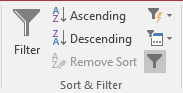
- Sort the record in ascending order from the Room # column
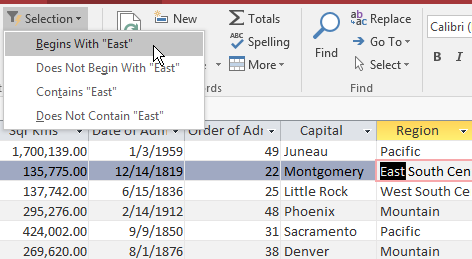
- Filter the records to see only when Room 108 has been used
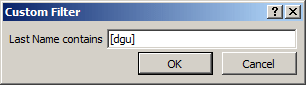
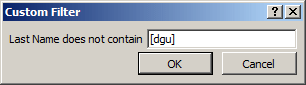
- Filter the records to see only when the telephone has been used in a
bedroom (the phone use different from 0)
- Use Filter By Form to see only the transactions performed by
employee number 28405
- Close the Occupancies form
|
MCAS: Using Microsoft Office Access 2007 Topics
|
|
| S2 |
Define and print table relationships |
| S3 |
Add, set, change, or remove primary keys |
- Create a blank database named Yugo National Bank2 and close the
default table without saving it
- Configure the database to display overlapping windows. Close and
reopen the database
- Start a new table in Design View and create the following columns:
| Field Name |
Data Type |
Field Size |
Caption |
| EmployeeID (Primary Key) |
AutoNumber |
|
Employee ID |
| EmployeeNumber |
Text |
10 |
Employee # |
| FirstName |
Text |
50 |
First Name |
| LastName |
Text |
50 |
Last Name |
| Title |
Text |
60 |
|
| CanCreateNewAccount |
Yes/No |
|
|
| WorkPhone |
Text |
40 |
Work Phone |
| Extension |
Number |
Integer |
|
| Address |
Text |
60 |
|
| City |
Text |
50 |
|
| State |
Text |
50 |
|
| ZIPCode |
Text |
30 |
ZIP Code |
| Country |
Text |
50 |
|
| HourlySalary |
Currency |
|
Hourly Salary |
| Notes |
Memo |
|
|
- Save the table as Employees and close it
- Create a form for the Employees table. Save the form as Employees
and design it as you see fit

- Close the table
- Start a new table in Design View and create the following fields:
| Field Name |
Data Type |
Field Size |
Caption |
| AccountTypeID |
AutoNumber |
|
Account Type ID |
| AccountType |
Text |
50 |
Account Type |
| Description |
Memo |
|
|
- Save the table as AccountTypes and close it
- Create a form for the AccountTypes table. Save the form as
AccountTypes and design it as you see fit. Here is an example:

- Then Close it
- Start a new table in Design View and create the following columns:
| Field Name |
Data Type |
Field Size |
Caption |
| CustomerID |
AutoNumber |
|
Customer ID |
| DateCreated (Primary Key) |
Date/Time |
|
Date Created |
| AccountNumber |
Text |
20 |
Account Number |
| CustomerName |
Text |
50 |
Customer Name |
| Address |
Text |
60 |
|
| City |
Text |
50 |
|
| State |
Text |
50 |
|
| ZIPCode |
Number |
Integer |
ZIP Code |
| Country |
Text |
50 |
|
| HomePhone |
Text |
40 |
Home Phone |
| WorkPhone |
Text |
40 |
Work Phone |
| Extension |
Text |
20 |
|
| EmailAddress |
Hyperlink |
|
Email Address |
| Notes |
Memo |
|
|
- Save the table as Customers and close it
- Open the Customers table in Datasheet View
- Use the Lookup Wizard to add a column between the Date Created and
the Account Number columns. The values of that column will come from the
Employees table, including the following columns: EmployeeNumber,
FirstName, LastName, Title, and CanCreateNewAccount
- Save and close the table
- Open the Customers table in Design View
- Add a field between the Account Number and the Customer Name fields.
Name it AccountTypeID and set its Data Type to Lookup Wizard...
- Using the wizard, select the values from the AccountTypes table,
including the AccountType column
- Still in Design View, change the names and captions of the new
columns as follows:
| Field Name |
Data Type |
Field Size |
Caption |
| CustomerID |
AutoNumber |
|
Customer ID |
| DateCreated (Primary Key) |
Date/Time |
|
Date Created |
| EmployeeID |
Number |
|
Created By |
| AccountNumber |
Text |
20 |
Account Number |
| AccountTypeID |
Number |
|
Account Type |
| CustomerName |
Text |
50 |
Customer Name |
| Address |
Text |
60 |
|
| City |
Text |
50 |
|
| State |
Text |
50 |
|
| ZIPCode |
Number |
Integer |
ZIP Code |
| Country |
Text |
50 |
|
| HomePhone |
Text |
40 |
Home Phone |
| WorkPhone |
Text |
40 |
Work Phone |
| Extension |
Text |
20 |
|
| EmailAddress |
Hyperlink |
|
Email Address |
| Notes |
Memo |
|
|
- Start a new table in Design View create its columns as follows:
| Field Name |
Data Type |
Field Size |
Caption |
| TransactionTypeID |
AutoNumber |
Long Integer |
Transaction Type ID |
| TransactionType |
Text |
50 |
Transaction Type |
| Description |
Memo |
|
|
- Save the table as TransactionTypes and close it
- Create a form for the TransactionTypes table. Save the form as
TransactionTypes and design it as you see fit. Here is an example:

- Close the form
- Start a new table in Design View create its columns as follows:
| Field Name |
Data Type |
Field Size |
Caption |
| ChargeReasonID |
AutoNumber |
Long Integer |
Charge Reason ID |
| ChargeReason |
Text |
50 |
Charge Reason |
| Description |
Memo |
|
|
- Save the table as ChargeReasons and close it
- Create a form for the ChargeReasons table. Save the form as
ChargeReasons and design it as you see fit
- Close the form
- Start a new table in Design View and create the following columns:
| Field Name |
Data Type |
Field Size |
Caption |
| TransactionID (Primary Key) |
AutoNumber |
|
Transaction ID |
| EmployeeID |
Number |
Long Integer |
Processed By |
| CustomerID |
Number |
Long Integer |
Processed For |
| TransactionTypeID |
Number |
Long Integer |
Transaction Type |
| TransactionDate |
Date/Time |
|
Transaction Date |
| TransactionNumber |
Number |
|
Transaction Number |
| DepositAmount |
Currency |
|
Deposit |
| WithdrawalAmount |
Currency |
|
Withdrawal |
| ServiceCharge |
Currency |
|
Service Charge |
| ChargeReasonID |
Number |
Long Integer |
Charge Reason |
| Notes |
Memo |
|
|
- Save the table as Transactions
- Set the Data Type of EmployeeID to Lookup Wizard. Use the wizard to
select the following columns of the Employees table: EmployeeNumber,
LastName, and FirstName
- Set the Data Type of CustomerID to Lookup Wizard. Use the wizard to
select the AccountNumber and the CustomerName columns of the Customers
table
- Set the Data Type of TransactionTypeID to Lookup Wizard. Use the
wizard to select the TransactionType field of the TransactionTypes table
- Set the Data Type of ChargeReasonID to Lookup Wizard. Use the wizard
to select the ChargeReason field of the ChargeReasons table
- Close the table
- Create a blank database named Watts A Loan2
- Configure it to display overlapping windows
- Create a blank database named World Statistics2
- Create a new blank database and name it US Senate2
- Do some research on the Internet or use a book that can help you.
Make a list of the names of states in the United States. You should get
the name of a state and its abbreviation
- Start a new table in the Design View and create the following
fields:
| Field Name |
Data Type |
Field Size |
Caption |
| StateID |
AutoNumber |
|
State ID |
| StateAbbreviation |
Text |
50 |
State Abbreviation |
| StateName |
Text |
50 |
State Name |
| WebSite |
Text |
100 |
Web Site |
| Capital |
Text |
50 |
|
| Governor |
Text |
50 |
|
- Save the table as States
- Start a new table in the Design View and create the following
fields:
| Field Name |
Data Type |
Field Size |
Caption |
| PartyID |
AutoNumber |
|
Party ID |
| PartyName |
Text |
50 |
Party Name |
- Save the table as Political Parties
- Start a new table in the Design View and create the following
fields:
| Field Name |
Data Type |
Field Size |
Caption |
| SenatorID |
AutoNumber |
|
Senator ID |
| SenatorName |
Text |
50 |
Senator Name |
| SeatingStatus |
Text |
50 |
Seating Status |
| Gender |
Text |
30 |
|
| StateID |
Number |
Long Integer |
|
| Race |
Text |
40 |
|
| Religion |
Text |
50 |
|
| YearElected |
Number |
Integer |
Year Elected |
| PartyID |
Number |
Long Integer |
|
| DCAddress |
Text |
255 |
DC Address |
| DCOfficePhoneNumber |
Text |
40 |
Office Phone # |
| WebSite |
Hyperlink |
|
Web Site |
| LocalAddress1 |
Text |
|
Local Address 1 |
| LocalAddress2 |
Text |
|
Local Address 2 |
| LocalAddress3 |
Text |
|
Local Address 3 |
| LocalAddress4 |
Text |
|
Local Address 4 |
| Pictures |
Attachment |
|
|
| Biography |
Memo |
|
|
- Save the table as Senators
- Use the Lookup Wizard on the SeatingStatus column to create a list
of the status. The options will be Active, Retired,
Removed, and Deceased
- Use the Lookup Wizard on the Gender column to create a list of the
genders. The options will be Male, Female, and Unknown.
Set the Default Value to "Unknown"
- Use the Lookup Wizard on the State to link the list of states from
the States table using the state abbreviation column
- Use the Lookup Wizard on the Race column to create a list of the
races. The options will be Black, White, Native American, Hispanic,
Asian, Other
- Use the Lookup Wizard on the Religion to create a list of the
religions. The options will be Catholic, Muslim, Jewish, Baptist,
Presbyterian, Atheist, Other
- Use the Lookup Wizard on the PartyID to create a link of to the
Political Parties table using the Party Name column
- Save and close the table
- Create a form for the Senators table. Save the form as Senator
- Go to http://www.senate.gov
- Get the information about each senator and populate the Senators
form with that information
|
|