
The Command Button Wizard
|
|
The Command Button Wizard |
Introduction
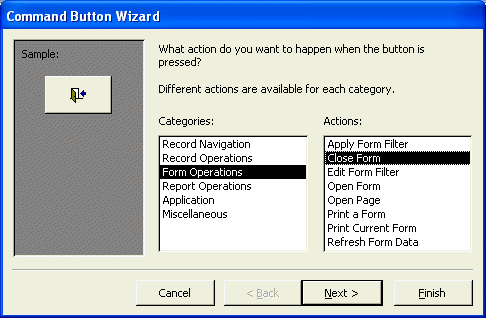
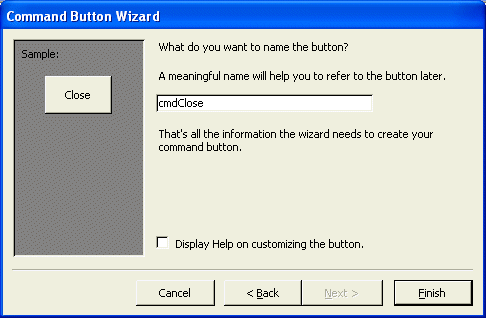
To automate the most regular actions a user would perform on a form, Microsoft Access provides the Command Wizard. It is a suite of dialog boxes that allow you to create routine action without writing code. Some of the actions have been highly configured while some other would need a little adjustment from you.
To use the Command Button Wizard, on the Toolbox, first make sure the Control Wizard button is clicked. Then, click the Command Button control and click a section of the form. The wizard would start and would guide you step-by-step with the necessary task.
Practical Learning: Printing an Invoice

 and click the Command Button
 |
 |
 |
|
|
||
| Home | Copyright © 2004-2019, FunctionX | FunctionX |
|
|
||