- To see what you can do with the title bar, double-click on the title
bar.
- To restore the application, double-click the title bar again.
- The File menu allows you to create either a new empty notebook or a notebook
based on one of the templates that ships with the application. You can also use the File menu to save the current
notebook, to close the current file, or to configure or initialize printing. The File menu allows you to perform other various actions.
To see the File menu, click File
- Besides the File menu, there are other menu items that allow you to do many other things.
For example, while the File menu is still displaying, position the mouse on Tools, move the mouse down and click
Settings.
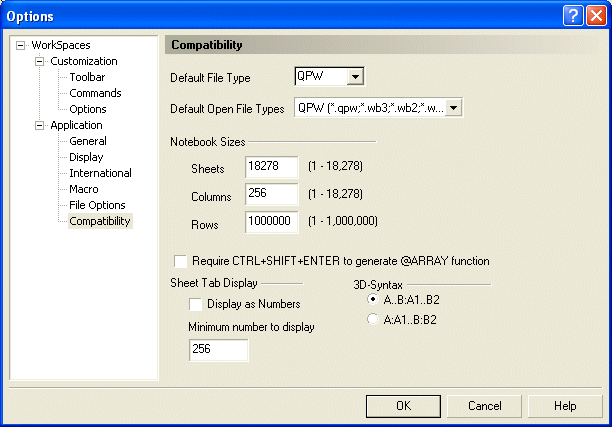
- From the Options dialog box, click the General property sheet:
- Click Display
- Click Compatibility:

- Click Cancel.
- There are various categories of menus in Quattro Pro (and in most other
applications). Let's review five of the most popular.
a) A menu that stands by itself will perform a simple action, some of those actions even occur behind the scenes, sometimes giving you the impression that nothing happened when you clicked them. Examples of such menus include File -> Save,
Format -> Default, etc (The File -> Save menu will behave like the next category if the
notebook has not been saved
yet).
To see an example, on the main menu, click Edit -> Copy
- Notice that (apparently) nothing happened. In later lessons, we will
find what happens with some of these actions.
- b) Another category of menu consists of one that is gray. A gray
menu indicates that the action that is associated with it is not
possible at this time; therefore, the menu is disabled. Such a menu
would depend on another, intermediary action.
To see an example, on the main menu, click Edit and observe that the
Undo and Redo menu items are disabled.
- While the Edit menu is still opened, click Redo and notice that
nothing happens.
- Click the Edit menu again to close it
- c) There is another category of menu: those that have three dots on their line.
The three dots on the menu indicate that this menu will require an
intermediary action. As a result, most menus that display three dots
would call a dialog when you click them.
To see an example, click File, observe that the Open... sub-menu has three dots, just like the Save As...,
and the Page Setup...
- To see an example, on the main menu, click Format and notice the various
sub-menus with three dots.
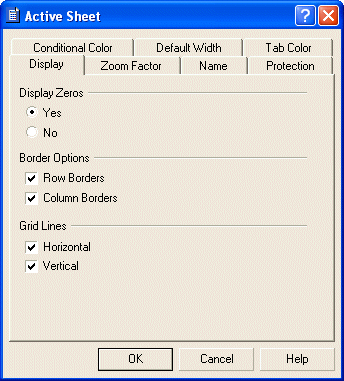
- Click Sheet Properties...:
- Click Cancel.
- d) Some menu items have a right pointing arrow. You don't need to click these menus, the arrow means
that they have a sub-menu; just position your mouse on them and you will have access to the sub-menu.
To see an example, on the main menu, click File, then position your mouse on
Notebook Group. Observe the sub-menus.
- Position the mouse on Send To and observe the sub-menus. To dismiss the
menu, click File again.
- e) The last category of menus have either a check mark or a radio
button.
A radio button is a big round dot that appears on the menu. A radio
button is used in a group of items where only one item of the group
can be selected. The radio button indicates which item of the group is
selected at this time.
To see an example, on the main menu, click View and observe the group
of views.
- Notice that, currently, the Draft View is selected.
Click Objects Page
- On the main menu again, lick View and click Page
- Once more, click View and click Draft View
- A check mark on the menu usually indicates that the item is
displaying at this time. Such a menu allows you to toggle the
appearance and the disappearance of the item with which it is
associated.
To see an example, on the main menu, click View and click Application Bar.
- Notice that the Application Bar has disappeared.
- On the main menu click View -> Status Bar to redisplay the Status
Bar.
- Once again, on the main menu, click View and position your mouse on
Toolbars.
-
Whether a menu falls under one of our categories or not, some menu items display a combination of
keys on their line, these are shortcuts. A shortcut is a key or a combination of keys that you press (simultaneously) to perform an action.
To see some of the shortcuts, on the main menu, click Edit and notice the shortcuts on Cut or Copy.
-
Whenever you have opened a menu by mistake or you simply want to get rid of it, you usually can click somewhere else or the same menu.
To cancel the open menu, press Esc. Because still has focus, press Esc again.
- To perform a single key shortcut, you can press the corresponding key. To perform a
shortcut that is a combination of keys, you will press and hold the first key, then press the second key once.
To see a shortcut in action, notice the name of the notebook on the title bar (it
should be notebk1); press and hold Ctrl, then press N once, and release Ctrl.
- Notice that this shortcut creates a new notebook, by the name of the
new file on the title bar (notebk2).
 |
From now on, if I ask you to press Ctrl + O, I mean press and hold Ctrl, then press the letter O once and release Ctrl. |
- Some shortcuts can be seen on the menu. Some others are hidden or
they universally apply to all applications that run on the operating
system.
To see an example, and to close the current notebook, press Ctrl + F4 (Ctrl + F4 is an operating system's shortcut, it
is used to close a (child) window). If you are asked whether you
want to save anything, click No.
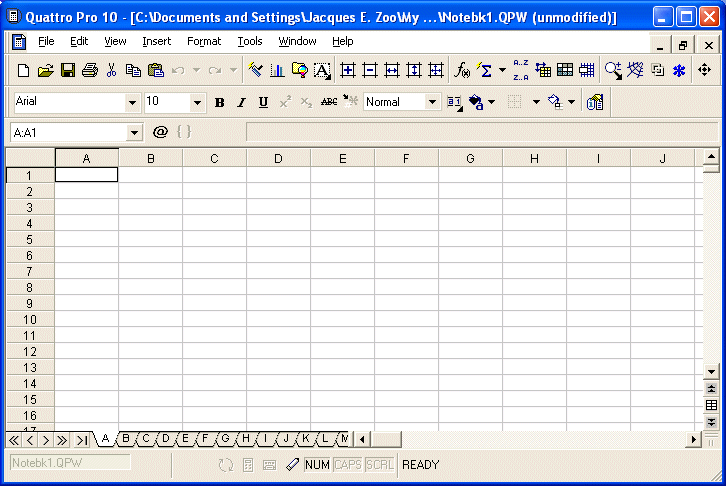
- Under the menu bar, the Notebook toolbar provides some of the most regularly used actions performed on the main menu. A toolbar provides the same actions you would perform from the main menu, only faster, so that instead of going through the menu to save a
notebook, you can just use the Save button.
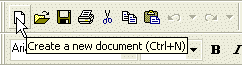
Since there are various buttons and sometimes they are unpredictable, to know what a particular button is used for, position your mouse on top of a button, a small yellowish box appears and lets you know what that particular button is used for, that small box is called a tool tip. You can also use context sensitive help to get information about a button.
To see how this works, position your mouse (don't click) on the first button that looks like a
white piece of paper, and keep it there for two seconds:
- After seeing the tool tip, move the mouse to another button to
observe other tool tips.
- To use context sensitive help and find out about a button, press Shift + F1, then
position your mouse on the button that looks like a floppy disk.
Observe that this time, a help file provides more information.
- Under the Notebook toolbar, there is another toolbar called the
Property Bar. This second toolbar offers the formatting features that we will use as we move along. Its buttons also provide tool tips and respond to context sensitive help. Besides other buttons, the
Property bar is equipped with combo boxes, and each combo box can display an appropriate tool tip.
Position the mouse on the first combo box on the Property bar and observe the tool
tip (Change The Font Type).
- Under the Property bar, there is another toolbar called the Formula
Bar. It is made of three sections.
a) On the left side you see a white box displaying a name like A:A1, that small box
can be referred to as the Name Box.
b) On the right side of the name box, there is a button with the @
sign.
Position your mouse on it. The tool tip displays Insert A Pre-Existing
Formula. We will call it the Formula button. In later lessons, we will
learn what to do with it.
- Still in the middle section of the Formula bar, there is another
button with an opening and a closing parentheses. We will eventually
learn what to do with it.
Position your mouse on it to find out that we will call the Macro button.
- c) On the right side of the Macro button is a long empty box or section.
We will called the Formula Bar.
Click it to activate it.
- Notice that there are two new button in the middle section of the
current toolbar.
- Under the name box there are gray boxes called rows. Each row is labeled with a number, starting at 1 on top, then 2, and so on.
Under the Formula bar and especially under the Formula bar, there is
another series of gray boxes with letters such as A, B, C, D, etc.
Each one of these boxes is called a column.
The main area of Quattro Pro is made of cells. A cell is the intersection of a column and a row. A cell is identified by its name and every cell has a name. By default,
Quattro Pro identifies a cell as follows: the name of the spreadsheet
in which the cell is selected, a colon, the name of the column, and
the the name of the row. Therefore, the
first cell in the top left corner, when the first spreadsheet is
selected, is called A:A1. The name of a cell always displays in the
name box. To see different cells names, find the cell that intersects a column and a row.
For example, press the down arrow key and observe the Name Box.
- On the right side of the cells area, there is a vertical scroll bar that allows you to scroll up and down in case your worksheet cannot display everything at a time.
Click and hold the down pointing arrow of the vertical scroll bar for a few seconds, then release it.
- Press Ctrl + Home to return to cell A:A1.
On the lower right section of the main window, there is a horizontal scroll bar that allows you to scroll left and right if your worksheet has more items than can be displayed all at once.
To experiment with it, click and hold the right pointing arrow on the horizontal scroll bar for a few seconds, then release.
- Press Ctrl + Home.
- On the left side of the horizontal scrollbar, there are the
spreadsheet tabs. You can work with any of them and switch to another at any time. You can also delete some worksheets or add other worksheets as your work needs more or less. You can also change the names of worksheets anytime to suit their purpose.
Click spreadsheet A, click F, click A.
- On the left side of the worksheet tabs, there are five navigation buttons. If you happen to use a lot of worksheets or the worksheet names are using a lot space, which will result in some worksheets hidden under the horizontal scroll bar, you can use the navigation buttons to move from one worksheet to another.
Under the navigation buttons and the worksheet tabs, the Status Bar provides a lot of information about the job that is going on.
From now on, I will refer to a Quattro Pro document as a notebook.
|
|
Note |
|
In many applications, the equivalent of Corel's
Application Bar is called a Status Bar. |
|
Note |
|
On this tutorial, each toolbar is called by its
name. To know the names of toolbars, right-click a button on any
toolbar to display a list. |
|
Note |
|
In this tutorial, every button on a toolbar be named
conforming to its tool tip. For example, when the mouse is positioned
on top of the button that looks like a floppy disk, the tool tip
that appears displays "Save The Current Document". Therefore, that button will be
referred to as The Save Button. |
|