|
Introduction to Microsoft SQL Server |
|
|
Installing Microsoft SQL Server |
|
|
|
A database is one or more lists of values. A computer
database is one whose values are stored in a computer medium such as a hard
disk. A desktop database is one that is used in one computer. A
client/server database is a database that is stored in one computer named a
server and other computers named clients connect to the server to access and
use the database.
|
Microsoft SQL Server is an application used to
create computer databases for the Microsoft Windows family of server
operating systems. Microsoft SQL Server provides an environment used to
generate databases that can be accessed from workstations, the Internet,
or other media such as a personal digital assistant (PDA).

 |
To follow our lessons, you must have access to a
computer in which Microsoft SQL Server 2012 is installed. To start, you
must have a computer that runs an appropriate operating system. If you
are just learning, you can use a computer that runs Microsoft Windows XP
Professional, Microsoft Windows Vista, Microsoft Windows 7, Microsoft
Windows Server 2003, Microsoft Windows Server 2008, or Microsoft
Winidows Server 2012.
|
There are various ways to install Microsoft SQL Server, such
as installing on the one computer where it will also be used.
|
Practical
Learning: Installing Microsoft SQL Server
|
|
- Start the computer
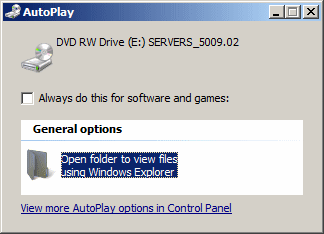
- Insert the DVD in the drive. You may (should) receive a dialog box with
a Run SETUP.EXE link:

If so, click Run SETUP.EXE. Otherwise, click Open Folder, then
double-click Default.htm, click the version you want to install, and
double-click setup
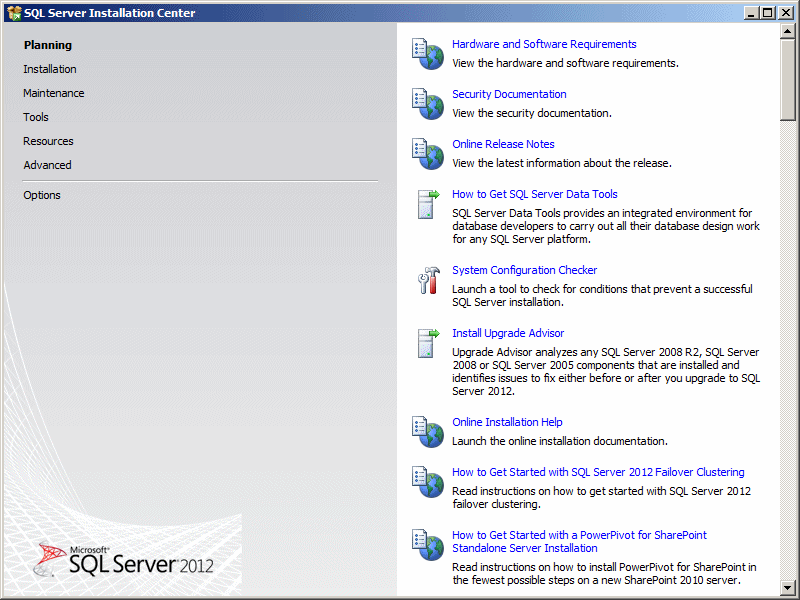
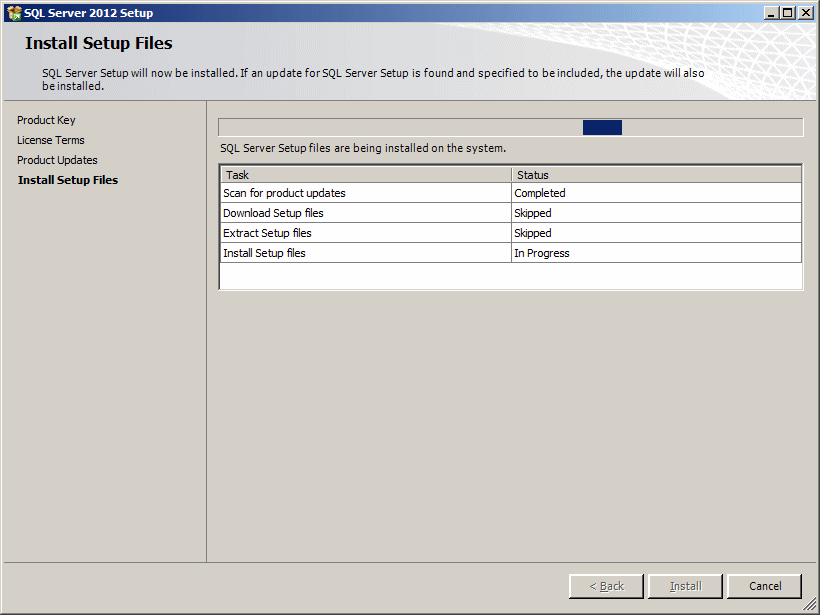
- The installation will start:

In the left section, click Installation
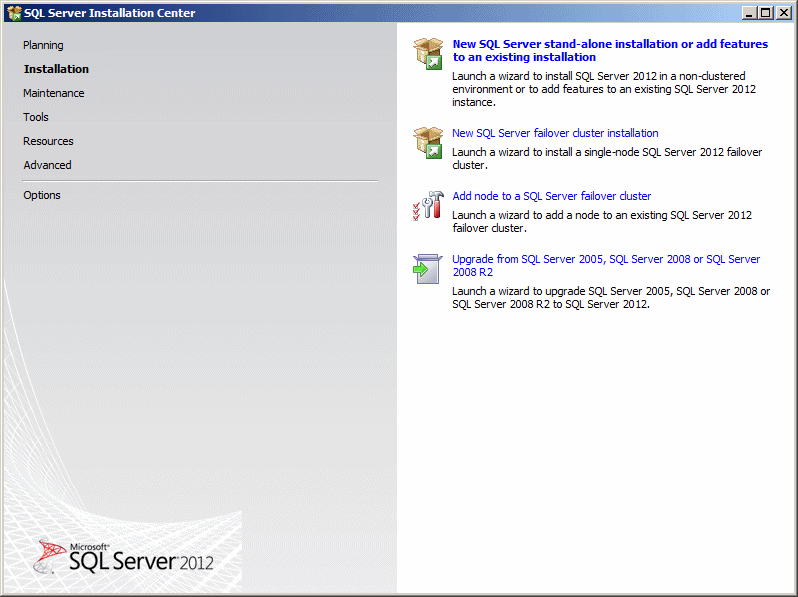
- If you are only interested in studying database design and development
in Microsoft SQL Server, on the right side, click New SQL Server Stand-Alone
Installation or Add Features to an Existing Installation.
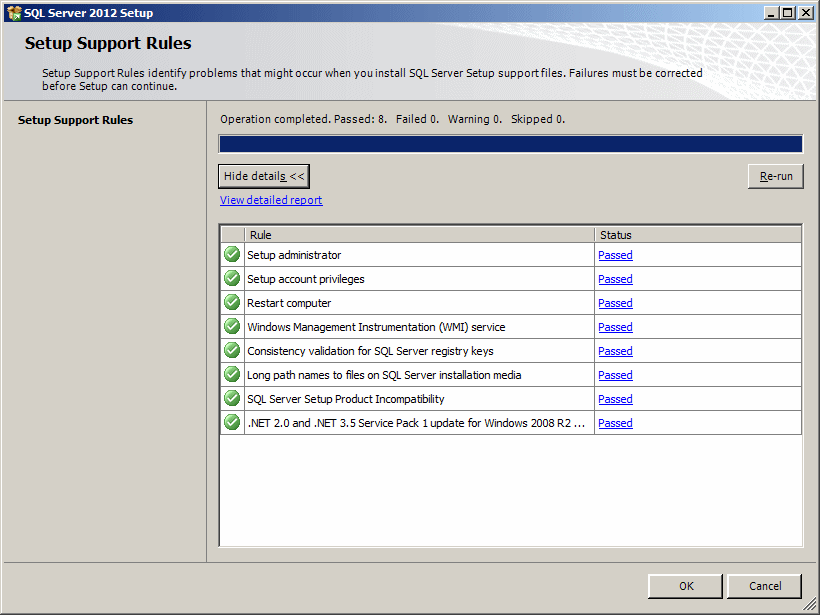
The
installation would start:

- Click OK
- The next page of the wizard asks you to enter a product key. Type it and
click Next
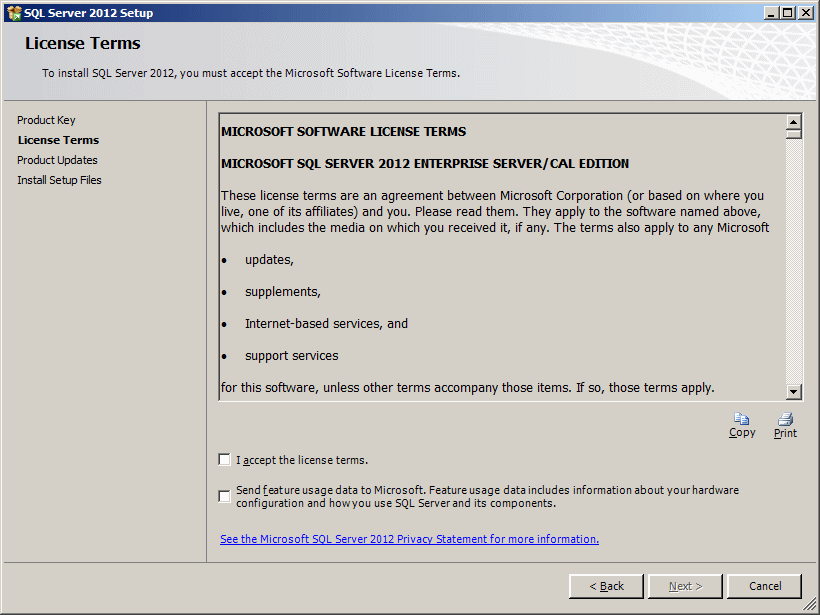
- The License Terms page is presented to you. Read it. If you don't agree
with the license, click Cancel:

Otherwise, click the I Accept check box:
- Click Next

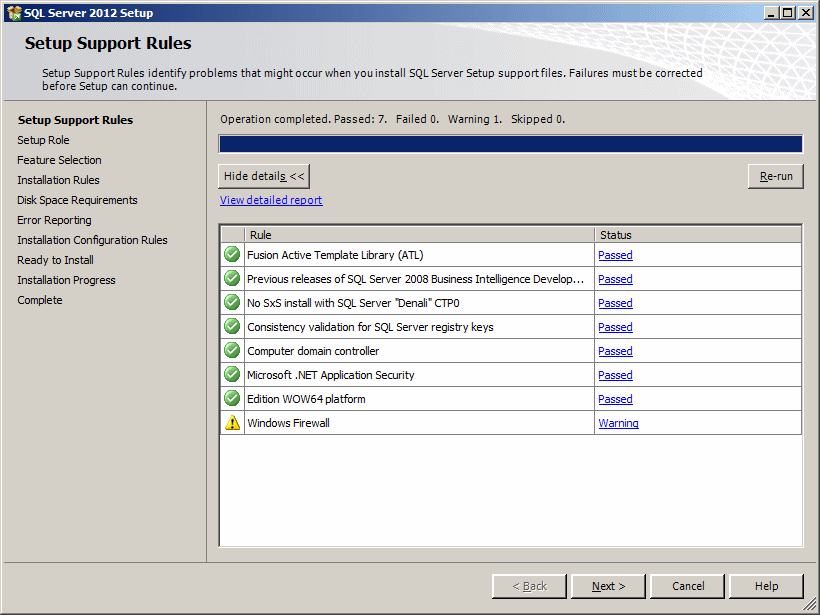
- Read the messages and click Install
- You may receive a warning message about the firewall:

For now, ignore it (there is no true justfication in trying to disable
the firewall, the installation will proceed fine). Click Next

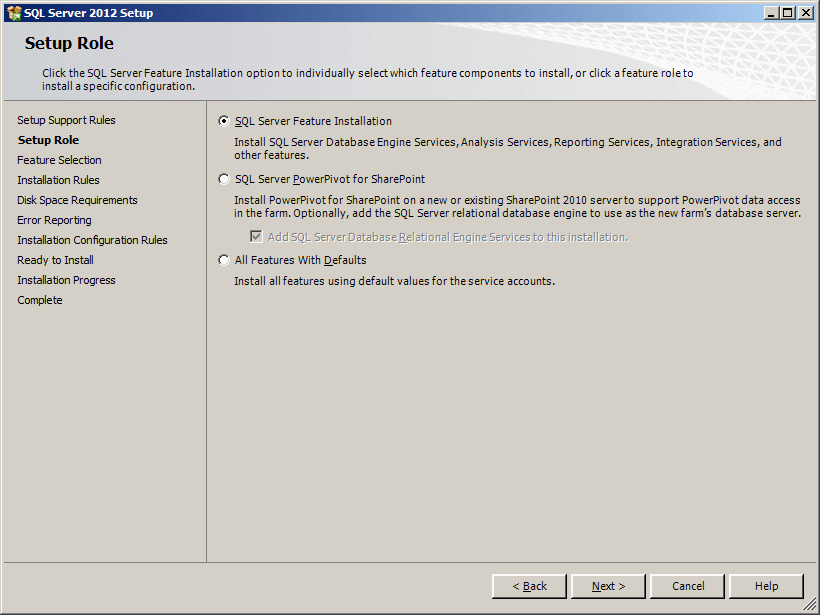
- The next page of the wizard is for the setup rolect. After making your
selecti0n, click Next
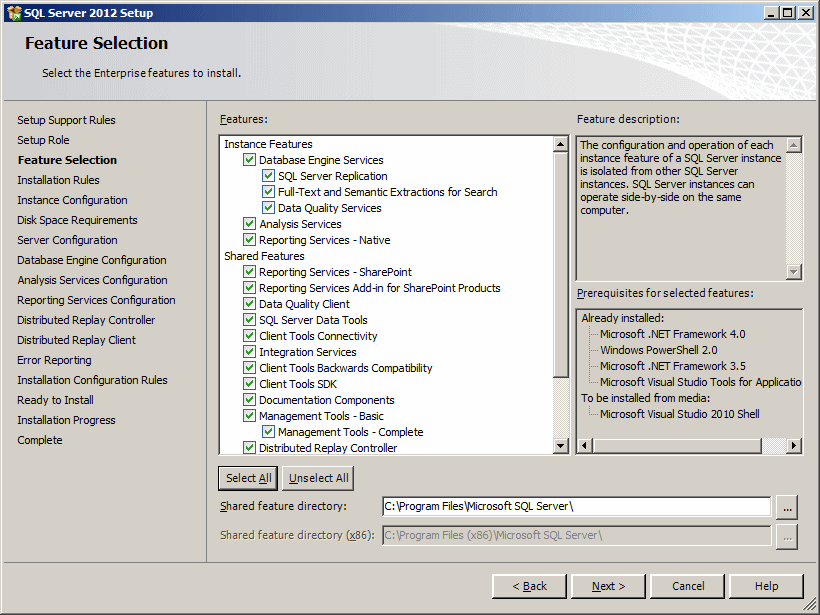
- The next page allows you to specify what you want to install and what
would be left out. Make your selections:

The eventual location of Microsoft SQL Server is specified in the bottom
text box
- After making your selections, click Next

- The next page runs and checks the rules of the installation.
Check
Next
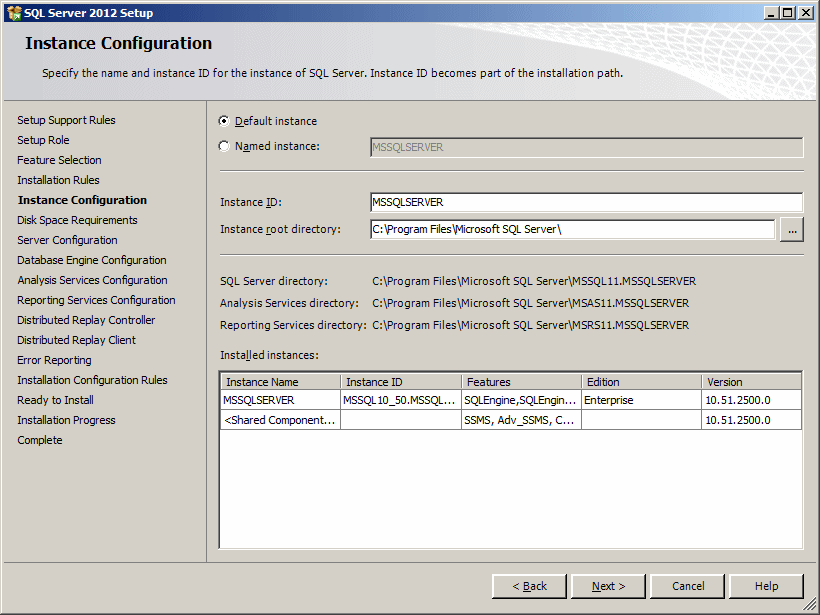
- The next page allows you to name the instance of Microsoft SQL Server
(and to specify where the server would be installed). In most cases, you
should accept the suggested name of the instance as MSSQLSERVER:

After making your selections, click Next
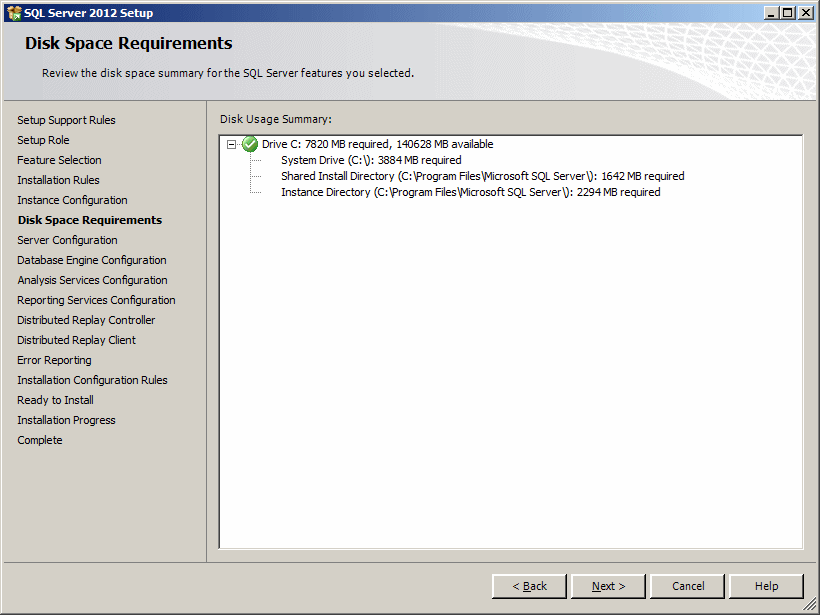
- The next page mostly allows you to check and confirm the disk space:

After checking it, click Next
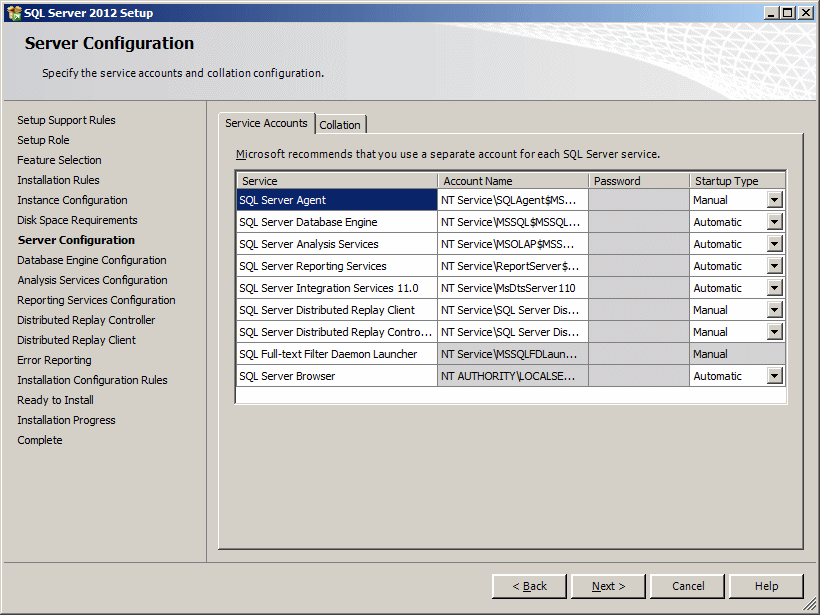
- The next page presents a summary of the server configuration:

After checking it, click Next
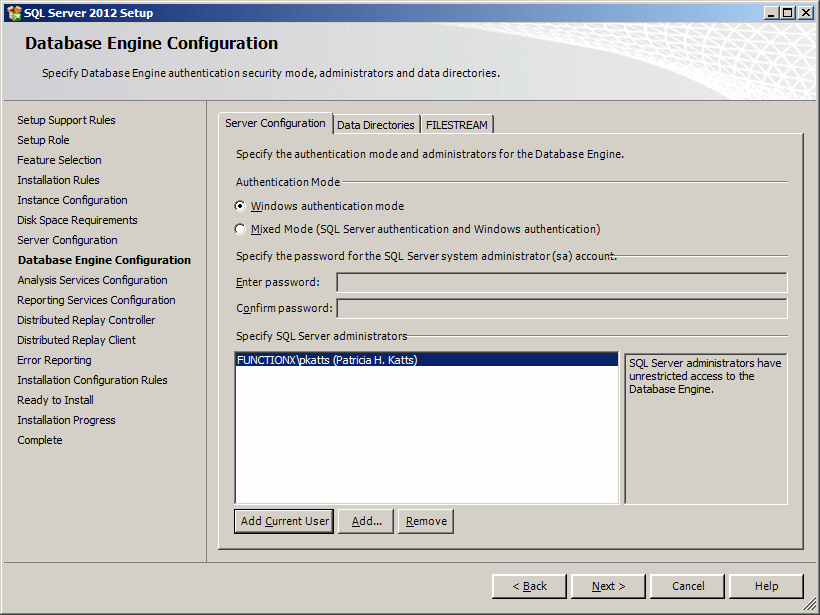
- In the next page, specify the account used as the administrator. To do
this, you can click Add Current User:

- Click Next
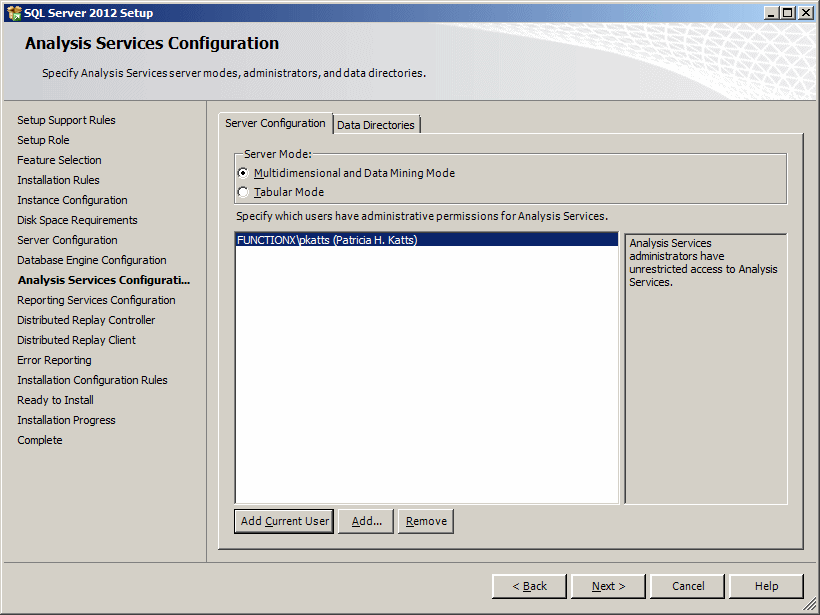
- The next step allows you to specify an account for the analysis
services. Click Add Current User

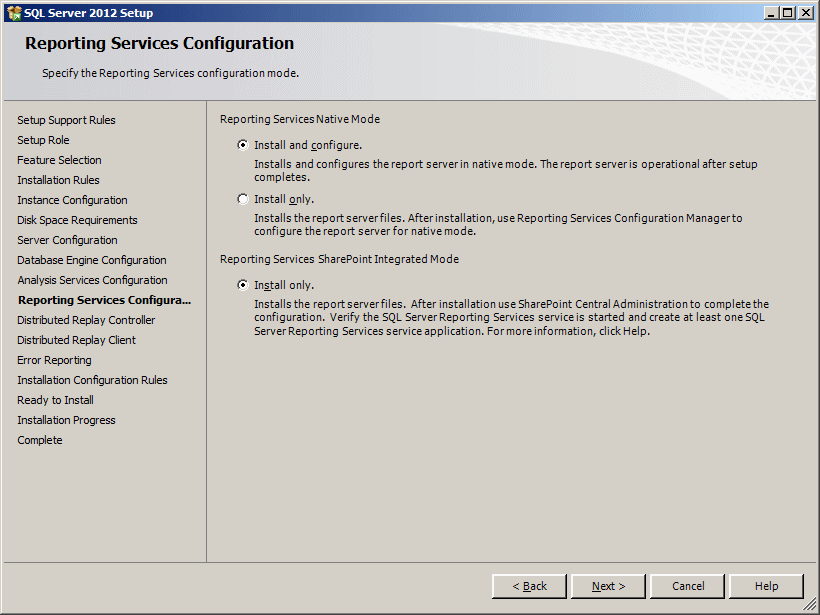
- Click Next.
The Reporting Services Configuration page displays

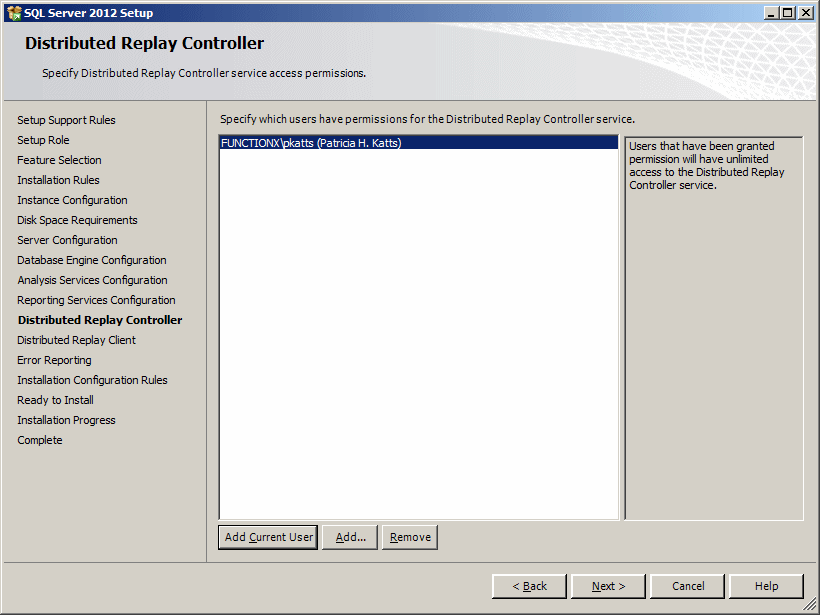
- Click Next. If the Distributed Replay Controller page displays, click
Add Current User

Click Next
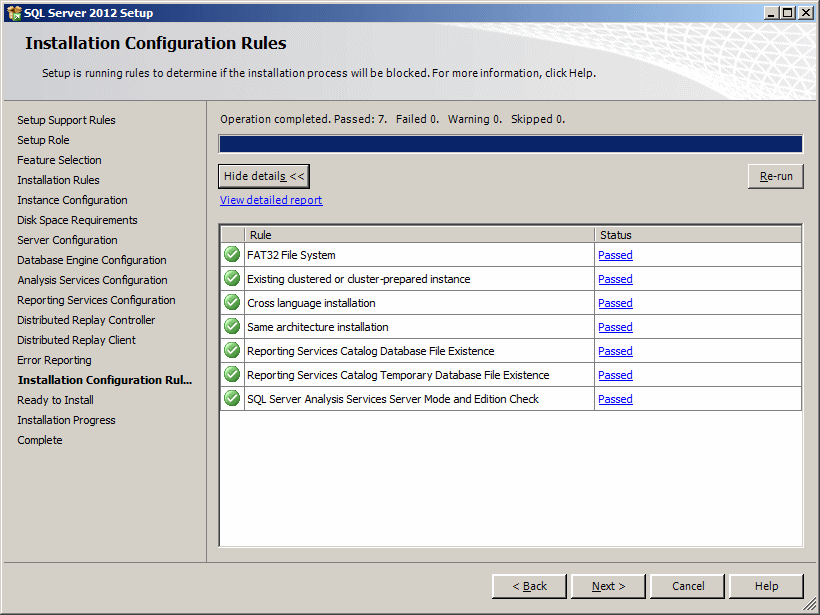
- The Installation Configuration Reules oage may come up:

Click Nex
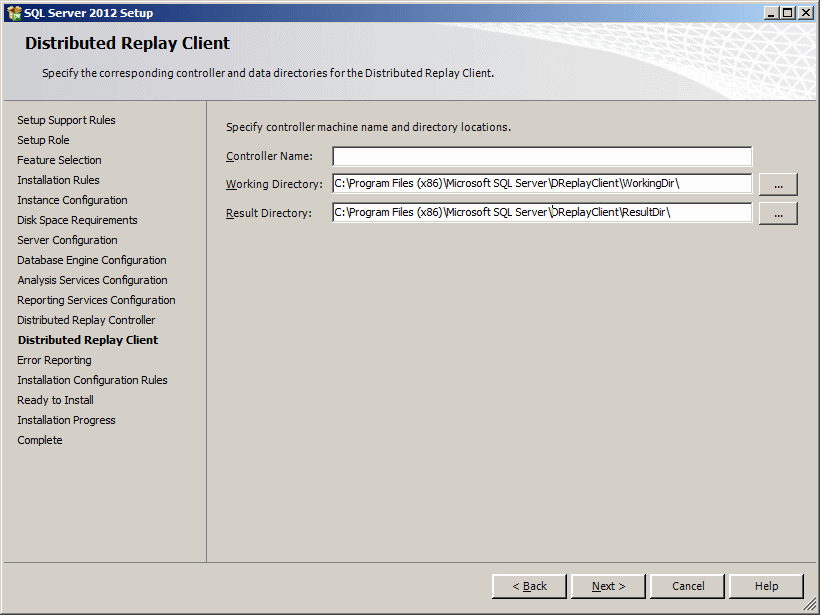
- The next page presents the Distributed Replay Client

Click Next
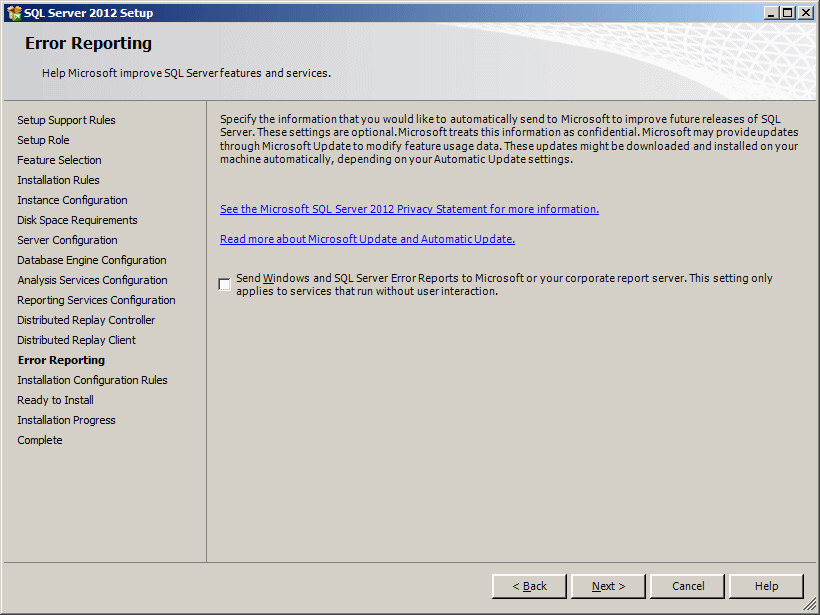
- The next page presents the error reporting

Click Next
- We get back to the Installation configuration Rules.
Click Next
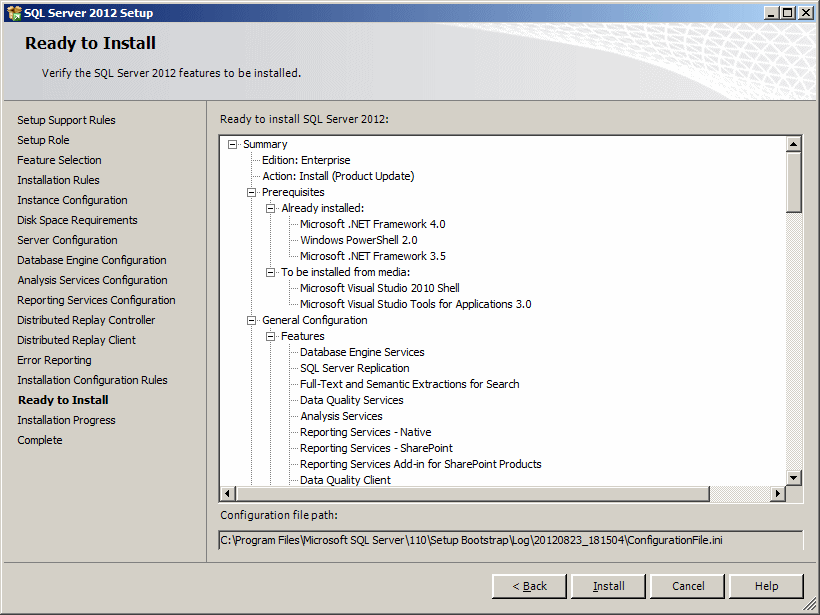
- The next page gives you a summary of tests that were performed before
the installation:

To start the installation, click Install
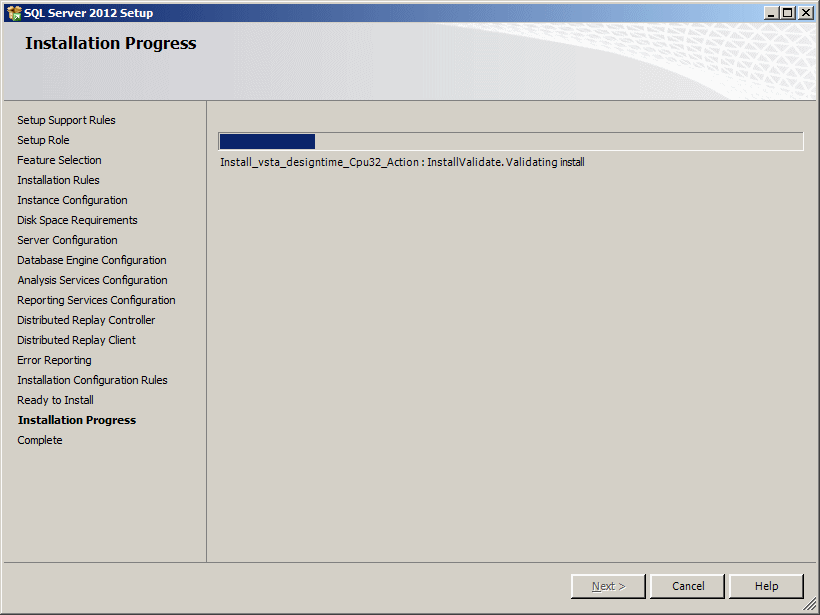
- The installation would start and a progress bar would indicate the
evolution. This can take a while

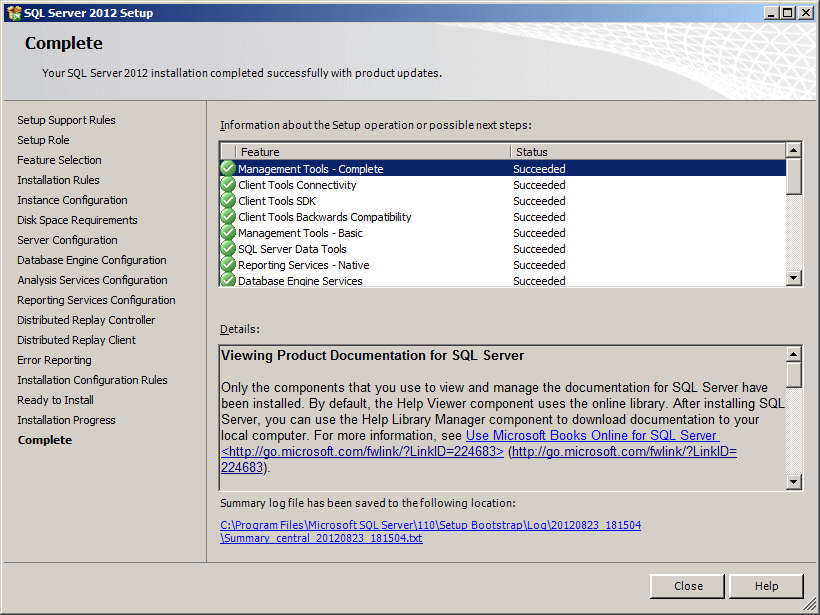
- When this phase is over, the next page will let you know that the
installation is over

After reading the message, click Close
- Restart the computer
|
|