Introduction to C++

Introduction to C++
Introduction to Programming Projects
Overview
A computer application is a series of instructions that ask a computer to do somehing. To create those instructions, you can use a computer language. One of the computer languages you can use to create a computer application is called C.
Introduction to Microsoft Visual Studio
Normally, you can write your computer instructions using a text editor and use some gymnastics to pass those instructions to the computer. A friendlier option is to use an application referred to as an interface development environment or IDE. One of those application is Visual Studio Code; another is Microsoft Visual Studio. There are other IDE applications, such as Eclipse, etc. Visual Studio Code, Microsoft Visual Studio, Eclipse, etc, are freely available. You can download any of them and install it in your computer. You can download Microsoft Visual Studio freely from one of Microsoft websites such as https://visualstudio.microsoft.com or www.asp.net and install it in your computer. For our lessons, we will use Microsoft Visual Studio.
Introduction to C
C is a language that allows you to give instructions to a computer to perform one or a series of operations. To give those instructions, you write some text, referred to as code, in a text-based document. The C language supports various types of files. The primary type of file is the one in which you write direct instructions to the computer. This type of file is called a source file. It is also called a translation unit.
Introduction to C Source Files
A source file is a text-based document. You must create the document and save it with the extension .c. If you are using Microsoft Visual Studio to create your project, to get a source file, in the Solution Explorer, right-click the Source Files folder -> Add -> New Item... Accept the suggested name or change it, but you must (explicitly) specify the file extension as .c. Then click Add.
C++ Fundamentals
C is a wonderulf language that has been used in various projects over the years and is still widely used. To enhance some of its features, another language named C++ was created. Throughout our lessons, we will see what those features are. The good news is that many (or most) of the features of the C language can be used directly in a C++ project, but C and C++ are not the same language. We can simply say that C is the parent of C++ and of many other languages such as Java, C#, JavaScript, etc; and those languages were derived from C.
Introduction to C++ Source Files
Like the C language, C++ uses source files to hold the text pieces that give insturctions to the computer. A C++ source file is a text document that has the extension .cpp. If you create a Console App project in Microsoft Visual Studio (as well as in many other programming environments), the IDE automatically creates a source code for you. When you judge it necessary, you can add other source files.
 Practical Learning: Starting a Project
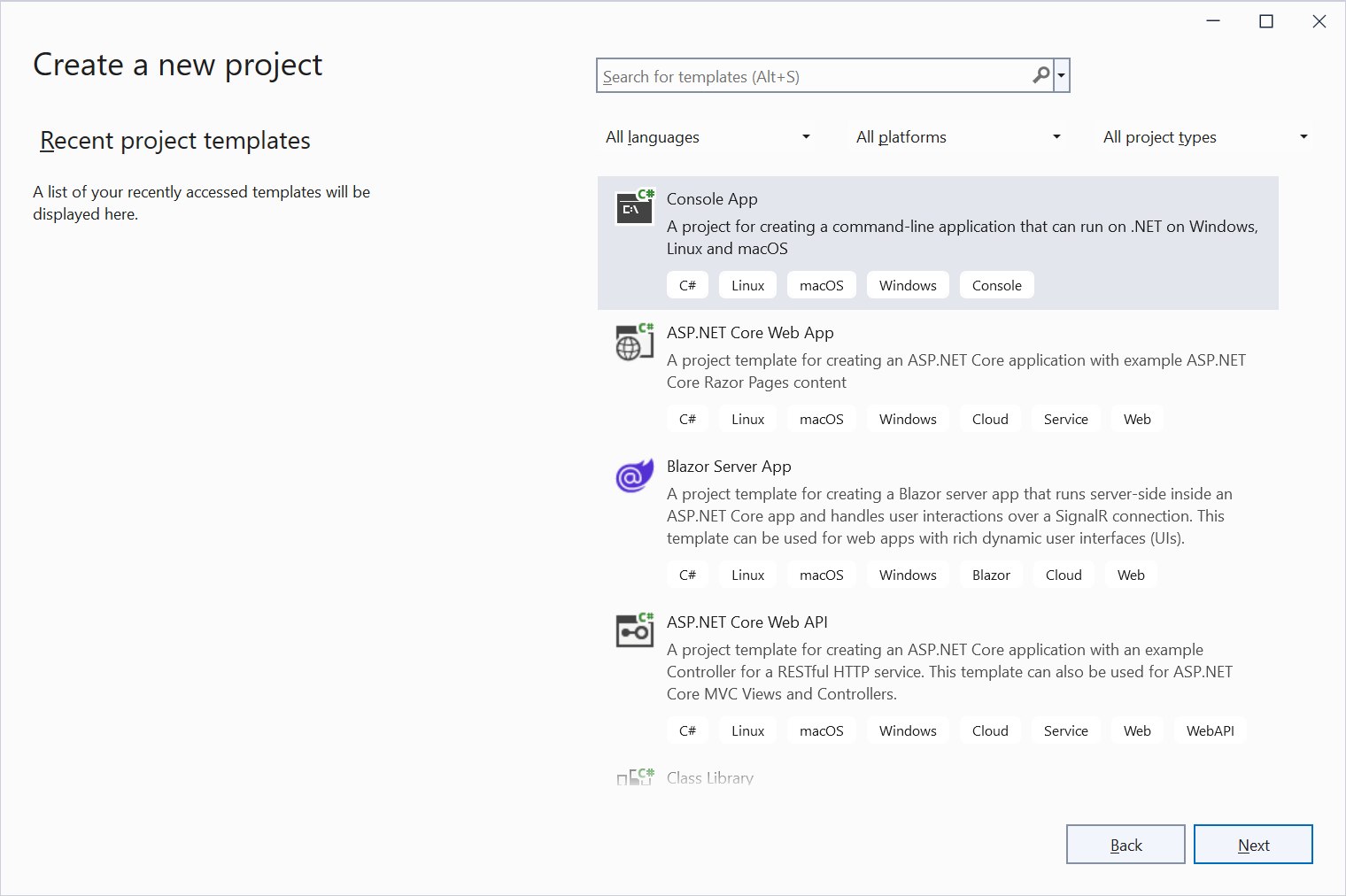


Code Fundamentals
Introduction to Code
As mentioned already, application programming, or coding, consists of writing instructions to a computer to accomplish something. There is minimal code that an application needs. If you start a C++ Console App in Microsoft Visual Studio, the studio would write that starting code for you. Here is an example:
#include <iostream>

int main()
{
    std::cout << "Hello World!\n";
}
In reality, the above can also be written another way.
Practical Learning: Introducing C++ Code
#include <iostream>
using namespace std;

int main()
{
    cout << "Hello World!\n";
}
Introduction to Header Files
The C and the C++ languages support various types of files. Besides the source files, another type of document is called a header file. It is a text-based file that uses the extension .h. You can create such a file in any text editor, save it with the .h extension, and import it in your project.
If you are using Microsoft Visual Studio to create your project, to get a header file, in the Solution Explorer, right-click the Header Files folder -> Add -> New Item... In the middle list of the New Item dialog box, select Header File (.h). Accept the suggested name or change it. Then click Add.
In your header file, you can write just about any type of code. By tradition, a header file is used to make declarations, that is, to define the names of things you will use in your code. Therefore, after creating a header file and writing code in its document, if you want to use that code in your source file, you must reference the header file in your source file. To do this, in the top section of the source file, type #include and something.
There are two categories of header files you will use. The first category are header files that ship with the language. To refer to one of those header file, use the following formula:
#include <file-name.h>
This means that, after#include, add the name of the header file with its extension. The name of the file must be included between < and >.
If you want to refer to a header file you yourself had created, use the following formula:
#include "file-name.h"
This time, after#include, add the name of the header file with its extension between double-quotes (" and ").
After doing this, when your project is built, a copy of the header file would be virtually (not physically) added to the .cpp source file so that the source file will access whatever is available in the header file.
If you want to work on a C project, the primary header file you will use in your code is named stdio.h. You should include it in your primary source file.
Practical Learning: Introducing Header Files
#include <stdio.h>
#include <iostream>
using namespace std;

int main()
{
    cout << "Hello World!\n";
}#include <stdio.h>
#include <iostream>
using namespace std;
int main()
{
cout << "Hello World!\n";
printf("Welcome");
}
 |
In the above code, we have many lines of code that contain some things (such as words and operators) we haven't studied yet. At this time, there is no need to understand what those lines mean or what they do. In later sections and lessons, we will know what each of those words and symbols mean, when and how to add or use them, and why. |
Introduction to Displaying Something to the screen
The primary purpose of a simple program is to display something on the computer screen for the user to see or read. As the primary way to do that, in the above code, replace Hello World! or Welcome with what you want to display. This means that, include the text you want to display between the double-quotes of cout << or those of printf().
Building a Project
A Compiler
A compiler is a computer application that gets your English-based human instructions and translates them in instructions that the computer can understand. A compiler is actually made of various internal programs that do different things.
There are many C compilers in the industry. If you are using Microsoft Visual Studio to create your applications, the compiler you are using is named Microsoft C.
A Directive
A directive is a piece of code that asks the compiler to take some specific action. There are many types of directives you will create in your code. Normally, all compilers use directives. We will see what directives are available, when to use them, and why.
A Pragma
A pragma is a short line of code that informs the compiler about something or some things in the code of the document so the compiler is supposed to behave in a certain way. Pragmas are not universal. This means that some compilers use them and some others may not. Even among the compilers that use pragmas, they don't use them the same way or they don't give the same instructions. In these lessons, we will create all our applications using Microsoft Visual Studio. Therefore, we will use and apply only pragmas used by the Microsoft C compiler.
A One-Line Comment
A comment is a section of code that the compiler will not consider when building your code. In other words, the compiler will skip the comment section. In C++ code, there are two ways you can create a comment. A comment can be used on only one line of code. To create such a comment, write //. Any thing on the right side of // will not be processed. Here is an example:
#include <iostream>

// The following line allows us to use printf()
#include <stdio.h>
using namespace std;

int main()
{
    cout << "Hello World!\n";
	printf("Welcome");
}
The one-line comment can also appear on the right side of regular C++ code. Here is an example:
#include <iostream>
// The following line allows us to use printf()
#include <stdio.h>
using namespace std;

int main() // The "main()" expression is required.
{
    cout << "Hello World!\n";
    printf("Welcome");
}
A Multi-Line Comment
In some cases, you may want to write a series of comments in the same section of code. One solution is to start each line with //. Here are examples:
#include <iostream>
// The following line allows us to use printf()
#include <stdio.h>
using namespace std;

int main() // The "main()" expression is required
{
    // The following lines allow us to display some text on the computer
    // The first line displays "Hello World!"
    // The second line displays "Welcome"
    cout << "Hello World!\n";
    printf("Welcome");
}
As an alternative, to create a multi-line comment, start the section with /* and and it with */. Anything between those two delimiters would be ignored by the compiler. Here is an example:
/* Source File: Exercise.c
This source fill introduces the C language and its primary functionalities.
The lessons follow a step-by-step detailed approach. */
The /**/ comment can also be used on one line. Simply start the line or section with /* and end it with */. Here is an example:
/* This series of lessons introduces computer programming using the C language. */
Practical Learning: Ending the Lesson
|
|
|||
| Home | Copyright © 2004-2025, FunctionX | Thursday 18 December 2025, 20:51 | Next |
|
|
|||