
Introduction to Form and Report Design
|
|
Introduction to Form and Report Design |
Introduction
Besides tables, data is presented in friendlier objects named forms. When it comes to data of a database, there are two broad types of forms: data-unrelated and data-related.
 Practical Learning: Introducing
Forms
Practical Learning: Introducing
Forms
Unrelated Forms
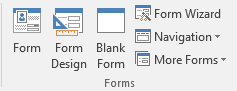
Although most of the forms you will use in a database are meant to display data from a table, you can create an independent form whose functionality and behavior do not depend on the data from a database. To create a blank form, on the Ribbon, click Create and, in the Forms section, click Blank Form:
Practical Learning: Creating
a Form
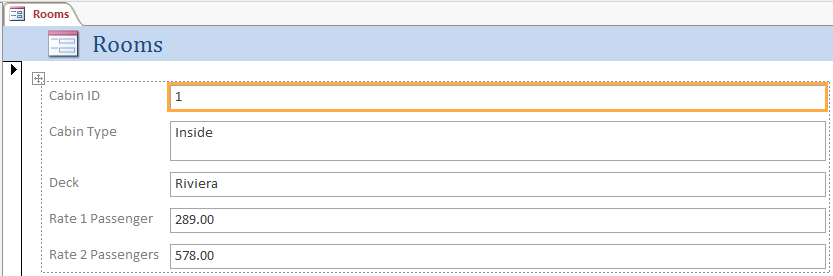
Before creating a form, you must decide where data would come from. If the data of a form will be based on a table, you can specify it. To easily create a form that would display data, in the Navigation Pane, select the table. In the Ribbon, click Create. In the Forms section, click Form.
Practical Learning: Creating a Form Automatically
The Name of a Form
A form must have a name. You can name it when saving or after creating it. To save and name a form:
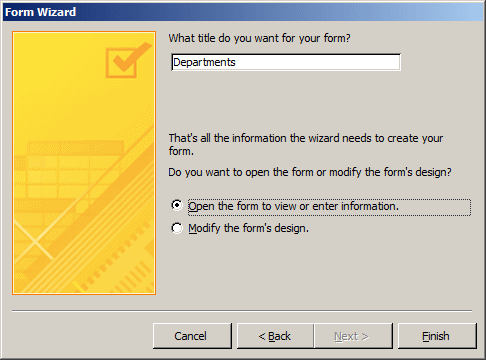
If the form was not saved previously, you would be prompted to give it a name. If a form is based on a table, it may be a good idea to give the same name as the table.
Practical Learning: Naming a Form
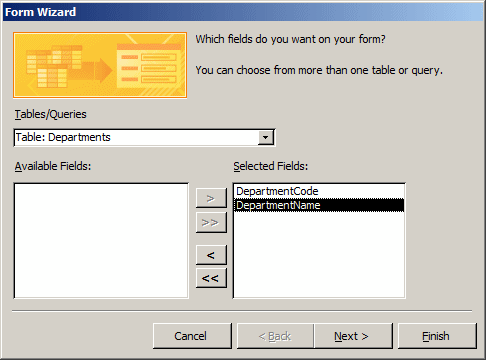
The Form Wizard provides an easy and fast means of creating a form. To launch the Form Wizard, on the Ribbon, click Create. In the Forms section, click Form Wizard.
Practical Learning: Using the Form Wizard


Introduction to Form Maintenance
Opening a Form in Form View
The Form View is the view used for regular operations on a form. To open a form in Form View:
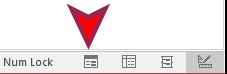
Form Design Fundamentals
The design of a form is done by displaying the object in Design View. To present a form in Design View:
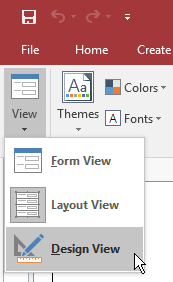
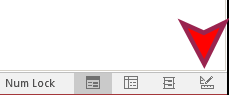
On the other hand, if the form is currently displaying in Design View and you want to switch it to Form View:

Practical Learning: Introducing Form Design
Introduction
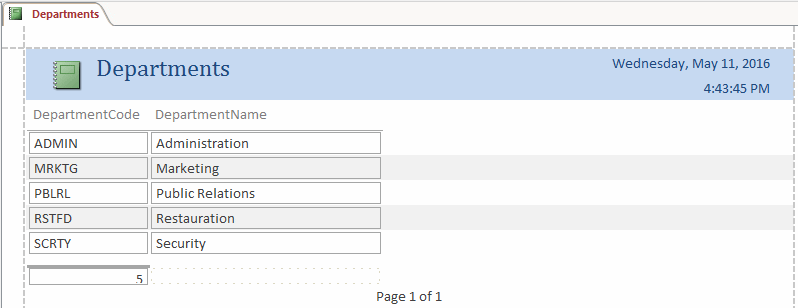
A report is an object made to print the records of a database. Just as mentioned for forms, a report can be made to display the records from a table or a report can be created independently or any table.
An Indepentent Report
A report is independent if it display text and other objects that are not tied to a table. To create such a form, on the Ribbon, click Create. In the Reports section, click Blank Report.
Practical Learning: Creating
a Form
Microsoft Access provides the means of creating a report with the click of a few buttons. To use this feature, in the Navigation Pane, select the table. In the Ribbon, click Create. In the Reports section, click Report.
Practical Learning: Creating a Form Automatically
Naming a Report
Like every object of a database, a report must have a name. If the report gets its records from a table, it is a good idea for it to hold the same name as the table. To save and name a report:
Give a name to the report and press Enter.
Practical Learning: Naming a Form
The Report Wizard
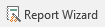
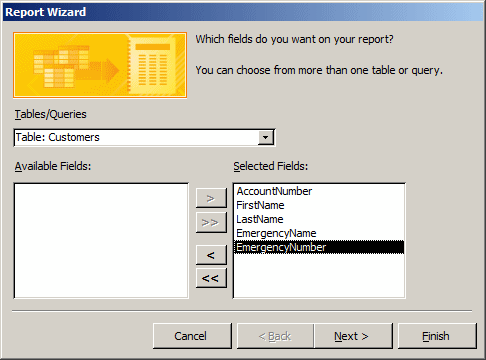
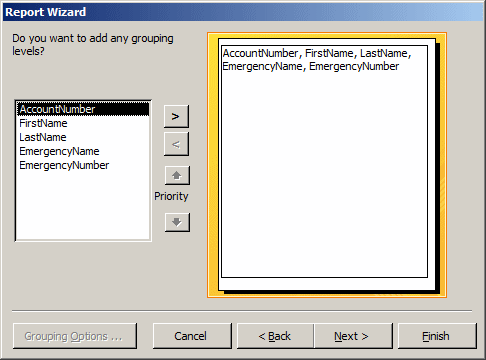
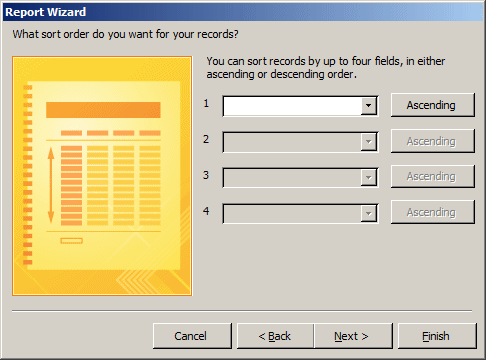
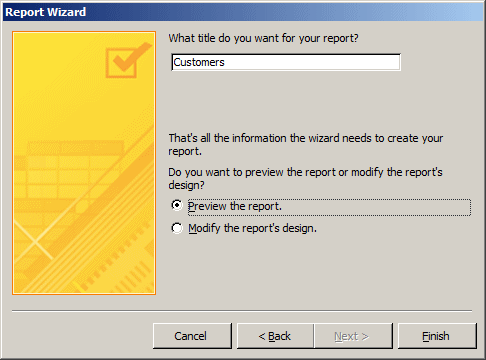
The Report Wizard can be used to select the fields to display on a report. To start the Report Wizard, on the Ribbon, click Create. In the Reports section, click Report Wizard.
Practical Learning: Using the Form Wizard

Report Design
A report must be designed in the Design View. To display it in that view:
Practical Learning: Introducing Form Design
Introduction to the Properties Window
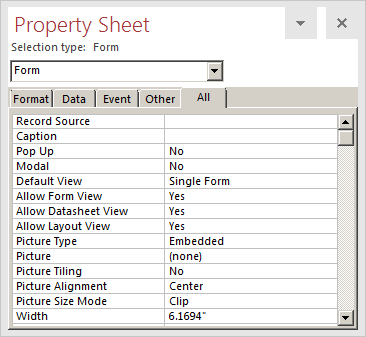
When designing a form, one of the objects you will regularly use is called the Property Sheet. To get the Property Sheet of the properties associated with a control, while the form is in Design View, right-click the object and click Properties. To display the Property Sheet for the form in Design View:


Any of these actions would display the Property Sheet:
There are various ways you can close or hide the Property Sheet:
, this means that
the Property Sheet is currently displaying. To close or hide it, you can
click the same button and it looses its highlighting
 to hide it
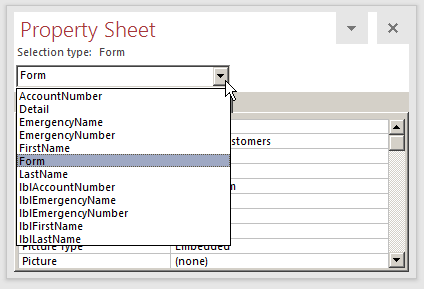
To change the object whose properties you want to access:
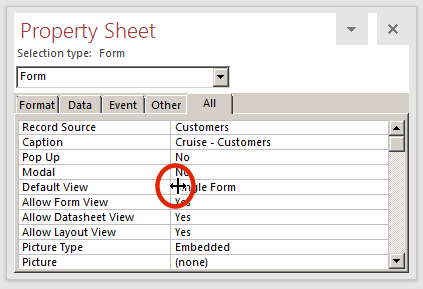
The Properties window is made of five property pages or tabs: Format, Data, Event, Other, and All. Each tab is made of two sections devided by a vertical line:
There are values types of properties.
Practical Learning: Accessing the Properties Window
and make sure it is highlighted
The Name of a Property
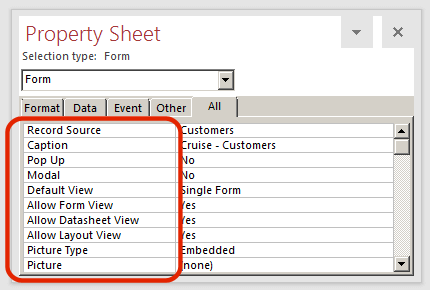
The name of a property specifies what it is used for. Each field in the Property Sheet displays its name on the left side:
The Value of a Property
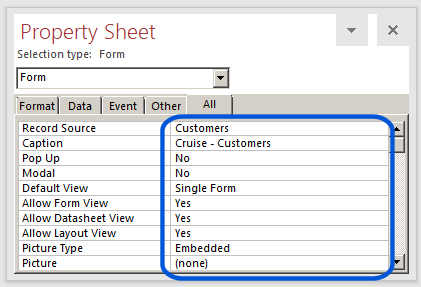
The value of a property defines the role of that property on the object on which it applies. In the Property Sheet, the value of a property displays on the right side of its name:
The Types of Properties
Text-Based Properties
Some values of properties can be made of one or more characters or words. Here is an example:
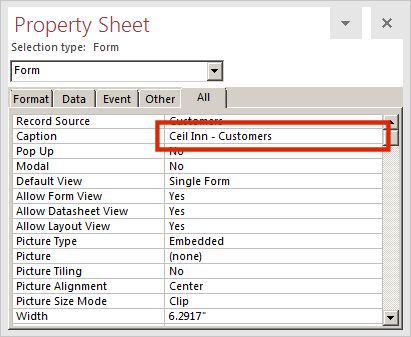
To specify the value of a text-based property, click either the name or the property field and type it.
Number-Based Properties
A property is numeric if it must hold an integral or decimal value. Here is an example:
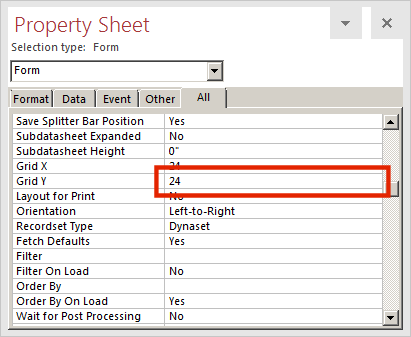
If the value is a natural number, simply type.
A decimal number, also called a floating-point number, can be made of digits or a combination of digits and one period. Here are examples:
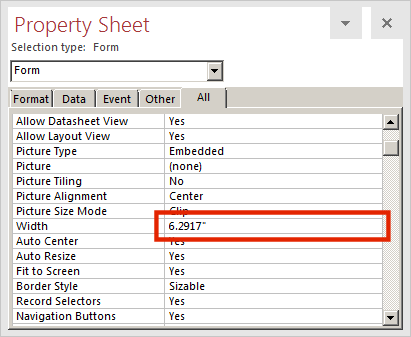
To specify the value, type it, including its decimal separator. If the value is less than 1, such as 0.2167, you can type it like that or only start it with a period followed by the other digits.
Expression-Based Properties
Some properties are made of a combination of specific characters and digits, referred to as a combination.
Boolean Properties
A property is referred to as Boolean if it can have only either a Yes or a No value, an On or an Off value, a 0 or no 0 value. Here are examples:
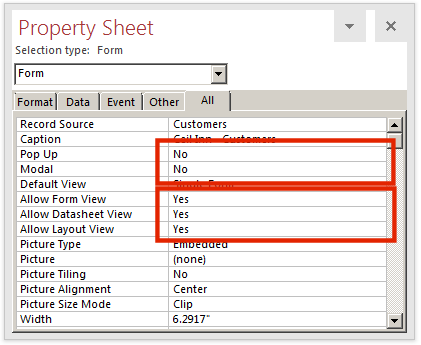
To change the value of a Boolean property:
Enumerated Properties
Some properties provide a list of options as the possible values of the property. To change the value of an enumerated property:
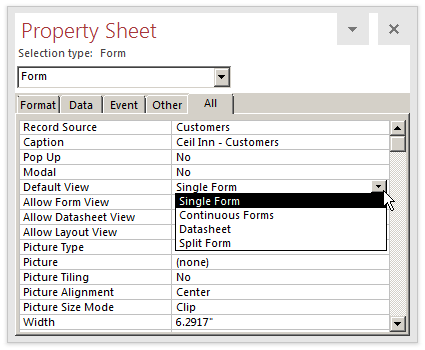
Action-Based Properties
Some properties need a value that may be gotten from an external object or another application. In the Property Sheet, such properties show an ellipsis button:
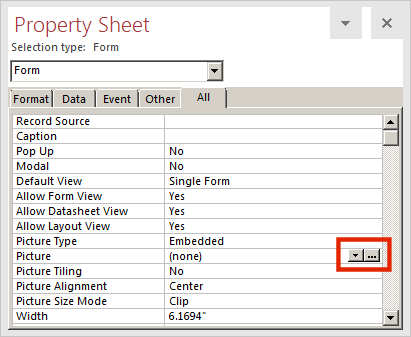
When you click the ellipsis button
 , a dialog box or a window
may come up.
, a dialog box or a window
may come up.
Practical Learning: Ending
the Lessons
|
|
||
| Previous | Copyright © 2002-2021, FunctionX | Next |
|
|
||