|
Generally, a number is referred to as decimal when it is
made of two sections separated by a symbol called the decimal symbol. In US
English, the decimal symbol is the period.
The left side of the decimal symbol contains one or more
digits. If the number on that part is less than 1000, you can just use it like
that. If the number is equal to or greater than 1000, if you want, you can make
it display the thousand separator. When entering the number in a cell, if the
number on the left side of the decimal symbol is 0, you can omit it. On the
right side of the decimal symbol, you use digits only.
If the number in a cell appears as an integer and you want
to convert it to its decimal equivalent:
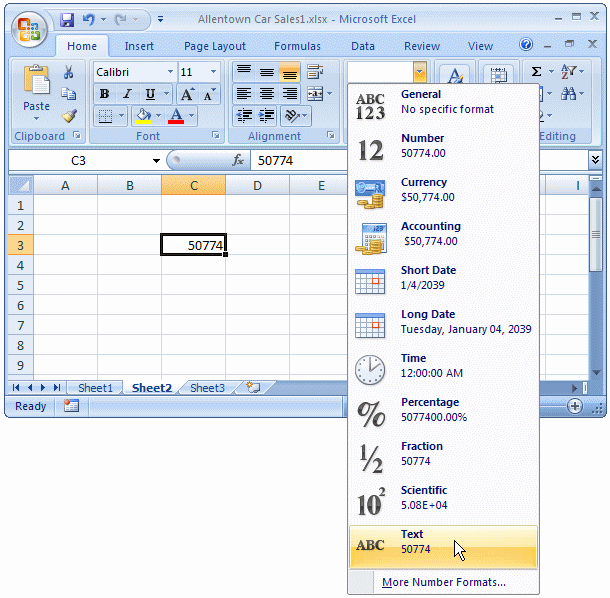
- Click the number. On the Ribbon, click Home. In the Number section, click
the arrow of the combo box and select Number
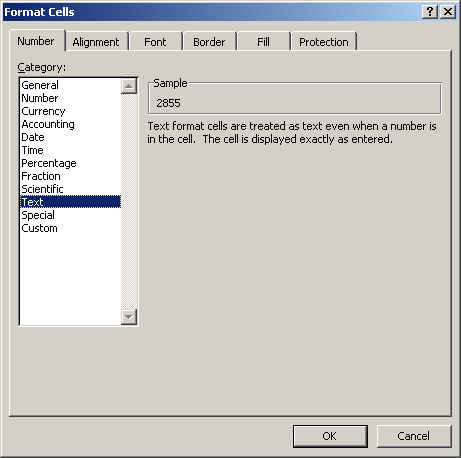
- Right-click the number and click Format Cells... In the Number tab of the
Format Cells dialog box, in the Categories list, click Number and click OK
|
 Practical Learning:
Entering Decimal Values Practical Learning:
Entering Decimal Values
|
|
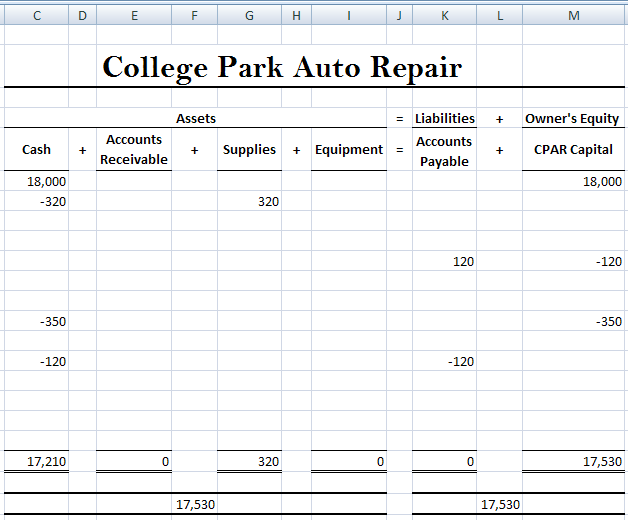
- The company acquires a tire changer that retails for $1250. The company promises to
pay for it in the future (but the machine is delivered, thus acquired). The
Accounts Payable receives an increase of 1250 and the Equipment account
receives an increase of 1250.
Click Cell I8 and type +1,150
- Click Cell K8 and type +1,150
- The company purchases a computer and an All-In-One printer. The total is 1850. This is
recorded in the Equipment account after the Cash account has decreased for
the same amount.
Click Cell C9 and type -1,700
- Click Cell I9 and type +1,700
- The company replaces tires and makes many other
repairs for various cars. The
company makes 2650 on that day and all customers pay everything they
owe. As a
result, the Cash and the Capital accounts increase each by that amount.
Click Cell C11 and type +2,650
- Click Cell M11 and type +2,650
- The company performs a tune-up, installs new brakes, and changes the whole muffler
system for Customer Gertrude Monay. When presented with the invoice of 1050,
the customer pays 650. The rest would be paid at a later date. As a result,
the Cash account gets 650 (the amount the customer actually paid). The
Capital account gets 1050 (the full amount the customer was supposed to
pay). The Accounts Receivable gets the balance (1050 - 650 = 400) that will
be paid in the future.
Click Cell C12 and type +650
- Click Cell E12 and type +400
- Click Cell M12 and type +1,050
- The company performs tune-up and changes the brakes for various
customers. The
company makes $1750 on that day. Its Cash account increases by 1500 and the Capital also
increases by 1500.
Click Cell C14 and type +1,750
- Click Cell M14 under the Capital account and type +1,750
- Gertrude Monay comes to pay her balance. Therefore, the Cash account
increases for the amount she pays and the Accounts Receivable decreases by
the same amount.
Click Cell C16 and type +400
- Click Cell E16 and type -400
- The company pays the rent for 2250, pays a guy who came to help at the shop for
350,
pays the electric bill for 220. This means that the cash flow decreases by
that total. Each expense is subtracted from the Capital account (you must
enter each expense on its own line as a negative value in the Capital
column).
Click Cell C17 and type -2,820
- Click Cell M17 and type -2,250
- Click Cell M18 and type -350
- Click Cell M19 and type -220
- Press Ctrl + Home

- The CPAR1.xlsx workbook should still be opened
- Click the Repair Invoice tab

- Enter the following information:
| Invoice #: |
1001 |
| Name: |
Gertrude Monay |
| Make: |
Honda |
| Model: |
Accord |
| Year: |
2002 |
- Save the workbook
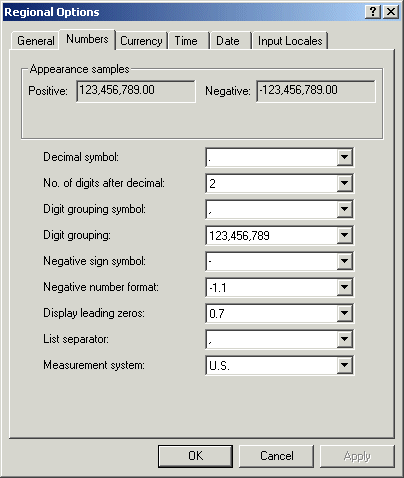
A currency value is a number that displays with the symbol
that represents a monetary value. In US English, this symbol is $ as you can see
in the Customize Regional Options from the Control Panel:
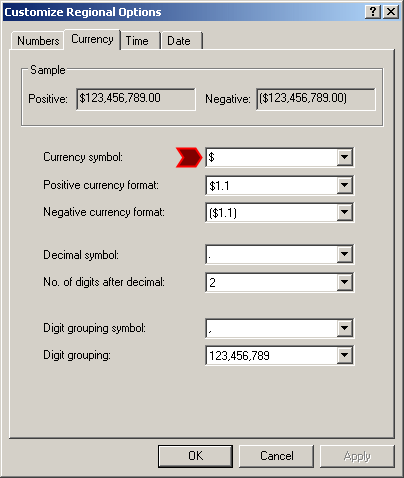
To enter a number as currency for US English, click the
cell, type $ followed by the number. You can enter the number as an integer or
as a decimal value. After entering the number, Microsoft Excel would convert it
to currency.
To convert the value of a cell to currency:
- Click the cell. On the Ribbon, click Home. In the Number section, click
the arrow of the combo box and click Currency or Accounting
- Click the cell. On the Ribbon, click Home. In the Number section, click
the Accounting Number Format button

- Right-click the cell and click Format Cells... In the Categories list of
the Number property page of the Format Cells dialog box, click Currency and
click OK
By default, if you are using a computer where the US English
version of Microsoft Windows is installed, the $ is considered the currency. If
you want to use a different currency, click the cell. On the Ribbon, click Home.
In the Number section, click the arrow the $ button and select from the list:

|
Practical Learning:
Entering Currency Values |
|
- Enter the following information (remember to type the $:
| Part # |
Part Name |
Unit Price |
Qty |
| 759073 |
Air Filter |
$20.15 |
1 |
| 391536 |
Fuel Filter |
$50.85 |
1 |
| 205884 |
Spark Plugs |
$4.15 |
4 |
| Job Performed |
Rate |
| Replaced the air filter, the
fuel filter, and the spark plugs
|
$50 |
| Adjusted the valves |
$125 |
- Save the workbook

One of the most commonly used type of number in a
spreadsheet displays as a percentage value. To enter a percentage value in a
cell, type the number followed by the % symbol. To convert a number to a
percentage:
- Click the cell. On the Ribbon, click Home. In the Number section, click
the arrow of the combo box and select Percentage
- Click the cell. On the Ribbon, click Home. In the Number section, click
the Percent Style button

- Right-click the cell and click Format Cells... In the Categories list of
the Number property page of the Format Cells dialog box, click Percentage
and click OK
|
Practical Learning:
Entering Data Into Cells |
|
- Click Cell J33
- Type 5.75% and press Ctrl + Home

- Save the workbook
|
|