|
 Practical
Learning: Catching Exceptions Practical
Learning: Catching Exceptions
|
|
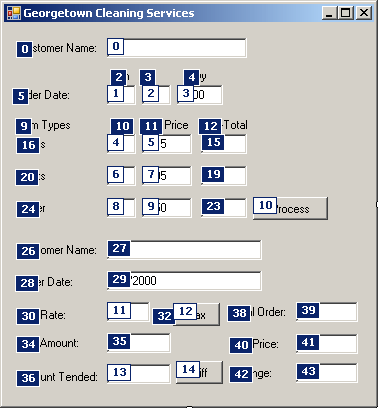
- To introduce exceptions, access the form's code and change the
events of the buttons as follows:
Public Class Form1

   . . . No Change

    Private Sub BtnProcessClick(ByVal sender As Object,
                                 ByVal e As System.EventArgs)
                                 Handles BtnProcess.Click
        . . . No Change

        ' Request the quantity of each category of items
        ' Number of Shirts
        Try
            NumberOfShirts = CInt(TxtQtyShirts.Text)
        Catch

        End Try

        ' Number of Pants
        Try
            NumberOfPants = CInt(TxtQtyPants.Text)
        Catch

        End Try

        ' Number of Dresses
        Try
            NumberOfOther = CInt(TxtQtyOther.Text)
        Catch

        End Try

        ' Unit Prices of items
        Try
            PriceOneShirt = CDbl(TxtUnitPriceShirts.Text)
        Catch

        End Try

        Try
            PriceAPairOfPants = CDbl(TxtUnitPricePants.Text)
        Catch

        End Try

        Try
            PriceOther = CDbl(TxtUnitPriceOther.Text)
        Catch

        End Try

        . . . No Change
    End Sub

    Private Sub BtnTaxClick(ByVal sender As Object,
                             ByVal e As System.EventArgs)
                             Handles BtnTax.Click
        ' Get the tax rate
        Try
            TaxRate = CDbl(TxtTaxRate.Text) / 100
        Catch

        End Try
        ' Calculate the tax amount using a constant rate
        TaxAmount = TotalOrder * TaxRate
        ' Add the tax amount to the total order
        SalesTotal = TotalOrder + TaxAmount

        TxtTaxAmount.Text = TaxAmount.ToString()
        TxtNetPrice.Text = SalesTotal.ToString()
    End Sub

    Private Sub BtnDifferenceClick(ByVal sender As Object,
                                    ByVal e As System.EventArgs)
                                    Handles BtnDifference.Click
        Dim AmountTended As Double = 0.0
        Dim Difference As Double = 0.0

        ' Request money for the order
        Try
            AmountTended = CDbl(TxtAmountTended.Text)
        Catch

        End Try

        ' Calculate the difference owed to the customer
        ' or that the customer still owes to the store
        Difference = AmountTended - SalesTotal

        TxtDifference.Text = CStr(Difference)
    End Sub
End Class
- Execute the application. This time, type invalid values in the
quantity text boxes and other text boxes where the user is supposed to
enter some values

- Click Process

- Return to your programming environment
As mentioned already, if an error occurs when processing
the program in the Try section, the compiler transfers the processing
to the next Catch section. You can then use the catch section to deal
with the error. At a minimum, you can display a message to inform the user.
To do this, you can create a message box in the Catch section. Here
is an example:
Imports System.Drawing
Imports System.Windows.Forms

Module Exercise

    Public Class Starter
        Inherits Form

        Private LblNumber As Label
        Private TxtNumber As TextBox
        Friend WithEvents BtnCalculate As Button
        Private LblResult As Label
        Private TxtResult As TextBox

        Dim components As System.ComponentModel.Container

        Public Sub New()
            InitializeComponent()
        End Sub

        Public Sub InitializeComponent()
            Text = "Exception Behavior"

            LblNumber = New Label
            LblNumber.Location = New Point(17, 23)
            LblNumber.Text = "Number:"
            LblNumber.AutoSize = True

            TxtNumber = New TextBox
            TxtNumber.Location = New Point(78, 20)
            TxtNumber.Size = New Size(83, 20)

            BtnCalculate = New Button
            BtnCalculate.Location = New Point(78, 45)
            BtnCalculate.Text = "Calculate"
            BtnCalculate.Size = New Size(83, 23)

            LblResult = New Label
            LblResult.Location = New Point(17, 75)
            LblResult.Text = "Result:"
            LblResult.AutoSize = True

            TxtResult = New TextBox
            TxtResult.Location = New Point(76, 72)
            TxtResult.Size = New Size(83, 20)

            Controls.Add(LblNumber)
            Controls.Add(TxtNumber)
            Controls.Add(BtnCalculate)
            Controls.Add(LblResult)
            Controls.Add(TxtResult)

        End Sub

        Private Sub CalculateClicked(ByVal sender As Object,
                                     	      ByVal e As EventArgs)
                                     	      Handles BtnCalculate.Click
            Dim Number As Double
            Dim Result As Double

            Try
                Number = CDbl(TxtNumber.Text)
                Result = Number * 12.48
                TxtResult.Text = CStr(Result)
            Catch
                MsgBox("Something bad happened")
            End Try
        End Sub
    End Class

    Function Main() As Integer

        Dim frmStart As Starter = New Starter

        Application.Run(frmStart)

        Return 0
    End Function

End Module
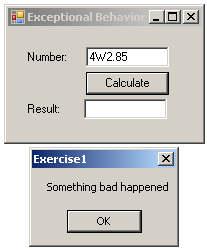
Of course, your message may not be particularly clear
but this time, the program will not crash.
|
Practical
Learning: Displaying Custom Messages
|
|
- To display custom messages to the user, change the code as follows:
Public Class Form1

    . . . No Change

    Private Sub BtnProcessClick(ByVal sender As Object,
                                 ByVal e As System.EventArgs)
                                 Handles BtnProcess.Click
        . . . No Change

        ' Request the quantity of each category of items
        ' Number of Shirts
        Try
            NumberOfShirts = CInt(TxtQtyShirts.Text)
        Catch
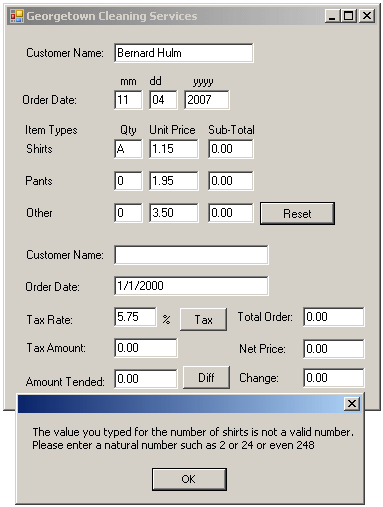
            MsgBox("The value you typed for the number of " &
                   "shirts is not a valid number." &
                   vbCrLf & "Please enter a natural number such " &
                   "as 2 or 24 or even 248")
        End Try

        ' Number of Pants
        Try
            NumberOfPants = CInt(TxtQtyPants.Text)
        Catch
            MsgBox("The value you typed for the number of " &
                   "pair or pants is not a valid number." &
                   vbCrLf & "Please enter a natural number such " &
                   "as 2 or 24 or even 248")
        End Try

        ' Number of other items
        Try
            NumberOfOther = CInt(TxtQtyOther.Text)
        Catch
            MsgBox("The value you typed for the number of " &
                   "other items is not a valid number." &
                   vbCrLf & "Please enter a natural number such " &
                   "as 2 or 24 or even 248")
        End Try

        ' Unit Prices of items
        Try
            PriceOneShirt = CDbl(TxtUnitPriceShirts.Text)
        Catch
            MsgBox("The value you entered for the unit price " &
                   "of a shirt is not a recognizable currency " &
                   "amount." & vbCrLf &
                   "Only natural or decimal numbers " &
                   "are allowed. Please consult the management " &
                   "to know the valid prices.")
        End Try

        Try
            PriceAPairOfPants = CDbl(TxtUnitPricePants.Text)
        Catch
            MsgBox("The value you entered for the unit price of " &
                   "a pair of pants is not a recognizable " &
                   "currency amount." & vbCrLf &
                   "Only natural or decimal " &
                   "numbers are allowed. You can consult the " &
                   "management to find out about " &
                   "the allowable prices.")
        End Try

        Try
            PriceOther = CDbl(TxtUnitPriceOther.Text)
        Catch
            MsgBox("The value you entered for the unit " &
                   "price of other items is not a valid amount." &
                   vbCrLf & "You must enter only a natural or a " &
                   "decimal number. For more information, " &
                   "please consult the management to get " &
                   "the right prices.")
        End Try

        . . . No Change
    End Sub

    Private Sub BtnTaxClick(ByVal sender As Object,
                             ByVal e As System.EventArgs)
                             Handles BtnTax.Click
        ' Get the tax rate
        Try
            TaxRate = CDbl(TxtTaxRate.Text) / 100
        Catch
            MsgBox("The value you entered is not " &
                   "recognized as a valid tax rate." &
                   vbCrLf & "A valid tax rate is a value " &
                   "between 0 and 100.00" &
                   vbCrLf & "Please try again.")
        End Try
        ' Calculate the tax amount using a constant rate
        TaxAmount = TotalOrder * TaxRate
        ' Add the tax amount to the total order
        SalesTotal = TotalOrder + TaxAmount

        TxtTaxAmount.Text = TaxAmount.ToString()
        TxtNetPrice.Text = SalesTotal.ToString()
    End Sub

    Private Sub BtnDifferenceClick(ByVal sender As Object,
                                    ByVal e As System.EventArgs)
                                    Handles BtnDifference.Click
        Dim AmountTended As Double = 0.0
        Dim Difference As Double = 0.0

        ' Request money for the order
        Try
            AmountTended = CDbl(TxtAmountTended.Text)
        Catch
            MsgBox("The value you entered for the amount " &
                   "tended is not valid. Only natural or " &
                   "decimal numbers are allowed." &
                   "Please try again.")
        End Try

        ' Calculate the difference owed to the customer
        ' or that the customer still owes to the store
        Difference = AmountTended - SalesTotal

        TxtDifference.Text = CStr(Difference)
    End Sub
End Class
- Test the application with valid and invalid values. Here is an
example:
- Close the form and return to your programming environment
|
Exceptions in the .NET Framework
|
|
Most libraries such as Borland's VCL and Microsoft's MFC
ship with their own classes to handle exceptions. Even the Win32 library
provides its type of mechanism to face errors. To support exception
handling, the .NET Framework provides a special class called Exception.
Once the compiler encounters an error, the Exception class allows you
to identify the type of error and take an appropriate action.
Normally, Exception mostly serves as the general
class of exceptions. It is used like a Catch that is not followed by any
parameter. Anticipating various types of problems that can occur in a
program, Microsoft derived various classes from Exception to make
this issue friendlier. As a result, almost any type of exception you may
encounter already has a class created to deal with it. Therefore, when your
program faces an exception, you can easily identify the type of error.
There are so many exception classes that we cannot study
or review them all. The solution we will use is to introduce or review a
class when we meet its type of error.
In exception handling, errors are dealt with in the
Catch clause. To use it, on the right side of Catch, type a
parameter name, followed by the As operator, and followed by the the type of
exception you want to deal with. By default, an exception is first of type
Exception. Based on this, a typical formula to implement exception
handling is:
Private Sub CalculateClicked(ByVal sender As Object,
                                     	      ByVal e As EventArgs)
                                     	      Handles BtnCalculate.Click
            Dim Number As Double
            Dim Result As Double

            Try

                ' Process the normal flow of the program here

            Catch ex As Exception

                ' Deal with the exception here

            End Try

End Sub
As reviewed already, when an exception occurs in the
Try section, code compilation is transferred to the Catch
section. If you declare the exception as an Exception type, this
class will identify the error.
One of the properties of the Exception class is
called Message. This property contains a string that describes the
type of error that occurred. You can then use this Exception.Message
property to display an error message if you want. Here is an example:
Private Sub CalculateClicked(ByVal sender As Object,
                                     ByVal e As EventArgs)
                                     Handles BtnCalculate.Click
            Dim Number As Double
            Dim Result As Double

            Try
                Number = CDbl(TxtNumber.Text)
                Result = Number * 12.48
                TxtResult.Text = CStr(Result)
            Catch ex As Exception
                MsgBox(ex.Message)
            End Try
End Sub
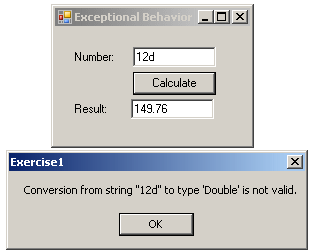
As you can see, one of the strengths of the Message
property is that it gives you a good indication of the type of problem that
occurred. Sometimes, the message provided by the Exception class may
not appear explicit enough. In fact, you may not want to show it to the user
since, as in this case, the user may not understand what the message means
and why it is being used. As an alternative, you can create your own message
and display it to the user. As seen previously, to display your own message,
in the Catch section, use the MsgBox() function to create and
display a message. Here is an example:
Private Sub CalculateClicked(ByVal sender As Object,
                                     ByVal e As EventArgs)
                                     Handles BtnCalculate.Click
            Dim Number As Double
            Dim Result As Double

            Try
                Number = CDbl(TxtNumber.Text)
                Result = Number * 12.48
                TxtResult.Text = CStr(Result)
            Catch ex As Exception
                MsgBox("The operation could not be carried because " &
                             "the number you typed is not valid")
            End Try
End Sub
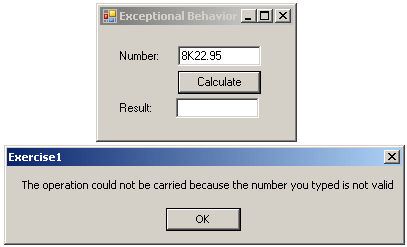
You can also combine the Exception.Message
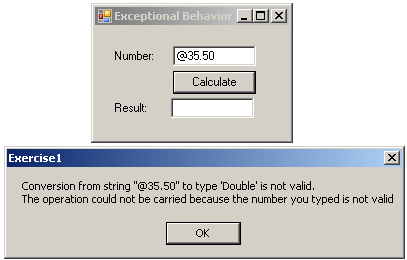
message and your own message:
Private Sub CalculateClicked(ByVal sender As Object,
                                     ByVal e As EventArgs)
                                     Handles BtnCalculate.Click
            Dim Number As Double
            Dim Result As Double

            Try
                Number = CDbl(TxtNumber.Text)
                Result = Number * 12.48
                TxtResult.Text = CStr(Result)
            Catch ex As Exception
                MsgBox(ex.Message &
                       vbCrLf & "The operation could not be carried because " &
                       "the number you typed is not valid")
            End Try
End Sub
|
|