Solid Brushes
|
|
Solid Brushes |
|
Simple Colored Brushes |
|
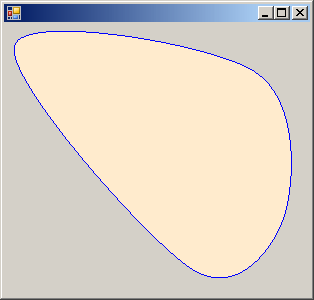
Like a pen, the primary characteristic of a brush is its color. To help you create a simple brush, the System.Drawing namespace provides the static sealed Brushes class. The only feature this class provides is the ability to specify a color to use on a brush. As a static class, you never have to instantiate it. To create a simple brush whose only information is provided by its color, call the Brushes class and access a color by qualifying it with the name of the class. Each color is provided by its name as a property. Here is an example of using the class: |
Imports System.Drawing
Imports System.Windows.Forms

Module Exercise

    Public Class Starter
        Inherits Form

        Dim components As System.ComponentModel.Container

        Public Sub New()
            InitializeComponent()
        End Sub

        Public Sub InitializeComponent()

        End Sub

        Private Sub FormPaint(ByVal sender As Object, _
                              ByVal e As PaintEventArgs) _
                              Handles MyBase.Paint

            Dim pt As Point() = { _
 		New Point(10, 22), _
 		New Point(188, 246), _
                          	New Point(280, 192), _
 		New Point(250, 48)}

            e.Graphics.FillClosedCurve(Brushes.BlanchedAlmond, pt)
            e.Graphics.DrawClosedCurve(Pens.Blue, pt)

        End Sub
    End Class

    Function Main() As Integer

        Dim frmStart As Starter = New Starter

        Application.Run(frmStart)

        Return 0
    End Function

End Module
This would produce:
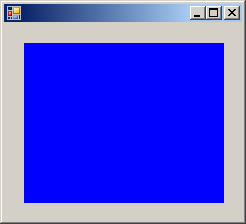
The simplest type of brush is referred to as solid. This type of brush is simply equipped with a color and it is used to fill a shape with it. To get a solid brush, you use the SolidBrush class defined in the System.Drawing namespace. It has only one constructor declared with the following syntax: Public Sub New(color As Color) The color passed as argument must be a valid definition of a Color. Here is an example: Private Sub FormPaint(ByVal sender As Object, _
ByVal e As PaintEventArgs) _
Handles MyBase.Paint
Dim brushBlue As SolidBrush = New SolidBrush(Color.Blue)
e.Graphics.FillRectangle(brushBlue, 20, 20, 200, 160)
End Sub
This would produce:
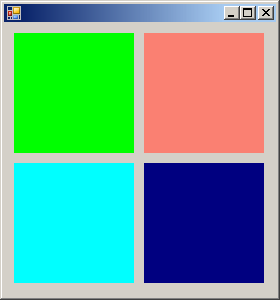
If you plan to use different colors to fill different shapes, you don't have to create a new brush for each shape. At any time, before re-using the same brush previously defined, you can simply change its Color. For this reason, the SolidBrush class is equipped with the Color property. Here is an example of using it: Private Sub FormPaint(ByVal sender As Object, _
ByVal e As PaintEventArgs) _
Handles MyBase.Paint
Dim colorizer As SolidBrush = New SolidBrush(Color.Lime)
e.Graphics.FillRectangle(colorizer, 10, 10, 120, 120)
colorizer.Color = Color.Salmon
e.Graphics.FillRectangle(colorizer, 140, 10, 120, 120)
colorizer.Color = Color.Aqua
e.Graphics.FillRectangle(colorizer, 10, 140, 120, 120)
colorizer.Color = Color.Navy
e.Graphics.FillRectangle(colorizer, 140, 140, 120, 120)
End Sub
This would produce:
Like most objects used in graphics programming, a brush consumes the computer resources. Therefore, after using it, you can free the resources it was using by calling the Dispose() method. Here is an example: Private Sub FormPaint(ByVal sender As Object, _
ByVal e As PaintEventArgs) _
Handles MyBase.Paint
Dim colorizer As SolidBrush = New SolidBrush(Color.Lime)
e.Graphics.FillRectangle(colorizer, 10, 10, 120, 120)
colorizer.Color = Color.Salmon
e.Graphics.FillRectangle(colorizer, 140, 10, 120, 120)
colorizer.Color = Color.Aqua
e.Graphics.FillRectangle(colorizer, 10, 140, 120, 120)
colorizer.Color = Color.Navy
e.Graphics.FillRectangle(colorizer, 140, 140, 120, 120)
colorizer.Dispose()
End Sub
|
|
|
||
| Home | Copyright © 2008-2016, FunctionX, Inc. | Home |
|
|
||