
Conditional Statements and Functions
|
|
Conditional Statements and Functions |
Involving a Conditional Statement in a Function
Introduction
When performing its assignment, a function can encounter different situations, some of which would need to be checked for a true value, a false value or a negation. Therefore, a conditional statement can assist a procedure or function to decide what action to take or what value to produce.
Conditional Returns
A function can return only one value but you can make it produce a result that depends on some condition.
 Practical Learning:
Conditionnally Returning a Value
Practical Learning:
Conditionnally Returning a Value
Function GetDiscountRate(ByVal price As Double, ByVal days As Integer) As Integer
    Dim discountRate As Double

    If days > 70 Then
        discountRate = 70
    ElseIf days > 50 Then
        discountRate = 50
    ElseIf days > 30 Then
        discountRate = 35
    ElseIf days > 15 Then
        discountRate = 15
    End If

    GetDiscountRate = discountRate
End Function

Function CalculateMarketPrice(ByVal price As Double, Optional ByVal rate As Integer = 0#) As Integer
    Dim markedPrice As Double

    If rate = 0# Then
        markedPrice = 0#
    Else
        markedPrice = price * rate / 100#
    End If

    CalculateMarketPrice = markedPrice
End Function

Private Sub cmdCreate_Click()
    Dim unitPrice As Double
    Dim markedPrice As Double
    Dim discountRate As Double
    Dim daysInStore As Integer
    Dim discountedAmount As Double

    markedPrice = 0#

    daysInStore = CInt(txtDaysInStore)
    unitPrice = CDbl(txtUnitPrice)
    discountRate = GetDiscountRate(unitPrice, daysInStore)

    If discountRate = 0# Then
        discountedAmount = CalculateMarketPrice(unitPrice)
    Else
        discountedAmount = CalculateMarketPrice(unitPrice, discountRate)
    End If

    markedPrice = unitPrice - discountedAmount

    txtItemNumberRecord = txtItemNumberIdentification
    txtItemNameRecord = txtItemNameIdentification
    txtDiscountAmount = FormatCurrency(discountedAmount)
    txtMarkedPrice = FormatCurrency(markedPrice)
End Sub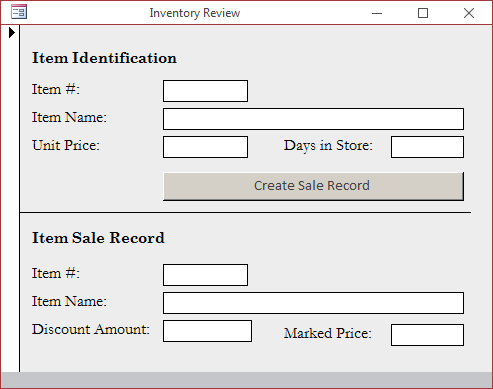
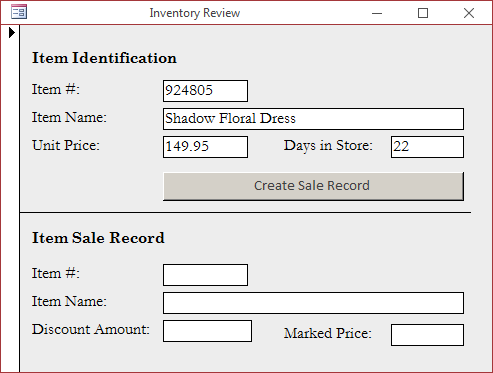
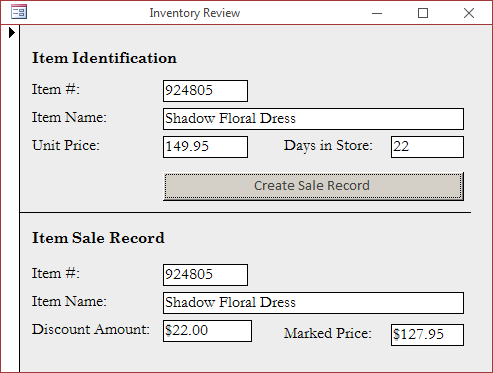
Function GetDiscountRate(ByVal price As Double, ByVal days As Integer) As Integer
    If days > 70 Then
        GetDiscountRate = 70
    ElseIf days > 50 Then
        GetDiscountRate = 50
    ElseIf days > 30 Then
        GetDiscountRate = 35
    ElseIf days > 15 Then
        GetDiscountRate = 15
    End If
End Function

Function CalculateMarketPrice(ByVal price As Double, _
			   ByVal Optional ByVal rate As Integer = 0#) As Integer
    If rate = 0# Then
        CalculateMarketPrice = 0#
    Else
        CalculateMarketPrice = price * rate / 100#
    End If
End FunctionDim nbr As Long
Dim nm As String
Dim cost As Double
Public Property Get ItemNumber() As Long
ItemNumber = nbr
End Property
Public Property Let ItemNumber(ByVal value As Long)
ItemNumber = value
End Property
Public Property Get ItemName() As Long
ItemName = nm
End Property
Public Property Let ItemName(ByVal value As Long)
ItemName = value
End Property
Public Property Get UnitPrice() As Long
UnitPrice = cost
End Property
Public Property Let UnitPrice(ByVal value As Long)
UnitPrice = value
End PropertyIntroduction to Built-In Boolean Functions
Checking Whether a Variable Has Been Initialized
After declaring a variable, at any time, to let you check whether the variable has been initialized or holds a valid value, the Visual Basic language provides a function named IsEmpty. Its syntax is:
Public Function IsEmpty(ByVal Expression As Variant) As Boolean
When calling this function, pass the name of a variable to it. If the variable was already initialized, the function would return True. Otherwise, it would return False.
Checking Whether a Variable is an Object
After declaring a variable, at any time, to let you find out whether the variable in an Object type, the Visual Basic language provides a function named IsObject(). Its syntax is:
Public Function IsObject(ByVal VariableName As String) As Boolean
This function takes as argument the name of a variable. If the argument represents an object type, the function returns True. Otherwise, it returns False.
 Practical
Learning: Checking Whether a Variable is an Object
Practical
Learning: Checking Whether a Variable is an Object
Private Sub Command0_Click()
    Dim item

    If IsObject(item) Then
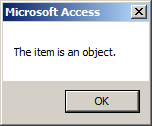
        MsgBox "The item is an object."
    Else
        MsgBox "This item doesn't use a reference type."
    End If

    Set item = New StoreItem

    If IsObject(item) Then
        MsgBox "The item is an object."
    Else
        MsgBox "This item doesn't use a reference type."
    End If

    Set item = Nothing
End Sub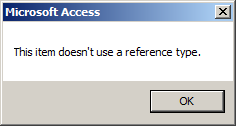
Checking Whether Something is Null
To help you find whether something, such as a control or a variable, has no valid value, that is, whether a control or a value is null, the Visual Basic language provides a function named IsNull. Its syntax is:
Public Function IsNull(ByVal expression As Variant) As Boolean
This function check the state of the. If the argument holds a valid value, the function returns True. If the argument holds no value or its value is not clear, the function returns False.
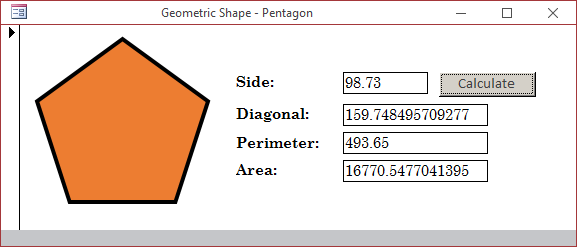
Practical Learning: Conditionally
Stating an Else Statement
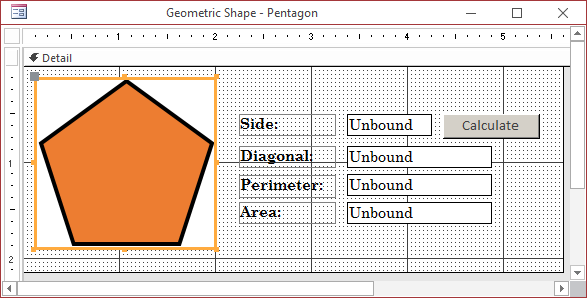
Function CalculatePerimeter(ByVal value As Double) As Double
    CalculatePerimeter = value * 5#
End Function

Function CalculateDiagonal(ByVal value As Double) As Double
    CalculateDiagonal = value * (1# + Sqr(5#)) / 2#
End Function

Function CalculateArea(ByVal value As Double) As Double
    CalculateArea = value * value * Sqr((5# * (5# + (2# * Sqr(5#))))) / 4#
End Function

Private Sub cmdCalculate_Click()
    Dim side, perimeter, diagonal, area

    If IsNull(txtSide) Then
        side = 0#
    Else
        side = CDbl(txtSide)
    End If

    perimeter = CalculatePerimeter(side)
    diagonal = CalculateDiagonal(side)
    area = CalculateArea(side)

    txtPerimeter = CStr(perimeter)
    txtDiagonal = CStr(diagonal)
    txtArea = CStr(area)
End Sub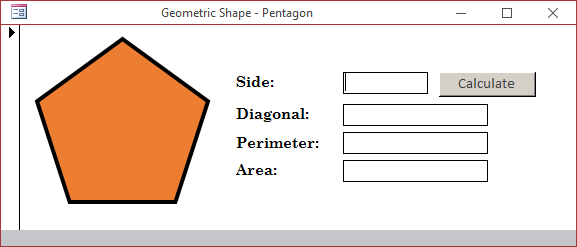
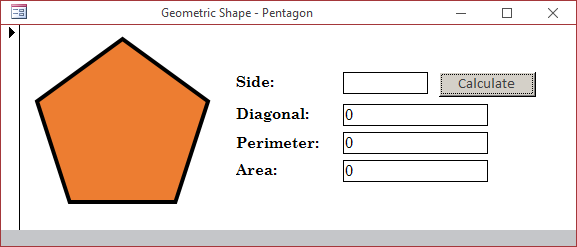
Checking for Non-Zero
To help you check the value of an expression or a control, the VBA language provides a function named Nz. Its syntax is:
Nz(Value, ByVal Optional ValueIfNull IS NULL) As Variant
The function checks the value of the (first) argument. If Value is null, the function returns 0 or an empty string. The second argument is optional. You can provide it as an alternative to 0 in case the Value argument is null. This means that, when the first argument is null, instead of returning 0 or an empty string, the Nz() function would return the value of the second argument.
Practical
Learning: Checking for Non-Zero
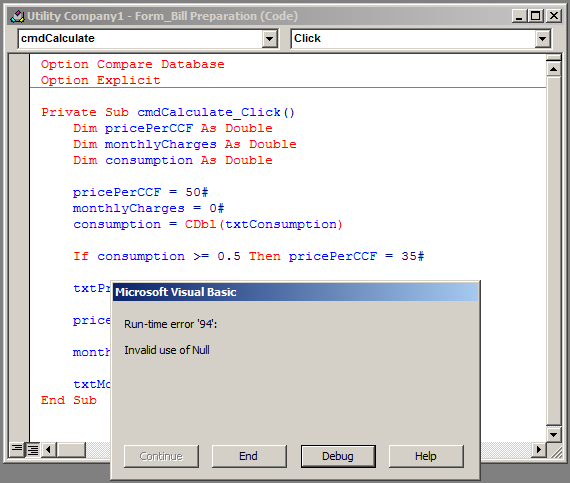
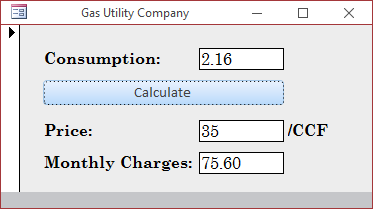
Private Sub cmdCalculate_Click()
    Dim pricePerCCF As Double
    Dim monthlyCharges As Double
    Dim consumption As Double

    pricePerCCF = 50#
    monthlyCharges = 0#
    consumption = CDbl(Nz(txtConsumption))

    If consumption >= 0.5 Then pricePerCCF = 35#

    txtPricePerCCF = pricePerCCF

    pricePerCCF = CDbl(txtPricePerCCF)

    monthlyCharges = consumption * pricePerCCF

    txtMonthlyCharges = Format(monthlyCharges, "Fixed")
End Sub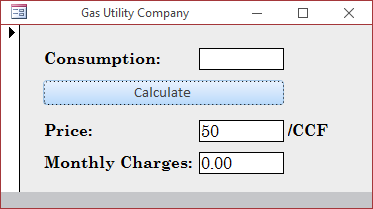
Private Sub cmdCalculate_Click()
    Dim cost
    Dim salvageValue
    Dim estimatedLife
    Dim depreciation

    cost = CDbl(Nz(txtCost))
    salvageValue = CDbl(Nz(txtSalvageValue))
    estimatedLife = CDbl(Nz(txtEstimatedLife))

    depreciation = SLN(cost, salvageValue, estimatedLife)

    txtDepreciation = FormatCurrency(depreciation)
End Sub
If a Value is Numeric
Remember that any value that a user types in a text box is primarily considered as text. Before using or converting a value that is supposed to be numeric, to let you check whether it is a number, the Visual Basic language provides a function named IsNumeric. This function takes one argument as the value to check. If the argument is an integer or a floating-point number, the function returns True. If not, it returns False. Its syntax is:
Public Function IsNumeric(ByVal Expression As Variant) As Boolean
This function takes as argument the value or expression to be evaluated. If the argument holds or can produce a valid integer or a decimal value, the function returns True. Here is an example:
Private Sub cmdFunction_Click()
    Dim Value As Variant

    Value = 258.08 * 9920.3479

    msgbox "Is Numeric? " & IsNumeric(Value)
End Sub
If the argument is holding a value that cannot be identified as a number, the function produces False. Here is an example:
Private Sub cmdFunction_Click()
    Dim Value As Variant

    Value = #12/4/1770#

    MsgBox "Is Numeric? " & IsNumeric(Value)
End Sub
Practical
Learning: Checking Whether a Value Is Numeric
Function GetDiscountRate(ByVal price As Double, ByVal days As Integer) As Integer
    If days > 70 Then
        GetDiscountRate = 70
    ElseIf days > 50 Then
        GetDiscountRate = 50
    ElseIf days > 30 Then
        GetDiscountRate = 35
    ElseIf days > 15 Then
        GetDiscountRate = 15
    End If
End Function

Function CalculateMarketPrice(ByVal price As Double, _
			ByVal Optional ByVal rate As Integer = 0#) As Integer
    If rate = 0# Then
        CalculateMarketPrice = 0#
    Else
        CalculateMarketPrice = price * rate / 100#
    End If
End Function

Private Sub cmdCreate_Click()
    Dim unitPrice As Double
    Dim markedPrice As Double
    Dim discountRate As Double
    Dim daysInStore As Integer
    Dim discountedAmount As Double

    If IsNumeric(txtDaysInStore) Then daysInStore = CInt(txtDaysInStore)
    If IsNumeric(txtUnitPrice) Then unitPrice = CDbl(txtUnitPrice)

    discountRate = GetDiscountRate(unitPrice, daysInStore)

    If discountRate = 0# Then
        discountedAmount = CalculateMarketPrice(unitPrice)
    Else
        discountedAmount = CalculateMarketPrice(unitPrice, discountRate)
    End If

    markedPrice = unitPrice - discountedAmount

    txtItemNumberRecord = txtItemNumberIdentification
    txtItemNameRecord = txtItemNameIdentification
    txtDiscountAmount = FormatCurrency(discountedAmount)
    txtMarkedPrice = FormatCurrency(markedPrice)
End Sub
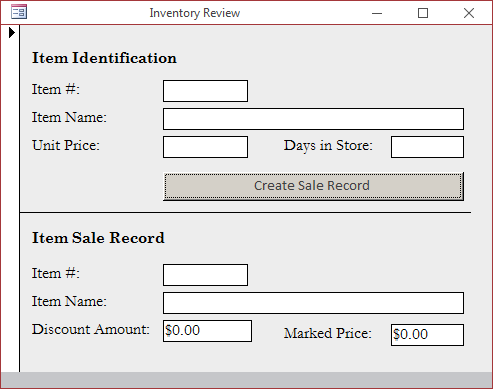
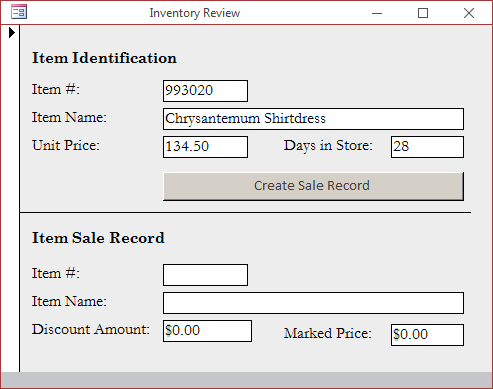
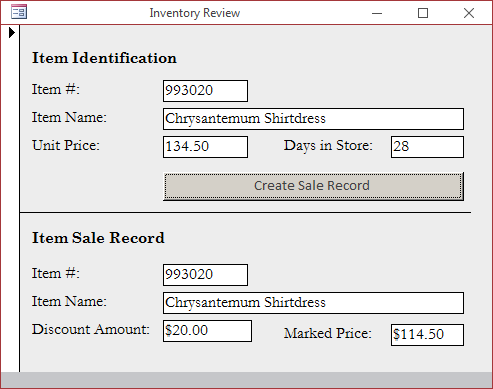
The Condition-Based Function
To assist you with checking a condition and its alternative, the Visual Basic language provides a function named IIf. This function operates like an If...Then...Else conditional statement. It takes three required arguments and returns a result of a type of your choice (actually an Object). It can be presented as follows:
Public Function IIf(ByVal Expression As Boolean,
                    ByVal TruePart As Object,
                    ByVal FalsePart As Object) As Object
The condition to check, a Boolean expression, is passed as the first argument:
Practical
Learning: Introducing the Immediate If Function
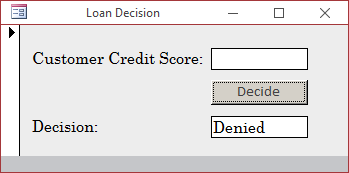
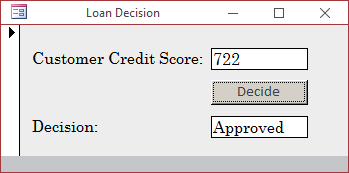
Private Sub cmdDecide_Click()
    Dim decision As String
    Dim creditScore As Integer
    Dim hasGoodCredit As Boolean

    creditScore = CInt(Nz(txtCreditScore))
    hasGoodCredit = (creditScore >= 680)

    decision = IIf(hasGoodCredit = True, "Approved", "Denied")

    txtDecision = decision
End Sub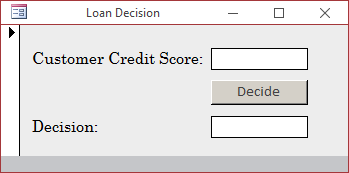
|
|
||
| Previous | Copyright © 2002-2022, FunctionX, Inc. | Next |
|
|
||