
Anatomy of a Table
|
|
Anatomy of a Table |
Accessories for Records of a Table
The Scroll Bars
If you start entering data into a table and there are more records than the height of the table can display, the table would be equipped with a vertical scroll bar. On the other hand, if the number of columns or their total width is larger than can be displayed, the table would be equipped with a horizontal scroll bar.
 Practical Learning: Introducing
Tables Accessories
Practical Learning: Introducing
Tables Accessories

The Navigation Buttons
The lower left side of the table is made of buttons used to navigate the records. A text box shows the index (in the English meaning of the word) of the current report. A last button is used to create a new record. The roles of the buttons are:
| Button | Name | Role |
 |
First Record | Allows moving to the first record of the table |
 |
Previous Record | Allows you to move one record back (if there is one) from the current record |
 |
Current Record | Displays the number representing the current record out of the total number of records |
 |
Next Record | Allows moving you one record ahead |
 |
Last Record | Allows moving you to the last record of the table |
 |
New (Blank) Record | Used to enter a new record on the table |
Practical Learning: Introducing
Tables Accessories

Characteristics of Columns of a Table
The Caption of a Column
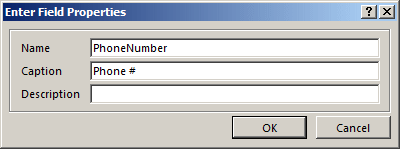
The caption is text that the user sees on the column header. The caption of a column is not closely related to the name of the column. This means that the caption can be completely different from the name of the column. If you don't specify a caption for a column, Microsoft Access uses the name of the column as caption.
To specify the caption of a column:
Practical Learning: Setting Objects Captions

| Field Name | Caption |
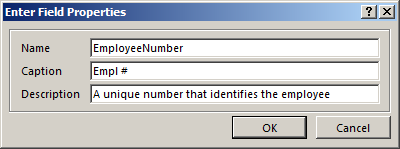
| EmployeeNumber | Empl # |
| FirstName | First Name |
| MiddleInitial | MI |
| LastName | Last Name |
| MaritalStatus | Marital Status |
| DepartmentCode | Department |



| Column | Caption |
| AccountNumber | Account # |
| FirstName | First Name |
| LastName | Last Name |
| PhoneNumber | Phone # |
| EmergencyName | Emergency Name |
| EmergencyPhone | Emergency # |

| Column | Caption |
| EmployeeNumber | Employee # |
| FirstName | First Name |
| LastName | Last Name |
| HourlySalary | Hourly Salary |
The Status Bar of a Table
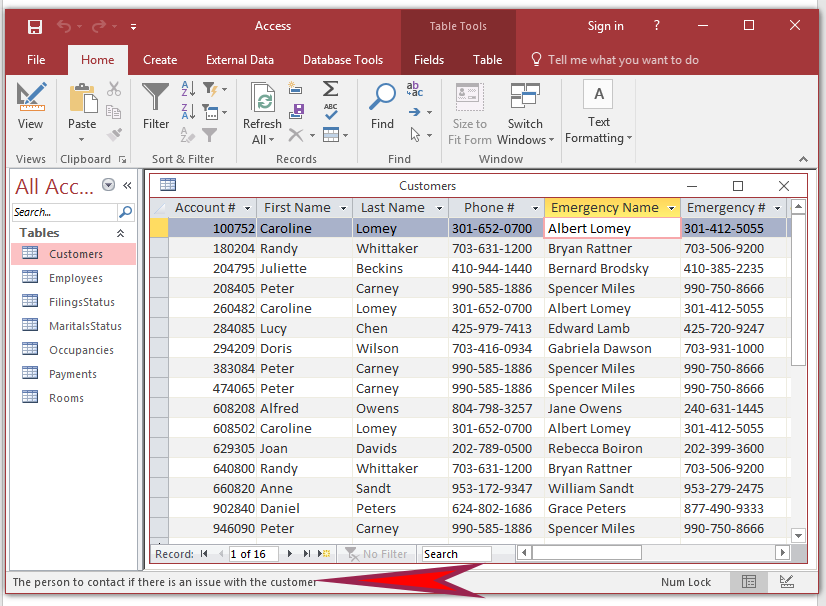
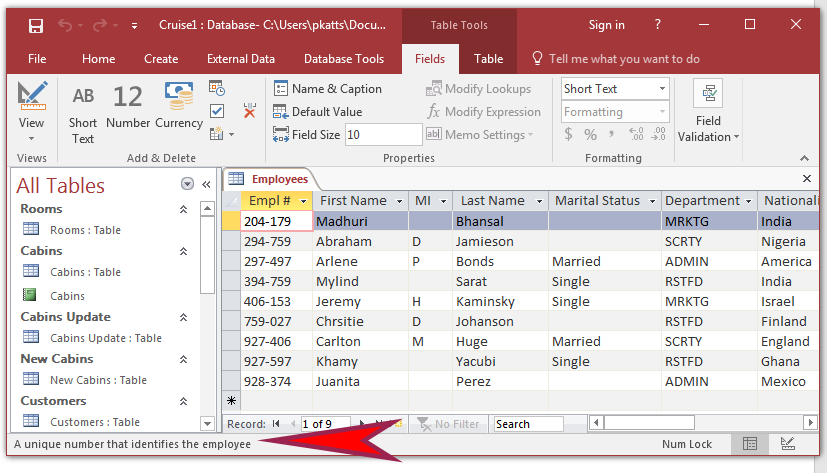
When a field receives focus on a table, you can display a sentence on the status bar. To specify the text of the status bar:
Practical Learning: Setting Status Bar Text for Fields

| Field Name | Description |
| AccountNumber | Unique number that identifies the resident |
| EmergencyName | The person to contact if there is an issue with the customer |
| EmergencyPhone | The phone number to call in case of an emergency with the customer |


| Column | Description |
| Empl # | A unique number that identifies the employee |
| Department | The cruise department that defines the employee's function(s) |
| Nationality | The country that is the employee formal residence |

The Text Alignment of a Column
The text alignment specifies on what side the values of a column would be displayed, to the left, to the center, or to the right within the cells. To specify the text alignment of a column of a table, first display it in the Datasheet View. Click any cell under that column. On the Ribbon, click Home. In the Text Formatting section, click:
 (this is the default button of the section) to position the text to the left
 to position the text to the center
 to position the text to the right
Practical Learning: Aligning Fields Text

Design Accessories: Colors
Introduction
The color is an aesthetic visual characteristic of a human being's perception of red, green, blue and/or other aspects such as transparency (seeing through an object). To specify or change the color of something, you will be asked to click a button or the arrow of a button. This action will display a table of colors:
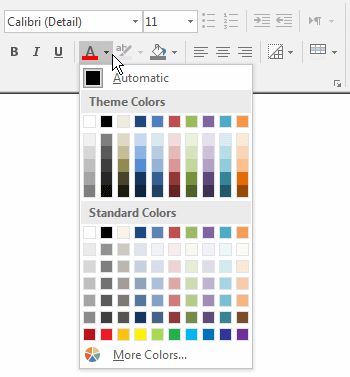
If you see the desired color, click it. If not, click the More Colors... button. This action will display a Colors dialog box:
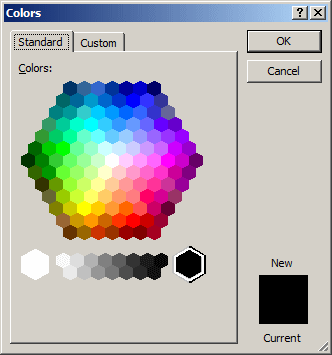
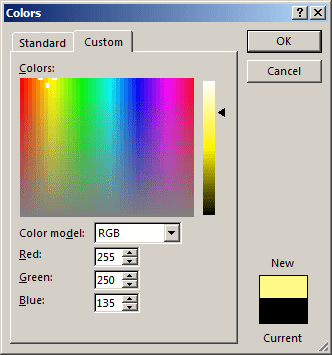
In the Standard property page, if you see a color you like, click it. If you don't, click the Custom tab. This action will display a geometric figure and other controls you can use to create a color:
The Background Color of a Table
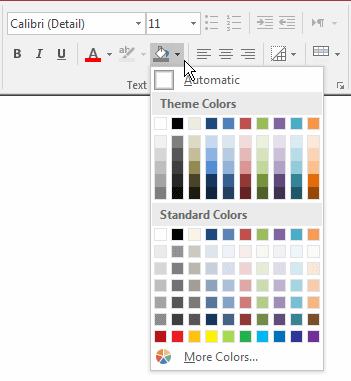
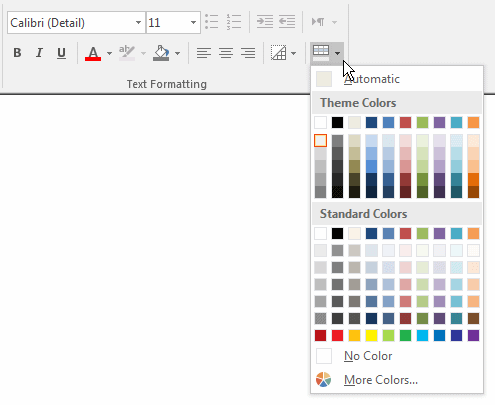
To control one of the background colors of a table, first display it in Datasheet View and click the Home button on the Ribbon. In the Text Formatting section, click the arrow of the Background Color button:
Practical Learning: Setting the Background Color of a Table

The Alternate Row Color of a Table
The alternate row color is the color use to paint the background of every other row in the table. To specify the Alternate Row Color of a table, while it is displaying in Datasheet View, click the arrow of the Alternate Row Color button:
Practical Learning: Setting the
Alternate Background Color of a Table

Design Accessories: Fonts
Introduction
The font is the design used to paint text on a table, a form or a report. In a table, you can apply only one font to all columns and records.
The Name of a Font
A font is primarily known by its name. The names of fonts are set and controlled by the operating system and you can simply use the font available in your computer. Applying a font primarily consists of specifying the name of the font that must be applied to a table or control. To specify the font applied to a table, while the table is displaying in the Datasheet View, on the Ribbon, click either Home or Format. Click the arrow of the Font combo box and select the desired font.
Practical Learning: Setting the Font of a Table

The Size of a Font
The size of a font of a table is the combination of the width and height available to paint the letters in the cells. To specify the font size of a table while in the Datasheet View, on the Ribbon, click either Home or Format. Click the arrow of the Font Size combo box and select the desired size.
You can also access the combo box and type the number.
Practical Learning: Setting the Font Size of a Table

The Style of a Font
A font has four styles:
| Style | Example |
| Regular | Regular Text |
| Bold | This text is bold |
| Italic | Italicized section |
| Underline | The words are underlined |
To change the font style of a table, display it in the Datasheet View.
On the Ribbon, click Home. In the Text Formatting section, click the button that represents the desired style:
Bold
 ,
Italic
,
Italic
 ,
or Underline
,
or Underline
 .
.
Practical Learning: Setting the Font Style of a Table
button

By default, text of a table is painted in black. To change the font color on a table, display it in Datasheet View. On the Ribbon, click Home. In the Home section, click the arrow of the Font Color button.
Practical Learning: Setting Text Font on a Table
| Red: 255 |
| Green: 250 |
| Blue: 135 |
|

The Grid Lines of a Table
To set the grid lines of a table, in the Datasheet View, on the Ribbon,
click Home. In the Text Formatting section, click the Gridlines button  .
A window would appear where you can select an option by clicking its button:
.
A window would appear where you can select an option by clicking its button:
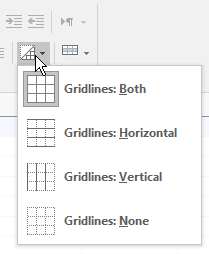
If you click:
Practical Learning: Setting the
Grid Lines of a Table

| Field Name | Caption |
| EmployeeNumber | Employee # |
| FirstName | First Name |
| LastName | Last Name |
| Field Name | Caption |
| ReceiptNumber | Receipt # |
| EmployeeNumber | Employee # |
| Field Name | Caption |
| SoldItemID | Sold Item ID |
| ReceiptNumber | Receipt # |
| ItemNumber | Item # |
| SubCategory | Sub-Category |
| ItemName | Item Name |
| ItemSize | Item Size |
| Field Name | Caption |
| ItemNumber | Item # |
| SubCategory | Sub-Category |
| ItemName | Item Name |
| ItemSize | Item Size |
|
|
||
| Previous | Copyright © 2007-2022, FunctionX, Inc. | Next |
|
|
||