Optional Arguments

Optional Arguments
Introduction
If you create a procedure that takes one or more arguments, whenever you call that procedure, you must provide a value for the argument(s). Otherwise, you would receive an error. If such an argument is passed with the same value over and over again, you may be tempted to remove the argument altogether.
In some cases, although a certain argument is passed with the same value most of the time, you still have situations in which you want the user to decide whether to pass a value or not for the argument, you can declare the value optional. In other words, you can create the argument with a default value so that the user can call the procedure without passing a value for the argument, thus passing a value only when necessary. Such an argument is called default or optional.
Imagine you write a procedure that will be used to calculate the final price of an item after discount. The procedure would need the discount rate in order to perform the calculation. Such a procedure could look like this:
Function CalculateNetPrice#(ByVal DiscountRate As Double)
    Dim OrigPrice#

Console.Write("Please enter the original price:")
    OrigPrice = console.readline

    Return OrigPrice - (OrigPrice * DiscountRate / 100)
End Function
Since this procedure expects an argument, if you do not supply it, the following program would not compile:
Public Module Exercise

    Function CalculateNetPrice#(ByVal DiscountRate As Double)
        Dim OrigPrice#

        Console.Write("Please enter the original price:")
    OrigPrice = console.readline

        Return OrigPrice - (OrigPrice * DiscountRate / 100)
    End Function

    Public Function Main() As Integer
        Dim FinalPrice#
        Dim Discount# = 15 ' That is 25% = 25

        FinalPrice = CalculateNetPrice(Discount)

        Console.WriteLine("Final Price = " & FinalPrice)
        Return 0
    End Function

End Module
Here is an example of running the program:


Most of the time, a procedure such as ours would use the same discount rate over and over again. Therefore, instead of supplying an argument all the time, you can define an argument whose value would be used whenever the function is not provided with the argument.
Passing an Optional Argument
To specify that an argument is optional, when creating its procedure, type the Optional keyword to the left of the argument's name and assign it the default value. Here is an example:
Public Module Exercise

    Function CalculateNetPrice#(Optional ByVal DiscountRate As Double = 20)
        Dim OrigPrice#

        Console.Write("Please enter the original price:")
    OrigPrice = console.readline

        Return OrigPrice - (OrigPrice * DiscountRate / 100)
    End Function

    Public Function Main() As Integer
        Dim FinalPrice#
        Dim Discount# = 15 ' That is 25% = 25

        FinalPrice = CalculateNetPrice()

        Console.WriteLine("Final Price = " & FinalPrice)
        Return 0
    End Function

End Module
Here is an example of running the program:


A Procedure With Many Optional Arguments
If a procedure takes more than one argument, you can provide a default argument for each and select which ones would have default values. If you want all arguments to have default values, when defining the procedure , provide the Optional keyword for each and assign it the desired default value. Here is an example:
Public Module Exercise

    Function CalculateNetPrice#(Optional ByVal Tax As Double = 5.75, _
                                Optional ByVal Discount As Double = 25, _
                                Optional ByVal OrigPrice As Double = 245.55)
        Dim DiscountValue As Double = OrigPrice * Discount / 100
        Dim TaxValue As Double = Tax / 100
        Dim NetPrice As Double = OrigPrice - DiscountValue + TaxValue
        Dim Result As String

        Console.WriteLine( "Original Price: " & vbTab & CStr(OrigPrice))
  Console.WriteLine(               "Discount Rate: " & vbTab & CStr(Discount) & "%")
   Console.WriteLine(              "Tax Amount: " & vbTab & CStr(Tax))

        Return NetPrice
    End Function

    Public Function Main() As Integer
        Dim FinalPrice As Double

        FinalPrice = CalculateNetPrice()
        Console.WriteLine("Final Price: " & CStr(FinalPrice))
        Return 0
    End Function

End Module
This would produce:


If a procedure takes more than one argument as above, remember that some arguments can be specified as optional. In this case, when calling the procedure, any argument that does not have a default value must be passed with a value. When creating a procedure that takes more than one argument, the argument(s) that has(have) default value(s) must be the last in the procedure. This means that:
Because of this, when calling any procedure in the Visual Basic language, you must know what, if any, argument is optional and which one is not.
If a procedure takes two arguments and one argument has a default value, when calling this procedure, you can pass only one value. In this case, the passed value would be applied on the first argument. If a procedure takes more than two arguments and two or more arguments have a default value, when calling this procedure, you can provide only the value(s) of the argument that is (are) not optional. If you want to provide the value of one of the arguments but that argument is not the first optional, you can leave empty the position(s) of the other argument(s) but remember to type a comma to indicate that the position is that of an argument that has a default value. Here is an example:
Public Module Exercise

    Function CalculateNetPrice(ByVal AcquiredPrice As Double, _
                               ByVal MarkedPrice As Double, _
                               Optional ByVal TaxRate As Double = 5.75, _
                               Optional ByVal DiscountRate As Double = 25) As Double
        Dim DiscountAmount As Double = MarkedPrice * DiscountRate / 100
        Dim TaxAmount As Double = MarkedPrice * TaxRate / 100
        Dim NetPrice As Double = MarkedPrice - DiscountAmount + TaxAmount
        Dim Result As String

        Console.WriteLine( "Price Acquired: " & vbTab & CStr(AcquiredPrice) )
 Console.WriteLine(                "Marked Price: " & vbTab & CStr(MarkedPrice) )
  Console.WriteLine(               "Discount Rate: " & vbTab & CStr(DiscountRate) & "%" & vbCrLf & _
   Console.WriteLine(              "Discount Amt: " & vbTab & CStr(DiscountAmount) & vbCrLf & _
     Console.WriteLine(            "Tax Rate: " & vbTab & CStr(TaxRate) & "%" & vbCrLf & _
        Console.WriteLine(         "Tax Amount: " & vbTab & CStr(TaxAmount))

        Return NetPrice
    End Function


    Public Function Main() As Integer
        Dim FinalPrice As Double

        FinalPrice = CalculateNetPrice(225.55, 150.55, , 40)
        Console.WriteLine("Final Price: " & CStr(FinalPrice))
        Return 0
    End Function

End Module
This would produce:


Overloading a Procedure
Introduction
A program involves a great deal of names that represent variables and procedures of various kinds. The compiler does not allow two variables to have the same name in the same procedure (or in the same scope). Although two procedures should have unique names in the same program, you are allowed to use the same name for different procedures of the same program following certain rules.
Overloading a Procedure
The ability to have various procedures with the same name in the same program is referred to as overloading. The most important rule about procedure overloading is to make sure that each one of these procedures has a different number or different type(s) of arguments.
 Practical Learning: Overloading a Procedure
The moment of inertia is the ability of a beam to resist bending. It is calculated with regard to the cross section of the beam. Because it depends on the type of section of the beam, its calculation also depends on the type of section of the beam. In this exercise, we will review different formulas used to calculate the moment of inertia. Since this exercise is for demonstration purposes, you do not need to be a Science Engineering major to understand it.
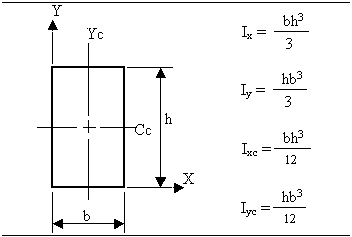
Module MomentOfInertia

    ' Moment of Inertia
    ' Rectangle
    Private Function MomentOfInertia(ByVal b As Double, _
                                     ByVal h As Double) As Double
        Return b * h * h * h / 3
    End Function

    Public Sub Main()
        Dim Base As Double, Height As Double

        Base = Console.Write("Enter the base of the Rectangle")
        Height = Console.Write("Enter the height of the Rectangle")

        Console.WriteLine("Moment of inertia with regard to the X axis" & vbCrLf & _
               "I = " & CStr(MomentOfInertia(Base, Height)) & "mm")
    End Sub

End Module


|
A circle, and thus a semi-circle, requires only a radius. Since the other version of the MomentOfInertia() function requires two arguments, we can overload it by providing only one argument, the radius. |
To calculate the moment of inertia of a rectangle, change the file as follows:
Module MomentOfInertia

    ' Moment of Inertia
    ' Rectangle
    Private Function MomentOfInertia(ByVal b As Double, _
                                     ByVal h As Double) As Double
        Return b * h * h * h / 3
    End Function

    ' Semi-Circle
    Function MomentOfInertia(ByVal R As Double) As Double
        Const PI As Double = 3.14159

        Return R * R * R * R * PI / 8
    End Function

    Public Sub Main()
        ' Dim Base As Double, Height As Double
        Dim Radius As Double

        ' Base = Console.Write("Enter the base of the Rectangle:")
        ' Height = Console.Write("Enter the height of the Rectangle")
        ' Console.WriteLine("Moment of inertia with regard to the X axis" & vbCrLf & _
        '       "I = " & CStr(MomentOfInertia(Base, Height)) & "mm")

        Radius = Console.Write("Enter the radius of the semi-circle:")

        Console.WriteLine("Moment of inertia of a semi-circle with " & _
	       "regard to the X axis:" & vbCrLf & _
               "I = " & CStr(MomentOfInertia(Radius)) & "mm")
    End Sub

End Module

|
|
|||
| Previous | Copyright © 2008-2026, FunctionX | Monday 14 February 2016 | Next |
|
|
|||
