Introduction to Classes

Introduction to Classes
Programmer-Defined Types
Introduction
In previous lessons, we used individual variables whenever we needed them. This allowed us to declare simple types to hold fairly small values. In the Visual Basic language, you can combine a group of variables into an entity. These variables become considered as one. You can then declare one or more elaborate variables from this enhanced type. Such a new type is called a class.
 Practical
Learning: Introducing Classes
Practical
Learning: Introducing Classes
Public Module DepartmentStore

    Public Function Main() As Integer

        Return 0
    End Function

End Module Imagine you want to represent a rectangle as a geometric object:
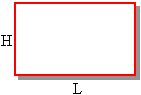
You can declare each of its various parts as a variable. Here is an example:
Public Module Exercise

    Public Function Main() As Integer
        Dim RectLength As Double
        Dim RectHeight As Double

        RectLength = 24.55 : RectHeight = 20.75

        MsgBox("=-= Rectangle Characteristics =-=" & vbCrLf & _
               "Length: " & vbTab & RectLength & vbCrLf & _
               "Height: " & vbTab & RectHeight)

        Return 0
    End Function

End Module
This would produce:

If you want to treat the whole rectangle as one object, you can create a class for it. To create a class, you can use the Class keyword followed by a name. The name of a class follows the rules we have applied so far for variable and function names. To declare a class called Rectangle, you would start with the following:
Class Rectangle
As a name that represents a group of items, a class has a body that would be used to define the items that compose it. The body of a class starts after its name.
To indicate the end of the class, type End Class. Therefore, a class can be created as follows:
Class Rectangle

End Class
Since a class is a combination of other variables, you declare each variable inside of the body of the class. Each item that composes the class is represented as a complete variable declared with a name and a data type. By adding a Length and a Height variables, our class would become:
Class Rectangle
    Dim Length As Double
    Dim Height As Double
End Class
The items that compose a class are called members of the class. When creating the members of a class, you can omit the Dim keyword:
Class Rectangle
    Length As Double
    Height As Double
End Class
To create a class in Microsoft Visual Studio:

|
|
|
Imagine you want to write a (console-based) program for a department store and the customer has given you a preliminary catalog as follows: |
||
 |
 |
 |
| Stock #: 437876 Crinkled Georgette Dress Unit: $42.95 |
Stock #: 790475 New Wool Comfort Pants $38.75 |
Stock #: 740797 Pencil Skirt $25.75 |
 |
 |
 |
| Stock: 608432 Silver 1/10-ct. T.W. Diamond Heart-Link Bracelet $95.85 |
Stock #: 759470 Multistriped Organic Cotton Dress Shirt $35.50 |
Stock #: 487046 Modest Dress Heels $35.50 |
|
Each item in this catalog is represented by its Stock number, its name or description, and its price. Based on this, you can create a class that represents each item. |
||
Public Class StoreItem
    Dim ItemNumber As Long
    Dim ItemName As String
    Dim UnitPrice As Double
End Class
|
|
Introduction |
In Lesson 4, we saw how to control access to members of a module. When you create a class, you also exercise this control. You define what member variables can be accessed from outside the class and members that must not be accessed outside. This means that when creating a class, you specify what members are friendly, public, or private.
|
The Friendly Members of a Class |
A member variable of a class is referred to as a friend if it can be accessed by any class or module of the same application. Classes and modules outside of its application cannot access such a member. To create such a member variable, precede it with the Friend keyword. Here is an example:
Class Rectangle
    Friend Height As Double
End Class
|
|
Public Class StoreItem
    Friend ItemNumber As Long
    Friend ItemName As String
    Friend UnitPrice As Double
End Class
|
|
The Public Members of a Class |
Some of the member variables of a class must be accessed outside of a class and sometimes you will want a member to be accessible outside of its application. Such a member is referred to a public. To create a public member of a class, precede it with the Public keyword. Here is an example:
Class Rectangle
    Public Length As Double
    Friend Height As Double
End Class
|
Introduction |
In Lesson 4, we saw how to control access to a module. You can exercise the same level of control for a class. You can make a class friendly, private, or public.
|
A Private Class |
If you create a class in a code file but the class must be accessed only locally, you can define it as private. A class is referred to as private if it can be accessed only within the module where it is created, that is, only by members of the same file. Classes and modules outside of its file or outside of the application cannot access such a class.
To create a private class, precede it with the Private keyword. Here is an example:
Module Exercise
    REM This class can be accessed only inside this module
    Private Class Rectangle
        Public Length As Double
        Friend Height As Double
    End Class

    Public Function Main() As Integer

        Return 0
    End Function

End Module
|
A Friendly Class |
Instead of hiding a class from the rest of the application, you may want other modules or classes of the same application to have access to it. Such a class is referred to as friendly. A friendly class can be accessed by code within its application. Classes and modules outside of its application do not have access to such a class.
To create a friendly class, precede it with the Friend keyword. Here is an example:
Friend Class Square
    Public Side As Double
End Class
|
A Public Class |
Although you may think of working only in Visual Basic, in some cases, you may create a class and want to share it with code written in another language such as C++/CLI or C#, to make this possible, you can give "public" access to your class.
If you want your class to be accessible to code written in other languages, precede the Class keyword with Public when creating it. Here is an example:
Public Class Circle
    Friend Radius As Double
End Class
|
Introduction |
After creating a class, to use it in a program, you can declare it as a variable. Here is an example:
Module Exercise
    Private Class Rectangle
        Public Length As Double
        Friend Height As Double
    End Class

    Public Function Main() As Integer
        Dim Recto As Rectangle

        Return 0
    End Function

End Module
After declaring the variable, you must ask the compiler to reserve enough memory for all the member variables of the class. The compiler would do this. Later on, to access any member variable of the class, you must get a reference to the area of memory where the members of the class are located. To do this, when declaring the variable for the class, to reserve the necessary area of memory, use the New operator followed by the name of the class and assign this expression to the variable. Here is an example:
Module Exercise
    Private Class Rectangle
        Public Length As Double
        Friend Height As Double
    End Class

    Public Function Main() As Integer
        Dim Recto As Rectangle

	Recto = New Rectangle

        Return 0
    End Function

End Module
Instead of first declaring the variable before allocating memory for it, you can take care of this directly when declaring the variable by inserting the New operator between the As keyword and the name of the class. This can be done as follows:
Module Exercise

    Private Class Rectangle
        Public Length As Double
        Friend Height As Double
    End Class

    Public Function Main() As Integer
        Dim Recto As New Rectangle

        Return 0
    End Function

End Module
 |
In C++ and Visual Basic, you can omit or add parentheses
to the name of the class when allocating memory for it, like this:
Module Exercise
    Private Class Rectangle
        Public Length As Double
        Friend Height As Double
    End Class

    Public Function Main() As Integer
        Dim Recto As Rectangle

	Recto = New Rectangle()

        Return 0
    End Function

End Module
or like this: Module Exercise
Private Class Rectangle
Public Length As Double
Friend Height As Double
End Class
Public Function Main() As Integer
Dim Recto As New Rectangle()
Return 0
End Function
End Module
In C#, you must always use parentheses. |
Any of these techniques produces the same result. It is just a matter of taste. A variable declared of a class is also called an object.
|
|
Public Module DepartmentStore

    Public Function Main() As Integer
        Dim dptStore As StoreItem

        dptStore = New StoreItem

        Return 0
    End Function

End Module
|
|
Period: . |
After declaring the variable and allocating memory for it, the compiler reserves enough memory to accommodate all the members of the class and those members become available to you.
To access the member of a class, type the name of the variable, followed by a period, followed by the name of the member you want. The member you are trying to use must be part of the class. Here is an example:
Module Exercise
    Private Class Rectangle
        Public Length As Double
        Friend Height As Double
    End Class

    Public Function Main() As Integer
        Dim Recto As Rectangle

        Recto.Length

        Return 0
    End Function

End Module
If you are using either Microsoft Visual Basic or another editor equipped with Intellisense, after you type the period, the list of members would appear:

If you know the name of the member, you can start typing it:
If you don't want to use the list displayed by the Code Editor, press Esc. Once you have specified what member you want to use, you can assign it the desired value. Here is an example:
Module Exercise
    Private Class Rectangle
        Public Length As Double
        Friend Height As Double
    End Class

    Public Function Main() As Integer
        Dim Recto As Rectangle

        Recto.Length = 24.55

        Return 0
    End Function

End Module
In the same way, you can access all the desired members of a class and initialize them to complete the variable. By default, each member variable must be initialized on its own line. Here are examples:
Module Exercise
    Private Class Rectangle
        Public Length As Double
        Friend Height As Double
    End Class

    Public Function Main() As Integer
        Dim Recto As Rectangle

        Recto.Length = 24.55
        Recto.Height = 20.75

        Return 0
    End Function

End Module
You may remember that in Lesson 2, we saw that you can use the colon operator to create more than one statement on the same line. In the same way, you can use it to initialize many member variables on the same line as long as you separate them with an empty space, a colon, and another empty. Here is an example:
Module Exercise
    Private Class Rectangle
        Public Length As Double
        Friend Height As Double
    End Class

    Public Function Main() As Integer
        Dim Recto As Rectangle

        Recto.Length = 24.55 : Recto.Height = 20.75

        Return 0
    End Function

End Module
As done so far, after declaring the variable, allocating memory for it, and initializing its member variables, you can use the object as you see fit. For example, you can display the values of the object by accessing each one of its member member variables. Here are examples:
Module Exercise
    Private Class Rectangle
        Public Length As Double
        Friend Height As Double
    End Class

    Public Function Main() As Integer
        Dim Recto As Rectangle

        Recto = New Rectangle
        Recto.Length = 24.55 : Recto.Height = 20.75

        MsgBox("=-= Rectangle Characteristics =-=" & vbCrLf & _
               "Length: " & vbTab & Recto.Length & vbCrLf & _
               "Height: " & vbTab & Recto.Height)
        Return 0
    End Function

End Module
This would produce:
You can also request the values of the members of a class from the user. Here is an example:
Module Exercise
    Private Class Rectangle
        Public Length As Double
        Friend Height As Double
    End Class

    Public Function Main() As Integer
        Dim Recto As Rectangle

        Recto = New Rectangle
        Recto.Length = InputBox("Enter Rectangle Length: ")
        Recto.Height = InputBox("Enter Rectangle Height: ")

        MsgBox("=-= Rectangle Characteristics =-=" & vbCrLf & _
               "Length: " & vbTab & Recto.Length & vbCrLf & _
               "Height: " & vbTab & Recto.Height)
        Return 0
    End Function

End Module
You can also involve the members of a class in any operation you see fit, even if the other operands are locally declared variables or constant values as in the following code:
Module Exercise
    Private Class Rectangle
        Public Length As Double
        Friend Height As Double
    End Class

    Public Function Main() As Integer
        Dim Recto As Rectangle
        Dim Perimeter As Double
        Dim Area As Double

        Recto = New Rectangle
        Recto.Length = InputBox("Enter Rectangle Length: ")
        Recto.Height = InputBox("Enter Rectangle Height: ")

        Perimeter = (Recto.Length + Recto.Height) * 2
        Area = Recto.Length * Recto.Height

        MsgBox("=-= Rectangle Characteristics =-=" & vbCrLf & _
               "Length: " & vbTab & vbTab & Recto.Length & vbCrLf & _
               "Height: " & vbTab & vbTab & Recto.Height & vbCrLf & _
               "Perimeter: " & vbTab & Perimeter & vbCrLf & _
               "Area: " & vbTab & vbTab & Area)
        Return 0
    End Function

End Module
Here is an example of running the program:

|
|
Public Module DepartmentStore

    Public Function Main() As Integer
        Dim dptStore As StoreItem

        dptStore = New StoreItem

        dptStore.ItemNumber = 437876
        dptStore.ItemName = "Crinkled Georgette Dress"
        dptStore.UnitPrice = 42.95

        MsgBox("=-= Department Store =-=" & vbCrLf & _
               "Item #:" & vbTab & vbTab & dptStore.ItemNumber & vbCrLf & _
               "Item Name:" & vbTab & dptStore.ItemName & vbCrLf & _
               "Unit Price: " & vbTab & FormatCurrency(dptStore.UnitPrice), _
               MsgBoxStyle.OkOnly Or MsgBoxStyle.Information, "Department Store")
        Return 0
    End Function

End Module
|

After declaring a variable of a class, you can initialize it and access any of its members as you see fit. To initialize an object of a class, we saw that you can access any or each of its friend and public member variables and assign each the appropriate value. Here is an example:
Module Exercise
    Private Enum EmploymentStatus
        esPartTime
        esFullTime
        esContractor
    End Enum

    Private Class Employee
        Public FirstName As String
        Public LastName As String
        Public Address As String
        Public City As String
        Public State As String
        Public ZIPCode As Long
        Public Gender As Char
        Public EmplStatus As EmploymentStatus
    End Class

    Public Function Main() As Integer
        Dim Empl As New Employee

        Empl.FirstName = "Emilie"
        Empl.LastName = "Gudson"

        MsgBox("Employee Information" & vbCrLf & _
               "Full Name: " & Empl.LastName & ", " & Empl.FirstName)
        Return 0
    End Function

End Module
This would produce:

If a class has many members and you want to change the values of many or all of them, start a section using the With keyword followed by the name of the variable. Create a new line and type End With. Here is an example:
Public Function Main() As Integer
    Dim StaffMember As New Employee

    With StaffMember

    End With

    Return 0
End Function
The section between the With Variable line and the End With line is the body of the With statement. In that body, to access a member variable, type the period operator followed by the desired member. You can then initialize the member variable. Here is an example:
Module Exercise

    Enum EmploymentStatus
        esPartTime
        esFullTime
        esContractor
    End Enum

    Class Employee
        Public FirstName As String
        Public LastName As String
        Public Address As String
        Public City As String
        Public State As String
        Public ZIPCode As Long
        Public Gender As Char
        Public EmplStatus As EmploymentStatus
    End Class

    Sub Main()
        Dim Empl As New Employee

        With Empl
            .FirstName = "Emilie"
            .LastName = "Gudson"
            .Address = "824 Lauseanne Ave"
            .City = "Takoma Park"
            .State = "Maryland"
            .ZIPCode = 20910
            .Gender = "F"
            .EmplStatus = EmploymentStatus.esFullTime
        End With

        msgbox()
    End Sub

End Module
In that same section, you can access each desired member and involve it in an expression or display its value, all of that without indicating the class variable. Here is an example:
Module Exercise
    Private Enum EmploymentStatus
        esPartTime
        esFullTime
        esContractor
    End Enum

    Private Class Employee
        Public FirstName As String
        Public LastName As String
        Public Address As String
        Public City As String
        Public State As String
        Public ZIPCode As Long
        Public Gender As Char
        Public EmplStatus As EmploymentStatus
    End Class

    Public Function Main() As Integer
        Dim StaffMember As New Employee
        Dim Summary As String

        Dim Empl As New Employee

        With StaffMember
            .FirstName = "Emilie"
            .LastName = "Gudson"
            .Address = "824 Lauseanne Ave"
            .City = "Takoma Park"
            .State = "Maryland"
            .ZIPCode = 20910
            .Gender = "F"
            .EmplStatus = EmploymentStatus.esFullTime

            Summary = "Employee Information" & vbCrLf & _
                   "Full Name:" & vbTab & .LastName & ", " & .FirstName & vbCrLf & _
                   "Address:" & vbTab & vbTab & .Address & vbCrLf & _
                   vbTab & vbTab & .City & ", " & .State & " " & .ZIPCode & vbCrLf & _
                   "Gender"

            If .Gender = "M" Then
                Summary &= "" & vbTab & vbTab & "Male" & vbCrLf
            ElseIf .Gender = "F" Then
                Summary &= "" & vbTab & vbTab & "Female" & vbCrLf
            Else
                Summary &= "" & vbTab & vbTab & "Unknown" & vbCrLf
            End If

            Summary &= "Employment: "
            If .EmplStatus = EmploymentStatus.esContractor Then
                Summary &= "" & vbTab & "Contractor"
            ElseIf .EmplStatus = EmploymentStatus.esFullTime Then
                Summary &= "" & vbTab & "Full Time"
            Else
                Summary &= "" & vbTab & "Part Time"
            End If

            MsgBox(Summary)
        End With
        Return 0
    End Function

End Module
This would produce:

|
|
Public Module DepartmentStore

    Public Function Main() As Integer
        Dim dptStore As StoreItem

        dptStore = New StoreItem

        With dptStore
            .ItemNumber = 437876
            .ItemName = "Crinkled Georgette Dress"
            .UnitPrice = 42.95

            MsgBox("=-= Department Store =-=" & vbCrLf & _
                   "Item #:" & vbTab & vbTab & .ItemNumber & vbCrLf & _
                   "Item Name:" & vbTab & .ItemName & vbCrLf & _
                   "Unit Price: " & vbTab & FormatCurrency(.UnitPrice), _
                   MsgBoxStyle.OkOnly Or MsgBoxStyle.Information, "Department Store")
        End With

        Return 0
    End Function

End Module
|
|
The Methods of a Class |
|
Introduction |
The variables of a program cannot perform assignments. In the same way, the member variables of a class cannot perform actions. So far, we were using procedures to do that. In the same way, to create a class as complete as possible, you can equip it with its own procedures. Such a procedure is created as a member of the class.
A procedure that is made a member of a class is called a method.
|
Creating a Method |
To create a method, in the body of a class, use the same formula we learned in Lesson 5. For example, to create a sub procedure, you use the following formula:
Class Class Name

    Sub ProcedureName()

    End Sub

End Class
Here is an example:
Private Class Rectangle

    Sub Show()

    End Sub

End Class
In the body of the method, do whatever you want. For example, you can call the MsgBox() function to display a message. Here is an example:
Private Class Rectangle

    Sub Show()
        MsgBox("Whatever")
    End Sub

End Class
|
|
Public Class StoreItem
    Friend ItemNumber As Long
    Friend ItemName As String
    Friend UnitPrice As Double

    Sub Create()
        ItemNumber = 790475
        ItemName = "New Wool Comfort Pants"
        UnitPrice = 38.75
    End Sub

    Sub Display()
        MsgBox("=-= Department Store =-=" & vbCrLf & _
                   "Item #:" & vbTab & vbTab & ItemNumber & vbCrLf & _
                   "Item Name:" & vbTab & ItemName & vbCrLf & _
                   "Unit Price: " & vbTab & FormatCurrency(UnitPrice), _
                   MsgBoxStyle.OkOnly Or MsgBoxStyle.Information, _
                   "Department Store")
    End Sub
End Class
|
|
Accessing a Method |
To access a method outside of its class, you can use the period operator as we saw for the member variables. Here is an example
Public Module Exercise
    Private Class Rectangle
        Sub Show()
            MsgBox("Whatever")
        End Sub
    End Class

    Public Function Main() As Integer
        Dim Recto As Rectangle

        Recto = New Rectangle

        Recto.Show()

        Return 0
    End Function

End Module
In the same way, you can use a With statement to access a method of a class.
|
|
Public Module DepartmentStore

    Public Function Main() As Integer
        Dim dptStore As StoreItem

        dptStore = New StoreItem

        With dptStore
            .Create()
            .Display()
        End With

        Return 0
    End Function

End Module
|
|
Using the Member Variables of a Class |
In the previous sections, we saw how to create member variables inside of a class. Here is an example:
Class Rectangle
    Length As Double
    Height As Double

    Sub Show()

    End Sub
End Class
When you have created a member variable in a class, it is available to all methods of the same class. This means that, to use it from a method of the same class, you do not have to declare a variable for the class. Here is an example:
Public Module Exercise
    Private Class Rectangle
        Public Length As Double
        Friend Height As Double

        Sub Show()
            MsgBox("=-= Rectangle Characteristics =-=" & vbCrLf & _
                   "Length: " & vbTab & Length & vbCrLf & _
                   "Height: " & vbTab & Height)
        End Sub
    End Class

    Public Function Main() As Integer
        Dim Recto As Rectangle

        Recto = New Rectangle
        Recto.Length = 24.55 : Recto.Height = 20.75
        Recto.Show()

        Return 0
    End Function

End Module
Notice that the Length and the Height member variables are accessed inside of the Show() method without an instance of the Rectangle class.
Class Members and Access Modifiers
The Private Member Variables of a Class
In our introduction to member variables of a class, we saw that they could be made friend or public. Here is an example:
Private Class Cylinder
    Friend Radius As Double
End Class
A member variable can also be made private. A member is private if it can be accessed only by other members of the same class. Other classes from the same module, the same file, the same project or outside of the project, cannot access such a member variable.
To declare a private member variable, precede it with the Private keyword. Here is an example:
Private Class Cylinder
    Friend Radius As Double
    Private Height As Double
End Class
As mentioned already, the private member variable is available to the methods of the same class and those methods can use it as they see fit. Here is an example
Private Class Cylinder
    Friend Radius As Double
    Private Height As Double

    Sub Show()
         MsgBox("=-= Cylinder Characteristics =-=" & vbCrLf & _
                "Radius: " & vbTab & Radius & vbCrLf & _
                "Height: " & vbTab & Height)
    End Sub
End Class
Access Modifiers and Methods
Because methods are normal members of a class, you can control their level of access. By default, when you create a method, if you do not specify its access modifier, it is automatically made public.
A method is referred to as public if it can be accessed by any class of the same module, any class of the same project, or an external class. To specify that a method is public, precede it with the Public keyword. Here is an example:
Private Class Cylinder
    Friend Radius As Double
    Private Height As Double

    Public Sub Show()

    End Sub
End Class
You can also create a public but confine it to only the classes of your project. Such a method is referred to as a friend. A friendly method is one that can be accessed by classes of the same project even if those created in other modules. Classes from other projects cannot access such a method. To create a friendly method, precede it with the Friend keyword. Here is an example:
Friend Class Square
    Public Side As Double

    Friend Sub Display()

    End Sub
End Class
Instead of exposing a method to any client of a class, you can restrict its access to only the fellow members of the same class. This is referred to as a private method. A private method is one that is hidden from any code outside of its parent class. To create a private method, precede it with the Private keyword. Here is an example:
Public Module Exercise
    Private Class Cylinder
        Friend Radius As Double
        Private Height As Double

        Private Sub Create()
            Radius = 24.55
            Height = 20.75
        End Sub

        Public Sub Show()
            Create()

            MsgBox("=-= Cylinder Characteristics =-=" & vbCrLf & _
                   "Radius: " & vbTab & Radius & vbCrLf & _
                   "Height: " & vbTab & Height)
        End Sub
    End Class

    Public Function Main() As Integer
        Dim Round As Cylinder

        Round = New Cylinder

        With Round
            .Show()
        End With

        Return 0
    End Function

End Module
|
|
|||
| Previous | Copyright © 2008-2026, FunctionX | Tueday 15 August 2024 | Next |
|
|
|||