ADO.NET is a group of libraries used to create powerful databases using various sources that include Microsoft SQL Server, Microsoft Access, Oracle, XML, etc. ADO.NET relies on the .NET Framework's various classes to process requests and ensure the interaction between a database system and the user. The operations are typically handled through the DataSet class. While ADO.NET is the concept of creating and managing database systems, the DataSet class serves as an intermediary between the database engine and the user interface, namely the Windows controls that the user uses to interact with the computer. Still, remember that a DataSet object is used to manage lists, any lists, not just those created using a database environment. Besides using features of a database in an ADO.NET application, you can also fully take advantage of XML as it is completely and inherently supported by the DataSet class. To fully support XML in your application, we know that the .NET Framework is equipped with the System.Xml.dll library.
The classes used to create ADO.NET databases are defined in the System.Data namespace and are stored in the System.Data.dll library. If you create a Windows Forms Application from the New Project dialog box, Microsoft Visual Studio would automatically include the System.Data.dll library and add the System.Data namespace to your project, even if you are not creating a database application. This makes it convenient. If you are creating the application from scratch, in order to use ADO.NET, you must add a reference to the System.Data.dll library and add the System.Data namespace in your file(s).
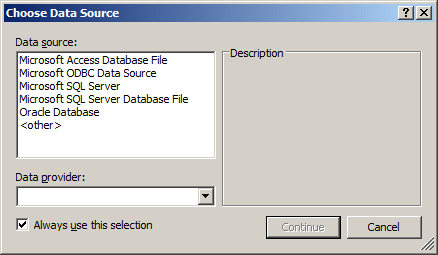
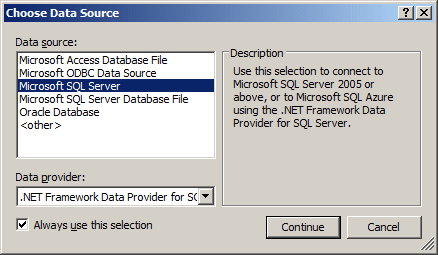
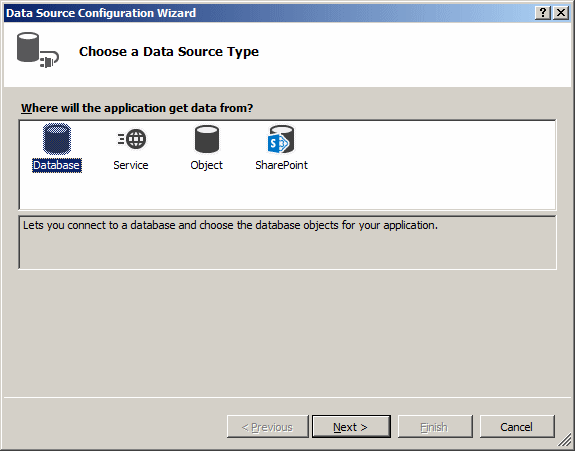
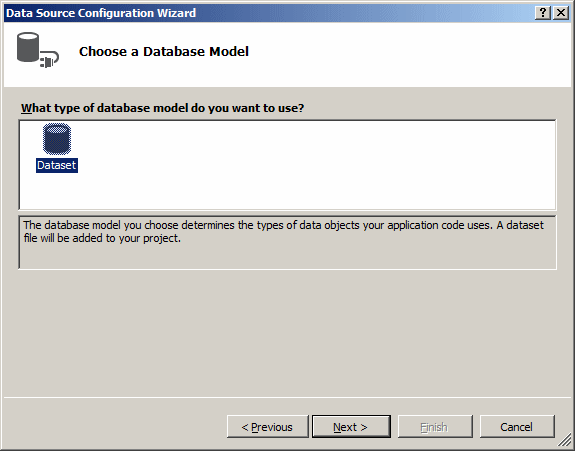
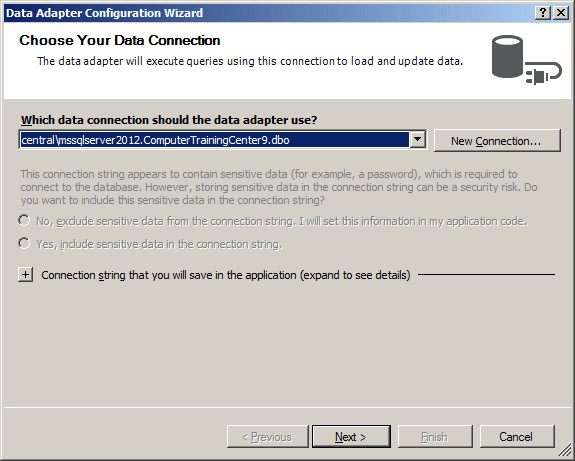
To perform an operation on a database server, you must establish a connection to it. Microsoft Visual Studio 2013 provides many options. To start, you must have a version of Microsoft SQL Server 2012 installed on your computer. You can download and install a trial version of Microsoft SQL Server 2012 (or 2014) Enterprise from the Microsoft Web site (http://www.microsoft.com/en-us/sqlserver/default.aspx) or another version (Microsoft SQL Server Developer, Enterprise, Express, LocalDb, or Compact). After installing a version of Microsoft SQL Server, there are various (or different) ways to use each. To be as flexible as possible, ADO.NET allows you to work with various types of databases. This also means that when you create an application. You must certainly first specify the type of database system you would be using. As mentioned already, you have many options in Microsoft Visual Studio to establish a connection:
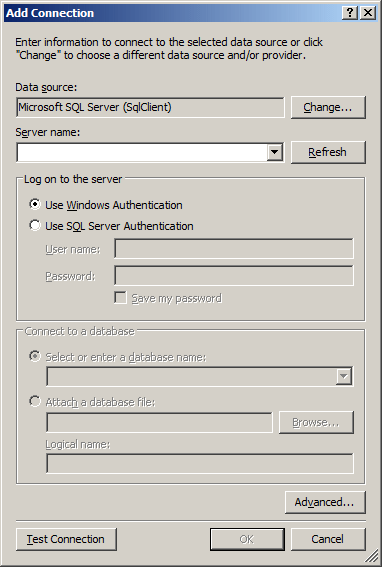
After making your selection, click Continue. This would open the Add Connection dialog box:
To support a connection to Microsoft SQL Server, the .NET Framework provides the SqlConnection class: public sealed class SqlConnection : DbConnection, ICloneable The SqlConnection class is defined in the System.Data.SqlClient namespace. Before using this class, you can first include this namespace in your file: using System;
using System.Data;
using System.Windows.Forms;
using System.Data.SqlClient;
public class Exercise : Form
{
public Exercise()
{
InitializeComponent();
}
private void InitializeComponent()
{
Text = "Introduction to ADO.NET";
StartPosition = FormStartPosition.CenterScreen;
}
static int Main()
{
System.Windows.Forms.Application.Run(new Exercise());
return 0;
}
}
To connect to a database, you can first declare a variable of type SqlConnection using one of its two constructors. The default constructor allows you to declare the variable without specifying how the connection would be carried. The second constructor takes as argument a string value. Its syntax is: public SqlConnection(string connectionString); You can create the necessary (but appropriate) string in this constructor when declaring the variable. This would be done as follows: public class Exercise : Form
{
public Exercise()
{
InitializeComponent();
}
void InitializeComponent()
{
SqlConnection connection = new SqlConnection("Something");
}
}
If you want, you can first create the string that would be used to handle the connection, then pass that string to this construction. This would be done as follows: void InitializeComponent()
{
string strConnection = "Something";
SqlConnection connection = new SqlConnection(strConnection);
}
If you are not connecting to the server using a dialog box, you must provide a collection of values and that collection is called a connection string. To support the connection as an object, the SqlConnection class is equipped with a property called ConnectionString, which is a string. If you use the default constructor to prepare the connection, you can first define a string value, then assign it to this property. This would be done as follows: void InitializeComponent()
{
string strConnection = "Something";
SqlConnection connection = new SqlConnection();
connection.ConnectionString = strConnection;
}
To use a SqlConnection object, you must provide various pieces of information, packaged as one and made available to the variable. These pieces of information are joined into a string but are separated from each other with a semi-colon ";". Each piece appears as a Key=Value format. In our lessons, we will refer to each of these pieces (Key=Value) as an attribute of the connection string. When joined, these attributes appear as follows: Key1=Value1;Key2=Value2;Key_n=Value_n Anything that is part of this string is not case-sensitive (even though you are working on a C# application). This whole group is either passed as a string to the second constructor: void InitializeComponent()
{
SqlConnection connection =
new SqlConnection("Key1=Value1;Key2=Value2;Key_n=Value_n");
}
or assigned as a string to the SqlConnection.ConnectionString property: void InitializeComponent()
{
string strConnection = "Key1=Value1;Key2=Value2;Key_n=Value_n";
SqlConnection connection = new SqlConnection();
connection.ConnectionString = strConnection;
}
How you create these attributes depends on the type of computer you are connecting to, whether you are connecting to a database, what level of security you would use (or need), etc. There are various of these attributes, some of them are always required, some of them are usually optional, and some others depend on the circumstances.
As seen above, you can provide all the parts of a connection string in one string. Alternative, to assist you with creating a connection string, the System.Data.SqlClient namespace of the .NET Framework provides a class named SqlConnectionStringBuilder that is derived from a class named DbConnectionStringBuilder: public sealed class SqlConnectionStringBuilder : DbConnectionStringBuilder The DbConnectionStringBuilder class starts as follows: public class DbConnectionStringBuilder : IDictionary,
ICollection,
IEnumerable,
ICustomTypeDescriptor
As you can see, the DbConnectionStringBuilder class is a collection class that implements the IDictionary and the ICollection interfaces. Since this class implements a dictionnary, this means that its members are of type Key=Value. This also means that the class inherits a property named Item that makes it possible to access members using an indexed property passed by name. Since this class implements ICollection, this means that it can add, remove, and insert items. The SqlConnectionStringBuilder class has two constructors. If you already have a connection string, you can pass it to the following constructor: public SqlConnectionStringBuilder(string connectionString); To create a connection string from scratch, use the default constructor.
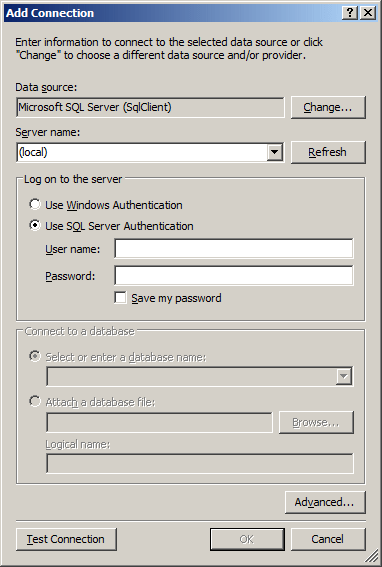
To establish a connection, you must specify the computer you are connecting to, that has Microsoft SQL Server installed. You can specify this from the Connect to Server dialog box where you would select the machine from the Server Name combo box. If you are working from the Add Connection dialog box, to see the list of servers and select one, you can click the arrow of the Server Name combo box. If you are working from the Add Connection dialog box, you can type (local) in the Server Name combo box. If you are programmatically connecting to a computer using the SqlConnection class, the connection string includes an attribute named Server, or Data Source, or Address, or Addr, or Network Address. For the rest of our lessons, this attribute will be referred to as the computer attribute. If you are creating your connection string using the SqlConnectionStringBuilder class, it is equipped with a property named DataSource, which is a string: public string DataSource { get; set; }
If you are creating your application on the same computer on which Microsoft SQL Server is installed, the computer attribute can be identified as (local). Here is an example that uses the SqlConnection class: void InitializeComponent()
{
SqlConnection connection = new SqlConnection("Server=(local); ");
}
Here is an example that uses the SqlConnectionStringBuilder class: void CreateConnection()
{
SqlConnectionStringBuilder csbExercise = new SqlConnectionStringBuilder();
csbExercise.DataSource = "(local);";
}
Remember that the SqlConnectionStringBuilder class inherits an indexed property. This makes it possible to access a property, such as DataSource, by name. Here is an example: void CreateConnection()
{
SqlConnectionStringBuilder csbExercise = new SqlConnectionStringBuilder();
csbExercise["DataSource"];
}
If you know the name of the computer, you can assign it to the computer attribute. Here is an example that uses the SqlConnection class: void InitializeComponent()
{
SqlConnection connection = new SqlConnection("Server=YellowCastle; ");
}
In the same way, if you are connecting to a specific computer, you must provide its name. Here is an example that uses the SqlConnection class: SqlConnection connection = new SqlConnection("Data Source=YellowCastle; ")
Here is an example that uses the SqlConnectionStringBuilder class: void CreateConnection()
{
SqlConnectionStringBuilder csbExercise = new SqlConnectionStringBuilder();
csbExercise.DataSource = "YellowCastle;";
}
As an option, you can include the name of the computer in single-quotes. |
|
|||||||||||||||||||||||||||||||
|
|
||||||||||||||||||||||||||||||||