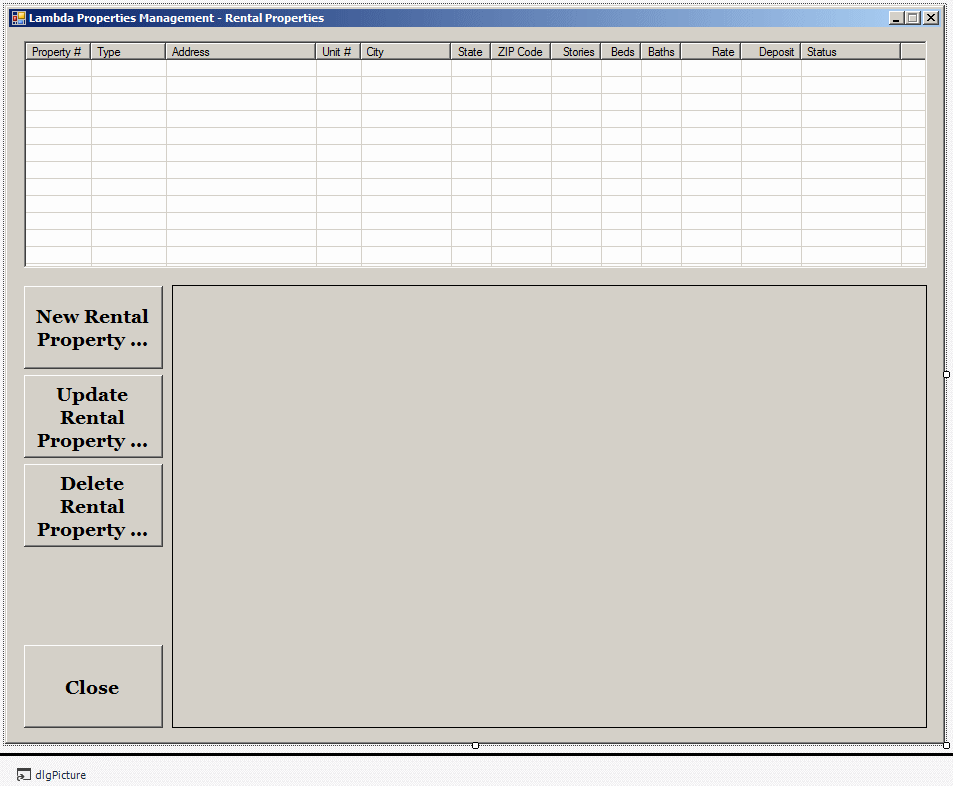
|
|
As you should know already, before using a data set, you
should create an object of type DataSet. You can create it
manually or visually. To manually create a data set, declare a variable of
type DataSet. Then create the tables.
|
To visually create a data set, you have two options.
You can click the DataSet object from the Data section of
the Toolbox and click the form. You would specify it as an Untyped Dataset
and click OK. After manually creating the data set, you must fill it with
records to make it useful.
As a second option to visually create a data set, add
a new data source from either the main menu (PROJECT -> Add New Data
Source) or from the Data Sources window. Then use the Data Source
Configuration Wizard. When the wizard ends, a class is generated. The
class is derived from the DataSet class and holds the
name you had specified for the data set in the last page of the wizard.
The class may start as follows:
public partial class dsLambdaSquareApartments : global::System.Data.DataSet
{
}
After creating the data set, you can use it, along
with its table(s) (DataTable objects), its (their)
columns (DataColumn objects), and its (their) records (DataRow
objects and DataRowCollection lists). Because a data set
is tied to the database, it provides all of its services. This means that
a data set can be used for any necessary maintenance assignment.
There are many ways you can perform maintenance on a
data set, a table, a column, or a record. Each one of these items is
represented by one or more classes and those classes support various types
of maintenance operations.
Besides the means provided by the data set, the
tables, their columns, and their records, the table adapter generated by
the wizard is equipped with various methods.
|
 Practical
Learning: Introducing Data Sets and Table Adapters Practical
Learning: Introducing Data Sets and Table Adapters
|
|
- Start Microsoft Visual Studio
- To create a new application, on the main menu, click FILE -> New
-> Project...
- Make sure Windows Forms Application. Set the Name to
LambdaPropertiesManagement1 and press Enter
- To create a new database, in the Server Explorer, right-click Data
Connections and click Create New SQL Server Database...
- In the Server Name combo box, select your server or type (local)
- Set the database name as LambdaPropertiesManagement1
and press Enter
- In the Server Explorer, right-click the
LambdaPropertiesManagement1 connection and click New Query
- Open the
LambdaPropertiesManagement1 file and select everything in the
document
- Copy and paste it in the Query window
- Right-click inside the document and click Execute
- To create a new form, in the Solution Explorer, right-click
LambdaPropertiesManagement1 -> Add -> Windows Form...
- Set the Name to Employees and click Add
- In the Data Sources window, click Add New Data Source...
- On the first page of the wizard, make sure Database is selected
and click Next
- On the second page of the wizard, make sure Dataset is selected
and click Next
- In the third page of the wizard, click New Connection...
If the
Choose Data Source dialog box comes up, click Microsoft SQL Server and
click Continue
- In the Server Name combo box, select the server or type
(local)
- In the Select or Enter a Database Name combo box, select
LambdaPropertiesManagement1
- Click OK
- On the Data Source Configuration Wizard, make sure the new
connection is selected
Click the + button of Connection String
- Click Next
- Change the connection string to
csLambdaPropertiesManagement and click Next
- Click the check boxes of Tables and Views
- Change the name of the data set to
dsLambdaPropertiesManagement
- Click Finish
- In the Data Sources window, drag Employees and drop it on the
Employees form
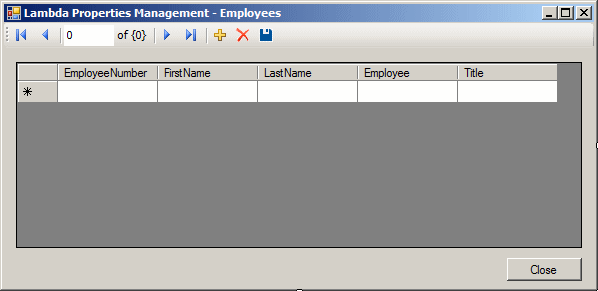
- Execute the application to generate the table adapters
- Close the form and return to your programming environment.
Notice the list of table adapters in the top section of the Toolbox
|
Saving the Records of a Data Set
|
|
Although the records of a database belong to a table,
if you want to use them in an external application, you can save them in
an XML file. To support this, the DataSet class is
equipped with the WriteXml() method. Here is an example
of calling it:
private void btnSave_Click(object sender, EventArgs e)
{
    using (SqlConnection scnDepartmentStore =
                new SqlConnection("Data Source=(local);" +
                                  "Database='DepartmentStore1';" +
                                  "Integrated Security=yes;"))
    {
        SqlCommand cmdStoreItems =
                    new SqlCommand("SELECT * FROM StoreItems; ",
                                   scnDepartmentStore);
        SqlDataAdapter sdaStoreItems = new SqlDataAdapter();
        DataSet dsStoreItems = new DataSet("StoreItems");

        scnDepartmentStore.Open();

        sdaStoreItems.SelectCommand = cmdStoreItems;
        sdaStoreItems.Fill(dsStoreItems);

        dsStoreItems.WriteXml(@"C:\Exercise\StoreItems1.xml");
    }
}
|
The Objects of a Data Set
|
|
|
The tables, views, and/or stored procedures of a
DataSet object are stored in the DataSet.Tables
property that is of type DataTableCollection. After filling up a
DataSet object, if the selection statement of the data
adapter includes only one table, view, or stored procedure, the first
table, view, or stored procedure of the statement can be identified with
the index of 0 as in DataTableCollection[0]. If the statement
includes only one table, view, or stored procedure, only a 0 index can be
used. As the DataTableCollection[0] value allows you to identify a
table, view, or stored procedure, you can retrieve any table-related
information with this information. For example, you can get the object
name of the table, view, or stored procedure and specify it as the
DataMember property of a DataGridView control. Here is an example:
private void Form1_Load(object sender, System.EventArgs e)
{
    SqlConnection cnnVideos = new SqlConnection(
	"Data Source=(local);Database='VideoCollection';Integrated Security=yes");

    string strVideos = "SELECT ALL * FROM Videos;";
    SqlCommand    cmdVideos = new SqlCommand(strVideos, cnnVideos);

    cnnVideos.Open();
    SqlDataAdapter dadVideoCollection = new SqlDataAdapter(cmdVideos);

    DataSet setVideos = new DataSet("VideoCollection");
    dadVideoCollection.Fill(setVideos);

    dataGridView1.DataSource = setVideos;
    dataGridView1.DataMember = setVideos.Tables[0].TableName;

    cnnVideos.Close();
}
|
The Columns of a Data Set Object
|
|
Just as you can use the filled DataSet
object to locate a table, view, or stored procedure by its index, inside
of the identified table, view, or stored procedure, you can also locate a
particular column you need. As you may know already, the columns of a
table, view, or stored procedure are stored in the Columns property
of a DataTable object and the Columns property is
of type DataColumnCollection. Each column inside of the table can
be identified by its index. The first column has an index of 0. The second
column has an index of 1, and so on. Once you have identified a column,
you can manipulate it as you see fit. In the following example, since we
(behave like we) don't know the name of the second column, a message box
displays that information for us:
private void Form1_Load(object sender, System.EventArgs e)
{
    SqlConnection cnnVideos = new SqlConnection(
	"Data Source=(local);Database='VideoCollection';Integrated Security=yes");

    string strVideos = "Blah Blah Blah";
    SqlCommand    cmdVideos = new SqlCommand(strVideos, cnnVideos);

    cnnVideos.Open();
    SqlDataAdapter dadVideoCollection = new SqlDataAdapter(cmdVideos);

    DataSet setVideos = new DataSet("VideoCollection");
    dadVideoCollection.Fill(setVideos);
    dataGrid1.DataSource = setVideos;
    dataGrid1.DataMember = setVideos.Tables[0].TableName;

    DataColumn colSecond = setVideos.Tables[0].Columns[1];
    MessageBox.Show("The name of the second column is " + colSecond.ColumnName);

    cnnVideos.Close();
}
|
Updating a Record Using the Data Adapter
|
|
|
When visiting the records of a table using a form of
your application, if you provide the means for the user to move from one
record to another, if the user gets to a record and changes something in
it, that record would not be automatically updated when the user moves to
another record. To update a record using the data adapter, (we
already saw that) the SqlDataAdapter class inherits the
Update() method from its parent the DbDataAdapter. The
Update() method is overloaded with various versions. One of its
versions uses the following syntax:
public override int Update(DataSet dataSet);
This version takes a DataSet object
as argument. This means that the data adapter would read the information
stored in the DataSet object and update the database with
it. This is probably one of the easiest or fastest means of updating data
of a table.
|
The Records of a Table of a Data Set
|
|
|
After filling out a DataSet object
with information from a data adapter, the records of the table(s) included
in the selection statement become available from the DataSet
object. As you may know already, the records of a table, view, or stored
procedure are stored in the Rows property of the DataTable
object.
Data entry with a data adapter is performed just a few
steps once you have properly bound the controls of your form to a
DataSet object. To start, you can access the form's
BindingContext property to get its BindingContext.Item
property. The second version of this property allows you to specify the
data source and the table name. After specifying the DataSet
object that holds the records and the table that holds the data, you can
first call the EndCurrentEdit() method to suspend any record
editing that was going on. After this, call the AddNew() method to
get the table ready for a new record. This allows the user to enter values
in the Windows control.
|
Operations on a Table Adapter
|
|
Some of the operations you can perform on a data set
include copying a table or the entire data set by calling the appropriate
Copy() method (DataTable.Copy() or
DataSet.Copy() respectively).
To get the number of records in a table, access the
desired table (using its name or its index) from the data set that was
generated, access its Rows property, and access its
Count property.
We saw that, when a table adapater has been created,
its class is equipped with a method named Fill that is
used to fill a data set. You too, at times, will want to fill or refill a
table with records from its corresponding data table. To do this, access
your table adapter, call its Fill() method, and pass the
table as argument. Here is an example:
private void btnEmployees_Click(object sender, EventArgs e)
{
    taEmployees.Fill(dsFunDS1.Employees);
}
|
Updating or Editing a Record
|
|
Editing a record consists of changing one or more of
its values. To programmatically do this, you must first locate and open
the record, then change the necessary value(s). After doing this, if you
want to apply the change(s) to the table, you must update it. To assist
you with this, the generated table adapter is equipped with the
Update() method. This method is overloaded with four versions:
one for a data set, one for a data table, one for a record (a data row),
and one for an array of records (a DataRow[] array).
Therefore, after making the changes on either a record, some records, or a
table, call the appropriate version of the method to apply the changes.
|
Practical
Learning: Updating a Record
|
|
- To create a new form, on the main menu, click PROJECT -> Add
Windows Form...
- Set the Name to UpdateRegistration and click Add
- In the top section of the Toolbox, click RegistrationsTableAdapter
and click the form
- In the Properties window, change its name to
taRegistrations
- Design the form as follows:
 |
| Control |
(Name) |
Text |
Other Properties |
| Label |
 |
|
Registration Number |
|
| TextBox |
 |
txtRegistrationNumber |
|
|
| Label |
|
|
Registration Date: |
|
| DateTimePicker |
 |
dtpRegistrationDate |
|
|
| Label |
|
|
Processed By |
BackColor: Gray
BorderStyle: FixedSingle
ForeColor: White |
| Label |
|
|
Employee #: |
|
| TextBox |
|
|
txtEmployeeNumber |
|
| Label |
|
|
Tenant Information |
BackColor: Gray
BorderStyle: FixedSingle
ForeColor: White |
| Label |
|
|
First Name: |
|
| TextBox |
|
txtFirstName |
|
|
| Label |
|
|
Last Name: |
|
| TextBox |
|
txtLastName |
|
|
| Label |
|
|
Marital Status: |
|
| ComboBox |
 |
cbxMaritalsStatus |
|
DropDownStyle: DropDownList |
| Label |
|
|
Phone Number: |
|
| MaskedTextBox |
 |
txtPhoneNumber |
|
Mask: (000) 000-0000 |
| Label |
|
|
Number of Children: |
|
| TextBox |
|
txtNumberOfChildren |
|
|
| Label |
|
|
Tenant Code: |
|
| MaskedTextBox |
|
txtTenantCode |
|
Mask: 00-000-00 |
| Label |
|
|
Email Address: |
|
| TextBox |
|
txtEmailAddress |
|
|
| Label |
|
|
Property Selected |
BackColor: Gray
BorderStyle: FixedSingle
ForeColor: White |
| Label |
|
|
Property Number: |
|
| TextBox |
|
txtPropertyNumber |
|
|
| TextBox |
|
txtPropertyDetails |
|
Multiline: True
ScrollBars: Vertical |
| Label |
|
|
Rent Start Date: |
|
| DateTimePicker |
|
dtpRentStartDate |
|
|
| Button |
 |
btnUpdateRegistration |
Update Registration |
|
| Button |
|
btnClose |
Close |
|
|
- Double-click the Update Registration button
- Change the document as follows:
using System;
using System.Collections.Generic;
using System.ComponentModel;
using System.Data;
using System.Drawing;
using System.Linq;
using System.Text;
using System.Threading.Tasks;
using System.Windows.Forms;

namespace LambdaPropertiesManagement1
{
    public partial class UpdateRegistration : Form
    {
        public UpdateRegistration()
        {
            InitializeComponent();
        }

	// This method is used to reset the dialog box
        internal void PrepareRegistration()
        {
            Random rndNumber = new Random();

            txtEmployeeNumber.Text = "";
            txtEmployeeNumber.Text = "";
            txtFirstName.Text = "";
            txtLastName.Text = "";
            cbxMaritalsStatus.Items.Add("Single");
            cbxMaritalsStatus.Items.Add("Married");
            cbxMaritalsStatus.Items.Add("Separated");
            cbxMaritalsStatus.Items.Add("Divorced");
            cbxMaritalsStatus.Items.Add("Widow");
            cbxMaritalsStatus.Items.Add("Unspecified");
            txtPhoneNumber.Text = "";
            txtNumberOfChildren.Text = "0";
            txtEmailAddress.Text = "";
            txtTenantCode.Text = rndNumber.Next(10, 99).ToString() +
                                 rndNumber.Next(100, 999).ToString() +
                                 rndNumber.Next(10, 99).ToString();
            txtPropertyNumber.Text = "";
            txtPropertyDetails.Text = "";
        }

        private void btnUpdateRegistration_Click(object sender, EventArgs e)
        {
            if (string.IsNullOrEmpty(txtRegistrationNumber.Text))
            {
                MessageBox.Show("You must enter an existing registration number.",
                                "Lambda Properties Management",
                                MessageBoxButtons.OK, MessageBoxIcon.Information);
                return;
            }

            // If the user answers Yes, first get a reference to the registration
            DataRow drRegistration = taRegistrations.GetData().Rows.Find(txtRegistrationNumber.Text);

            drRegistration["RegistrationDate"] = dtpRegistrationDate.Value.ToShortDateString();
            drRegistration["EmployeeNumber"] = txtEmployeeNumber.Text;
            drRegistration["TenantCode"] = txtTenantCode.Text;
            drRegistration["FirstName"] = txtFirstName.Text;
            drRegistration["LastName"] = txtLastName.Text;
            drRegistration["MaritalStatus"] = cbxMaritalsStatus.Text;
            drRegistration["NumberOfChildren"] = int.Parse(txtNumberOfChildren.Text);
            drRegistration["PhoneNumber"] = txtPhoneNumber.Text;
            drRegistration["EmailAddress"] = txtEmailAddress.Text;
            drRegistration["PropertyNumber"] = txtPropertyNumber.Text;
            drRegistration["RentStartDate"] = dtpRentStartDate.Value.ToShortDateString();

            // Update the table adapter
            taRegistrations.Update(drRegistration);

            // Let the user know
            MessageBox.Show("The registration has been updated.",
                            "Lambda Properties Management - Update Registration",
                            MessageBoxButtons.OK, MessageBoxIcon.Information);

            Close();
        }
    }
}
One of the most fundamental operations you can perform
on a data set consists of creating a new record. To assist you with the
tables, their columns and records, the data set class that the wizard
generates inherits the properties and methods of the DataSet
class. This includes the Tables property. You can use
this property to access a table, view, or stored procedure, based on its
name or its index. Once you have obtained the table, you can perform any
normal operation you want.
To support record creation, we
already know that
the DataTable class is equipped with the NewRow()
method. To use this method, access the data set object that was generated
for you, access the desired table, and call this method. After calling the
DataTable.NewRow() method, you can access each column by
its name or its index and assign the desired value to it. You can access
the columns in any order of your choice. You can choose what columns to
provide values for and which ones to ignore. When doing this, you must
observe the rules established in the table's structure:
- Specify a value only for an existing column
- Don't assign a value to a column whose records must be
automatically specified. This is the case for an identity column
- Don't assign a value to a column whose records are specified by an
expression
- Observe all check constraints
- If a column has a UNIQUE characteristic, you must
not give it a value that exists already in the table
After specifying the value(s) of column(s), to apply
them to the table, call the Add() method of the
Rows property of the table. After calling the
DataRowCollection.Rows.Add() method, you must update the table
adapter. Here is an example:
private void btnAddNewRecord_Click(object sender, EventArgs e)
{
    DataRow customer = dsCeilInn1.Tables["Customers"].NewRow();

    customer["AccountNumber"] = "955740";
    customer["FullName"] = "Albert Rhoads";
    customer["PhoneNumber"] = "116-917-3974";
    customer["EmergencyName"] = "Jasmine";
    customer["EmergencyPhone"] = "Rhoads";

    dsCeilInn1.Tables["Customers"].Rows.Add(customer);
    taCustomers.Update(customer);
}
In the same way, you can use these steps to add as
many records as you want. Instead of adding one record at a time, you can
store the records in an array and add them at once, as a block. This is
possible because the DataTable.Rows property, which is of
type DataRowCollection, is equipped with the ItemArray
property.
After adding the record(s) to the table, you must update the data set. To
assist you with this, the generated table adapter is equipped with a
method named Update. After the new record has been added,
it is marked with the RowState.Added value.
|
Practical
Learning: Creating a Record
|
|
- To create a new form, on the main menu, click PROJECT -> Add
Windows Form...
- Set the Name to CreateRegistration and click Add
- In the top section of the Toolbox, click
dsLambdaPropertiesManagement and click the form
- In the top section of the Toolbox, click RegistrationsTableAdapter
and click the form
- In the Properties window, change its name to
taRegistrations
- (Make the form as large as the previous one, then select and copy
everything on that form to this one, and modify the design on this
one)
Design the form as follows:
 |
| Control |
(Name) |
Text |
Other Properties |
| Label |
|
|
Registration Date: |
|
| DateTimePicker |
|
dtpRegistrationDate |
|
|
| Label |
|
|
Processed By |
BackColor: Gray
BorderStyle: FixedSingle
ForeColor: White |
| Label |
|
|
Employee #: |
|
| TextBox |
|
|
txtEmployeeNumber |
|
| Label |
|
|
Tenant Information |
BackColor: Gray
BorderStyle: FixedSingle
ForeColor: White |
| Label |
|
|
First Name: |
|
| TextBox |
|
txtFirstName |
|
|
| Label |
|
|
Last Name: |
|
| TextBox |
|
txtLastName |
|
|
| Label |
|
|
Marital Status: |
|
| ComboBox |
|
cbxMaritalsStatus |
|
DropDownStyle: DropDownList |
| Label |
|
|
Phone Number: |
|
| MaskedTextBox |
|
txtPhoneNumber |
|
Mask: (000) 000-0000 |
| Label |
|
|
Number of Children: |
|
| TextBox |
|
txtNumberOfChildren |
|
|
| Label |
|
|
Tenant Code: |
|
| MaskedTextBox |
|
txtTenantCode |
|
Mask: 00-000-00 |
| Label |
|
|
Email Address: |
|
| TextBox |
|
txtEmailAddress |
|
|
| Label |
|
|
Property Selected |
BackColor: Gray
BorderStyle: FixedSingle
ForeColor: White |
| Label |
|
|
Property Number: |
|
| TextBox |
|
txtPropertyNumber |
|
|
| TextBox |
|
txtPropertyDetails |
|
Multiline: True
ScrollBars: Vertical |
| Label |
|
|
Rent Start Date: |
|
| DateTimePicker |
|
dtpRentStartDate |
|
|
| Button |
|
btnDeleteRegistration |
Delete Registration |
|
| Button |
|
btnUpdateRegistration |
Update Registration |
|
| Button |
|
btnClose |
Close |
|
|
- Double-click the Submit button
- Change the document as follows:
using System;
using System.Collections.Generic;
using System.ComponentModel;
using System.Data;
using System.Drawing;
using System.Linq;
using System.Text;
using System.Threading.Tasks;
using System.Windows.Forms;

namespace LambdaPropertiesManagement1
{
    public partial class CreateRegistration : Form
    {
        public CreateRegistration()
        {
            InitializeComponent();
        }

        private void btnSubmit_Click(object sender, EventArgs e)
        {
            if (string.IsNullOrEmpty(txtEmployeeNumber.Text))
            {
                MessageBox.Show("You must specify the employee who processed the registration.",
                                "Lambda Properties Management",
                                MessageBoxButtons.OK, MessageBoxIcon.Information);
                return;
            }
            if (string.IsNullOrEmpty(txtTenantCode.Text))
            {
                MessageBox.Show("You must specify the tenant whose registration was processed.",
                                "Lambda Properties Management",
                                MessageBoxButtons.OK, MessageBoxIcon.Information);
                return;
            }
            if (string.IsNullOrEmpty(txtPropertyNumber.Text))
            {
                MessageBox.Show("You must specify the property that was selected.",
                                "Lambda Properties Management",
                                MessageBoxButtons.OK, MessageBoxIcon.Information);
                return;
            }

            try
            {
                DataRow drRegistration = dsLambdaPropertiesManagement1.Tables["Registrations"].NewRow();

                drRegistration["RegistrationDate"] = dtpRegistrationDate.Value.ToShortDateString();
                drRegistration["EmployeeNumber"] = txtEmployeeNumber.Text;
                drRegistration["TenantCode"] = txtTenantCode.Text;
                drRegistration["FirstName"] = txtFirstName.Text;
                drRegistration["LastName"] = txtLastName.Text;
                drRegistration["MaritalStatus"] = cbxMaritalsStatus.Text;
                drRegistration["NumberOfChildren"] = int.Parse(txtNumberOfChildren.Text);
                drRegistration["PhoneNumber"] = txtPhoneNumber.Text;
                drRegistration["EmailAddress"] = txtEmailAddress.Text;
                drRegistration["PropertyNumber"] = txtPropertyNumber.Text;
                drRegistration["RentStartDate"] = dtpRentStartDate.Value.ToShortDateString();

                dsLambdaPropertiesManagement1.Tables["Registrations"].Rows.Add(drRegistration);
                taRegistrations.Update(dsLambdaPropertiesManagement1);

                MessageBox.Show("The new tenant registration has been created.",
                                "Lambda Properties Management",
                                MessageBoxButtons.OK, MessageBoxIcon.Information);
            }
            catch (IndexOutOfRangeException iore)
            {
                MessageBox.Show("There was an error when trying to create the registration.\n" +
                                "Please report the error as: " + iore.Message,
                                "Lambda Properties Management",
                                MessageBoxButtons.OK, MessageBoxIcon.Information);
            }

            Close();
        }

        internal void PrepareRegistration() // Used to reset the form
        {
            Random rndNumber = new Random();

            txtEmployeeNumber.Text = "";
            txtEmployeeNumber.Text = "";
            txtFirstName.Text = "";
            txtLastName.Text = "";
            cbxMaritalsStatus.Items.Add("Single");
            cbxMaritalsStatus.Items.Add("Married");
            cbxMaritalsStatus.Items.Add("Separated");
            cbxMaritalsStatus.Items.Add("Divorced");
            cbxMaritalsStatus.Items.Add("Widow");
            cbxMaritalsStatus.Items.Add("Unspecified");
            txtPhoneNumber.Text = "";
            txtNumberOfChildren.Text = "0";
            txtEmailAddress.Text = "";
            txtTenantCode.Text = rndNumber.Next(10, 99).ToString() +
                                 rndNumber.Next(100, 999).ToString() +
                                 rndNumber.Next(10, 99).ToString();
            txtPropertyNumber.Text = "";
            txtPropertyDetails.Text = "";
        }
    }
}
- To create a new form, on the main menu, click PROJECT -> Add
Windows Form...
- Set the Name to MakePayment and click Add
- Design the form as follows:
 |
| Control |
(Name) |
Text |
Other Properties |
| Label |
|
|
Payment Date: |
|
| DateTimePicker |
|
dtpPaymentDate |
|
Modifiers: Internal |
| Label |
|
|
Processed By |
BackColor: Gray
BorderStyle: FixedSingle
ForeColor: White |
| Label |
|
|
Employee #: |
|
| TextBox |
|
|
txtEmployeeNumber |
Modifiers: Internal |
| Label |
|
|
Registration Information |
BackColor: Gray
BorderStyle: FixedSingle
ForeColor: White |
| Label |
|
|
Registration #: |
|
| TextBox |
|
txtRegistrationID |
|
Modifiers: Internal |
| TextBox |
|
txtRegistration Details |
|
Multiline: True
ScrollBars: Vertical |
| Label |
|
|
Payment Details |
BackColor: Gray
BorderStyle: FixedSingle
ForeColor: White |
| Label |
|
|
Amount Paid: |
|
| TextBox |
|
txtAmountPaid |
|
Modifiers: Internal
TextAlign: Right |
| Label |
|
|
Notes: |
|
| TextBox |
|
txtNotes |
|
Modifiers: Internal
Multiline: True
ScrollBars: Vertical |
| Button |
|
btnOK |
OK |
DialogResult: OK |
| Button |
|
btnCancel |
Cancel |
DialogResult: Cancel |
|
- Set the form's AcceptButton as btnOK and the CancelButton as
btnCancel
- To create a new form, on the main menu, click PROJECT -> Add
Windows Form...
- Set the Name to Payments and click Add
- In the top section of the Toolbox, click
dsLambdaPropertiesManagement and click the form
- In the top section of the Toolbox, click
PaymentsDetailsTableAdapter and click the form
- Change its (Name) to taPaymentsDetails
- In the top section of the Toolbox, click PaymentsTableAdapter and
click the form
- In the Properties window, change its name to taPayments
- Design the form as follows:
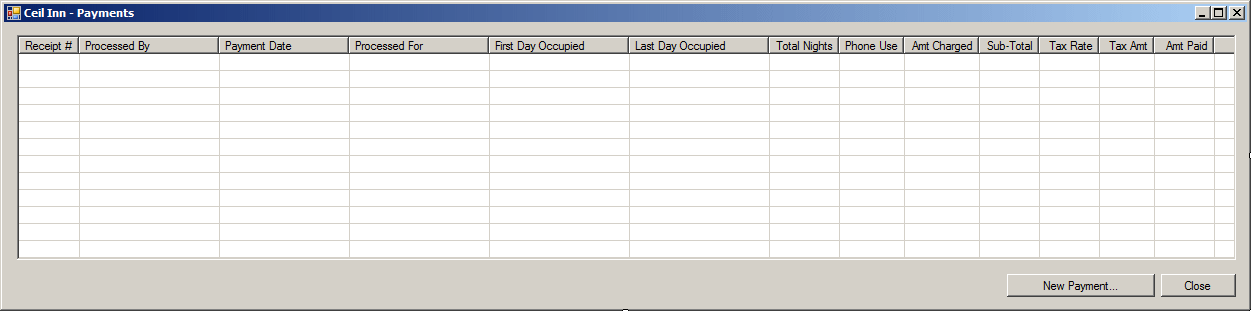 |
| Control |
(Name) |
Text |
TextAlign |
| List View |
 |
lvwPayments |
| |
|
| (Name) |
Text |
TextAlign |
Width |
| colPaymentID |
Pmt ID |
|
45 |
| colPaymentDate |
Pmt Date |
Center |
70 |
| colProcessedBy |
Processed By |
|
100 |
| colRegistrationInformation |
Registration Information |
|
300 |
| colAmountPaid |
Amt Paid |
Right |
65 |
| collNotes |
Notes |
|
50 |
|
| Button |
|
btnNewPayment |
New Payment... |
Anchor: Bottom, Left |
| Button |
|
btnClose |
Close |
Anchor: Bottom, Left |
|
|
- Double-click the New Payment button and implement its Click event
as follows:
private void btnNewPayment_Click(object sender, EventArgs e)
{
    MakePayment mp = new MakePayment();

    if (mp.ShowDialog() == System.Windows.Forms.DialogResult.OK)
    {
        if (string.IsNullOrEmpty(mp.txtEmployeeNumber.Text))
        {

            MessageBox.Show("You must specify the employee who processed the payment.",
    			    "Lambda Properties Management",
		            MessageBoxButtons.OK, MessageBoxIcon.Information);
            return;
        }
        if (string.IsNullOrEmpty(mp.txtRegistrationID.Text))
        {
            MessageBox.Show("You must specify the registration who paymeent was made.",
            		    "Lambda Properties Management",
		            MessageBoxButtons.OK, MessageBoxIcon.Information);
            return;
        }
        if (string.IsNullOrEmpty(mp.txtAmountPaid.Text))
        {
            MessageBox.Show("You must specify the amount that was paid.",
            		    "Lambda Properties Management",
		            MessageBoxButtons.OK, MessageBoxIcon.Information);
            return;
        }

        try
        {
            DataRow drPayment = dsLambdaPropertiesManagement1.Tables["Payments"].NewRow();
            drPayment["PaymentDate"] = mp.dtpPaymentDate.Value.ToShortDateString();
            drPayment["EmployeeNumber"] = mp.txtEmployeeNumber.Text;
            drPayment["RegistrationID"] = mp.txtRegistrationID.Text;
            drPayment["AmountPaid"] = mp.txtAmountPaid.Text;
            drPayment["Notes"] = mp.txtNotes.Text;

            dsLambdaPropertiesManagement1.Tables["Payments"].Rows.Add(drPayment);
            taPayments.Update(dsLambdaPropertiesManagement1);

            MessageBox.Show("The new payment has been made.",
    			    "Lambda Properties Management",
		            MessageBoxButtons.OK, MessageBoxIcon.Information);
        }
        catch (IndexOutOfRangeException iore)
        {
            MessageBox.Show("There was an error when trying to make or register the payment.\n" +
        		    "Please report the error as: " + iore.Message,
		            "Lambda Properties Management",
		            MessageBoxButtons.OK, MessageBoxIcon.Information);
        }
    }
}
Although you can use Transact-SQL to find a record,
the data set provides its own mechanism through the
DataRowCollection class that is represented in a table with the
Rows property. You can first use the
DataRowCollection[] (actually DataRowCollection.Item[])
property to locate a record. Once you have the record, you can use the
DataRow[] array (or collection) to identify a column and
inquire about its value. If the result is not null, a record is found. If
a value is not found, the compiler may throw an
IndexOutOfRangeException exception. You can use this exception to
find out whether a record was found or not.
Because the DataRow.Item property is
overloaded, you can access a column by its index inside the table or using
its actual name.