|
After creating a data set and a data source, the next
step is to indicate to each control where its data would come from.
If you drag a table from the Data Source window and drop
it on a form, Microsoft Visual Studio adds the necessary Windows controls to
the form and binds them to the columns of the table. To move from one record
to another, you would need a way to navigate among the records. You can
manually take care of this if you want. Alternatively, the .NET Framework
provides a class named BindingNavigator that contains all
the necessary functionality for this task.
There are various ways you can create a binding
navigator:
|
 Practical
Learning: Generating Visual Objects Practical
Learning: Generating Visual Objects
|
|
- Open the
LambdaSquareApartments1 file and select everything in it the
document
- Copy to the clipboard
- Display the Query window (if it not available, right-click any
connection in the Server Explorer and click New Query)
- To create a new database, paste in the Query window
- Right-click inside the Query window and click Execute
- To create a new application, on the main menu, click FILE -> New ->
Project...
- Make sure Windows Forms Application. Set the Name to
LambdaSquareApartments1
- Click OK.
If you are asked whether you want to save
SQLQuery1.sql, click No
- On the main menu, click PROJECT -> Add New Data Source...
- On the first page of the wizard, make sure Database is selected and
click Next
- On the second page of the wizard, make sure Dataset is selected and
click Next
- In the third page of the wizard, click New Connection...
If the
Choose Data Source dialog box comes up, click Microsoft SQL Server and
click Continue
- In the Server Name combo box, select the server or type
(local)
- In the Select or Enter a Database Name combo box, select
LambdaSquareApartments1
- Click OK
- On the Data Source Configuration Wizard, make sure the new
connection is selected
Click the + button of Connection String
- Click Next
- Change the connection string to csLambdaSquareApartments
and click Next
- Click the check boxes of Tables and Stored Procedures
- Change the name of the data set to dsLambdaSquareApartments
- Click Finish
- To create a new form, on the main menu, click PROJECT -> Add Windows
Form...
- Set the Name to Apartments and click Add
- From the Data Source, drag Apartments and drop it on the new form
- Design the form as follows:

- To create a new form, on the main menu, click PROJECT -> Add Windows
Form...
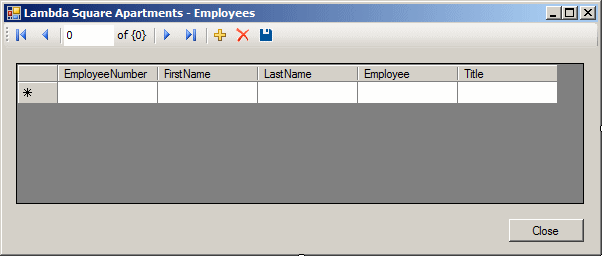
- Set the Name to Employees and click Add
- From the Data Source, drag Employees and drop it on the new form
- Design the form as follows:
- To create a new form, on the main menu, click PROJECT -> Add Windows
Form...
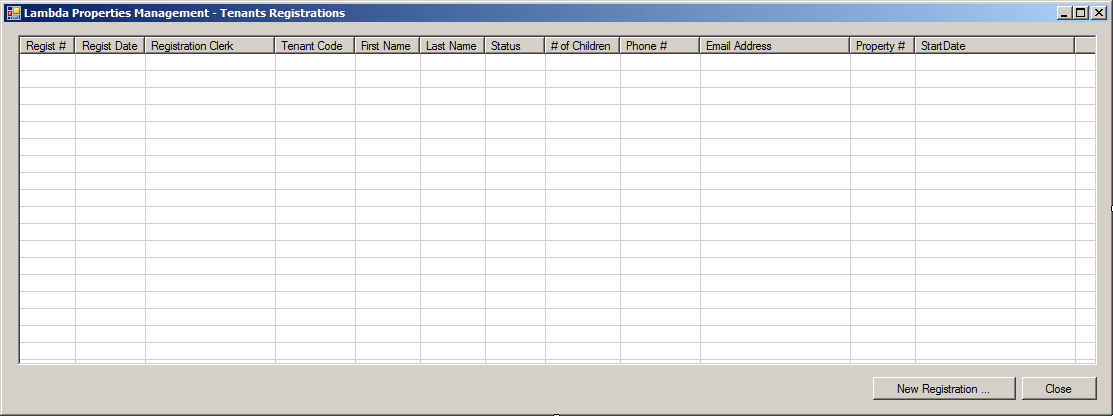
- Set the Name to Registrations and click Add
- From the Data Source, drag Registrations and drop it on the new form
- Design the form as follows:
- To create a new form, on the main menu, click PROJECT -> Add Windows
Form...
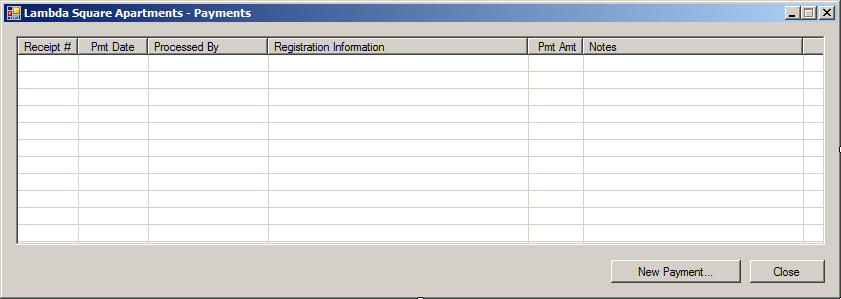
- Set the Name to Payments and click Add
- From the DataSource, drag Payments and drop it on the form
- Design the form as follows:
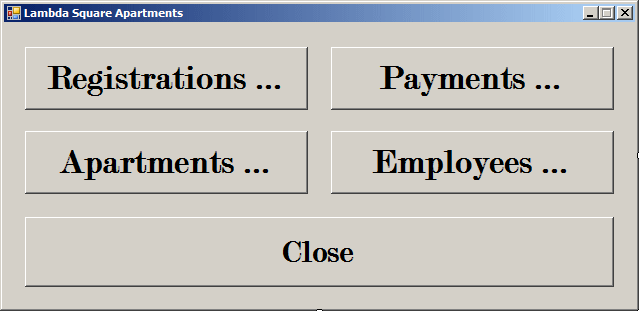
- In the Solution Explorer, right-click Form1.cs and click Rename
- Type LambdaSquareApartments.cs and press Enter twice
- Design the form as follows:
 |
| Control |
(Name) |
Name |
| Button |
 |
btnRegistrations |
Tenants Registrations... |
| Button |
|
btnRentPayments |
Rent Payments... |
| Button |
|
btnApartments |
Apartments... |
| Button |
|
btnEmployees |
Employees... |
| Button |
|
Close |
btnClose |
|
- Double-click the Tenants Registrations button
- Return to the form and double-click the Rent Payments button
- Return to the form and double-click the Apartments button
- Return to the form and double-click the Employees button
- Return to the form and double-click the Close button
- Implement the events as follows:
using System;
using System.Collections.Generic;
using System.ComponentModel;
using System.Data;
using System.Drawing;
using System.Linq;
using System.Text;
using System.Threading.Tasks;
using System.Windows.Forms;

namespace LambdaSquareApartments1
{
    public partial class LambdaSquareApartments : Form
    {
        public LambdaSquareApartments()
        {
            InitializeComponent();
        }

        private void btnRegistrations_Click(object sender, EventArgs e)
        {
            Registrations regs = new Registrations();
            regs.Show();
        }

        private void btnRentPayments_Click(object sender, EventArgs e)
        {
            Payments pmts = new Payments();
            pmts.Show();
        }

        private void btnApartments_Click(object sender, EventArgs e)
        {
            Apartments aparts = new Apartments();
            aparts.Show();
        }

        private void btnEmployees_Click(object sender, EventArgs e)
        {
            Employees empls = new Employees();
            empls.Show();
        }

        private void btnClose_Click(object sender, EventArgs e)
        {
            Close();
        }
    }
}
|
|
