The Save and Open dialog boxes allow a user to save or open files only. Microsoft Windows provides a dialog box specially made so that a user can select a folder if an application needs one for any reason a programmer judges necessary. This dialog box appears as follows: 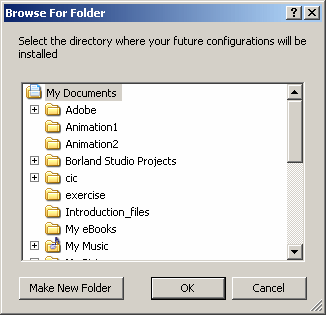
The Browse For Folder dialog box is made available
through the FolderBrowserDialog class that is derived from the
CommonDialog class. To provide its functionality to your application, at
design time, from the Toolbox, click FolderBrowserDialog
To programmatically initiate this dialog box, you can declare a pointer to FolderBrowserDialog, use the new operator to allocate memory for it by calling its default constructor. Here is an example: using System;
using System.Drawing;
using System.Windows.Forms;
public class Exercise : Form
{
private FolderBrowserDialog fbd;
public Exercise()
{
InitializeComponent();
}
void InitializeComponent()
{
fbd = new FolderBrowserDialog();
}
[STAThread]
public static int Main()
{
Application.Run(new Exercise());
return 0;
}
}
To display the Browse For Folder dialog box, call its ShowDialog() method. Here is an example: using System;
using System.Drawing;
using System.Windows.Forms;
public class Exercise : Form
{
Button btnGetFolder;
private FolderBrowserDialog fbd;
public Exercise()
{
InitializeComponent();
}
void InitializeComponent()
{
fbd = new FolderBrowserDialog();
btnGetFolder = new Button();
btnGetFolder.Text = "&Locate a Folder";
btnGetFolder.Location = new Point(12, 12);
btnGetFolder.Width = 120;
btnGetFolder.Click += new EventHandler(btnWriteClick);
Controls.Add(btnGetFolder);
}
void btnWriteClick(object sender, EventArgs e)
{
fbd.ShowDialog();
}
[STAThread]
public static int Main()
{
Application.Run(new Exercise());
return 0;
}
}
By default, and as seen on the above screenshot, the Browse For Folder dialog box doesn't indicate what it is used for. This is because it is left up to you to let the user know what you expect. To provide this information, the Browse For Folder dialog box is equipped with a label that can be made visible or not. It is available through the Description property. If you provide a string for this property, it would display under the title bar but above the tree view of the dialog box. Here is an example of specifying a label for the dialog box: using System;
using System.Drawing;
using System.Windows.Forms;
public class Exercise : Form
{
Button btnGetFolder;
private FolderBrowserDialog fbd;
public Exercise()
{
InitializeComponent();
}
void InitializeComponent()
{
fbd = new FolderBrowserDialog();
fbd.Description =
"Select the directory where your future configurations will be installed";
btnGetFolder = new Button();
btnGetFolder.Text = "&Locate a Folder";
btnGetFolder.Location = new Point(12, 12);
btnGetFolder.Width = 120;
btnGetFolder.Click += new EventHandler(btnWriteClick);
Controls.Add(btnGetFolder);
}
void btnWriteClick(object sender, EventArgs e)
{
fbd.ShowDialog();
}
[STAThread]
public static int Main()
{
Application.Run(new Exercise());
return 0;
}
}
This would produce: 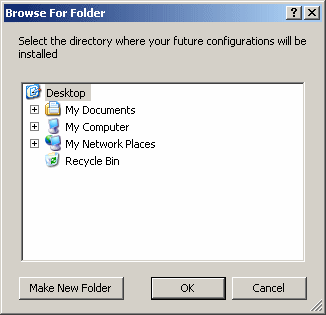 If you add the FolderBrowserDialog
As you can see from this screenshot, when the dialog box comes up, it selects the Desktop, by default, as the parent folder. If you want, you can specify a different default folder to be selected. This information is carried by the RootFolder property. The RootFolder value must be a member of the SpecialFolder enumerator of the Environment class. For example, to select My Documents, you would type the following: void InitializeComponent()
{
fbd = new FolderBrowserDialog();
fbd.Description =
"Select the directory where your future configurations will be installed";
fbd.RootFolder = Environment.SpecialFolder.Personal;
}
This would produce:
Since there is only a limited number of folders of the SpecialFolder enumerator, you may want to specify a different folder. The advantage of the SpecialFolder option is that it is likely to be found on the user's computer. If you know for sure that a certain folder exists on the computer and you would rather select that folder, you can provide its complete path to the SelectedPath property. Here is an example: void InitializeComponent()
{
fbd = new FolderBrowserDialog();
fbd.Description =
"Select the directory where your future configurations will be installed";
fbd.SelectedPath = @"C:\Programs\Corporate";
}
This would produce; 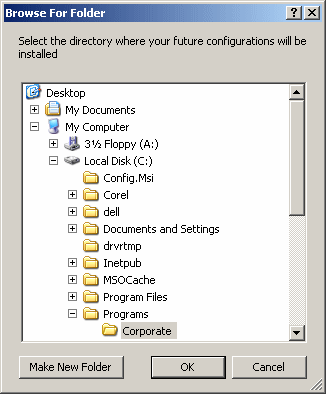 You should not specify both the RootFolder and the SelectedPath properties on the same FolderBrowserDialog control. After the user has used the Browse For Folder dialog box, has selected a folder, and clicked OK, to find out what folder the user selected, get the value of the SelectedPath property.
After using the Browse For Folder dialog box, the user may select a folder and click OK. Imagine you are creating a commercial application, you can't possibly know the content of every customer's computer. This means that there is a possibility that the user would not find the desired folder. One solution you can use is to give users the ability to create a new folder. This option is available by default. If you want to prevent the user from creating a new folder, hide the Make New Folder button. To do this, assign a false value to the ShowNewFolderButton Boolean property. You can do this in the Properties window at design time or programmatically as follows: void InitializeComponent()
{
fbd = new FolderBrowserDialog();
fbd.Description =
"Select the directory where your future configurations will be installed";
fbd.ShowNewFolderButton = false;
}
This would produce: 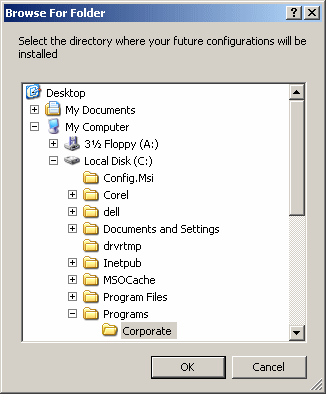 You can also check the value of the ShowNewFolderButton property to find out whether the dialog box is equipped with a Make New Folder button. |
|||||||||||||||||||||||

 and click the form.
  control to the form, you can type a string in the Description field
in the Properties window.
control to the form, you can type a string in the Description field
in the Properties window.|
|
||
| Home | Copyright © 2010-2026, FunctionX | |
|
|
||