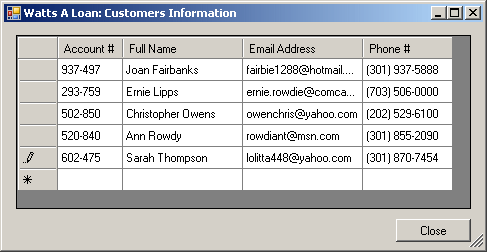
A data grid view is a rectangular control made of columns and rows:
To use the data grid view, the user can identify a column, click a cell under it, and start typing. By default, each cell behaves like a text box. The user can:
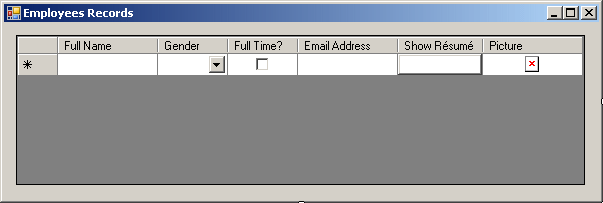
As mentioned already, by default, the cells of a data grid view are made of text boxes. If you want, you can make the cells under the columns into combo boxes, check boxes, buttons, links, or pictures:
Remember that many aspects of a data grid view can be customized. For example, you can let the user change the width of a column. You can display a context menu when the user right-clicks a column header or a row header. You can display a context menu when the user right-clicks any cell of the data grid view.
To support the data grid view, the Toolbox of Microsoft
Visual Studio is equipped with the DataGridView button
To support the data grid view, the .NET Framework provides a class named DataGridView. Therefore, to programmatically create a data grid view, declare a variable of type DataGridView and add it to the Controls collection of the form. Here is an example: using System;
using System.Collections.Generic;
using System.ComponentModel;
using System.Data;
using System.Drawing;
using System.Linq;
using System.Text;
using System.Windows.Forms;
namespace DataGridViewExercise1
{
public partial class Exercise : Form
{
DataGridView dgvStudents;
public Exercise()
{
InitializeComponent();
}
private void Exercise_Load(object sender, EventArgs e)
{
dgvStudents = new DataGridView();
Controls.Add(dgvStudents);
}
}
}
As a normal Windows control, when creating it, make sure you specify some of the regular characteristics such as the location, the size, the anchoring, the docking, etc. Here is an example using System;
using System.Drawing;
using System.Collections;
using System.Windows.Forms;
public class Exercise : Form
{
DataGridView dgvStudents;
public Exercise()
{
InitializeComponent();
}
void InitializeComponent()
{
Text = "Students Records";
dgvStudents = new DataGridView();
dgvStudents.Location = new Point(12, 12);
Controls.Add(dgvStudents);
}
}
public class Program
{
static int Main()
{
System.Windows.Forms.Application.Run(new Exercise());
return 0;
}
}
This would produce:
As its name suggests, a data grid view is presented as a grid, which appears like a spreadsheet made of columns. The columns organize a data grid view in categories of information. To hold the columns of a data grid view, the DataGridView class is equipped with a property named Columns. The DataGridView.Columns property is of type DataGridViewColumnCollection defined as follows: [ListBindableAttribute(false)] public class DataGridViewColumnCollection : BaseCollection, IList, ICollection, IEnumerable As you can see, this class implements the IList, the ICollection, and the IEnumerable interfaces. This means that you can use the DataGridViewColumnCollection class to create and manage columns.
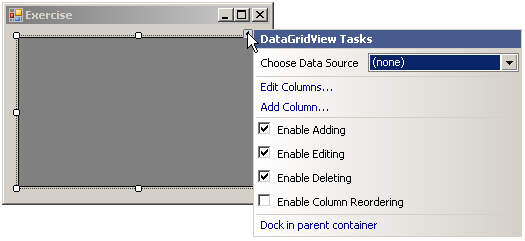
One of the first actions you should perform on a data grid view consists of creating one or more columns. If you are visually creating a data grid view, on the form, click the data grid view control. In the Properties window, click Columns and click its ellipsis button. As an alternative, on the form, click the data grid view and click the button on its top right section:
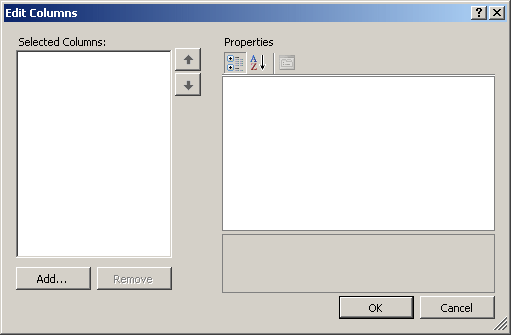
Then click the Edit Columns button. In both cases, the Edit Columns dialog box would come up:
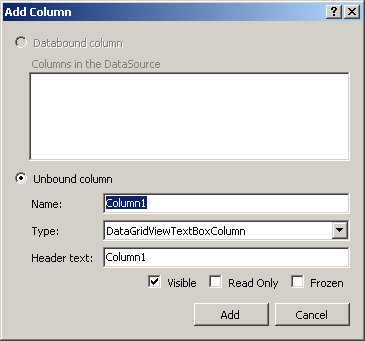
To create a column, click the Add button. If you had clicked the button on the top-right section of the data grid view, you can click the Add Column button. In both cases, the Add Column dialog box would come up:
The column of a data grid view is an object of type DataGridViewColumn. Therefore, to programmatically create a column, you can declare a variable of type DataGridViewColumn. and initialize it with its default constructor. Here is an example: private void Exercise_Load(object sender, EventArgs e)
{
dgvStudents = new DataGridView();
dgvStudents.Location = new Point(10, 10);
dgvStudents.Size = new Size(250, 100);
DataGridViewColumn colFirstName = new DataGridViewColumn();
Controls.Add(dgvStudents);
}
After a new column has been added, the data grid view fires a ColumnAdded event, which is handled by the DataGridViewColumnEventArgs class.
If you do not want a certain column in your data grid view, you can remove it. If you are visually working on the data grid view, open the Edit Columns dialog box. To delete a column, click it in the Selected Columns list and click the Remove button. To assist you with programmatically deleting a column, the DataGridViewColumnCollection class is equipped with a method named Remove and that is overloaded with two versions. To delete a column based on its name, you can use the following syntax: public virtual void Remove(string columnName); To delete a column using its reference, the DataGridViewColumnCollection class provides the following version: public virtual void Remove(DataGridViewColumn dataGridViewColumn); When a column has been deleted, the data grid view fires a ColumnRemoved event. This event also is handled by the DataGridViewColumnEventArgs class.
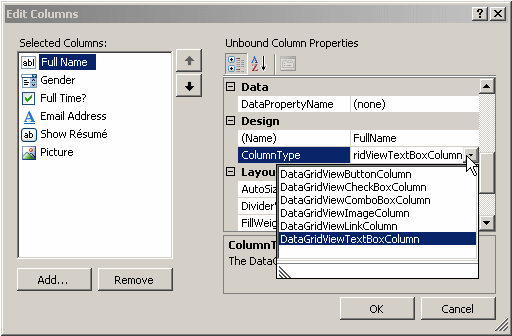
In our introduction, we stated that the cells under a column could be made of text boxes, combo boxes, buttons, pictures, or linked labels. When creating a column, you must specify the type of control that the cells of a column would be made of. If you are visually creating a column, in the Add Column combo box, after specifying the name, click the arrow of the Type combo box and select. To change the type of a column, open the Edit Columns dialog box and click the column in the Selected Columns list. In the Properties section, click the arrow of the ColumnType field and select the desired one:
The data grid view considers the column type as a cell template. To support cell templates, the .NET Framework provides the DataGridViewCell class. Except for the check box, you can use the DataGridViewCell class to specify the type of cells a column should display. To do this, declare a variable of type DataGridViewCell and use the new operator to initialize it with one of the following classes:
After declaring and initializing the variable, you can assign it to the CellTemplate property of the column. Here is an example: private void Exercise_Load(object sender, EventArgs e)
{
dgvStudents = new DataGridView();
dgvStudents.Location = new Point(10, 10);
dgvStudents.Size = new Size(550, 100);
DataGridViewColumn colFullName = new DataGridViewColumn();
DataGridViewCell celFullName = new DataGridViewTextBoxCell();
colFullName.CellTemplate = celFullName;
Controls.Add(dgvStudents);
}
Once the new column has been built, to make it possible to actually add it to the data grid, the DataGridViewColumnCollection class is equipped with a method named Add that comes in two versions. One of its flavors uses the following syntax: public virtual int Add(DataGridViewColumn dataGridViewColumn) This version takes a DataGridViewColumn object as argument. If it succeeds in adding the new column, the method returns its index. Here are examples of calling this method: using System;
using System.Collections.Generic;
using System.ComponentModel;
using System.Data;
using System.Drawing;
using System.Linq;
using System.Text;
using System.Windows.Forms;
namespace Exercise3
{
public partial class Exercise : Form
{
DataGridView dgvStudents;
public Exercise()
{
InitializeComponent();
}
private void Exercise_Load(object sender, EventArgs e)
{
dgvStudents = new DataGridView();
dgvStudents.Location = new Point(10, 10);
dgvStudents.Size = new Size(550, 100);
DataGridViewColumn colFullName = new DataGridViewColumn();
DataGridViewCell celFullName = new DataGridViewTextBoxCell();
colFullName.CellTemplate = celFullName;
dgvStudents.Columns.Add(colFullName);
DataGridViewColumn colGender = new DataGridViewColumn();
DataGridViewCell celGender = new DataGridViewComboBoxCell();
colGender.CellTemplate = celGender;
dgvStudents.Columns.Add(colGender);
DataGridViewColumn colShowResume = new DataGridViewColumn();
DataGridViewCell celShowResume = new DataGridViewButtonCell();
colShowResume.CellTemplate = celShowResume;
dgvStudents.Columns.Add(colShowResume);
DataGridViewColumn colShowPicture = new DataGridViewColumn();
DataGridViewCell celShowPicture = new DataGridViewImageCell();
colShowPicture.CellTemplate = celShowPicture;
dgvStudents.Columns.Add(colShowPicture);
DataGridViewColumn colEmailAddress = new DataGridViewColumn();
DataGridViewCell celEmailAddress = new DataGridViewLinkCell();
colEmailAddress.CellTemplate = celEmailAddress;
dgvStudents.Columns.Add(colEmailAddress);
Controls.Add(dgvStudents);
}
}
}
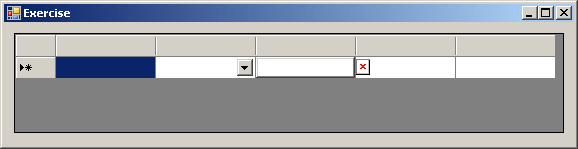
This would produce:
As an alternative to specifying the types of cells of a column, the .NET Framework provides a class for each type of column:
Each one of these classes inherits from the DataGridViewColumn. This means they share many characteristics they get from their common parent. To specify the types of cells of a column, declare a variable using one of these classes and initialize it using its default constructor, then pass it to the Add() method of the Columns property of the data grid view. Here are examples: private void Exercise_Load(object sender, EventArgs e)
{
dgvStudents = new DataGridView();
dgvStudents.Location = new Point(10, 10);
dgvStudents.Size = new Size(645, 100);
DataGridViewTextBoxColumn colFullName = new DataGridViewTextBoxColumn();
dgvStudents.Columns.Add(colFullName);
DataGridViewComboBoxColumn colGender = new DataGridViewComboBoxColumn();
dgvStudents.Columns.Add(colGender);
DataGridViewCheckBoxColumn colShowResume = new DataGridViewCheckBoxColumn();
dgvStudents.Columns.Add(colShowResume);
DataGridViewButtonColumn colShowPicture = new DataGridViewButtonColumn();
dgvStudents.Columns.Add(colShowPicture);
DataGridViewLinkColumn colEmailAddress = new DataGridViewLinkColumn();
dgvStudents.Columns.Add(colEmailAddress);
DataGridViewImageColumn colPicture = new DataGridViewImageColumn();
dgvStudents.Columns.Add(colPicture);
Controls.Add(dgvStudents);
}
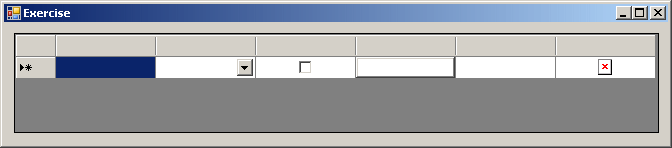
This would produce:
If you create the column to show combo box, to create the values of the combo box, the DataGridViewComboBoxColumn class is equipped with a property named Items. This property is of type ObjectCollection and is created inside the DataGridViewComboBoxCell class. Here is an example of calling the Add() method of this class: private void Exercise_Load(object sender, EventArgs e)
{
dgvStudents = new DataGridView();
dgvStudents.Location = new Point(10, 10);
dgvStudents.Size = new Size(420, 80);
DataGridViewTextBoxColumn colFirstName = new DataGridViewTextBoxColumn();
dgvStudents.Columns.Add(colFirstName);
DataGridViewTextBoxColumn colLastName = new DataGridViewTextBoxColumn();
dgvStudents.Columns.Add(colLastName);
DataGridViewComboBoxColumn colGender = new DataGridViewComboBoxColumn();
colGender.Items.Add("Male");
colGender.Items.Add("Female");
colGender.Items.Add("Unknown");
dgvStudents.Columns.Add(colGender);
}
Because a column is an object in its own right, it has a name (an object name). If you visually create a column, a default name would be given to it in the Name text box of the Add Column dialog. You can accept that name or change it. After creating a column, to change its name, open the Edit Columns dialog box and click the column in the Selected Columns list. In the Properties section, click the (Name) field and change its value. To programmatically specify the name of a column, you have various options. If you use the DataGridViewColumn class to create a column, it is equipped with a property named Name. Therefore, to specify the name of the column, assign a string to that property. The name of a column can be anything. Here is an example: private void Exercise_Load(object sender, EventArgs e)
{
dgvStudents = new DataGridView();
dgvStudents.Location = new Point(10, 10);
dgvStudents.Size = new Size(550, 100);
DataGridViewColumn colFullName = new DataGridViewColumn();
colFullName.Name = "2 Four 1 @ U$";
DataGridViewCell celFullName = new DataGridViewTextBoxCell();
colFullName.CellTemplate = celFullName;
dgvStudents.Columns.Add(colFullName);
Controls.Add(dgvStudents);
}
To make it simple and practical, we will use C# rules to name our columns. If you use one of the DataGridViewControlColumn classes, we saw that they derive from the DataGridViewColumn class. Therefore, after instantiating a column using one of those classes, to specify its name, assign a string to its Name property.
When a data grid view displays its columns, the user should be able to identify each. To make it possible, each column should display a string in the column header, the top box of a column. That string is called the caption (or text, or header text) of the column. If you are visually creating a column, a default caption is given in the Header Text box. You can accept that string or change it. After creating a column, to change its caption, open the Edit Columns dialog box and click the column in the Selected Columns list. In the Properties section, click the HeaderText field and change its value. To programmatically specify or change the caption of a column, you have various options. If you specify the name of a column, the compiler would apply it as the caption of the column. Here is an example: private void Exercise_Load(object sender, EventArgs e)
{
dgvStudents = new DataGridView();
dgvStudents.Location = new Point(10, 10);
dgvStudents.Size = new Size(150, 100);
DataGridViewColumn colFullName = new DataGridViewColumn();
colFullName.Name = "FullName"
DataGridViewCell celFullName = new DataGridViewTextBoxCell();
colFullName.CellTemplate = celFullName;
dgvStudents.Columns.Add(colFullName);
Controls.Add(dgvStudents);
}
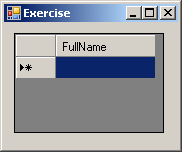
This would produce:
Otherwise, to support the caption of a column, the DataGridViewColumn class is equipped with a property named HeaderText. Therefore, to specify the caption of a column, assign a string to this property. Here is an example: private void Exercise_Load(object sender, EventArgs e)
{
dgvStudents = new DataGridView();
dgvStudents.Location = new Point(10, 10);
dgvStudents.Size = new Size(150, 100);
DataGridViewColumn colFullName = new DataGridViewColumn();
colFullName.Name = "FullName";
colFullName.HeaderText = "Full Name";
DataGridViewCell celFullName = new DataGridViewTextBoxCell();
colFullName.CellTemplate = celFullName;
dgvStudents.Columns.Add(colFullName);
Controls.Add(dgvStudents);
}
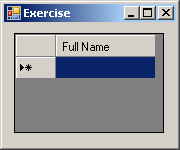
This would produce:
In the same way, if you use one of the DataGridViewControlColumn classes to create a column, you can assign a string to its HeaderText property to specify its caption. So far, to programmatically create a column, we were using either the DataGridViewColumn or one of its derived DataGridViewControlColumn classes. After creating the column, we were calling a version of the DataGridViewColumnCollection.Add() method to add the new column. To make it a little simpler to create a column, the DataGridViewColumnCollection class is equipped with a second version of the Add() method. Its syntax is: public virtual int Add(string columnName, string headerText); This version allows you to create a column by specifying its object name and its caption. Here are examples: private void Exercise_Load(object sender, EventArgs e)
{
dgvStudents = new DataGridView();
dgvStudents.Location = new Point(10, 10);
dgvStudents.Size = new Size(350, 100);
dgvStudents.Columns.Add("FirsName", "First Name");
dgvStudents.Columns.Add("LasName", "Last Name");
dgvStudents.Columns.Add("Gender", "Gender");
Controls.Add(dgvStudents);
}
This would produce:
As you can see, the default type of a column created using the DataGridViewColumnCollection.Add(Name, Caption) method is a text box. If you want a different type of column, you should use one of the techniques we saw earlier to create the column.
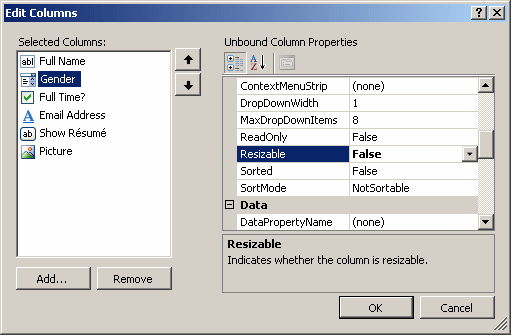
The width of a column is the distance from its left to its right borders. When you create a column (whether visually or programmatically), it receives a default width. For you to visually change the width of a column, in the Edit Columns dialog box, click the column in the Selected Columns list box. Then, in the Properties section, click the Width field and change its value. To assist you with programmatically specifying the width of a column, the DataGridViewColumn class is equipped with an integral property named Width. Therefore, to specify or change the width of a column, assign an integer to this property. By default, when a data grid view displays its columns, the user is able to resize any of them. To do this, the user can position the mouse on the separating line of two columns, click, and drag left or right. If you want, you can allow this or prevent the user from resizing a column. This characteristic is controlled by the Resizable Boolean property of the DataGridColumn class. The default value of the DataGridColumn.Resizable property is true, which indicates that the user can resize it. To prevent this change, you can set this property to false:
Of course, you can also control this characteristic by assigning a true or false value to the property. There are various ways the user can resize a column. The user can position the mouse on the right border of a column header, click and hold down the mouse, then drag left or right. The user can also double-click the right border of a column. However the user does this, when the width of a column has been changed, the data grid view fires a ColumnWidthChanged event. This event is handled by the DataGridViewColumnEventArgs class. If the user double-clicks the right border of a column, the control fires a ColumnDividerDoubleClick event. This event is handled by the DataGridViewColumnDividerDoubleClickEventArgs class.
In some operations, you will need to indicate the column you want to access. If you are working visually, open the Edit Columns dialog box and click the column in the Selected Columns list. To programmatically refer to a column, you have various options. The DataGridViewColumnCollection class is equipped with an indexed property (named Item) that allows you to refer to a column either by its index or by its object name. Here is an example: private void Exercise_Load(object sender, EventArgs e)
{
dgvStudents = new DataGridView();
dgvStudents.Location = new Point(10, 10);
dgvStudents.Size = new Size(350, 100);
dgvStudents.Columns.Add("FirsName", "First Name");
dgvStudents.Columns.Add("LasName", "Last Name");
dgvStudents.Columns.Add("Gender", "Gender");
MessageBox.Show(dgvStudents.Columns[1].HeaderText);
Controls.Add(dgvStudents);
}
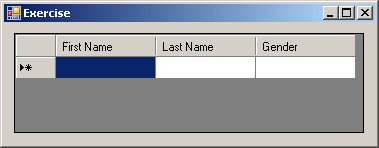
After creating a data grid view and its columns, you can start populating it with values. When the data grid view comes up, the user can click a cell. When the user clicks a cell, that cell becomes highlighted, indicating that it has received focus. Here is an example:
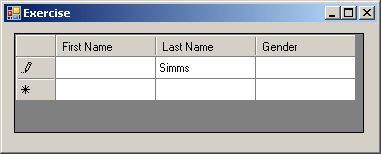
When a cell receives focus, the data grid view fires a CellEnter Event. This event is handled by the DataGridViewCellEventArgs class. This class is equipped with two properties named ColumnIndex and RowIndex. The ColumnIndex property indicates the index of the column that was clicked. The RowIndex property indicates the index of the column that was clicked. After clicking a cell, the user can start typing if the cell is text-based. If the cell already contained a value, the user can click it first to give it focus and then edit its content. When the user starts editing the value of a cell, the data grid view fires a CellBeginEdit event, which is handled by the DataGridViewCellCancelEventArgs class. As its name suggests, the primary characteristic of this class is that it allows you to accept or reject what the user is doing. After the user has edited the value of a cell, the data grid view fires a CellEndEdit event. This event is handled by the DataGridViewCellEventArgs class. When this ends, the cell should have a new value. Here is an example:
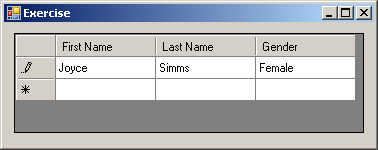
If the cell is not text-based, the user can select the check box or use the content, based on its type. Either way, when the value of a cell has changed, the data grid view fires a CellValueChanged event, which is handled by the DataGridViewCellEventArgs class. After specifying the value of a cell or taking the necessary action, the user can move to another cell. When a cell loses focus, the data grid view fires a CellLeave event. This event is handled by the DataGridViewCellEventArgs class. The user can perform these operations for each cell under the columns. The row of cells at the same level under the columns is called a record. Here is an example of a record with the values Joyce, Simms, and Female: Each row starts with a gray box on the left side. When the user clicks a cell of a particular row, the data grid view fires a RowEnter event that indicates that the row has just received focus. Then, the gray box of that record becomes equipped with a pen icon. The RowEnter event is handled by the DataGridViewCellEventArgs class. If the user clicks a cell of another row, such as a cell above it, under it, or a column header, the data grid view fires a RowLeave event, which indicates that the previous row lost focus. The RowLeave event also is handled by the DataGridViewCellEventArgs class. A record that has been added already displays an empty gray box. The next empty record has a gray box with a *. The line between two rows is called a row divider.
To support the records of a data grid view, the DataGridView class is equipped with a property named Rows, which is a collection. The DataGridView.Rows property is an object of type DataGridViewRowCollection: [ListBindableAttribute(false)] public class DataGridViewRowCollection : IList, ICollection, IEnumerable As you can see, this class implements the IList, the ICollection, and the IEnumerable interfaces. Since a data grid view can have many records, the records are stored in a zero-based indexed collection. The first record has an index of 0. The second has an index of 1, and so on. To support this, the DataGridViewRowCollection class is equipped with an indexed property (named Item) that is overloaded with two versions. Therefore, to refer to a record, apply the [] operator to the DataGridView.Rows property. An example would be: private void Exercise_Load(object sender, EventArgs e)
{
dgvStudents = new DataGridView();
dgvStudents.Location = new Point(10, 10);
dgvStudents.Size = new Size(350, 100);
dgvStudents.Columns.Add("FirsName", "First Name");
dgvStudents.Columns.Add("LasName", "Last Name");
dgvStudents.Columns.Add("Gender", "Gender");
Controls.Add(dgvStudents);
dgvStudents.Rows[0] . . .
}
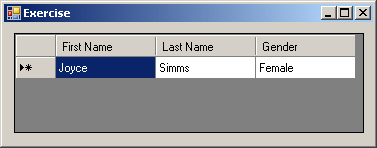
In the same way, if a data grid view contains many records, you can refer to any, based on its index. The index refers to the gray box on the left of the record. Each member of the DataGridViewRowCollection collection is an object of type DataGridViewRow: public class DataGridViewRow : DataGridViewBand This allows you to get a reference to a row and do what is needed. There are various things the user can do with a row header. For example, the user can click a row header. A row header that has been clicked becomes equipped with a right-pointing arrow and its cells become selected:
When the user clicks a row header, the data grid view fires a RowHeaderMouseClick event. This event is handled by the DataGridViewCellMouseEventArgs class. This class is equipped with two properties named ColumnIndex and RowIndex. The ColumnIndex property indicates the index of the column that was clicked. The RowIndex property indicates the index of the column that was clicked. The user can also double-click a row header and you can take action if necessary. When the user double-clicks a row header, the data grid view fires a RowHeaderMouseDoubleClick event. This event is handled by the DataGridViewCellMouseEventArgs class.
When a new record is created, its row receives a default height, which is the distance from its top to its bottom borders. The user can accept or change the height of a row. To do this, the user can click and drag the bottom border of a row header. If the values in a row are too tall for a height, the bottom parts of those values may not appear. In other cases, the height of a row might be too high for the values of a row. To let the data grid view adjust the height of a row to be just as necessary, the user can double-click the bottom border of the row. If the user double-click the bottom border of a row, the data grid view fires a RowDividerDoubleClick event. This event is handled by the DataGridViewRowDividerDoubleClickEventArgs class. The DataGridViewRowDividerDoubleClickEventArgs class is equipped with one property named RowIndex, which holds the index of the row whose bottom border was double-clicked.
A data grid view is meant to display values and these values are stored in cells. Under each column header is a box called a cell. To add a value to a data grid view, you (actually the user) click one of those cells. When a cell has been clicked, the data grid view fires a CellClick event. This event is handled by the DataGridViewCellEventArgs class. The user can also double-click a cell. In this case, the data grid view fires a CellDoubleClick event. This event is handled by the DataGridViewCellEventArgs class. If the user clicks the content (it could be its value) of a cell, the data grid view fires a CellContentClick event. This event is handled by the DataGridViewCellEventArgs class. After clicking a cell, the user can start typing the desired value. The user can also double-click the content of a cell. In this case, the data grid view fires a CellContentDoubleClick event. This event is handled by the DataGridViewCellEventArgs class.
As stated already, either you or the user can create values for cells. The user can add one value at a time. You too can either create each value or add them in a group. The user must identify a cell, click it and then start typing. You too, at any time, should know what cell is receiving, or needs, attention. To assist you with identifying a cell, the DataGridViewRow class is equipped with a property named Cells. This property itself is a collection created from a class named DataGridViewCellCollection: ListBindableAttribute(false)] public class DataGridViewCellCollection : BaseCollection, IList, ICollection, IEnumerable This is a typical collection class that implements the IList, the ICollection, and the IEnumerable interfaces. This class allows you to refer to a record, which is primarily a collection of cells that share the same row. To support this idea of a range of cells, the DataGridViewCellCollection class is equipped with an indexed property (named Item) that is overloaded with two versions. One of the versions allows you to refer to a cell based on the index of its column. The most left cell of a row has an index of 0. The second from left has an index of 1, and so on. To identify a cell in a record, you use the concept of a cell being the intersection of a row and a column. Therefore, you can use the DataGridView.Rows[] indexed property to specify the record. Then access the DataGridViewRow.Cells[] indexed property to specify the column under which the cell exists. Here is an example: private void Exercise_Load(object sender, EventArgs e)
{
dgvStudents = new DataGridView();
dgvStudents.Location = new Point(10, 10);
dgvStudents.Size = new Size(350, 100);
dgvStudents.Columns.Add("FirsName", "First Name");
dgvStudents.Columns.Add("LasName", "Last Name");
dgvStudents.Columns.Add("Gender", "Gender");
Controls.Add(dgvStudents);
// First Record
dgvStudents.Rows[0] . . .
// Second Record
dgvStudents.Rows[1] . . .
// Intersection of: First Record - First Column
dgvStudents.Rows[0].Cells[0] . . .
// Intersection of: First Record - Second Column
dgvStudents.Rows[0].Cells[1] . . .
// Intersection of: Second Record - First Column
dgvStudents.Rows[1].Cells[0] . . .
// Intersection of: Second Record - Second Column
dgvStudents.Rows[1].Cells[1] . . .
}
Using the index of a column supposes that you know the exact sequence of columns. As an alternative, you can be more precise by using the object name of a column. To support this, the DataGridViewRow.Cells[] indexed property has another version that takes a string as argument. Here is an example: private void Exercise_Load(object sender, EventArgs e)
{
dgvStudents = new DataGridView();
dgvStudents.Location = new Point(10, 10);
dgvStudents.Size = new Size(350, 100);
dgvStudents.Columns.Add("FirsName", "First Name");
dgvStudents.Columns.Add("LasName", "Last Name");
dgvStudents.Columns.Add("Gender", "Gender");
Controls.Add(dgvStudents);
dgvStudents.Rows[0].Cells[0]
dgvStudents.Rows[0].Cells[1]
dgvStudents.Rows[0].Cells["Gender"] . . .
}
Once you have identified a cell, you can then do in it what you want.
Probably the most important aspect of a cell is its content. The default content of a cell is its text. This is typical of a text-based cell. We have already seen how to identify a cell. To identify its value, the DataGridViewCell class is equipped with a property named Value. Therefore, to add a value to a cell, assign the desired string to its Value property. Here are examples: private void Exercise_Load(object sender, EventArgs e)
{
dgvStudents = new DataGridView();
dgvStudents.Location = new Point(10, 10);
dgvStudents.Size = new Size(350, 100);
dgvStudents.Columns.Add("FirsName", "First Name");
dgvStudents.Columns.Add("LasName", "Last Name");
dgvStudents.Columns.Add("Gender", "Gender");
Controls.Add(dgvStudents);
dgvStudents.Rows[0].Cells[0].Value = "Joyce";
dgvStudents.Rows[0].Cells[1].Value = "Simms";
dgvStudents.Rows[0].Cells["Gender"].Value = "Female";
}
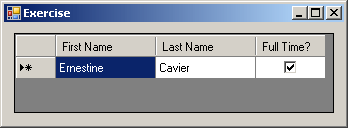
This would produce: If a cell is a check box, to specify its value, assign true or false to its Value property. Here is an example: private void Exercise_Load(object sender, EventArgs e)
{
dgvStudents = new DataGridView();
dgvStudents.Location = new Point(10, 10);
dgvStudents.Size = new Size(320, 80);
DataGridViewTextBoxColumn colFirstName =
new DataGridViewTextBoxColumn();
colFirstName.Name = "FirstName";
colFirstName.HeaderText = "First Name";
dgvStudents.Columns.Add(colFirstName);
DataGridViewTextBoxColumn colLastName =
new DataGridViewTextBoxColumn();
colLastName.Name = "LastName";
colLastName.HeaderText = "Last Name";
dgvStudents.Columns.Add(colLastName);
DataGridViewCheckBoxColumn colFullTime =
new DataGridViewCheckBoxColumn();
colFullTime.Name = "FullTime";
colFullTime.HeaderText = "Full Time?";
colFullTime.Width = 70;
dgvStudents.Columns.Add(colFullTime);
Controls.Add(dgvStudents);
dgvStudents.Rows[0].Cells[0].Value = "Ernestine";
dgvStudents.Rows[0].Cells[1].Value = "Cavier";
dgvStudents.Rows[0].Cells[2].Value = true;
}
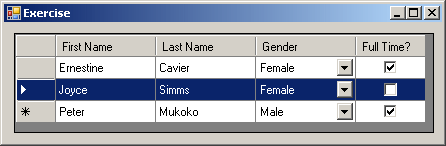
This would produce:
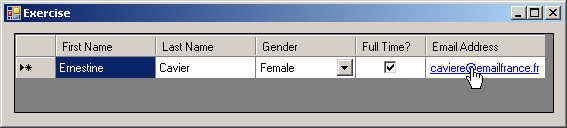
If the column is a combo box, you can assign a string to its Value property. The value should be one of the items in the combo box. If the column is configured for web links, you can assign a string to its Value property. You should make sure the string is either a valid URL or an email address. Here is an example: private void Exercise_Load(object sender, EventArgs e)
{
dgvStudents = new DataGridView();
dgvStudents.Location = new Point(10, 10);
dgvStudents.Size = new Size(540, 80);
DataGridViewTextBoxColumn colFirstName =
new DataGridViewTextBoxColumn();
colFirstName.Name = "FirstName";
colFirstName.HeaderText = "First Name";
dgvStudents.Columns.Add(colFirstName);
DataGridViewTextBoxColumn colLastName =
new DataGridViewTextBoxColumn();
colLastName.Name = "LastName";
colLastName.HeaderText = "Last Name";
dgvStudents.Columns.Add(colLastName);
DataGridViewComboBoxColumn colGender =
new DataGridViewComboBoxColumn();
colGender.Name = "Gender";
colGender.Items.Add("Male");
colGender.Items.Add("Female");
colGender.Items.Add("Unknown");
dgvStudents.Columns.Add(colGender);
DataGridViewCheckBoxColumn colFullTime =
new DataGridViewCheckBoxColumn();
colFullTime.Name = "FullTime";
colFullTime.HeaderText = "Full Time?";
colFullTime.Width = 70;
dgvStudents.Columns.Add(colFullTime);
DataGridViewLinkColumn colEmailAddress = new DataGridViewLinkColumn();
colEmailAddress.HeaderText = "Email Address";
colEmailAddress.Width = 120;
dgvStudents.Columns.Add(colEmailAddress);
Controls.Add(dgvStudents);
dgvStudents.Rows[0].Cells[0].Value = "Ernestine";
dgvStudents.Rows[0].Cells[1].Value = "Cavier";
dgvStudents.Rows[0].Cells[2].Value = "Female";
dgvStudents.Rows[0].Cells[3].Value = true;
dgvStudents.Rows[0].Cells[4].Value = "caviere@emailfrance.fr";
}
This would produce:
We mentioned that, when a user adds a new value into a cell, a new empty record is created under that row. Also, by default, after you have just created the columns of a data grid view, the studio adds an empty record to it. If you work programmatically, you do not get the same feature, or only one default empty record is given to you. Therefore, before creating one or more values for a record, you must make sure there is an empty record ready to receive your values. This means that you must first create a (an empty) record. You have various options. To assist you with creating new records, the DataGridViewRowCollection class is equipped with a method named Add and that is overloaded with 4 versions. One of the versions uses the following syntax: public virtual int Add(); This version of the DataGridViewRowCollection.Add() method allows you to create one empty record. Here is an example of calling it: private void Exercise_Load(object sender, EventArgs e)
{
dgvStudents = new DataGridView();
dgvStudents.Location = new Point(10, 10);
dgvStudents.Size = new Size(350, 100);
dgvStudents.Columns.Add("FirstName", "First Name");
dgvStudents.Columns.Add("LastName", "Last Name");
dgvStudents.Columns.Add("Gender", "Gender");
Controls.Add(dgvStudents);
dgvStudents.Rows.Add();
}
You may want to create many records before adding values to them. To support this, the DataGridViewRowCollection class provides another version of the Add() method. Its syntax is: public virtual int Add(int count); When calling this method, pass the desired number of records as argument. Once you have created the records, you can then add the desired values. Here is an example of calling Add(): private void Exercise_Load(object sender, EventArgs e)
{
dgvStudents = new DataGridView();
dgvStudents.Location = new Point(10, 10);
dgvStudents.Size = new Size(350, 200);
dgvStudents.Columns.Add("FirstName", "First Name");
dgvStudents.Columns.Add("LastName", "Last Name");
dgvStudents.Columns.Add("Gender", "Gender");
Controls.Add(dgvStudents);
dgvStudents.Rows.Add(4);
dgvStudents.Rows[0].Cells[0].Value = "Joyce";
dgvStudents.Rows[0].Cells[1].Value = "Simms";
dgvStudents.Rows[0].Cells["Gender"].Value = "Female";
dgvStudents.Rows[1].Cells["FirstName"].Value = "Peter";
dgvStudents.Rows[1].Cells[1].Value = "Mukoko";
dgvStudents.Rows[1].Cells[2].Value = "Male";
}
Instead of adding the values of cells one at a time, you can store them in an array, then add the whole when it is ready. To support this, the DataGridViewRowCollection class is equipped with the following version of the Add() method: public virtual int Add(object[] values); This version expects an array of objects as arguments. Here is an example: private void Exercise_Load(object sender, EventArgs e)
{
dgvStudents = new DataGridView();
dgvStudents.Location = new Point(10, 10);
dgvStudents.Size = new Size(350, 200);
dgvStudents.Columns.Add("FirstName", "First Name");
dgvStudents.Columns.Add("LastName", "Last Name");
dgvStudents.Columns.Add("Gender", "Gender");
Controls.Add(dgvStudents);
string[] AHRecord = { "Adrian", "Hewitt", "Male" };
dgvStudents.Rows.Add(AHRecord);
}
In ADO.NET, the data grid view is probably the most used text-based and list-oriented control to show the values of a table. To display the records of a table in a data grid view, after getting a connection to the database, create a data adapter and a data set. Use a command to select the records of the table. Assign that command to the data adapter. Fill the data set with the records from the data adapter. Assign the table from the data set to the data source of the data grid view. Here is an example: using System;
using System.Data;
using System.Drawing;
using System.Windows.Forms;
using System.Data.SqlClient;
public class Exercise : System.Windows.Forms.Form
{
DataGridView dgvEmployees;
Button btnBinder;
Button btnCreateDatabase;
public Exercise()
{
InitializeComponent();
}
void InitializeComponent()
{
btnCreateDatabase = new Button();
btnCreateDatabase.Text = "Create Database";
btnCreateDatabase.Location = new Point(12, 12);
btnCreateDatabase.Width = 120;
btnCreateDatabase.Click += new EventHandler(btnCreateDatabaseClick);
btnBinder = new Button();
btnBinder.Text = "Bind";
btnBinder.Location = new Point(140, 12);
btnBinder.Click += new EventHandler(btnBinderClick);
dgvEmployees = new DataGridView();
dgvEmployees.Location = new Point(12, 44);
Text = "Database Exercise";
Controls.Add(dgvEmployees);
Controls.Add(btnBinder);
Controls.Add(btnCreateDatabase);
StartPosition = FormStartPosition.CenterScreen;
Size = new System.Drawing.Size(dgvEmployees.Width + 30, dgvEmployees.Height + 80);
dgvEmployees.Anchor = AnchorStyles.Left | AnchorStyles.Top |
AnchorStyles.Right | AnchorStyles.Bottom;
}
void btnCreateDatabaseClick(object sender, EventArgs e)
{
using (SqlConnection cntExercise =
new SqlConnection("Data Source=(local); " +
"Integrated Security='SSPI';"))
{
SqlCommand cmdExercise =
new SqlCommand("IF EXISTS (SELECT name " +
"FROM sys.databases WHERE name = N'Exercsie1' " +
") " +
"DROP DATABASE Exercsie1; " +
"CREATE DATABASE Exercsie1", cntExercise);
cntExercise.Open();
cmdExercise.ExecuteNonQuery();
}
using (SqlConnection cntExercise =
new SqlConnection("Data Source=(local); " +
"Database='Exercsie1'; " +
"Integrated Security='SSPI';"))
{
SqlCommand cmdExercise =
new SqlCommand("CREATE TABLE Employees(EmployeeNumber nvarchar(8), " +
"FirstName nvarchar(24), LastName nvarchar(24), " +
"Title nvarchar(50));", cntExercise);
cntExercise.Open();
cmdExercise.ExecuteNonQuery();
}
using (SqlConnection cntExercise =
new SqlConnection("Data Source=(local); Database='Exercsie1'; " +
"Integrated Security='SSPI';"))
{
SqlCommand cmdExercise =
new SqlCommand("INSERT INTO Employees " +
"VALUES(N'927049', 'Aaron', 'Swanson', 'General Owner')," +
" (N'804070', 'Justine', 'Aronson', 'Accountant')," +
" (N'284825', 'Paul', 'DaCosta', 'Webmaster')," +
" (N'380408', 'Desmond', 'Perez', 'Account Associate');",
cntExercise);
cntExercise.Open();
cmdExercise.ExecuteNonQuery();
}
}
private void btnBinderClick(object sender, EventArgs e)
{
using (SqlConnection cntExercise =
new SqlConnection("Data Source=(local);" +
"Database='Exercsie1';" +
"Integrated Security=SSPI;"))
{
SqlCommand cmdExercise = new SqlCommand("SELECT ALL * FROM Employees;", cntExercise);
SqlDataAdapter sdaEmployees = new SqlDataAdapter();
DataSet dsEmployees = new DataSet("Exercise");
cntExercise.Open();
sdaEmployees.SelectCommand = cmdExercise;
sdaEmployees.Fill(dsEmployees);
dgvEmployees.DataSource = dsEmployees.Tables[0];
}
}
}
public class Program
{
[STAThread]
static int Main()
{
System.Windows.Forms.Application.Run(new Exercise());
return 0;
}
}
The above code is used to pass all of the values of a table to a data grid view. It is possible to display only the values of a particular column, although that is hardly justified. |
||||||||||||||||||||||||||||||||||||||||||||||||||

 .
Therefore, to get a data grid view, in the Data section of the Toolbox, you
can click the DataGridView button
.
Therefore, to get a data grid view, in the Data section of the Toolbox, you
can click the DataGridView button
|
|
||
| Home | Copyright © 2010-2026, FunctionX | |
|
|
||