To support group box, the .NET Framework provides the GroupBox class. At design time, to add a group box to your application, from the Containers section of the Toolbox, click GroupBox and click the form (or another container). To programmatically create a group box, you can create a handle to GroupBox, allocate memory for it using the new operator, and add it to the Controls collection of its container. Here is an example: using System;
using System.Drawing;
using System.Windows.Forms;
public class Exercise : System.Windows.Forms.Form
{
GroupBox grpHolder;
public Exercise()
{
InitializeComponent();
}
private void InitializeComponent()
{
grpHolder = new GroupBox();
grpHolder.Left = 22;
grpHolder.Top = 18;
grpHolder.Width = 120;
grpHolder.Height = 58;
Controls.Add(grpHolder);
}
}
public class Program
{
static int Main()
{
System.Windows.Forms.Application.Run(new Exercise());
return 0;
}
}
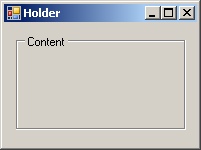
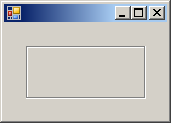
This would produce:
As you can see from the above picture, a group may or may not display a caption. If you need to display a caption on it, at design time, in the Properties window, click Text and type a string. To do this programmatically, assign a string to the Text property of the group box control. Here is an example: private void InitializeComponent()
{
grpHolder = new GroupBox();
grpHolder.Left = 22;
grpHolder.Top = 18;
grpHolder.Width = 120;
grpHolder.Height = 58;
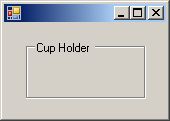
grpHolder.Text = "Cup Holder";
Controls.Add(grpHolder);
}
This would produce:
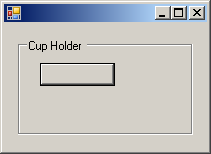
Besides serving a delimiter of an area on a form, a group box can also serve as a container. That is, a group box can carry or hold other containers. As such, you can create a control and add it to its collection of controls. When you add a control to a group box, whether at design or run time, the location you specify is relative to the group box and not to the form. Because the group box will act as the parent, it is its client area that is considered for the location of its child(ren) control(s). Here is an example of adding a control as a child of a group box: private void InitializeComponent()
{
grpHolder = new GroupBox();
grpHolder.Left = 22;
grpHolder.Top = 18;
grpHolder.Width = 120;
grpHolder.Height = 58;
grpHolder.Text = "Cup Holder";
Button btnDone = new Button();
btnDone.Left = 22;
btnDone.Top = 24;
grpHolder.Controls.Add(btnDone);
Controls.Add(grpHolder);
}
This would produce:
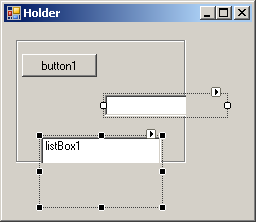
Since a group box can serve as a control container, at design time (and at run time), you can add the desired controls to it. Here is an example:
Notice that it is possible to have a control whose size causes some of its section to be hidden. To accommodate the control(s) positioned in a group box, you can make the container resize itself so as to reveal the hidden part(s) of its controls. To support this, the GroupBox class is equipped with the Boolean AutoSize property. The default value of the GroupBox.AutoSize property is false. If you set it to true, the group box would resize itself and all of its controls should appear:
If you are done programming in Win32, you would know that the Microsoft Windows operating system classifies the group box as a static controls. One of characteristics of static controls is that they cannot receive focus. In other words, you cannot actually click a group box and it cannot indicate that it has received focus. At the same time, in the .NET Framework, the GroupBox class is equipped with the TabStop and the TabIndex properties, which suggests that, by pressing Tab while using a form that has a group box, the group box should receive focus at one time. Still, because the group box is a static control, it cannot receive focus. What actually happens is that, whenever a group box is supposed to receive, it transfers the focus to its first or only control.
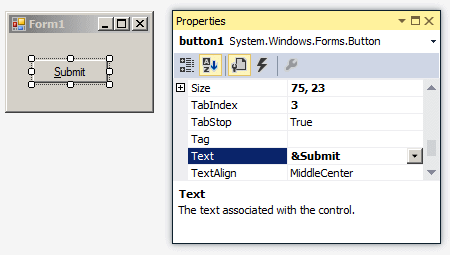
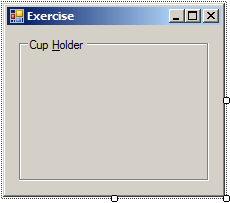
As mentioned already, a group box can be equipped with a caption, which is created by assigning a string to its Text property. A mnemonic is a character (or a letter) that the user can use to access a group box. To create a mnemonic, precede one character (or one letter) of its caption with &. Here is an example:
Using the mnemonic, the user can press Alt and the underlined character to give focus to a control inside the group box. |
|||||||||||||||||||||||


|
|
||
| Home | Copyright © 2010-2026, FunctionX | |
|
|
||