As it name implies, the numeric up-down control is made
to display numeric values. To use it, from the Common Controls section of
the Toolbox, you can click the NumericUpDown button
using System;
using System.Drawing;
using System.Windows.Forms;

public class Exercise : System.Windows.Forms.Form
{
    NumericUpDown nudCounter;

    public Exercise()
    {
        InitializeComponent();
    }

    private void InitializeComponent()
    {
        nudCounter = new NumericUpDown();
        nudCounter.Location = new Point(12, 12);

        Controls.Add(nudCounter);
    }
}

public class Program
{
    static int Main()
    {
        System.Windows.Forms.Application.Run(new Exercise());
        return 0;
    }
}
This would produce: 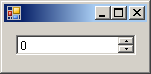
In traditional Win32 programming, the spin button does not have a means of displaying its value. This means that you usually have to accompany it with another control such as a text box. You also have to decide whether to place the text box to the left or the right side of the spin button control. Although the .NET Framework's up-down controls don't have this limitation, you still have to decide whether to position the arrow buttons on the left or the right side of the text box part. This property is controlled by the UpDownAlign Boolean property whose default value is Right, which places the arrow buttons on the right side. If you want the buttons to be positioned on the left, set this property to Left. The values of this property are managed through the LeftRightAlignment enumeration of the UpDownBase parent class. Here is an example of aligning the buttons to the left: private void InitializeComponent()
{
nudCounter = new NumericUpDown();
nudCounter.Location = new Point(12, 12);
nudCounter.UpDownAlign = LeftRightAlignment.Left;
Controls.Add(nudCounter);
}
This would produce: 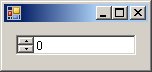
When a spin button control comes up, to use it, the user can click one of the up or down-pointing buttons, which causes the value to change. The user can also press the up or down arrow keys to change the value. The ability to use the keyboard is controlled by the InterceptArrowKeys Boolean property, whose default value is True, which means the user is allowed to use the keyboard to change the value of the control. If for some (strange) reason you want to prevent the user from changing the value using the keyboard, set this property to False. If this property is set to True, remember that the user can use the keyboard only after giving focus to the control, which is usually done by pressing Tab a few times until the control receives focus. Another way the user can change the value of the control is to manually edit the value of the text box part of the control. When the value of an spin button has been changed, the control fires a ValueChanged() event. This event simply uses an EventArgs class as argument. If the user decides to manually edit the value of the control by typing a number in the text box part of the control, the spin button fires a TextChanged() event.
After adding the up-down control to a container such as a form, you change its characteristics using the Properties window. Probably the most important piece of information you would need from a spin button is the value it is holding at a particular time. As mentioned already, the spin button navigates from a minimum to a maximum value. The values of the control can be natural or decimal numbers. They are actually defined as System.Decimal types. These numbers range from a minimum controlled by the Minimum property to a maximum value controlled by the Maximum property. By default, a freshly added numeric up-down control on a form has its Minimum value set to 0 and its Maximum value set to 100. You can change the values at design time in the Properties window or programmatically as follows: private void InitializeComponent()
{
nudCounter = new NumericUpDown();
nudCounter.Location = new Point(12, 12);
nudCounter.Minimum = 42.48M;
nudCounter.Maximum = 3822046.06M;
Controls.Add(nudCounter);
}
If you use large numbers in the thousands, they may become difficult to read: 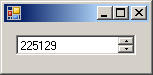
When, or while, a spin button is being used, its text box displays a value: this is the Value property. You can use this property to specify what value the control would use at startup. It can be an integer or a decimal number but it must be between the Minimum and the Maximum values.
By default, the numeric up-down displays natural numbers. Alternatively, you can make the spin button display hexadecimal numbers. The type of numbers displayed is controlled by the Boolean Hexadecimal property whose default value is False, which means that it is primarily meant to display natural numbers. If you prefer the control to display hexadecimal numbers, set this property to True. Here is an example: private void InitializeComponent()
{
nudCounter = new NumericUpDown();
nudCounter.Location = new Point(12, 12);
nudCounter.Minimum = 42.48M;
nudCounter.Maximum = 3822046.06M;
nudCounter.Hexadecimal = true;
Controls.Add(nudCounter);
}
This would produce:
By default, the numeric up-down control is made to display only natural numbers. If you want it to display decimal numbers, use the DecimalPlaces property to specify the number of decimal places on the right side of the decimal separator which, in US English, is the period.
If you want to make the control's numeric values easier to read, you can display a symbol to separate the thousands. This characteristic can be set using the Boolean ThousandsSeparator property whose default value is False. If you want to display a symbol between thousands, set this property to True. Here is an example: private void InitializeComponent()
{
nudCounter = new NumericUpDown();
nudCounter.Location = new Point(12, 12);
nudCounter.Minimum = 42.48M;
nudCounter.Maximum = 3822046.06M;
nudCounter.ThousandsSeparator = true;
Controls.Add(nudCounter);
}
This causes the control to check the value used as the thousands separator in the Control Panel of the computer that is using the application. The thousands separator for US English is the comma ",". Here is an example: 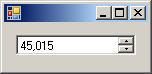
When using the spin button, the user clicks one of the arrows of the control to increase or decrease the value. By default, the value increases or decreases by 1. If you want the value to augment by more than 1, set the desired value using the Increment property. The value of this property can be a natural or a decimal value (it is defined as System.Decimal). To set the Increment value programmatically, you can use code as follows: private void InitializeComponent()
{
nudCounter = new NumericUpDown();
nudCounter.Location = new Point(12, 12);
nudCounter.Minimum = 42.48M;
nudCounter.Maximum = 3822046.06M;
nudCounter.Increment = 125.82M;
nudCounter.ThousandsSeparator = true;
Controls.Add(nudCounter);
}
|
||||||||||||||||||||||||||||||

 .
The user clicks one of the arrow buttons at one time to increase or decrease
the current value of the control. The value held by the control is also
called its position.
.
The user clicks one of the arrow buttons at one time to increase or decrease
the current value of the control. The value held by the control is also
called its position.  and click the form or the container that will host it. This control is based
on the NumericUpDown class that you can use to dynamically create the
control. Here is an example:
and click the form or the container that will host it. This control is based
on the NumericUpDown class that you can use to dynamically create the
control. Here is an example: 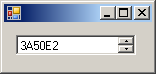
|
|
||
| Home | Copyright © 2010-2026, FunctionX | |
|
|
||