Print preview consists of displaying, on the computer monitor, a sample representation of what the document would look like once printed.
Print preview is primarily a technique of drawing a
sample printed sheet on a form. It is implemented by the
PrintPreviewDialog button
In the .NET Framework, print preview is implemented through the PrintPreviewDialog class. This class is derived from the Form class. Based on this, to programmatically create a print preview, you can start by declaring a variable of type PrintPreviewDialog. Here is an example: using System;
using System.Drawing;
using System.Windows.Forms;
public class Exercise : Form
{
Button btnPrintPreview;
public Exercise()
{
InitializeComponent();
}
void InitializeComponent()
{
btnPrintPreview = new Button();
btnPrintPreview.Location = new Point(12, 12);
btnPrintPreview.Text = "&Print Preview...";
btnPrintPreview.Width = 100;
btnPrintPreview.Click += new EventHandler(PreviewDocumentClick);
Controls.Add(btnPrintPreview);
}
void PreviewDocumentClick(object sender, EventArgs e)
{
PrintPreviewDialog dlgPrint = new PrintPreviewDialog();
}
}
public class Program
{
static int Main()
{
System.Windows.Forms.Application.Run(new Exercise());
return 0;
}
}
As a dialog-based object, to display the print preview, the PrintPreviewDialog class inherits the ShowDialog() method from its parent the Form class. Here is an example: void PreviewDocumentClick(object sender, EventArgs e)
{
PrintPreviewDialog dlgPrintPreview = new PrintPreviewDialog();
dlgPrintPreview.ShowDialog();
}
This would produce:
The Print Preview window appears as a finished designed form with a toolbar, a preview area, and two scroll bars. The preview area shows a sample of what a printed sheet would look like. If the dialog box is not "aware" of what would be printed, it displays the "Document does not contain any pages" string. This means that, in order to display something, you must create and design it. To make this possible, the PrintPreviewDialog class is equipped with a property named Document. The PrintPreviewDialog.Document property is of type PrintDocument. Therefore, in order to design a sample sheet, you should have created and configured a PrintDocument object. Here is an example: using System;
using System.Drawing;
using System.Windows.Forms;
using System.Drawing.Printing;
public class Exercise : Form
{
PrintDocument docPrint;
PrintPreviewDialog dlgPrintPreview;
public Exercise()
{
InitializeComponent();
}
void InitializeComponent()
{
dlgPrint = new PrintDialog();
docPrint = new PrintDocument();
dlgPrint.Document = docPrint;
dlgPrintPreview = new PrintPreviewDialog();
dlgPrintPreview.Document = docPrint;
Text = "Printing";
}
void btnPrintPreviewClick(object sender, EventArgs e)
{
dlgPrintPreview.ShowDialog();
}
[STAThread]
static void Main()
{
Application.EnableVisualStyles();
Application.SetCompatibleTextRenderingDefault(false);
Application.Run(new Exercise());
}
}
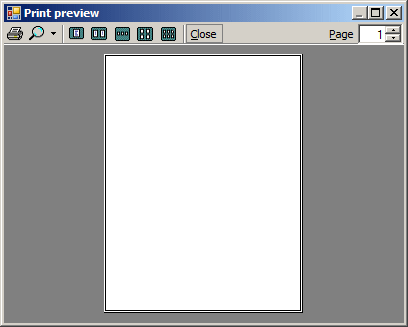
This would produce:
Simply assigning a PrintDocument object to a print preview form only creates a blank sheet. In order to show a preview, you must design it. To make this possible, the PrintDocument class is equipped with a PrintPageEventArgs class. |
||||||||||||||

 from the Toolbox. Therefore, at design time, to provide print preview,
from the Printing section of the Toolbox and click the form. As its name
indicates, the dialog box is already created but like the other dialog
boxes of the .NET Framework, you must add it to a form in order to make it
available in your application.
from the Toolbox. Therefore, at design time, to provide print preview,
from the Printing section of the Toolbox and click the form. As its name
indicates, the dialog box is already created but like the other dialog
boxes of the .NET Framework, you must add it to a form in order to make it
available in your application.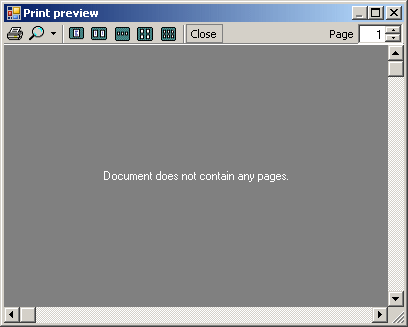

 from the toolbar. Two things would happen. The compiler would select the
default printer and the document would be sent directly to that printer.
This means that, first there should be a (known) default printer and the
user should know what that printer is; second, the user would not be able to
change the printer if more than one is available. If you want the user to be
able to select the printer, you should provide a Print dialog box that the
user can probably access from a menu of the application.
from the toolbar. Two things would happen. The compiler would select the
default printer and the document would be sent directly to that printer.
This means that, first there should be a (known) default printer and the
user should know what that printer is; second, the user would not be able to
change the printer if more than one is available. If you want the user to be
able to select the printer, you should provide a Print dialog box that the
user can probably access from a menu of the application.