using System;
using System.Drawing;
using System.Windows.Forms;

public class Exercise : System.Windows.Forms.Form
{
    ProgressBar progress;

    public Exercise()
    {
        InitializeComponent();
    }

    private void InitializeComponent()
    {
        Text = "Progressive Studies";
        Size = new Size(242, 80);

        progress  = new ProgressBar ();

        Controls.Add(progress);
    }
}

public class Program
{
    static int Main()
    {
        System.Windows.Forms.Application.Run(new Exercise());
        return 0;
    }
}
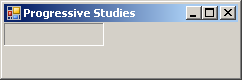
This would produce:
The progress bar shares the various characteristics of other graphical controls (that is, the objects derived from the Control class). These include the location, the size, the back color, the size, the cursor, the ability to be anchored, the ability to the docked, the ability to be shown or hidden, and the ability to be enabled or disabled, etc. Here is an example: private void InitializeComponent()
{
Text = "Progressive Studies";
Size = new Size(282, 80);
progress = new ProgressBar ();
progress.Location = new Point(12, 12);
progress.Width = 252;
Controls.Add(progress);
}
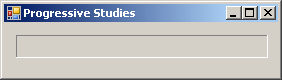
This would produce:
After adding it to an application, a progress bar assumes a horizontal position (the actual progress bar of Microsoft Windows, as implemented in Win32, can also have a vertical orientation; the .NET Framework's version has this and other limitations).
To show its effect, the progress bar draws its small rectangles as a bar. These small rectangles are from a starting position to an ending position. This means that the progress bar uses a range of values. This range is controlled by the Minimum and the Maximum properties whose default values are 0 and 100 respectively. At design time, you can set them using the limits of an integer. To programmatically set these values, assign the desired numbers to one or both. Here is an example: private void InitializeComponent()
{
Text = "Progressive Studies";
Size = new Size(282, 80);
progress = new ProgressBar ();
progress.Location = new Point(12, 12);
progress.Width = 252;
progress.Minimum = 0;
progress.Maximum = 255;
Controls.Add(progress);
}
The small rectangles would be drawn from the left (the Minimum value) to the right (the Maximum value) sides of the control.
At one particular time, the most right rectangle of a progress bar is referred to as its position and it is represented by the Value property. At design time, to set a specific position for the control, change the value of the Value property whose default is 0. The position must always be between the Minimum and Maximum values. At design time, if you change the Minimum to a value higher than the Value property, the value of Value would be increased to the new value of Minimum. If you set the value of Value to a value lower than the Minimum, You would receive an error. After clicking OK, the value of the Minimum would be reset to that of the Value property. In the same way, if you set the value of Value to a value higher than Maximum, you would receive an error. At run time, you can assign the desired value to the Value property. Once again, avoid specifying a value that is out of range. Here is an example: private void InitializeComponent()
{
Text = "Progressive Studies";
Size = new Size(282, 80);
progress = new ProgressBar ();
progress.Location = new Point(12, 12);
progress.Width = 252;
progress.Minimum = 0;
progress.Maximum = 255;
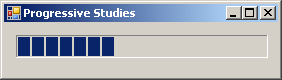
progress.Value = 88;
Controls.Add(progress);
}
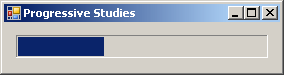
This would produce:
Because a progress bar is usually meant to indicate the progress of an activity, when drawing its small rectangles, it increases its current position in order to draw the next rectangle, except if the control is reset. The number of units that the object must increase its value to is controlled by the Step property. By default, it is set to 10. Otherwise, you can set it to a different value of your choice. Here is an example: private void InitializeComponent()
{
Text = "Progressive Studies";
Size = new Size(282, 80);
progress = new ProgressBar ();
progress.Location = new Point(12, 12);
progress.Width = 252;
progress.Minimum = 0;
progress.Maximum = 255;
progress.Value = 88;
progress.Step = 12;
Controls.Add(progress);
}
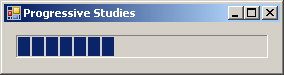
When the control draws one of its rectangles based on the Step value, it calls the PerformStep(). Its syntax is: public void PerformStep(); After a small rectangle has been drawn, the current value is incremented by the value of the Step property. If you want to increase the value of the control to a value other than that of the Step property, you can call the Increment() method. Its syntax is: public void Increment(int value); The amount by which to increment is passed to the method. Here is an example: using System;
using System.Drawing;
using System.Windows.Forms;
public class Exercise : System.Windows.Forms.Form
{
ProgressBar progress;
Button btnIncrement;
public Exercise()
{
InitializeComponent();
}
void InitializeComponent()
{
Text = "Progressive Studies";
Size = new Size(284, 115);
progress = new ProgressBar ();
progress.Location = new Point(12, 12);
progress.Width = 252;
progress.Minimum = 0;
progress.Maximum = 255;
progress.Value = 88;
progress.Step = 12;
btnIncrement = new Button();
btnIncrement.Text = "Increment";
btnIncrement.Location = new Point(12, 52);
btnIncrement.Click += new EventHandler(btnIncrementClick);
Controls.Add(progress);
Controls.Add(btnIncrement);
}
void btnIncrementClick(object sender, EventArgs e)
{
progress.Increment(8);
}
}
public class Program
{
static int Main()
{
System.Windows.Forms.Application.Run(new Exercise());
return 0;
}
}
So far, we have described a progress bar as drawing small rectangles to represent the control. These rectangles are visually distinct (don't touch each other) and adjacent. As an alternative, if you want the progress control to appear smooth, you can make the control draw each next rectangle exactly where the previous one stops. To support this characteristic, the ProgressBar class is equipped with the Style property. The ProgressBar.Style property is based on the ProgressBarStyle enumeration that has three members:
If you decide to use the Marquee style, the progress bar will continually show its animation of small rectangles moving at a speed set from the MarqueeAnimationSpeed integral property and you cannot get the value of the progress bar. |
||||||||||||||||||||||||

|
|
||
| Home | Copyright © 2010-2016, FunctionX | |
|
|
||