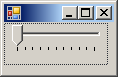
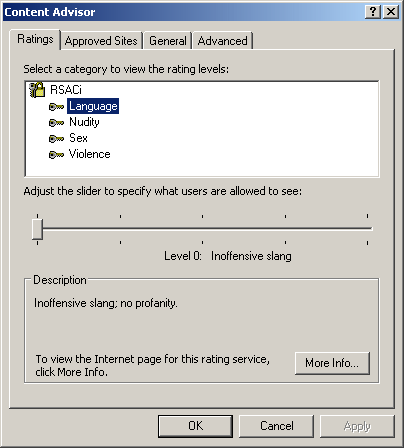
 To use the track bar, the user can drag the thumb in one of two directions. This changes the position of the thumb. The user can also click a position along the control line to place the thumb at a desired location. Alternatively, when the track bar has focus, the user can use the arrow keys to move the thumb. As far as appearances are concerned, there are two types of track bars, depending on the orientation: horizontal or vertical. Here is an example of a vertical track bar on the left side of Medium: 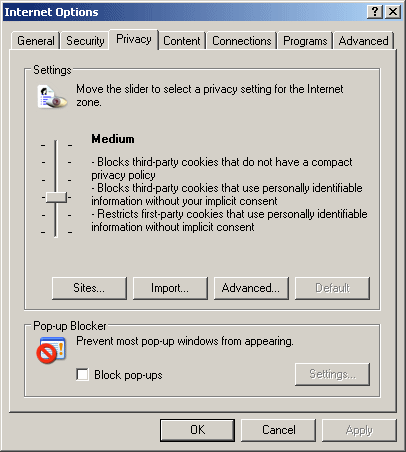
To support track bars, the .NET Framework provides the
TrackBar class. At design time, to add a track bar to your
application, from the Toolbox, you can click the TrackBar button
using System;
using System.Drawing;
using System.Windows.Forms;

public class Exercise : System.Windows.Forms.Form
{
    TrackBar tbrSlider;

    public Exercise()
    {
        InitializeComponent();
    }

    private void InitializeComponent()
    {
        tbrSlider = new TrackBar();

        Controls.Add(tbrSlider);
    }
}

public class Program
{
    static int Main()
    {
        System.Windows.Forms.Application.Run(new Exercise());
        return 0;
    }
}
This would produce:
After placing a TrackBar control on a form or other container, by default, its assumes a horizontal position. The position of the track bar is controlled by Orientation property implemented through the Orientation enumeration that has two members. To change the direction of the control, on the Properties window, set the Orientation property to the desired value. For example, to make it vertical, change the field from Horizontal to Vertical. To change this property at runtime, assign the desired value to the property. Here is an example: private void InitializeComponent()
{
tbrSlider = new TrackBar();
tbrSlider.Location = new Point(12, 12);
tbrSlider.Orientation = Orientation.Vertical;
Controls.Add(tbrSlider);
}
This would produce: 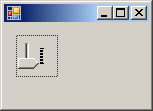 The dimensions of the track bars we have displayed so far don't appear practical. This is because we were using the default values. Like every control, the track bar has default dimensions and like many controls, these default values are usually not suitable. This means that every time you create a track bar, make sure you specify either its Size property or its Width and its Height properties. Here is an example: private void InitializeComponent()
{
tbrSlider = new TrackBar();
tbrSlider.Location = new Point(12, 12);
tbrSlider.Width = 180;
Controls.Add(tbrSlider);
}
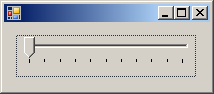
This would produce:
As mentioned already, to use the track bar, the user must change the position of the thumb. To change this position, the user can drag the thumb, click the slider line, press one of the arrow keys, or press the Page Up or Page Down keys. As the user drags the thumb, the control fires a Scroll event. This event is of type EventArgs. Because this is the default event of the control, to generate its skeleton code, you can double-click the track bar on the control When the user drags the thumb, the control holds a new value known as the Value property. You also can assign a value to this property to change the position of the thumb. The value of the Value property must be an integer. After the user has changed it, to know the value of the track bar, you can access its Value property. Here is an example: private void InitializeComponent()
{
tbrSlider = new TrackBar();
tbrSlider.Location = new Point(12, 12);
tbrSlider.Width = 180;
tbrSlider.Value = 6;
Controls.Add(tbrSlider);
}
This would produce:
However the user moves the thumb, it must assume a value between the limits allowed on the control. The Minimum property is the lowest value that the thumb can assume within the track. The Maximum value controls the opposite. The user is allowed to slide only between these two values. These two properties are set in the Properties window using their respective fields. By default, the minimum value is set to 0 and the maximum is 10. To change the minimum or maximum values programmatically, assign the desired value to the appropriate property. Here is an example: private void InitializeComponent()
{
tbrSlider = new TrackBar();
tbrSlider.Location = new Point(12, 12);
tbrSlider.Width = 480;
tbrSlider.Minimum = 8;
tbrSlider.Maximum = 140;
tbrSlider.Value = 86;
Controls.Add(tbrSlider);
}
This would produce:
You can also set the minimum and the maximum values by calling the TrackBar.SetRange() method. Its syntax is: public void SetRange(int minimum, int maximum); The first argument is the same as the Minimum property and the second argument is the same as the Maximum property. Here is an example: private void InitializeComponent()
{
tbrSlider = new TrackBar();
tbrSlider.Location = new Point(12, 12);
tbrSlider.Width = 480;
tbrSlider.SetRange(8, 140);
tbrSlider.Value = 86;
Controls.Add(tbrSlider);
}
Always make sure that the minimum value is lower than the maximum. This safe measure will allow you to better control the current value of the control. At design time, if you set the Minimum property to a value higher than that of the Maximum, for example setting Minimum to 66 while Maximum=10, the value of the Maximum would be set to that of the Minimum. In this case, both properties would have the same value. This makes the control unusable: if the Minimum and the Maximum properties hold the same values, the user cannot move the thumb. In the same way, at run time, avoid assigning unpractical values to these properties.
A track bar is equipped with small bars �|� that serve as indicators of the position occupied by the thumb. These bars are called ticks. The ticks are positioned at same distances from each other. The number of ticks available on a track bar, or the number of ticks you can see, depend on the difference between the Minimum and the Maximum values The higher the Maximum - Minimum difference, the more ticks available. The lower this value, the fewer the ticks but this should not be the reason you use a lower Minimum or a higher Maximum.
If the difference between the Maximum and the Minimum properties causes the control to display too many ticks. Consider the following example: private void InitializeComponent()
{
tbrSlider = new TrackBar();
tbrSlider.Location = new Point(12, 12);
tbrSlider.Width = 400;
tbrSlider.SetRange(8, 255);
tbrSlider.Value = 125;
Controls.Add(tbrSlider);
}
 When this happens, you can reduce the number of ticks. This is done using the TickFrequency property. Here is an example: private void InitializeComponent()
{
tbrSlider = new TrackBar();
tbrSlider.Location = new Point(12, 12);
tbrSlider.Width = 400;
tbrSlider.SetRange(8, 255);
tbrSlider.Value = 125;
tbrSlider.TickFrequency = 10;
Controls.Add(tbrSlider);
}
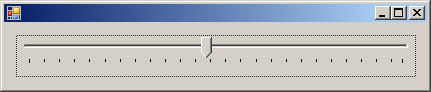
This would produce:
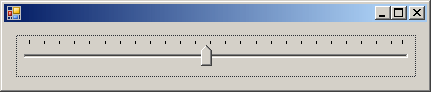
The thumb�s visual display appears as a small standing pentagon with two straight borders. Its appearance is set using the TickStyle property which is based on the TickStyle enumeration. When you add a new TrackBar control to a form, it is horizontally oriented, the thumb points down, the tick marks are positioned under the sliding field. In this setting, the TickStyle property is set to BottomRight. To place the tick marks above the sliding field, change the value of the TickStyle property to TopLeft; this also has the effect of reversing the direction of the slider. Here is an example: private void InitializeComponent()
{
tbrSlider = new TrackBar();
tbrSlider.Location = new Point(12, 12);
tbrSlider.Width = 400;
tbrSlider.SetRange(8, 255);
tbrSlider.Value = 125;
tbrSlider.TickFrequency = 10;
tbrSlider.TickStyle = TickStyle.TopLeft;
Controls.Add(tbrSlider);
}
This would produce:
As a third option, you can have the tick marks on both sides of the slider. To get this, set the TickStyle property to Both. With this value, the thumb becomes a small rectangle (changing from its pentagon shape): 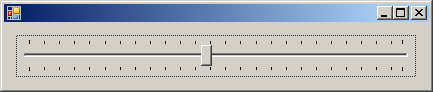
When the user presses one of the arrow keys, the thumb moves by one tick. This unit is known as the SmallChange property. If you want the thumb to move by more than one tick, you can assign the desired value to this property. Alternatively, you can calculate a fraction of the difference between the Minimum and the Maximum values then use it as the SmallChange.
When the user presses either the Page Up (PgUp) or the Page Down (PgDn) keys, the thumb moves by a value represented by the LargeChange property. If the default value of this property is not convenient for your application, you can change it to a new desired value or you can use a fraction of the difference between the Minimum and the Maximum properties then use it as the LargeChange. |
||||||||||||||||||||||||||||||

 and click the form or a container. The TrackBar class is derived from
the Control class. To programmatically create a track bar, declare a
variable of type TrackBar, use the new operator to allocate memory for the
variable, and add it to the Controls property of its parent. Here is an
example of creating a track bar:
and click the form or a container. The TrackBar class is derived from
the Control class. To programmatically create a track bar, declare a
variable of type TrackBar, use the new operator to allocate memory for the
variable, and add it to the Controls property of its parent. Here is an
example of creating a track bar: