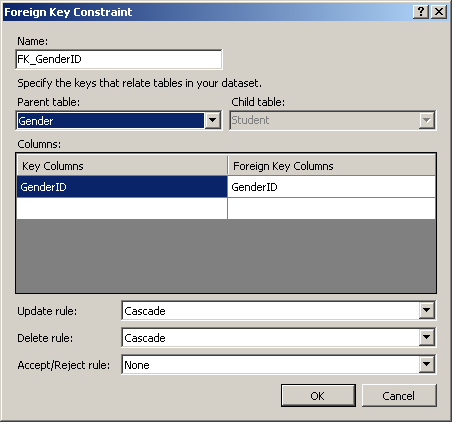
The DataSet and the other data-based classes of the System.Data namespace provide all the functionalities you need to create relationships among objects. Consider the following starting points of a data set: using System;
using System.Collections.Generic;
using System.ComponentModel;
using System.Data;
using System.Drawing;
using System.Linq;
using System.Text;
using System.Windows.Forms;
namespace Exercise1
{
public partial class Exercise : Form
{
DataColumn colStudentID;
DataColumn colUsername;
DataTable tblStudents;
DataSet dsStudents;
public Exercise()
{
InitializeComponent();
}
private void Exercise_Load(object sender, EventArgs e)
{
colStudentID = new DataColumn("ColumnID",
Type.GetType("System.Int32"));
colUsername = new DataColumn("Username", Type.GetType("System.String"));
tblStudents = new DataTable("Student");
tblStudents.Columns.Add(colStudentID);
tblStudents.Columns.Add(colUsername);
dsStudents = new DataSet("Students");
dsStudents.Tables.Add(tblStudents);
}
}
}
In order to create a relationship, you need two tables. One table would hold the original data. That table is referred to as the parent. That table would provide its data to another table. The table that receives data is referred to as a child table. The table that acts as the parent must have a way to uniquely identify each record. In the previous lesson, we saw that, to create unique values for a column, you could set its Unique property to True. Here is an example: using System;
using System.Collections.Generic;
using System.ComponentModel;
using System.Data;
using System.Drawing;
using System.Linq;
using System.Text;
using System.Windows.Forms;
namespace Exercise1
{
public partial class Exercise : Form
{
DataColumn colStudentID;
public Exercise()
{
InitializeComponent();
}
private void Exercise_Load(object sender, EventArgs e)
{
colStudentID = new DataColumn("ColumnID",
Type.GetType("System.Int32"));
colStudentID.Unique = true;
}
}
}
Once this property is set, the user must remember to specify the value of that column, otherwise, the record would not be created. In some cases, the user may not have the right value at the time of data entry or the user may simply be confused. To assist you with specifying the unique value of a column, you can ask the compiler to take care of this. To make this happen, you can set an incremental value on the column. To support this, the DataColumn class is equipped with a Boolean property named AutoIncrement. The default value of this property is False. When this property is set to True, when the user decides to add a new record, the compiler would increment the current value of the column. Here is an example: private void Exercise_Load(object sender, EventArgs e)
{
colStudentID = new DataColumn("ColumnID",
Type.GetType("System.Int32"));
colStudentID.Unique = true;
colStudentID.AutoIncrement = true;
}
By default, if the DataColumn.AutoIncrement property is set to True, before any record is created on the table, the initial value of the column is set to 0 and that would be the first value of the column. If you want, you can start the records with another value. To support this, the DataColumn class is equipped with a property named AutoIncrementSeed, which is a Long integral type. Here is an example: private void Exercise_Load(object sender, EventArgs e)
{
colStudentID = new DataColumn("ColumnID",
Type.GetType("System.Int32"));
colStudentID.Unique = true;
colStudentID.AutoIncrement = true;
colStudentID.AutoIncrementSeed = 1000;
}
By default, if the AutoIncrement property of the DataColumn class is set to True, when a record is being created, the value of the column would be incremented by 1. If you want it to be incremented by another value, you can use the AutoIncrementStep property. Here is an example: private void Exercise_Load(object sender, EventArgs e)
{
colStudentID = new DataColumn("ColumnID",
Type.GetType("System.Int32"));
colStudentID.Unique = true;
colStudentID.AutoIncrement = true;
colStudentID.AutoIncrementSeed = 1000;
colStudentID.AutoIncrementStep = 5;
}
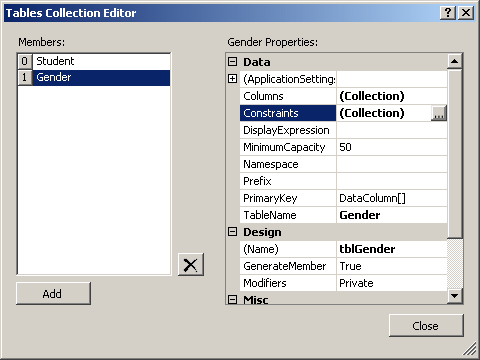
In a relation, a constraint is a rule that would specify how some data is created or provided to a table. For example, a constraint can provide the means by which some values of a column are entered. Another type of constraint can create a rule that controls the types or ranges of values that can be accepted for a column; non-acceptable values would be rejected. There are various types of constraints and most are supported in the DataSet system. To visually create a constraint, display the Table Collection Editor. In the Members list, click the name of the table. In the Properties list, click the Constraints list and click its ellipsis button:
To support constraints, the DataTable class is equipped with a property named Constraints, which is an object of type ConstraintCollection.
A unique constraint is a rule that states that the value of one column or the combination of values of some columns must be unique among the records of a table. The unique constraint can involve only one column as we saw for the Unique property of a column. For example, if you are creating a list of usernames for the students of a school, you would not want two students to have the same username. Here is an example:
When creating the table, you can set up a unique constraint so that duplicate values would be rejected. In this case, every time the user enters a new value, the compiler (actually an interpreter) would check if that value exists already. If so, the user would be informed and must take appropriate actions to correct it. Here are examples:
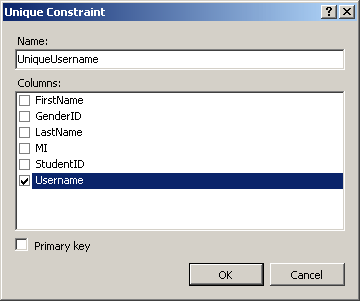
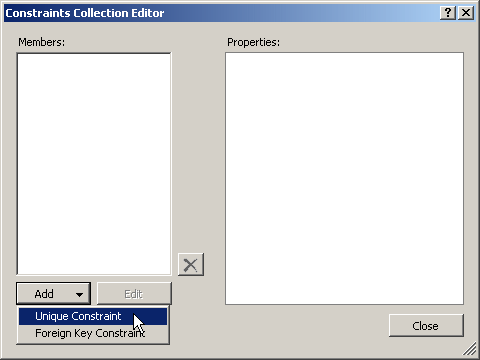
A unique constraint can also involve more than one column. For example, if you are creating a list of members of a club, it could be confusing to have two members with the exact same full name. You could allow same last names. As long as the first names are different, there would be less or no confusion. Using a unique constraint, you can set a rule so that each combination of a first and last name would be different. To visually create a unique constraint, display the Table Collection Editor and create the desired columns for a table. In the Members list, click the desired table. In the Properties list, click the ellipsis button of the Constraints field. In the Constraints Collection Editor, click Add -> Unique Constraint, give it a name, click the check box of the column that will hold unique values. Here is an example:
If the unique constraint will involve more than one column, click the check box of each. After providing the necessary information, click OK. To support unique constraints, the System.Data namespace provides the UniqueConstraint class. Therefore, to programmatically create a unique constraint, you can declare a variable to type UniqueConstraint and initialize it with one of its many constructors. If you want to specify only the column that will hold unique values, you can use the following constructor: public UniqueConstraint(DataColumn column); This method expects the variable name of a column as argument. After creating the constraint variable, you can add it to the Constraints collection of the table. To support this, the ConstraintCollection class is equipped with a method named Add that comes in many versions. If you had created a UniqueContraint object and you want to add it, you can use the following syntax of the method: public void Add(Constraint constraint); This version expects a Constraint-derived object as argument. Here is an example: using System;
using System.Collections.Generic;
using System.ComponentModel;
using System.Data;
using System.Drawing;
using System.Linq;
using System.Text;
using System.Windows.Forms;
namespace Exercise1
{
public partial class Exercise : Form
{
DataColumn colStudentID;
DataColumn colUsername;
DataTable tblStudents;
UniqueConstraint cnsUniqueUsername;
DataSet dsStudents;
public Exercise()
{
InitializeComponent();
}
private void Exercise_Load(object sender, EventArgs e)
{
colStudentID = new DataColumn("ColumnID",
Type.GetType("System.Int32"));
colStudentID.Unique = true;
colStudentID.AutoIncrement = true;
colStudentID.AutoIncrementSeed = 1000;
colStudentID.AutoIncrementStep = 5;
colUsername = new DataColumn("Username", Type.GetType("System.String"));
tblStudents = new DataTable("Student");
tblStudents.Columns.Add(colStudentID);
tblStudents.Columns.Add(colUsername);
cnsUniqueUsername = new UniqueConstraint(colUsername);
tblStudents.Constraints.Add(cnsUniqueUsername);
dsStudents = new DataSet("Students");
dsStudents.Tables.Add(tblStudents);
}
}
}
If you create a unique constraint using the UniqueConstraint(DataColumn column) constructor, a default name would be assigned to it. If this is the first constraint, it would be named Constraint1 and the names would be incremental. If you want, you can provide your own name. To do this, you can use the following constructor of the UniqueConstraint class: public UniqueConstraint(string name, DataColumn column); The first argument is the name of the unique constraint. Here is an example: private void Exercise_Load(object sender, EventArgs e)
{
colStudentID = new DataColumn("ColumnID",
Type.GetType("System.Int32"));
colStudentID.Unique = true;
colStudentID.AutoIncrement = true;
colStudentID.AutoIncrementSeed = 1000;
colStudentID.AutoIncrementStep = 5;
colUsername = new DataColumn("Username", Type.GetType("System.String"));
tblStudents = new DataTable("Student");
tblStudents.Columns.Add(colStudentID);
tblStudents.Columns.Add(colUsername);
cnsUniqueUsername = new UniqueConstraint("UniqueUsername", colUsername);
tblStudents.Constraints.Add(cnsUniqueUsername);
dsStudents = new DataSet("Students");
dsStudents.Tables.Add(tblStudents);
}
If the unique constraint is a combination of columns, create them in an array before adding them.
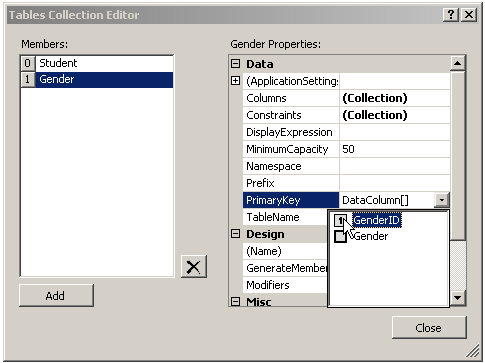
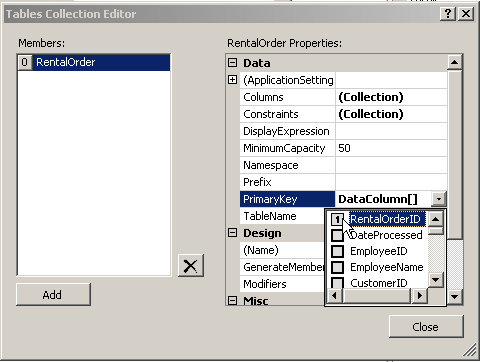
To create a scenario where data flows from one list to another, we saw that the first list must hold the records that would be supplied to other lists. In the first list, each record must be distinguishable from the others. One way you can take care of this is to create what is referred to as a primary key. To visually create a primary key, in the Members list of the Tables Collection Editor, click the desired table. In the Properties list, click the arrow of the PrimaryKey combo box and click the left button of the column. Here is an example:
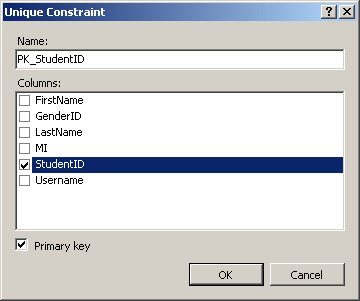
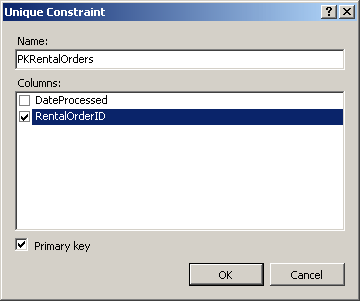
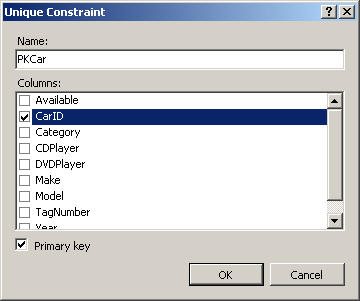
Like a unique constraint, a primary key can involve more than one column. In this case, you would click the gray button of each of the columns that would be involved in the combination. After doing this, you can click Close. In reality, a primary key is a unique constraint. Therefore, if you create a primary key as just described, the studio would configure it behind the scenes. Otherwise, you can explicitly create a primary key as a unique constraint. To do this, in the Members list of the Tables Collection Editor, click the desired table. In the Properties list, click Constraints and click its ellipsis button. In the Constraints Collection Editor, click Add -> Unique Constraint. In the Unique Constraint dialog box, accept the default name or change it. In the Columns list, click the check box of the column that will be the primary key, and click the Primary Key check box. Here is an example:
If the primary key involves more than one column, click the check box of each. After making the selections, click OK. To assist you with programmatically creating a primary key, the UniqueConstraint class is equipped with the following constructor: public UniqueConstraint(DataColumn column, bool isPrimaryKey); In this case, the second argument is passed as true or false. If passed as true, the column specified as the first argument would be treated as the primary key. If you use this constructor, a default name would be given to the constraint. If you want to specify a name, you can use the following constructor: public UniqueConstraint( string name, DataColumn column, bool isPrimaryKey ); Here is an example: using System;
using System.Collections.Generic;
using System.ComponentModel;
using System.Data;
using System.Drawing;
using System.Linq;
using System.Text;
using System.Windows.Forms;
namespace Exercise1
{
public partial class Exercise : Form
{
DataColumn colGenderID;
UniqueConstraint PKGenderID;
DataColumn colGender;
DataTable tblGenders;
DataColumn colStudentID;
DataColumn colUsername;
DataTable tblStudents;
UniqueConstraint cnsUniqueUsername;
DataSet dsStudents;
public Exercise()
{
InitializeComponent();
}
private void Exercise_Load(object sender, EventArgs e)
{
colGenderID = new DataColumn("GenderID", Type.GetType("System.Int32"));
colGenderID.AutoIncrement = true;
colGenderID.AutoIncrementSeed = 1;
colGenderID.AutoIncrementStep = 1;
colGender = new DataColumn("colGender", Type.GetType("System.String"));
tblGenders = new DataTable("Gender");
tblGenders.Columns.Add(colGenderID);
tblGenders.Columns.Add(colGender);
colStudentID = new DataColumn("ColumnID",
Type.GetType("System.Int32"));
colStudentID.Unique = true;
colStudentID.AutoIncrement = true;
colStudentID.AutoIncrementSeed = 1000;
colStudentID.AutoIncrementStep = 5;
colUsername = new DataColumn("Username", Type.GetType("System.String"));
tblStudents = new DataTable("Student");
tblStudents.Columns.Add(colStudentID);
tblStudents.Columns.Add(colUsername);
cnsUniqueUsername = new UniqueConstraint("UniqueUsername", colUsername);
tblStudents.Constraints.Add(cnsUniqueUsername);
PKGenderID = new UniqueConstraint("PKGenderID", colGenderID, true);
tblGenders.Constraints.Add(PKGenderID);
dsStudents = new DataSet("Students");
dsStudents.Tables.Add(tblStudents);
}
}
}
|
|
||||||||||||||||||||||||||||||||||||||||||||||||||||||||||||||||||||||||||||||||||||||||||||||||||||||||||||||||||||||||||||||||||
|
|
|||||||||||||||||||||||||||||||||||||||||||||||||||||||||||||||||||||||||||||||||||||||||||||||||||||||||||||||||||||||||||||||||||

 Practical
Learning: Introducing Data Relationships
Practical
Learning: Introducing Data Relationships