 |
Creating an MDI Application in Microsoft Visual
Studio 2013 |
|
|
|
Microsoft Visual Studio 2013 make it very easy to start
an MDI application. It doesn't do everything for you but it provides all the
primary characteristics. It does this through the MDI Parent Form of the Add
New Item dialog box.
|
|
 Topic
Applied: Creating an MDI Application in Microsoft Visual Studio Topic
Applied: Creating an MDI Application in Microsoft Visual Studio
|
|
- Application 1:
- To start a new application, on the Standard toolbar, click the
New Project button

- In the middle list, click Empty Project
- Set the Name to Announce
- Click OK
- On the main menu, click PROJECT -> Announce Properties...
- Change Output Type to Windows Application
- To add a new form, on the main menu, click PROJECT -> Add
Windows Form...
- Make sure Windows Form is selected in the middle list.
Set
the Name to SampleDocument
- Click Add
- From the Common Controls section of the Toolbox, click TextBox
and click the form
- Using the Properties window, change the textbox's
characteristics as follows:
(Name): Information
Dock: Fill
Multiline: True
ScrollBars: Vertical
- To add a new form, on the main menu, click PROJECT -> Add New
Item...
- In the middle list, click MDI Parent Form
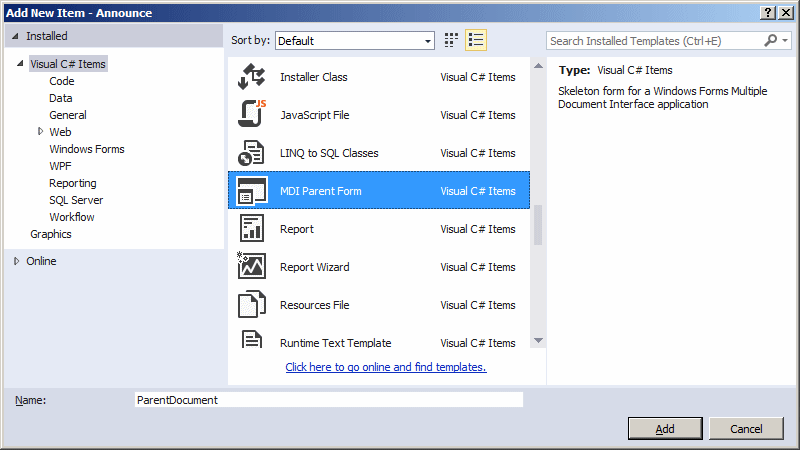
- Set the Name to ParentDocument
- Click Add
- In the Properties window, change Text to Journal
Announcement
- Right-click the form (anywhere on the form) and click View
Code
- Change the document as follows:
using System;
using System.Collections.Generic;
using System.ComponentModel;
using System.Data;
using System.Drawing;
using System.Linq;
using System.Text;
using System.Windows.Forms;

namespace Announce
{
    public partial class ParentDocument : Form
    {
        private int childFormNumber = 1;

        public ParentDocument()
        {
            InitializeComponent();

            ShowNewForm(null, null);
        }

        private void ShowNewForm(object sender, EventArgs e)
        {
            SampleDocument childForm = new SampleDocument();
            childForm.MdiParent = this;
            childForm.Text = "Untitled " + childFormNumber++;
            childForm.Show();
        }

        . . . No Change

        private void CloseAllToolStripMenuItem_Click(object sender, EventArgs e)
        {
            foreach (Form childForm in MdiChildren)
            {
                childForm.Close();
            }
        }

        [STAThread]
        static void Main()
        {
            Application.EnableVisualStyles();
            Application.SetCompatibleTextRenderingDefault(false);
            Application.Run(new ParentDocument());
        }
    }
}
- Execute the application to see the result
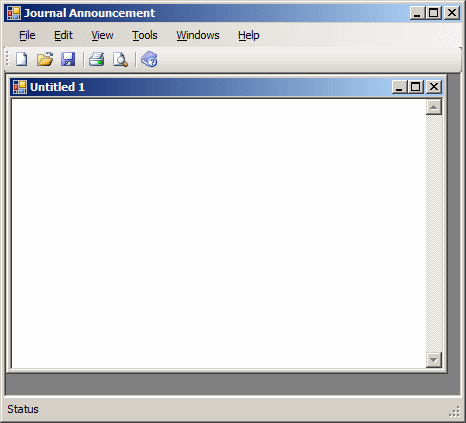
- Close the application and return to your programming
environment
- Application 2:
- To start a new application, on the main menu, click FILE ->
New -> Project...
- In the middle list, click Windows Form Application
- Set the Name to GreyViewer
- Click OK
- In the Solution Explorer, right-click Form1.cs and click
Rename
- Change the name to SingleView.cs and press Enter twice
- To add a new form, on the main menu, click PROJECT -> Add New
Item...
- In the middle list, click MDI Parent Form
- Set the Name to Producer
- Click Add
- Click the title bar of the form to make sure it is selected.
In the Properties window, click the Events button
 and double-click Load
- Change the document as follows:
using System;
using System.Collections.Generic;
using System.ComponentModel;
using System.Data;
using System.Drawing;
using System.Linq;
using System.Text;
using System.Windows.Forms;

namespace GreyViewer
{
    public partial class Producer : Form
    {
        private int childFormNumber = 1;

        public Producer()
        {
            InitializeComponent();
        }

        private void ShowNewForm(object sender, EventArgs e)
        {
            SingleView childForm = new SingleView();
            childForm.MdiParent = this;
            childForm.Text = "Viewer " + childFormNumber++;
            childForm.Show();
        }

        . . . No Change

        private void Producer_Load(object sender, EventArgs e)
        {
            ShowNewForm(sender, e);
        }
    }
}
- In the Solution Explorer, double-click Program.cs and change
the document as follows:
[STAThread]
static void Main()
{
    Application.EnableVisualStyles();
    Application.SetCompatibleTextRenderingDefault(false);
    Application.Run(new Producer());
}
- Execute the application to see the result
- Close Microsoft Visual Studio
|
|