![]() |
Frames Fundamentals |
|
Introduction |
|
The basic functionality of a window is defined in a class called CWnd. An object created from CWnd must have a parent. In other words, it must be a secondary window, which is a window called from another, existing, window. Therefore, we will come back to it later. The CWnd class gives birth to a class called CFrameWnd. This class actually describes a window or defines what a window looks like. The description of a window includes items such as its name, size, location, etc. To create a window using the CFrameWnd class, you must create a class derived from the CFrameWnd class. |
![]() |
As in real world, a Microsoft Windows window can be identified on the monitor screen because it has a frame. To create such a window, you can use the CFrameWnd class. CFrameWnd provides various alternatives to creating a window. For example, it is equipped with a method called Create(). The Create() method uses a set of arguments that define a complete window. The syntax of the CFrameWnd::Create() method is as follows: BOOL Create(LPCTSTR lpszClassName, LPCTSTR lpszWindowName, DWORD dwStyle = WS_OVERLAPPEDWINDOW, const RECT& rect = rectDefault, CWnd* pParentWnd = NULL, LPCTSTR lpszMenuName = NULL, DWORD dwExStyle = 0, CCreateContext* pContext = NULL ); As you can see, only two arguments are necessary to create a window, the others, though valuable, are optional.
|
|
As you should have learned from C++, every class in a program has a name. The name lets the compiler know the kind of object to create. The name of a class follows the conventions used for C++ names. That is, it must be a null-terminated string. Many classes used in Win32 and MFC applications are already known to the Visual C++ compiler. If the compiler knows the class you are trying to use, you can specify the lpszClassName as NULL. In this case, the compiler would use the characteristic of the CFrameWnd object as the class' name. Therefore, the Create() function can be implemented as follows: Create(NULL); Every object in a computer has a name. In the same way, a window must have a name. The name of a window is specified as the lpszWindowName argument of the Create() method. In computer applications, the name of a window is the one that displays on the top section of the window. This is the name used to identify a window or an application. For example, if a window displays Basic Windows Application, then the object is called the "Basic Windows Application Window". Here is an example:
In all of your windows, you should specify a window name. If you omit it, the users of your window would have difficulty identifying it. Here is an example of such a window: ![]() After creating a window, to let the application use it, you can use a pointer to the frame class used to create the window. In this case, that would be (a pointer to) CFrameWnd. To use the frame window, assign its pointer to the CWinThread::m_pMainWnd member variable. This is done in the InitInstance() implementation of your application.
When creating objects that derive directly or indirectly from CObject, such as CFrameWnd, you should let the compiler know that you want your objects to be dynamically created. To do this, use the DECLARE_DYNCREATE and the IMPLEMENT_DYNCREATE macros. The DECLARE_DYNCREATE macro is provided in the class' header file and takes as argument the name of your class. An example would be DECLARE_DYNCREATE(CTheFrame). Before implementing the class or in its source file, use the IMPLEMENT_DYNCREATE macro, passing it two arguments: the name of your class and the name of the class you derived it from. We mentioned that, to access the frame, a class derived from CFrameWnd, from the application class, you must use a pointer to the frame's class. On the other hand, if you want to access the application, created using the CWinApp class, from the windows frame, you use the AfxGetApp() global function. We will see some examples in the next lesson.
Windows styles are characteristics that control such features as its appearance, it borders, its minimized, its maximized, or its resizing state, etc. After creating a window, to display it to the user, you can apply the WS_VISIBLE style to it. Here is an example: Create(NULL, "Windows Application", WS_VISIBLE); The top section of a window has a long bar called the title bar. This is a section we referred to above and saw that it is used to display the name of the window. This bar is added with the WS_CAPTION value for the style argument. Here is an example: Create(NULL, "Windows Application", WS_CAPTION);
A window is identified by its size which can be seen by its borders. Borders are given to a window through the WS_BORDER value for the style. As you can see from the above window, using the WS_CAPTION style also gives borders to a window. A shortcut to creating a window that has a caption and a border is done by using the WS_OVERLAPPED style: Create(NULL, "Windows Application", WS_OVERLAPPED); As you will see shortly, various styles can be applied to the same window. To combine styles, you use the bitwise OR operator represented by the beam symbol |. For example, if you have a style called WS_ONE and you want to combine it with the WS_OTHER style, you can combine them as WS_ONE | WS_OTHER. The title bars serves various purposes. For example, it displays the name of the window. In this case the window is called Window Application. The title bar also allows the user to move a window. To do this, the user would click and drag a section of the title bar while moving in the desired direction. After using a window, the user may want to close it. This is
made possible by using or adding the WS_SYSMENU style. This style adds a button
with X that is called the System Close button Create(NULL, "Windows Application", WS_VISIBLE | WS_SYSMENU);
When a window displays, it occupies a certain area of the
screen. To access other windows, for example to reveal a window hidden behind,
the user can shrink the size of the window completely and make it disappear from
the screen without closing the window. This is referred to as minimizing the window.
The ability to minimize a window is made possible with the presence of a system
button called Minimize Create(NULL, "Windows Application", WS_VISIBLE | WS_SYSMENU | WS_MINIMIZEBOX); As opposed to minimizing the window, the user can change its
size to use the whole area of the screen. This is referred to as maximizing the
window. This feature is provided through the system Maximize button Create(NULL, "Windows Application", WS_VISIBLE | WS_SYSMENU | WS_MINIMIZEBOX);
On the other hand, if you do not want the user to be able to minimize the window, create a window with the WS_SYSMENU and the WS_MINIMIZEBOX without the WS_MAXIMIZEBOX styles: Create(NULL, "Windows Application", WS_VISIBLE | WS_SYSMENU | WS_MAXIMIZEBOX);
Therefore, if you want to provide all three system buttons, provide their styles. You can also control whether the window appears minimized or maximized when it comes up. To minimize the window at startup, apply the WS_MINIMIZE style. On the other hand, to have a maximized window when it launches, use the WS_MAXIMIZE style. This style also assures that a window has borders. If you had not specified the WS_CAPTION, you can make sure that a window has borders using the WS_BORDER value. One of the effects the user may want to control on a window is its size. For example, the user may want to narrow, enlarge, shrink, or heighten a window. To do this, the user would position the mouse on one of the borders, click and drag in the desired direction. This action is referred to as resizing a window. For the user to be able to change the size of a window, the window must have a special type of border referred to as a thick frame. To provide this border, apply or add the WS_THICKFRAME style: Create(NULL, "Windows Application",
WS_VISIBLE | WS_SYSMENU | WS_MINIMIZEBOX | WS_MAXIMIZEBOX | WS_THICKFRAME);
Because many windows will need this functionality, a special style can combine them and it is called WS_OVERLAPPEDWINDOW. Therefore, you can create a resizable window as follows: Create(NULL, "Windows Application", WS_OVERLAPPEDWINDOW);
To locate things that display on the monitor screen, the computer uses a coordinate system similar to the Cartesian's but the origin is located on the top left corner of the screen. Using this coordinate system, any point can be located by its distance from the top left corner of the screen of the horizontal and the vertical axes:
To manage such distances, the operating system uses a point that is represented by the horizontal and the vertical distances. The Win32 library provides a structure called POINT and defined as follows: typedef struct tagPOINT {
LONG x;
LONG y;
} POINT;
The x member variable is the distance from the left border of the screen to the point. The y variable represents the distance from the top border of the screen to the point. Besides the Win32's POINT structure, the Microsoft Foundation Classes (MFC) library provides the CPoint class. This provides the same functionality as the POINT structure. As a C++ class, it adds more functionality needed to locate a point. The CPoint::CPoint() default constructor can be used to declare a point variable without specifying its location. If you know the x and y coordinates of a point, you can use the following constructor to create a point: CPoint(int X, int Y);
While a point is used to locate an object on the screen, each window has a size. The size provides two measurements related to an object. The size of an object can be represented as follows:
The width of an object, represented as CX, is the distance from its left to its right borders and is provided in pixels. The height of an object, represented as CY is the distance from its top to its bottom borders and is given in pixels. To represent these measures, the Win32 library uses the SIZE structure defined as follows: typedef struct tagSIZE {
int cx;
int cy;
} SIZE;
Besides the Win32's SIZE structure, the MFC provides the CSize class. This class has the same functionality as SIZE but adds features of a C++ class. For example, it provides five constructors that allows you to create a size variable in any way of your choice. The constructors are: CSize(); CSize(int initCX, int initCY); CSize(SIZE initSize); CSize(POINT initPt); CSize(DWORD dwSize); The default constructor allows you to declare a CSize variable whose values are not yet available. The constructor that takes two arguments allows you to provide the width and the height to create a CSize variable. If you want another CSize or a SIZE variables, you can use the CSize(SIZE initSize) constructor to assign its values to your variable. You can use the coordinates of a POINT or a CPoint variable to create and initialize a CSize variable. When we study the effects of the mouse, we will know you can use the coordinates of the position of a mouse pointer. These coordinates can help you define a CSize variable. Besides the constructors, the CSize class is equipped with different methods that can be used to perform various operations on CSize and SIZE objects. For example, you can add two sizes to get a new size. You can also compare two sizes to find out whether they are the same.
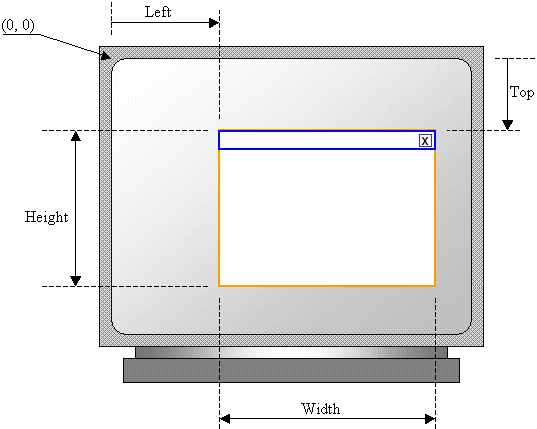
When a window displays, it can be identified on the screen by its location with regards to the borders of the monitor. A window can also be identified by its width and height. These characteristics are specified or controlled by the rect argument of the Create() method. This argument is a rectangle that can be created through the Win32 RECT structure or the MFC's CRect class. First, you must know how Microsoft Windows represents a rectangle. A rectangle is a geometric figure with four sides or borders: top, right, bottom, and left. A window is also recognized as a rectangle. Therefore, it can be represented as follows:
Microsoft Windows represents items as on a coordinate system whose origin (0, 0) is located on the top-left corner of the screen. Everything else is positioned from that point. Therefore:
To represent these distances, the Win32 API provides a structure called RECT and defined as follows: typedef struct _RECT {
LONG left;
LONG top;
LONG right;
LONG bottom;
} RECT, *PRECT;
This structure can be used to control the location of a window on a coordinate system. It can also be used to control or specify the dimensions of a window. To use it, specify a natural numeric value for each of its member variables and pass its variable as the rect argument of the Create() method. Here is an example: RECT Recto; Recto.left = 100; Recto.top = 120; Recto.right = 620; Recto.bottom = 540; Create(NULL, "Windows Application", WS_OVERLAPPEDWINDOW, Recto); Besides the Win32 RECT structure, the MFC provides an alternate way to represent a rectangle on a window. This is done as follows:
Besides the left, top, right, and bottom measurements, a window is also recognized for its width and its height. The width is the distance from the left to the right borders of a rectangle. The height is the distance from the top to the bottom borders of a rectangle. To recognize all these measures, the Microsoft Foundation Classes library provides a class called CRect. This class provides various constructors for almost any way of representing a rectangle. The CRect class provides the following constructors: CRect(); CRect(int l, int t, int r, int b); CRect(const RECT& srcRect); CRect(LPCRECT lpSrcRect); CRect(POINT point, SIZE size); CRect(POINT topLeft, POINT bottomRight); The default construct is used to declare a CRect variable whose dimensions are not known. On the other hand, if you know the left, the top, the right, and the bottom measures of the rectangle, as seen on the RECT structure, you can use them to declare and initialize a rectangle. In the same way, you can assign a CRect, a RECT, a pointer to CRect, or a pointer to a RECT variable to create or initialize a CRect instance. If you do not know or would not specify the location and dimension of a window, you specify the value of the rect argument as rectDefault. In this case, the compiler would use its own internal value for this argument.
Many applications are made of different windows, as we will learn eventually. When an application uses various windows, most of these windows depend on a particular one. It could be the first window that was created or another window that you designated. Such a window is referred to as the parent window. All the other windows depend on it directly or indirectly. If the window you are creating is dependent of another, you can specify that it has a parent. This is done with the pParentWnd argument of the CFrameWnd::Create() method. If the window does not have a parent, pass the argument with a NULL value. If the window has a parent, specify its name as the pParentWnd argument.
|
|
|
CSimpleFrame::CSimpleFrame()
{
// Create the window's frame
Create(NULL, "Windows Application", WS_OVERLAPPEDWINDOW,
CRect(120, 100, 700, 480), NULL);
}
|
|
|
||
| Previous | Copyright © 2003-2004 FunctionX, Inc. | Next |
|
|
||