Message Boxes

Message Boxes
Fundamentals of Message Boxes
Introduction
A message box is a special dialog box used to display a piece of information to the user. There are various ways to get a message box. You primarily have three options: the .NET Framework, the Win32 library, and other libraries such as the Visual Basic library.
 Practical Learning: Starting a Project
(Name): btnMessageBox
Text:   Message Box
 |
Author NoteIf you want, using the form of the application you created, you can apply the descriptions in the following sections to experiment with, and get, the same results. |
The .NET Message Boxes
Probably the easiest way to get a message box is by using the .NET Framework. In fact, to support message boxes, the .NET Framework provides a class named MessageBox:
public class MessageBox {}
The Return Value of a Message Box
The primary purpose of a message box is to display a message and at least one button. At a minimum, the button allows the user to close the message. As we will see, a message box can pressent a question to the user. Such a message box can be equipped with two or more button. The user can make a decision by clicking one of the buttons. Depending on the button the user would have clicked, the message box would return a value. The value returned by a message box corresponds to the particular button the user would have clicked (on the message box).
The return values of a message box are defined in an enumeration named DialogResult. The buttons and the returned values are as follows:
| If the User Clicks | The method Returns |
 |
DialogResult.Abort |
 |
DialogResult.Cancel |
 |
DialogResult.Ignore |
 |
DialogResult.No |
 |
DialogResult.OK |
 |
DialogResult.Retry |
 |
DialogResult.Yes |
The Message of a Message Box
The .NET Framework provides the MessageBox class to easily create a message box. To display a simple message with just an OK button, you can call its static Show() method. Its syntax is as follows:
public static DialogResult MessageBox.Show(string message);
In this case, the message to display must be passed as a string to the Show() method. Here is an example:
namespace MessageBoxes
{
    public partial class Exercise : Form
    {
        public Exercise()
        {
            InitializeComponent();
        }

        private void btnMessageBox_Click(object sender, EventArgs e)
        {
            MessageBox.Show("Welcome to the Wonderful World of C# programming");
        }
    }
}
This would produce:
The message to display can be made of up to 1024 characters. To display the message on multiple lines, you can use the new line escape sequence anywhere inside the string.
The Primary Characteristics of a Message Box
The Caption of a Message Box
The MessagBox.Show() method is overloaded with various versions. Another version uses the following syntax:
public static DialogResult Show(string text, string caption);
This version allows you to specify a custom caption for the message box. With this version, the first argument is the string that the user will see displaying on the message box. You can pass it as a string. You can also create it from other pieces of strings.
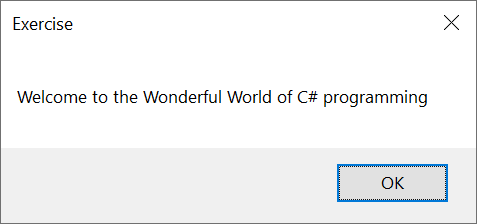
The second argument, caption, will be the sentence to display on the title bar of the message box. Here is an example:
private void btnMessageBox_Click(object sender, EventArgs e)
{
    MessageBox.Show("Welcome to the wonderful world of C# programming", "Exercise");
}
This would produce:
The Buttons of a Message Box
When a message box has displayed, the user must be able to close the message box. The most common way that the Microsoft Windows family operating systems provide to close a window is by equipped a window with a close button in the top-right corner. To enhance the functionalities of a message box, Microsoft Windows provides some buttons that can be displayed on a message box.
To support the buttons that can display on a message box, the .NET Framework provides an enumeration named MessageBoxButtons. The elements of that enumeration specify the buttons that would display on a message box. The members of that enumaration are:
| MessageBoxButtons | MsgBoxStyle | Message Box Buttons | |
| OK | OKOnly | 0 | |
| OKCancel | OKCancel | 1 | |
| YesNo | YesNo | 4 | |
| YesNoCancel | YesNoCancel | 3 |
|
| RetryCancel | RetryCancel | 5 |
|
| AbortRetryIgnore | AbortRetryIgnore | 2 |
|
To make a message box display buttons, the MessageBox class provides another version of its Show() method with the following syntax:
public static DialogResult Show(string text,
                                string caption,
                                MessageBoxButtons buttons);
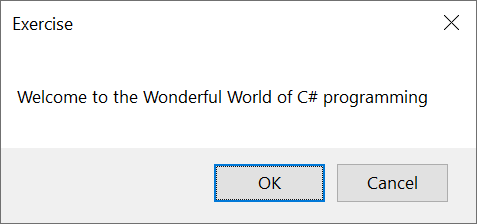
Based on this, to ask a message box to display one or more buttons, pass a third argument to the MessageBox.Show() method. Specify the argument as a member of the MessageBoxButtons enumeration. Here is an example:
namespace MessageBoxes
{
    partial class Exercise
    {
        /// <summary>
        ///  Required designer variable.
        /// </summary>
        private System.ComponentModel.IContainer components = null;

        /// <summary>
        ///  Clean up any resources being used.
        /// </summary>
        /// <param name="disposing">true if managed resources should be disposed; otherwise, false.</param>
        protected override void Dispose(bool disposing)
        {
            if (disposing && (components != null))
            {
                components.Dispose();
            }
            base.Dispose(disposing);
        }

        #region Windows Form Designer generated code

        /// <summary>
        ///  Required method for Designer support - do not modify
        ///  the contents of this method with the code editor.
        /// </summary>
        private void InitializeComponent()
        {
            btnMessageBox = new Button();
            SuspendLayout();
            //
            // btnMessageBox
            //
            btnMessageBox.Location = new Point(31, 32);
            btnMessageBox.Name = "btnMessageBox";
            btnMessageBox.Size = new Size(182, 34);
            btnMessageBox.TabIndex = 0;
            btnMessageBox.Text = "Message Box";
            btnMessageBox.UseVisualStyleBackColor = true;
            btnMessageBox.Click += (sender, e) =>
            {
                MessageBox.Show("Welcome to the wonderful world of C# programming",
                                "Exercise",
                                MessageBoxButtons.OKCancel);
            };
            // Exercise
            //
            AutoScaleDimensions = new SizeF(10F, 25F);
            AutoScaleMode = AutoScaleMode.Font;
            ClientSize = new Size(800, 450);
            Controls.Add(btnMessageBox);
            Name = "Exercise";
            StartPosition = FormStartPosition.CenterScreen;
            Text = "Message Boxes";
            ResumeLayout(false);
        }

        #endregion

        private Button btnMessageBox;
    }
}
This would produce:
The Icon of a Message Box
To enhance the appearance of a message box, you can make it display an icon. To support those icons, the .NET Framework provies an enumeration named MessageBoxIcon. The members of this enumeration are:
| MessageBoxIcon | The message box will display | |
| None | ||
| Asterisk |  |
 |
| Error |  |
 |
| Exclamation |  |
 |
| Hand | |
|
| Information | |
|
| Question |  |
 |
| Stop | |
|
| Warning | |
|
To support the icons of a message box, the MessageBox class provides a version of its Show() method with the following syntax:
public static System.Windows.Forms.DialogResult Show(string? text,
                                                     string? caption,
                                                     System.Windows.Forms.MessageBoxButtons buttons,
                                                     System.Windows.Forms.MessageBoxIcon icon);
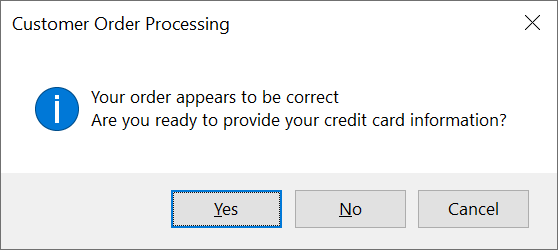
Therefore, to make a message box display an icon, pass a 4th argument to the MessageBox.Show() method. The argument is passed with a qualified member of the MessageBoxIcon enumeration. Here is an example:
namespace MessageBoxes
{
    partial class Exercise
    {
        . . .

        private void InitializeComponent()
        {
            . . .

            btnMessageBox.Click += (sender, e) =>
            {
                MessageBox.Show("Your order appears to be correct" +
                                "\nAre you ready to provide your credit card information?",
                                "Customer Order Processing",
                                MessageBoxButtons.YesNoCancel,
                                MessageBoxIcon.Information);
            };

            . . .
        }

        #endregion

        private Button btnMessageBox;
    }
}
This would produce:
Topics on Creating a Message Box
The Message of the Box
As you may know already, the message of a message box is a string. So far, we were passing that message directly as the first argument of the MessageBox.Show() method. As an alternative, you can first declare a string variable, initialize it, and then pass it to the method. Here is an example:
namespace MessageBoxes
{
    partial class Exercise
    {
        . . .

        private void InitializeComponent()
        {
            . . .

            btnMessageBox.Click += (sender, e) =>
            {
                string strMessage = "Welcome to the Wonderful World of C# programming";

                MessageBox.Show(strMessage);
            };

            . . .
        }

        #endregion

        private Button btnMessageBox;
    }
}
In the same way, you can first declare and initialize a string variable for a caption, then pass that variable as the second argument to the MessageBox.Show() method. As an alternative, you can first declare a string variable, initialize it, and then pass it to the method. Here is an example:
namespace MessageBoxes
{
    partial class Exercise
    {
        . . .

        private void InitializeComponent()
        {
            . . .

            btnMessageBox.Click += (sender, e) =>
            {
                string strCaption = "Fun Department Store";
                string strMessage = "The Accounting department has not yet received your current time sheet.";

                MessageBox.Show(strMessage, strCaption););
            };

            . . .
        }

        #endregion

        private Button btnMessageBox;
    }
}
The message of a message box can also come from a string that combine different values. Here is an example:
namespace MessageBoxes
{
    partial class Exercise
    {
        . . .

        private void InitializeComponent()
        {
            . . .

            btnMessageBox.Click += (sender, e) =>
            {
                string strFirstName = "Jennifer";
                string strLastName = "Monay";
                double hSalary = 28.44;

                string strFormat = $"Employee Name:\t{strFirstName} {strLastName}\nYearly Salary:\t${hSalary * 8 * 5 * 4 * 12}";

                MessageBox.Show(strFormat,
                                "Payroll Evaluation",
                                MessageBoxButtons.OKCancel);
            };

            . . .
        }

        #endregion

        private Button btnMessageBox;
    }
}
This would produce:

The Parts of a Message Box
In most message boxes we have used so far, we were passing the parts of the message box directly to the MessageBox.Show() method. In reality, each of those parts can be created separately from variables. Those variables can then be passed to the method. Here is an example:
namespace MessageBoxes
{
    partial class Exercise
    {
        . . .

        private void InitializeComponent()
        {
            . . .

            btnMessageBox.Click += (sender, e) =>
            {
                string strQuestion        = "Did you sign your time sheet?";
                string strTitle           = "Fun Department Store";
                MessageBoxButtons buttons = MessageBoxButtons.YesNoCancel;
                MessageBoxIcon icon       = MessageBoxIcon.Question;

                MessageBox.Show(strQuestion,
                                strTitle,
                                buttons,
                                icon);
            };

            . . .
        }

        #endregion

        private Button btnMessageBox;
    }
}
This would produce:

So far, when calling the MessageBox.Show() method, we were providing the argument is the order the appear in the syntax of that method; otherwise, you can access each argument by name. This allows you to provide the arguments in any order of your choice. Here is an example:
private void btnMessageBoxClick(object sender, EventArgs e)
{
    string strQuestion = "Did you sign your time sheet?";
    string strTitle = "Fun Department Store";
    MessageBoxButtons buttons = MessageBoxButtons.YesNoCancel;
    MessageBoxIcon icon = MessageBoxIcon.Question;

    MessageBox.Show(buttons: buttons,
                    caption: strTitle,
                    icon: icon,
                    text: strQuestion);
});
The Default Button of a Message Box
When a message box is configured to display more than one button, the operating system is set to decide which button is the default. The default button has a thick border that sets it apart from the other button(s). If the user presses Enter, the message box would behave as if the user had clicked the default button. If the message box has more than one button, you can decide what button would be the default.
To support the default button of a message box, the .NET Framework provides an enumeration named MessageBoxDefaultButton. The members of that enumeratiion are:
| Member | Enum Value | Description |
| Button1 | 0 | The most-left button will be the default |
| Button2 | 256 | The second button from left will be the default |
| Button3 | 512 | The third button will be the default |
| Button4 | 768 | The fourth button will be the default |
To indicate what button would display as the default, the MessageBox class provides a version of its Show() method with the following syntax:
public static DialogResult Show(string text,
                                string caption,
                                MessageBoxButtons buttons,
                                MessageBoxIcon icon,
                                MessageBoxDefaultButton defaultButton);
Based on this version, to specify the default button of the message box, pass a 5th argument to the MessageBox.Show() method. The argument is passed with a qualified member of the MessageBoxDefaultButton enumeration. Here is an example:
namespace MessageBoxes
{
    partial class Exercise
    {
        . . .

        private void InitializeComponent()
        {
            . . .

            btnMessageBox.Click += (sender, e) =>
            {
                MessageBox.Show("Your order appears to be correct" +
                                "\nAre you ready to provide your credit card information?",
		                        "Customer Order Processing",
                                MessageBoxButtons.YesNoCancel,
			                    MessageBoxIcon.Information,
                               MessageBoxDefaultButton.Button1);
            };

            . . .
        }

        #endregion

        private Button btnMessageBox;
    }
}
This would produce:
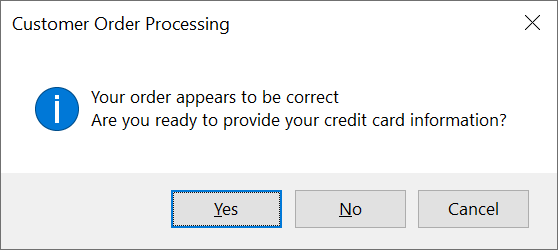
If the message box displays two buttons, if you sent the fifth argument as MessageBoxDefaultButton.Button2, the right button will be the default. If the message box displays three buttons, the middle button will be the default. Here is an example:
namespace MessageBoxes
{
    partial class Exercise
    {
        . . .

        private void InitializeComponent()
        {
            . . .

            btnMessageBox.Click += (sender, e) =>
            {
       	        MessageBox.Show("Your order appears to be correct" +
                                "\nAre you ready to provide your credit card information?",
	                            "Customer Order Processing",
                                MessageBoxButtons.YesNoCancel,
			                    MessageBoxIcon.Information,
                                MessageBoxDefaultButton.Button2);
            };

            . . .
        }

        #endregion

        private Button btnMessageBox;
    }
}
This would produce:
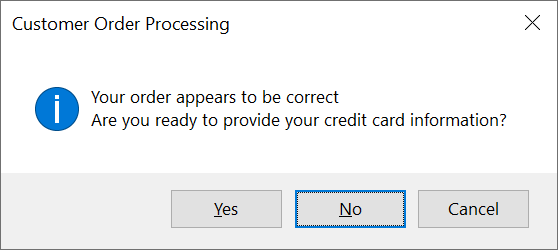
If the message box displays three buttons, if you sent the fifth argument as MessageBoxDefaultButton.Button3, the right button will be the default. Here is an example:
namespace MessageBoxes
{
    partial class Exercise
    {
        . . .

        private void InitializeComponent()
        {
            . . .

            btnMessageBox.Click += (sender, e) =>
            {
       	        MessageBox.Show("Your order appears to be correct" +
                                "\nAre you ready to provide your credit card information?",
	                            "Customer Order Processing",
                                MessageBoxButtons.YesNoCancel,
			                    MessageBoxIcon.Information,
                                MessageBoxDefaultButton.Button3);
            };

            . . .
        }

        #endregion

        private Button btnMessageBox;
    }
}
This would produce:
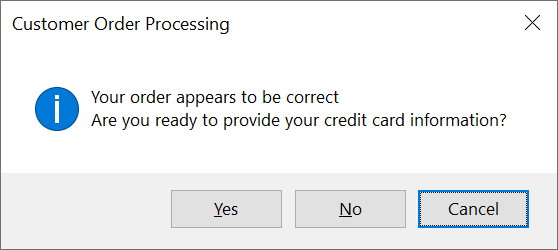
Aligning the Message to the Right of the Message Box
To let you provide additional options on a message box, the .NET Framework provides an enumeration named MessageBoxOptions. To let you apply one of the characteristics of this enumeration, the MessageBox class provides a version of its Show() method with the following syntax:
public static DialogResult Show(string? text,
                                string? caption,
                                System.Windows.Forms.MessageBoxButtons buttons,
                                System.Windows.Forms.MessageBoxIcon icon,
                                System.Windows.Forms.MessageBoxDefaultButton defaultButton,
                                System.Windows.Forms.MessageBoxOptions options);
Therefore, to apply one of the options available for a message box, pass a 6th argument to the MessageBox.Show() method as a qualified member of the MessageBoxOptions enumeration. One of the elements of this enumeration is named RightAlign. This option aligns the message of the message box to the right side. Here is an example:
namespace MessageBoxes
{
    partial class Exercise
    {
        . . .

        private void InitializeComponent()
        {
            . . .

            btnMessageBox.Click += (sender, e) =>
            {
                string strMessage = "You must provide your credentials (username and password) in order to access this document.";
                string strCaption = "Security Protocol";
                MessageBoxButtons buttons = MessageBoxButtons.OKCancel;
                MessageBoxIcon icon = MessageBoxIcon.Exclamation;
                MessageBoxDefaultButton defButton = MessageBoxDefaultButton.Button2;
                MessageBoxOptions options = MessageBoxOptions.RightAlign;

                MessageBox.Show(strMessage,
                                strCaption,
                                buttons,
                                icon,
                                defButton,
                                options);
            };

            . . .
        }

        #endregion

        private Button btnMessageBox;
    }
}
This would produce:

Applying a Right-to-Left Reading Order
As seen in previous examples, you can make a message box display a message and an icon. In this case, the icon displays to the left and the message to the right. Also, the caption displays on the left side of the title bar and the button(s) display(s) on the bottom-right coder of the message box. If you want, you can reverse that order. To support this, the MessageBoxOptions enumeration is equi^pped with a member named RtlReading. Here is an example of applying it:
namespace MessageBoxes
{
    partial class Exercise
    {
        . . .

        private void InitializeComponent()
        {
            . . .

            btnMessageBox.Click += (sender, e) =>
            {
                string strMessage = "You must provide your credentials (username and password) in order to access this document.";
                string strCaption = "Security Protocol";
                MessageBoxButtons buttons = MessageBoxButtons.OKCancel;
                MessageBoxIcon icon = MessageBoxIcon.Exclamation;
                MessageBoxDefaultButton defButton = MessageBoxDefaultButton.Button2;
                MessageBoxOptions options = MessageBoxOptions.RtlReading;

                MessageBox.Show(strMessage,
                                strCaption,
                                buttons,
                                icon,
                                defButton,
                                options);
            };

            . . .
        }

        #endregion

        private Button btnMessageBox;
    }
}
This would produce:

The Owner of a Message Box
A message box is primarily a form. When creating a message box, if you want, you can inidicate the Windows control that owns it. To support this, some versions of the MessageBox.Show() method provide a first argument of type IWin32Window. In fact, one of the versions of the MessageBox.Show() method uses the following syntax:
public static DialogResult Show(IWin32Window? owner, string? text);
This version is like the first one we saw except that, this time, you must pass a first argument as the owner of the message box. Probably the easiest way to pass this argument is to indicate that the form from which the message box was called also owns the message box. In this case, you can pass the argument as the
private void btnMessageBoxClick(object sender, EventArgs e)
{
    MessageBox.Show(this, "This application requires a minimum screen resolution of 1080p.");
}
If you want, or sometimes this is necessary, you can programmatically create a control, such as a form, and pass it as the first argument. Here is an example:
private void btnMessageBoxClick(object sender, EventArgs e)
{
    Control form = new Form();

    MessageBox.Show(form, "This application requires a minimum screen resolution of 1080p.");
}
In some cases, you can apply one or more characteristics of the control that owns the message box. Here is an example:
private void btnMessageBoxClick(object sender, EventArgs e)
{
    Form form = new Form() { TopMost = true };

    MessageBox.Show(form, "This application requires a minimum screen resolution of 1080p.");
}
In the same way, if you are creating a simple message box that has a caption, a message, and an OK button, you can specify the owner of the message box. To support this, the MessageBox class has another version of its Show() mwthod whose syntax is:
public static DialogResult Show(IWin32Window? owner,
                                string? text,
                                string? caption);
To use this method, pass a Control-based or the this object as the first argument. Here is an example:
private void btnMessageBoxClick(object sender, EventArgs e)
{
    Form form = new Form();

    MessageBox.Show(form,
                   "We were informed that your security clearance has not been renewed for the last two years.",
                   "Employment Verification");
}
This would produce:
When creating a message box whose emphasis is on asking a question and expecting the user to make a decision based on some buttons, if you want to indicate the owner of the message box, the MessageBox class provides the following version of its Show():
public static DialogResult Show(IWin32Window? owner,
                                string? text,
                                string? caption,
                                MessageBoxButtons buttons);
Here is an example of calling this method:
private void btnMessageBoxClick(object sender, EventArgs e)
{
    Button btn = new();
    string strCaption = "Exploratory Division";
    string strQuestion = "The employee account you are creating must include a username and a default password.";
    strQuestion += Environment.NewLine;
    strQuestion += "Do you want to specify the account's username and create a default password now?";
    strQuestion += Environment.NewLine;
    strQuestion += "1. Click Yes to create a username and provide a default password now.";
    strQuestion += Environment.NewLine;
    strQuestion += "2. Click No to create a username now and let the user create a password later.";
    strQuestion += Environment.NewLine;
    strQuestion += "3. Click Cancel to stop creating the account.";
    MessageBoxButtons buttons = MessageBoxButtons.YesNoCancel;

    MessageBox.Show(caption: strCaption,
                    buttons: buttons,
                    owner: btn,
                    text: strQuestion);
}
This would produce:

To let you indicate that an owned message box must display an icon, the MessageBox class provides the following version of its Show():
public static DialogResult Show(IWin32Window? owner,
                                string? text,
                                string? caption,
                                MessageBoxButtons buttons,
                                MessageBoxIcon icon);
Here is an example of calling this version of the MessageBox.Show() method:
private void btnMessageBoxClick(object sender, EventArgs e)
{
    IWin32Window wnd = new Form();
    string strCaption = "Account Verification";
    string strMessage = "Your account is going to be locked for 72 hours for failing to provide valid credentials three times.";
    MessageBoxButtons buttons = MessageBoxButtons.OK;
    MessageBoxIcon icon = MessageBoxIcon.Exclamation;

    MessageBox.Show(caption: strCaption,
                    icon: icon,
                    owner: wnd,
                    text: strMessage,
                    buttons: buttons);
}
This would produce:

If you want an owned message box that has more than one button to indicate its default button, the MessageBox class provides the following Show() version:
public static DialogResult Show(IWin32Window? owner,
                                string? text,
                                string? caption,
                                MessageBoxButtons buttons,
                                MessageBoxIcon icon,
                                MessageBoxDefaultButton defaultButton);
Here is an example of calling this method:
private void btnMessageBoxClick(object sender, EventArgs e)
{
    Control ctrl = this;
    string strCaption = "Operations Verification";
    string strRequest = "Before signing off, do you have everything that is required " +
                        "to check that you have performed all necessary operations?";
    MessageBoxButtons buttons = MessageBoxButtons.YesNo;
    MessageBoxIcon icon = MessageBoxIcon.Information;

    MessageBox.Show(defaultButton: MessageBoxDefaultButton.Button2,
                    caption: strCaption,
                    buttons: buttons,
                    icon: icon,
                    owner: ctrl,
                    text: strRequest);
}
This would produce:

Finally, if you want to indicate that a certain object owns a message box and you want to psecify some options for that message box, the MessageBox class provides a version of its Show() method with the following syntax:
public static DialogResult Show(IWin32Window? owner,
                                string? text,
                                string? caption,
                                MessageBoxButtons buttons,
                                MessageBoxIcon icon,
                                MessageBoxDefaultButton defaultButton,
                                MessageBoxOptions options);
Here is an example of calling this method:
private void btnMessageBoxClick(object sender, EventArgs e)
{
    IWin32Window ctrl = this;
    string strCaption = "Operations Verification";
    string strRequest = "This operation requires a high level of clearance. " + Environment.NewLine +
                        "If necessary, please get the necessary permission from the administration.";
    MessageBoxButtons buttons = MessageBoxButtons.CancelTryContinue;
    MessageBoxIcon icon = MessageBoxIcon.Warning;

    MessageBox.Show(icon: icon,
                    defaultButton: MessageBoxDefaultButton.Button2,
                    buttons: buttons,
                    options: 0,
                    caption: strCaption,
                    owner: ctrl,
                    text: strRequest);
}
This would produce:

Practical Learning: Ending the Lesson
|
|
|||
| Previous | Copyright © 2001-2026, FunctionX | Thursday 08 May 2025, 08:13 | Next |
|
|
|||