Dates and Times in Visual Basic

Dates and Times in Visual Basic
Fundamentals of Dates
Introduction
The Visual Basic language has a strong support for date values. It is equipped with its own data type named Date. To create and manipulate dates, you have various options. To declare a date variable, you can use either the Date or the DateTime data types.
 |
While Date is a true data type, DateTime is a class but, even though we have not studied classes yet, we can start using DateTime. We will restrict ourselves to using it only as a data type. |
We know how to declare a date variable using Date. We also know that, if you already know the components of the date value you want to use, you can include them between two # signs but following the rules of a date format from the Regional Settings of Control Panel. Here is an example:
Public Module Exercise

    Sub Main()
        Dim DateHired As Date

        DateHired = # 02/08/2003 #

        Console.WriteLine("Date Hired: " & DateHired)

    End Sub

End Module
This would produce:

A date is a numeric value that represents the number of days that have elapsed since a determined period. A time is a numeric value that represents the number of seconds that have elapsed in a day.
To declare a variable that can hold either date values, time values, or both, you can use the Date data type. After the variable has been declared, you will configure it to the appropriate value. Here are two examples:
Module Exercise
    Sub Main()
        Dim DateOfBirth As Date
        Dim KickOffTime As Date
    End Sub
End Module
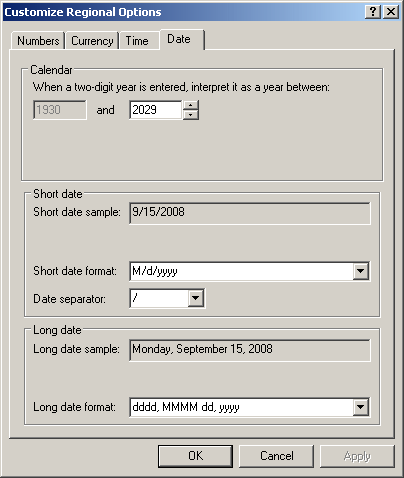
As mentioned above, the Date data type is used for both date and time. Like the other values, there are rules you must observe when dealing with date and time values. The rules are defined in the Regional Settings properties of the Control Panel of the computer on which the application is run. The rules for the dates are defined in the Date property page:
The rules for the time values are defined in the Time property page:

When using date and time values in your applications, you should not change these rules because the application will refer to them when it is installed in someone else's computer.
By default, a Date variable is initialized with January 1st, 0001 at midnight as the starting value. After declaring a Date variable, you can initialize it with an appropriate date or time or date and time value. The value can be included in double-quotes. Here is an example:
Module Exercise

    Sub Main()
        Dim DateOfBirth As Date

        DateOfBirth = "08/14/1982"
        Console.WriteLine("Date of Birth: " & DateOfBirth)
    End Sub

End Module
This would produce:
Date of Birth: 8/14/1982

Press any key to close this window . . .
If you intend to use only a date value for a Date variable, its corresponding time part would be set to midnight of the same date. Based on this, the above program would produce:
8/14/1982 12:00:00 AM
If you intend to use only a time value for your Date variable, the date part of the variable would be set to January 1st, 0001.
A Date value can also be included between two # signs. Here is an example:
Module Exercise

    Sub Main()
        Dim DateOfBirth As Date
        Dim KickOffTime As Date

        DateOfBirth = "08/14/1982"
        KickOffTime = #6:45:00 PM#
        Console.WriteLine("Date of Birth: " & DateOfBirth)
        Console.WriteLine("Kick off Time: " & KickOffTime)
    End Sub

End Module
To convert a value to a date or a time value, write an appropriate date or a recognizable time in the parentheses of CDate(). If the value is appropriate, CDate() produces a Date value.
 Practical Learning: Using Date and Time Variables
Module GeorgetownDryCleaner

    Sub Main()
        ' Request order information from the user
        Console.Write("Enter Customer Name:         ")
        Dim CustomerName As String = Console.ReadLine()
        Console.Write("Enter Customer Phone:        ")
        Dim CustomerPhone As String = Console.ReadLine()
        Console.Write("Enter the order date:        ")
        Dim OrderDate As Date = Console.ReadLine()
        Console.Write("Enter the order time:        ")
        Dim OrderTime As Date = Console.ReadLine()
        ' Unsigned numbers to represent cleaning items
        Console.Write("Enter Number of Shirts:      ")
        Dim NumberOfShirts As UInteger = Console.ReadLine()
        Console.Write("Enter Number of Pants:       ")
        Dim NumberOfPants As UInteger = Console.ReadLine()
        Console.Write("Enter Number of Other Items: ")
        Dim NumberOfOtherItems As UInteger = Console.ReadLine()

        ' Perform the necessary calculations
        Dim SubTotalShirts As Double = NumberOfShirts * 1.15
        Dim SubTotalPants As Double = NumberOfPants * 1.95
        Dim SubTotalOtherItems As Double = NumberOfOtherItems * 3.25
        ' Calculate the "temporary" total of the order
        Dim TotalOrder As Double = SubTotalShirts + SubTotalPants + SubTotalOtherItems

        ' Calculate the tax amount using a constant rate
        Dim TaxAmount As Double = TotalOrder * 0.0575
        ' Add the tax amount to the total order
        Dim NetTotal As Double = TotalOrder + TaxAmount

        Console.WriteLine("-----------------------------------------------------------")
        ' Communicate the total to the user...
        Console.WriteLine("The Total order is:          " & NetTotal)
        Console.WriteLine("-----------------------------------------------------------")
        ' and request money for the order
        Console.Write("Amount Tended?               ")
        Dim AmountTended As Double = Console.ReadLine()

        Console.WriteLine("===========================================================")
        Console.WriteLine(vbTab & "-/- Georgetown Dry Cleaner -/-" & vbCrLf &
               "===========================================================" & vbCrLf &
               vbTab & "Customer Name:      " & CustomerName & vbCrLf &
               vbTab & "Customer Phone:     " & CustomerPhone & vbCrLf &
               vbTab & "Order Date:         " & OrderDate & vbCrLf &
               vbTab & "Order Time:         " & OrderTime & vbCrLf &
               "-----------------------------------------------------------" &
               vbCrLf &
               "Item Type" & vbTab & "Qty" & vbTab & "Unit/Price" &
               vbTab & "Sub-Total" & vbCrLf &
               "-----------------------------------------------------------" &
               vbCrLf &
               "Shirts " & vbTab & vbTab & NumberOfShirts & vbTab &
               "1.15" & vbTab & vbTab & SubTotalShirts & vbCrLf &
               "Pants " & vbTab & vbTab & NumberOfPants & vbTab &
               "1.95" & vbTab & vbTab & SubTotalPants & vbCrLf &
               "Other Items " & vbTab & NumberOfOtherItems & vbTab &
               "3.25" & vbTab & vbTab & SubTotalOtherItems & vbCrLf &
               "-----------------------------------------------------------" &
               vbCrLf & vbTab & vbTab &
               "Total Cleaning: " & vbTab & TotalOrder & vbCrLf &
               vbTab & vbTab & "Tax Rate: " & vbTab & vbTab & "5.75%" & vbCrLf &
               vbTab & vbTab & "Tax Amount: " & vbTab & vbTab & TaxAmount & vbCrLf &
               vbTab & vbTab & "Net Price: " & vbTab & vbTab & NetTotal)
        Console.WriteLine("===========================================================")
    End Sub

End ModuleEnter Customer Name: Jerry Hudson
Enter Customer Phone: (105) 374-8073
Enter the order date: 06/12/2026
Enter the order time: 08:12
Enter Number of Shirts: 6
Enter Number of Pants: 2
Enter Number of Other Items: 4
-----------------------------------------------------------
The Total order is: 25.168499999999998
-----------------------------------------------------------
Amount Tended? 40
===========================================================
-/- Georgetown Dry Cleaner -/-
===========================================================
Customer Name: Jerry Hudson
Customer Phone: (105) 374-8073
Order Date: 6/12/2026
Order Time: 8:12:00 AM
-----------------------------------------------------------
Item Type Qty Unit/Price Sub-Total
-----------------------------------------------------------
Shirts 6 1.15 6.8999999999999995
Pants 2 1.95 3.9
Other Items 4 3.25 13
-----------------------------------------------------------
Total Cleaning: 23.799999999999997
Tax Rate: 5.75%
Tax Amount: 1.3684999999999998
Net Price: 25.168499999999998
===========================================================
Press any key to close this window . . .The Parts of a Date Value
When you compose a date value, you must follow some rules. The rules depend on the language you are using. We will review those of the US English.
In a year, a month is recognized by an index in a range from 1 to 12. A month also has a name. The name of a month is given in two formats: complete or short. These are:
| Month Index | Complete Name | Short Name |
| 1 | January | Jan |
| 2 | February | Feb |
| 3 | March | Mar |
| 4 | April | Apr |
| 5 | May | May |
| 6 | June | Jun |
| 7 | July | Jul |
| 8 | August | Aug |
| 9 | September | Sep |
| 10 | October | Oct |
| 11 | November | Nov |
| 12 | December | Dec |
A week is a combination of 7 consecutive days of a month. Each day can be recognized by an index from 1 to 7 (1, 2, 3, 4, 5, 6, 7). The day of each index is recognized by a name. In US English, the first day has an index of 1 is named Sunday while the last day with an index of 7 is named Monday. Like the months of a year, the days of a week have long and short names. These are:
| US English Day Index | Complete Name | Short Name |
| 1 | Sunday | Sun |
| 2 | Monday | Mon |
| 3 | Tuesday | Tue |
| 4 | Wednesday | Wed |
| 5 | Thursday | Thu |
| 6 | Friday | Fri |
| 7 | Saturday | Sat |
These are the default in US English. In most calculations, the Visual Basic language allows you to specify what day should be the first in a week.
The year is expressed as a numeric value.
In US English, to express a date value, you can use one of the following formats:
You must start the date with a number that represents the month (a number from 1 to 12). After the month value, enter -. Then type the day value as a number between 1 and 28, 29, 30, or 31 depending on the month and the (leap) year. Follow it with -. End the value with a year in 2 or 4 digits. Here are examples 06-12-08 or 10-08-2006.
You can also use one of the following formats:
This time, enter the day value followed either by an empty space or -. Follow with the short name of the month in the mmm placeholder or the complete name of the month for the mmmm placeholder, followed by either an empty space or -. End the value with the year, using 2 or 4 digits.
As you may know already, in US English, you can start a date with the month. In this case, you can use one of the following formats:
As seen with the previous formats, mmm represents the short name of a month and mmmm represents the complete name of a month. As mentioned already, the dd day can be expressed with 1 or 2 digits and the single digit can have a leading 0. After the day value, (you must) enter a comma followed by the year either with 2 or 4 digits.
A Date Value
We have seen that, when creating a date, you can include its value between # signs. An alternative is to provide a date as a string. To support this, the Visual Basic language provides a function named DateValue. Its syntax is:
Public Function DateValue(ByVal StringDate As String) As DateTime
When calling this function, provide a valid date as argument. The validity depends on the language of the operating system. If working in US English, you can use one of the formats we saw above. Here is an example:
Sub Main()
    Dim DateHired As Date

    DateHired = DateValue("22-Aug-2006")

    Console.WriteLine("Date Hired: " & DateHired)
    Return 0
End Sub
This would produce:

A Date as Serial
An alternative to initializing a date variable is to use a function named DateSerial. Its syntax is:
Public Function DateSerial(ByVal [Year] As Integer, _
   			   ByVal [Month] As Integer, _
   			   ByVal [Day] As Integer) As DateTime
As you can see, this function allows you to specify the year, the month, and the day of a date value, of course without the # signs. When it has been called, this function returns a Date value. Here is an example:
Public Module Exercise

    Sub Main()

        Dim DateHired As Date

        DateHired = DateSerial(2003, 02, 08)

        Console.WriteLine("Date Hired: " & DateHired)

    End Sub

End Module
When passing the values to this function, you must restrict each component to the allowable range of values. You can pass the year with two digits from 0 to 99. Here is an example:
Public Module Exercise

    Sub Main()
        Dim DateHired As Date

        DateHired = DateSerial(03, 2, 8)

        Console.WriteLine("Date Hired: " & DateHired)

    End Sub

End Module
If you pass the year as a value between 0 and 99, the compiler would refer to the clock on the computer to get the century. At the time of this writing (in 2008), the century would be 20 and the specified year would be added, which would produce 2003. To be more precise and reduce any confusion, you should always pass the year with 4 digits.
The month should (must) be a value between 1 and 12. If you pass a value higher than 12, the compiler would calculate the remainder of that number by 12 (that number MOD 12 = ?). The result of the integer division would be used as the number of years and added to the first argument. The remainder would be used as the month of the date value. For example, if you pass the month as 18, the integer division would produce 1, so 1 year would be added to the first argument. The remainder is 6 (18 MOD 12 = 6); so the month would be used as 6 (June). Here is an example:
Public Module Exercise

    Sub Main()
        Dim DateHired As Date

        DateHired = DateSerial(2003, 18, 8)
        Console.WriteLine("Date Hired: " & DateHired)


    End Sub

End Module
This would produce:

As another example, if you pass the month as 226, the integer division (226 \ 12) produces 18 and that number would be added to the first argument (2003 + 18 = 2021). The remainder of 226 to 12 (226 MOD 12 = 10) is 10 and that would be used as the month. Here is an example:
Public Module Exercise

    Sub Main()
        Dim DateHired As Date

        DateHired = DateSerial(2003, 226, 8)
        Console.WriteLine("Date Hired: " & DateHired)


    End Sub

End Module
This would produce:

If the month is passed as 0, it is considered 12 (December) of the previous year. If the month is passed as -1, it is considered 11 (November) of the previous year and so on. If the month is passed as a number lower than -11, the compiler would calculate its integer division to 12, add 1 to that result, use that number as the year, calculate the remainder to 12, and use that result as the month.
Depending on the month, the value of the day argument can be passed as a number between 1 and 28, between 1 and 29, between 1 and 30, or between 1 and 31. If the day argument is passed as a number lower than 1 or higher than 31, the compiler uses the first day of the month passed as the second argument. This is 1. If the day is passed as -1, the day is considered the last day of the previous month of the Month argument. For example, if the Month argument is passed as 4 (April) and the Day argument is passed as -1, the compiler would use 31 as the day because the last day of March is 31. If the Month argument is passed as 3 (March) and the Day argument is passed as -1, the compiler would refer to the Year argument to determine whether the year is leap or not. This would allow the compiler to use either 28 or 29 for the day value. The compiler uses this algorithm for any day value passed as the third argument when the number is lower than 1.
If the Day argument is passed with a value higher than 28, 29, 30, or 31, the compiler uses this same algorithm in reverse order to determine the month and the day.
Converting a Value to Date
If you have a value such as one provided as a string and you want to convert it to a date, you can call the CDate() function. Its syntax is:
Function CDate(Value As Object) As Date
This function can take any type of value but the value must be convertible to a valid date. If the function succeeds in the conversion, it produces a Date value. If the conversion fails, it produces an error.
The Components of a Date
Introduction
As seen so far, a date is a value made of at least three parts: the year, the month, and the day. The order of these components and how they are put together to constitute a recognizable date depend on the language and they are defined in the Language and Regional Settings in Control Panel.
The Year of a Date
The Visual Basic language supports the year of a date ranging from 1 to 9999. This means that this is the range you can consider when dealing with dates in your applications. In most operations, when creating a date, if you specify a value between 1 and 99, the compiler would use the current century for the left two digits. This means that, at the time of this writing (2008), a year such as 4 or 04 would result in the year 2004. In most cases, to be more precise, you should usually or always specify the year with 4 digits.
If you have a date value whose year you want to find out, you can call the Year() function. Its syntax is:
Public Function Year(ByVal DateValue As DateTime) As Integer
As you can see, this function takes a date value as argument. The argument should hold a valid date. If it does, the function returns the numerical year of a date. Here is an example:
Public Module Exercise
    Sub Main()

        Dim DateHired As Date = #2/8/2004#

        Console.WriteLine("In the job since " & Year(DateHired))


    End Sub

End Module
This would produce:

|
The Month of a Year |
The month part of a date is a numeric value that goes from 1 to 12. When creating a date, you can specify it with 1 or 2 digits. If the month is between 1 and 9 included, you can precede it with a leading 0.
If you have a date value and want to get its month, you can call the Month() function. Its syntax is:
Public Function Month(ByVal DateValue As DateTime) As Integer
This function takes a Date object as argument. If the date is valid, the function returns a number between 1 and 12 for the month. Here is an example:
Public Module Exercise

    Sub Main()

        Dim DateHired As Date = #2/8/2004#

        Console.WriteLine("Month hired " & Month(DateHired))


    End Sub

End Module
This would produce:

As mentioned already, the Month function produces a numeric value that represents the month of a date. Instead of getting the numeric index of the month of a date, if you want to get the name of the month, you can call a function named MonthName. Its syntax is:
Public Function MonthName(ByVal Month As Integer, _
   			  Optional ByVal Abbreviate As Boolean = False) As String
This function takes one required and one optional argument. The required argument must represent the value of a month. If it is valid, this function returns the corresponding name. Here is an example:
Public Module Exercise

    Sub Main()

        Dim DateHired As Date = #2/8/2004#

        Console.WriteLine("Day hired " & MonthName(Month(DateHired)))


    End Sub

End Module
This would produce:

The second argument allows you to specify whether you want to get the complete or the short name. The default is the complete name, in which case the default value of the argument is False. If you want to get the short name, pass the second argument as True. Here is an example:
Public Module Exercise

    Sub Main()

        Dim DateHired As Date = #2/8/2004#

        Console.WriteLine("Month hired " & MonthName(Month(DateHired), True))


    End Sub

End Module
|
The Day of a Month |
The day is a numeric value in a month. Depending on the month (and the year), its value can range from 1 to 29 (February in a leap year), from 1 to 28 (February in a non-leap year), from 1 to 31 (January, March, May, July, August, October, and December), or from 1 to 30 (April, June, September, and November).
If you have a date value and you want to know its day in a year, you can call the Day() function. Its syntax is:
Public Function Day(ByVal DateValue As DateTime) As Integer
This function takes a date as argument. If the date is valid, the function returns the numeric day in the month of the date argument. Here is an example:
Public Module Exercise

    Sub Main()

        Dim DateHired As Date = #2/8/2004#

        Console.WriteLine("Day hired " & Day(DateHired))


    End Sub

End Module
This would produce:

|
The Day of a Week |
To get the name of the day of a week, you can a function named WeekdayName. Its syntax is:
Public Function WeekdayName( _
   ByVal Weekday As Integer, _
   Optional ByVal Abbreviate As Boolean = False, _
   Optional ByVal FirstDayOfWeekValue As FirstDayOfWeek = FirstDayOfWeek.System _
) As String
This function takes one required and two optional arguments. The required argument must be, or represent, a value between 0 and 7. If you pass it as 0, the compiler will refer to the operating system's language to determine the first day of the week, which in US English is Sunday. Otherwise, if you pass one of the above indexes, the function would return the corresponding name of the day. Here is an example:
Public Module Exercise

    Sub Main()

        Console.WriteLine("Day hired: " & WeekdayName(4))


    End Sub

End Module
This would produce:

If you pass a negative value or a value higher than 7, you would receive an error.
The second argument allows you to specify whether you want to get the complete or the short name. The default value of this argument is False, which produces a complete name. If you want a short name, pass the second argument as True. Here is an example:
Public Module Exercise

    Sub Main()

        Console.WriteLine("Day hired: " & WeekdayName(4, True))


    End Sub

End Module
As mentioned already, the Visual Basic language allows you to specify what days should be the first day of the week. This is the role of the third argument.
|
Formatting a Date Value |
|
Introduction |
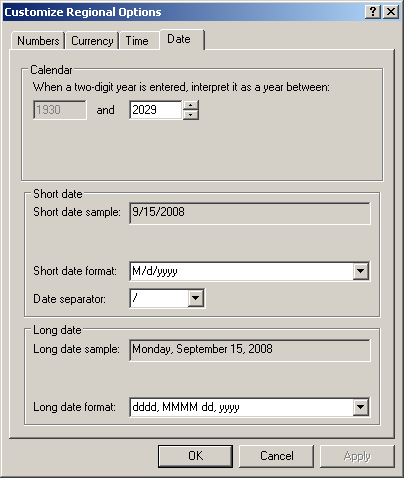
Formatting a date consists of specifying how the value would be displayed to the user. The Visual Basic language provides various options. The US English language supports two primary date formats known as long date and short date. You can check them in the Date property page of the Customize Regional Options accessible from the Regional Settings in Control Panel:
To support these primary formats, the Visual Basic language provides a function named FormatDateTime. Its syntax is:
Function FormatDateTime(
   ByVal Expression As DateTime,
   Optional ByVal NamedFormat As DateFormat = DateFormat.GeneralDate
) As String
The first argument of this function must be a valid Date value. The second argument is a member of the DateFormat enumeration. For a date, this argument can be LongDate or ShortDate. Here is an example:
Sub Main()
    Dim DateHired$

    DateHired$ = FormatDateTime("22-Aug-2006", DateFormat.LongDate)

    Console.WriteLine("Date Hired: " & DateHired)
    Return 0
End Sub
This would produce:

|
Using the Format Function |
To support more options, the Visual Basic language provides the Format() function that we saw in the previous lesson. We saw that its syntax was:
Public Shared Function Format( _
   ByVal Expression As Object, _
   Optional ByVal Style As String = "" _
) As String
Remember that the first argument is the date that needs to be formatted. The second argument is a string that contains the formatting to apply. To create it, you use a combination of the month, day, and/or year characters we saw as date formats. Here is an example:
Sub Main()
    Dim DateHired As Date = #12/28/2006#

    Console.WriteLine("Date Hired: " & Format(DateHired, "MMMM dd, yyyy"))
    Return 0
End Sub
This would produce:

|
Built-In Time Functions |
|
Introduction |
The Visual Basic language supports time values. To create a time value, you can declare a variable of type Date. To initialize the variable, create a valid value using the rules specified in the Regional and language Settings of Control Panel, and include that value between two # signs. Here is an example;
Public Module Exercise

    Sub Main()

        Dim DepositTime As Date = #7:14#

        Console.WriteLine("Deposit Time: " & DepositTime)


    End Sub

End Module
This would produce:

|
Creating a Time Value |
Instead of including the time in # signs, you can also provide it as a string. To support this, the Visual Basic language provides a function named TimeValue. Its syntax is:
Public Function TimeValue(ByVal StringTime As String) As DateTime
This function expects a valid time as argument. If that argument is valid, the function returns a time value. Here is an example:
Public Module Exercise

    Sub Main()

        Dim DepositTime As Date = TimeValue("7:14")

        Console.WriteLine("Deposit Time: " & DepositTime)


    End Sub

End Module
As an alternative to initializing a time variable, you can call a function named TimeSerial. Its syntax is:
Public Function TimeSerial(ByVal Hour As Integer, _
   			   ByVal Minute As Integer, _
   			   ByVal Second As Integer) As DateTime
This function allows you to specify the hour, the minute, and the second values of a time. If you pass valid values, the function returns a time. Here is an example:
Public Module Exercise

    Sub Main()

        Dim DepositTime As Date

        DepositTime = TimeSerial(7, 14, 0)

        Console.WriteLine("Deposit Time: " & DepositTime)


    End Sub

End Module
The Components of a Time Value
The Hours of a Day
In US English, a time is made of various parts. The first of them is the hour. The time is a 24th spatial division of a day. It is represented by a numeric value between 0 and 23. When creating a time value, you specify the hour on the left side. To get the hour of a valid time, you can call a function named Hour. Its syntax is:
Public Function Hour(ByVal TimeValue As DateTime) As Integer
This function takes a time value as argument. If a valid time is passed, the function returns the hour part.
|
The Minutes of an Hour |
An hour is divided in 60 parts. Each part is called a minute and is represented by a numeric value between 0 and 59. If you have a time value and want to get its minute part, you can call a function named Minute. Its syntax is:
Public Function Minute(ByVal TimeValue As DateTime) As Integer
When calling this function, pass it a time value. If the argument holds a valid value, the function returns a number between 0 and 59 and that represents the minutes.
|
The Seconds of a Minute |
A minute is divided in 60 parts and each part is called a second. It is represented by a numeric value between 0 and 59. If you have a time value and want to extract a second part from it, you can call the Second() function named . Its syntax is:
Public Function Second(ByVal TimeValue As DateTime) As Integer
If you call this function, pass a valid time. If so, the function would return a number represents the seconds part.
|
Operations on Date and Time Values |
|
Introduction |
Because dates and times are primarily considered as normal values, there are various operations you can perform on them. You can add or subtract a number of years or add or subtract a number of months, etc. The Visual Basic language provides its own mechanisms for performing such operations thanks to its vast library of functions.
|
Adding a Value to a Date or a Time |
To support the addition of a value to a date or a time, the Visual Basic language provides a function named DateAdd. In the Visual Basic language, the DateAdd() function comes in two versions whose syntaxes are:
Public Overloads Function DateAdd( _
   ByVal Interval As DateInterval, _
   ByVal Number As Double, _
   ByVal DateValue As DateTime _
) As DateTime
' -or-
Public Overloads Function DateAdd( _
   ByVal Interval As String, _
   ByVal Number As Double, _
   ByVal DateValue As Object _
) As DateTime
This function takes three arguments that all are required.
Because we have not studied enumerations and classes yet, we will ignore the first version.
The DateValue argument is the date or time value on which you want to perform this operation. It must be a valid Date or DateTime value.
The Interval argument is passed as a string. It specifies the kind of value you want to add. This argument will be enclosed between double quotes and can have one of the following values:
| Interval | Used To Add |
| s | Second |
| n | Minute |
| h | Hour |
| w | Numeric Weekday |
| ww | Week of the Year |
| d | Day |
| y | Numeric Day of the Year |
| m | Month |
| q | Quarter |
| yyyy | Year |
The Number argument specifies the number of Interval units you want to add to the DateValue value. If you set it as positive, its value will be added. Here are examples:
Public Module Exercise

    Sub Main()
        Dim LoanStartDate As Date = #6/10/1998#
        Dim DepositTime As Date = TimeValue("7:14:00")

        Console.WriteLine("Loan Length: " & DateAdd("yyyy", 5, LoanStartDate))
        Console.WriteLine("Time Ready: " & DateAdd("h", 8, DepositTime))


    End Sub

End Module
This would produce:


We saw that, to add a value to a date or a time, you could call the DateAdd() function. The first argument of this function takes an argument that belongs to an enumeration named DateInterval. Instead of including a character or a combination of characters in double-quotes with the likelihood of a mistake, this enumeration makes it easy by allowing you to select a member of the enumeration and use an easily recognizable name. The members of the DateInterval enumeration are:
| String Interval | Enumeration Member | Used To Add |
| s | DateInterval.Second | Second |
| n | DateInterval.Minute | Minute |
| h | DateInterval.Hour | Hour |
| w | DateInterval.Weekday | Numeric Weekday |
| ww | DateInterval.WeekOfYear | Week of the Year |
| d | DateInterval.Day | Day |
| y | DateInterval.DayOfYear | Numeric Day of the Year |
| m | DateInterval.Month | Month |
| q | DateInterval.Quarter | Quarter |
| yyyy | DateInterval.Year | Year |
Notice that by using the DateInterval enumeration as argument, the selected interval is easier to select. Here are examples:
Public Module Exercise

    Sub Main()

        Dim LoanStartDate As Date = #6/10/1998#
        Dim DepositTime As Date = TimeValue("7:14:00")

        Console.WriteLine("Loan Length: " & DateAdd(DateInterval.Year, 5, LoanStartDate))
        Console.WriteLine("Time Ready: " & DateAdd(DateInterval.Hour, 8, DepositTime))


    End Sub

End Module
|
Subtracting a Value From a Date or a Time |
Instead of adding a value to a date or a time value, you may want to subtract. To perform this operation, pass the Number argument as a negative value. Here are examples:
Public Module Exercise

    Sub Main()
        Dim LoanPayDate As Date = #8/12/2008#
        Dim TimeReady As Date = TimeValue("17:05")

        Console.WriteLine("Loan Length: " & DateAdd("m", -48, LoanPayDate))
        Console.WriteLine("Time Deposited: " & DateAdd("n", -360, TimeReady))
    End Sub

End Module
This would produce:


|
The Difference Between Two Date or Time Values |
Another valuable operation performed consists of finding the difference between two date or time values. To help you perform this operation, the Visual Basic language provides a function named DateDiff. This function allows you to find the number of seconds, minutes, hours, days, weeks, months, or years from two valid date or time values. The DateDiff function takes 5 arguments, 3 are required and 2 are optional.
The formula of the function is
Public Overloads Function DateDiff( _
    ByVal Interval As [ DateInterval | String ], _
    ByVal Date1 As DateTime, _
    ByVal Date2 As DateTime, _
    Optional ByVal DayOfWeek As FirstDayOfWeek = FirstDayOfWeek.Sunday, _
    Optional ByVal  WeekOfYear As FirstWeekOfYear = FirstWeekOfYear.Jan1 _
) As Long
This function takes five arguments, three of which are required and two are optional.
The Date1 argument can be the start date or start time. The Date2 argument can be the end date or end time. These two arguments can also be reversed, in which case the Date2 argument can be the start date or start time and the Date1 argument would be the end date or end time. These two values must be valid date or time values
The Interval argument specifies the type of value you want as a result. This argument will be enclosed between double quotes and can have one of the following values:
| Interval | Used To Get |
| s | Second |
| n | Minute |
| h | Hour |
| w | Numeric Weekday |
| ww | Week of the Year |
| d | Day |
| y | Numeric Day of the Year |
| m | Month |
| q | Quarter |
| yyyy | Year |
Here is an example:
Public Module Exercise

    Sub Main()
        Dim LoanStartDate As Date = #8/12/2003#
        Dim LoanEndDate As Date = #10/5/2008#
        Dim Months As Long = DateDiff("m", LoanStartDate, LoanEndDate)

        Console.WriteLine("Loan Start Date: " & vbTab & LoanStartDate    )
    Console.WriteLine(           "Loan End Date: " & vbTab & LoanEndDate    )
    Console.WriteLine(           "Loan Length: " & vbTab & Months & " months")

    End Sub

End Module
This would produce:

By default, the days of a week are counted starting on Sunday. If you want to start counting those days on another day, supply the Option1 argument using one of the following values: vbSunday, vbMonday, vbTuesday, vbWednesday, vbThursday, vbFriday, vbSaturday. There are other variances to that argument.
If your calculation involves weeks or finding the number of weeks, by default, the weeks are counted starting January 1st. If you want to count your weeks starting at a different date, use the Option2 argument to specify where the program should start.
We saw that we could use the DateDiff() function to get the difference between two date or time values. The first argument can be specified as a string. A better idea is to use a member of the DateInterval enumeration.
The last two arguments of this function are enumeration types. The fourth argument allows you to specify what day should be considered the first of the week. By default, in US English, the first day is Sunday. To change this, use a member of the FirstDayOfWeek enumeration. The members are:
| Enumeration Member | Constant Value | Description |
| FirstDayOfWeek.System | 0 | The compiler will refer to the operating system to find out what day should be the first. In US English, this should be Sunday |
| FirstDayOfWeek.Sunday | 1 | Sunday (the default in US English) |
| FirstDayOfWeek.Monday | 2 | Monday |
| FirstDayOfWeek.Tuesday | 3 | Tuesday |
| FirstDayOfWeek.Wednesday | 4 | Wednesday |
| FirstDayOfWeek.Thursday | 5 | Thursday |
| FirstDayOfWeek.Friday | 6 | Friday |
| FirstDayOfWeek.Saturday | 7 | Saturday |
By default, the first week of a year is the one that includes January 1st of that year. This is how it is considered in the regular date-based calculations. If you want to change this default setting, you can use the last argument of the DateDiff() function. The value of this argument is from an enumeration named FirstWeekofYear. The members of this enumeration are:
| Enumeration Member | Constant Value | Description |
| FirstWeekOfYear.System | 0 | The compiler will refer to the operating system to find out what day should be the first. This should be the week that includes January 1st |
| FirstWeekOfYear.Jan1 | 1 | This will be the week that includes January 1st |
| FirstWeekOfYear.FirstFourDays | 2 | This will be the first week that includes at least the first 4 days of the year |
| FirstWeekOfYear.FirstFullWeek | 3 | This will be the first week that includes the first 7 4 days of the year |
|
|
|||
| Previous | Copyright © 2008-2026, FunctionX, Inc. | Monday 14 February 2016 | Next |
|
|
|||